Calendars for Apple Watch is designed to streamline your schedule management and keep you stay organized even on the go. With enhanced functionality, sleek design, and convenient features, it becomes more pleasant to carry Calendars on your wrist. As a matter of fact... almost all the essentials of your life are now on your wrist.
Let us show you how to get the most out of the Calendars app on your Apple Watch so you can easily own your time and get the most out of your busy and unbusy days.
Step 1: Embrace the latest version
Ensure you have the latest version of Calendars installed on your iPhone (First and foremost, and this is important). Thus, you will get access to the refreshed Apple Watch experience.
To make it work, visit the Apple Store, update your app and prepare for seamless integration with your Apple Watch.
Step 2: Navigate your agenda
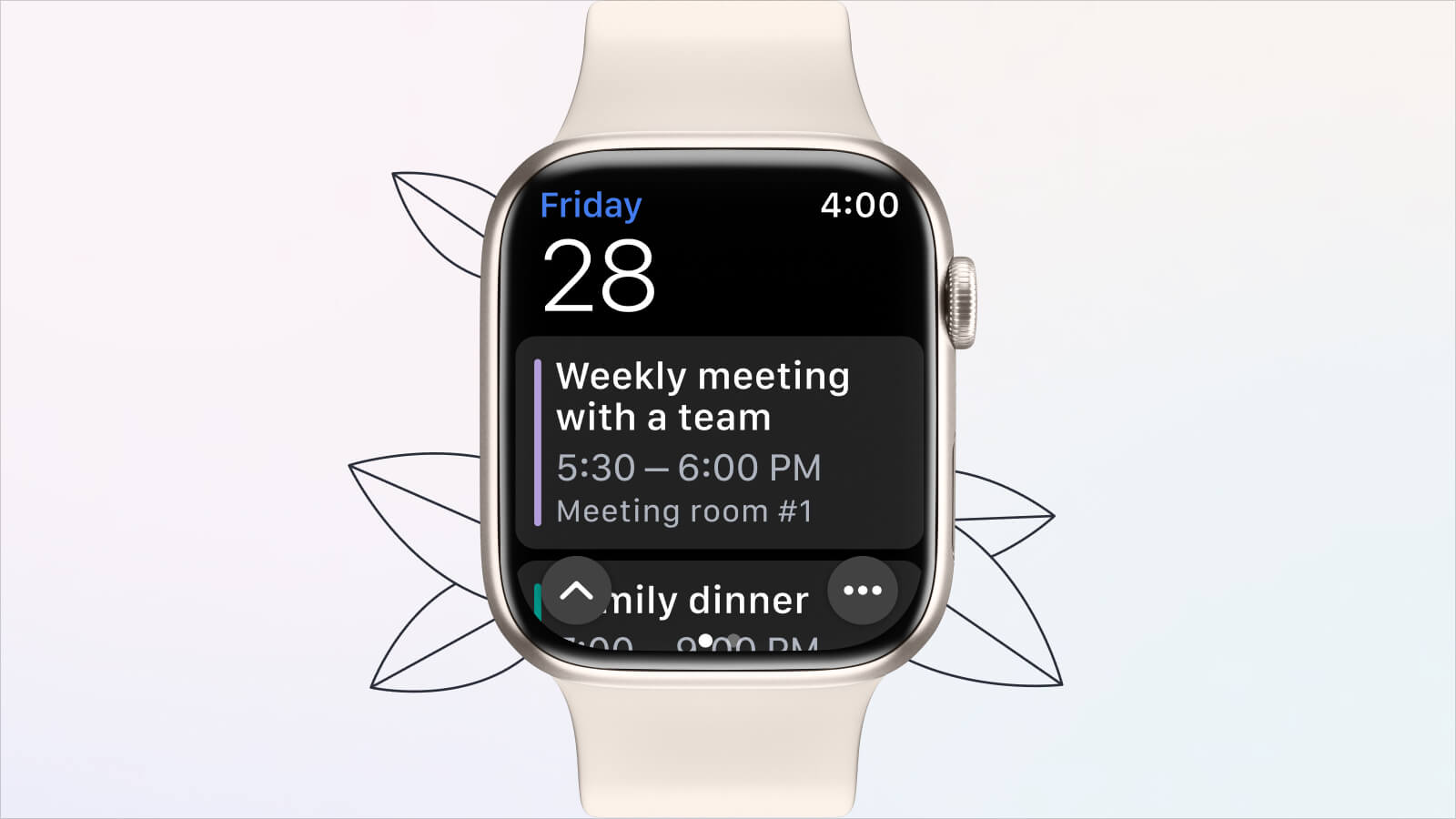 Once the app is updated, you can check your agenda right from your wrist. Whether you're sweating it out at the gym, engrossed in your studies, or conquering the daily commute, Calendars for Apple Watch provides quick and easy access to your schedule.
Simply glance at your watch face to glimpse upcoming events without reaching for your phone. Such quick access to a well-rounded overview of your schedule.
Step 3: Receive invites and stay updated
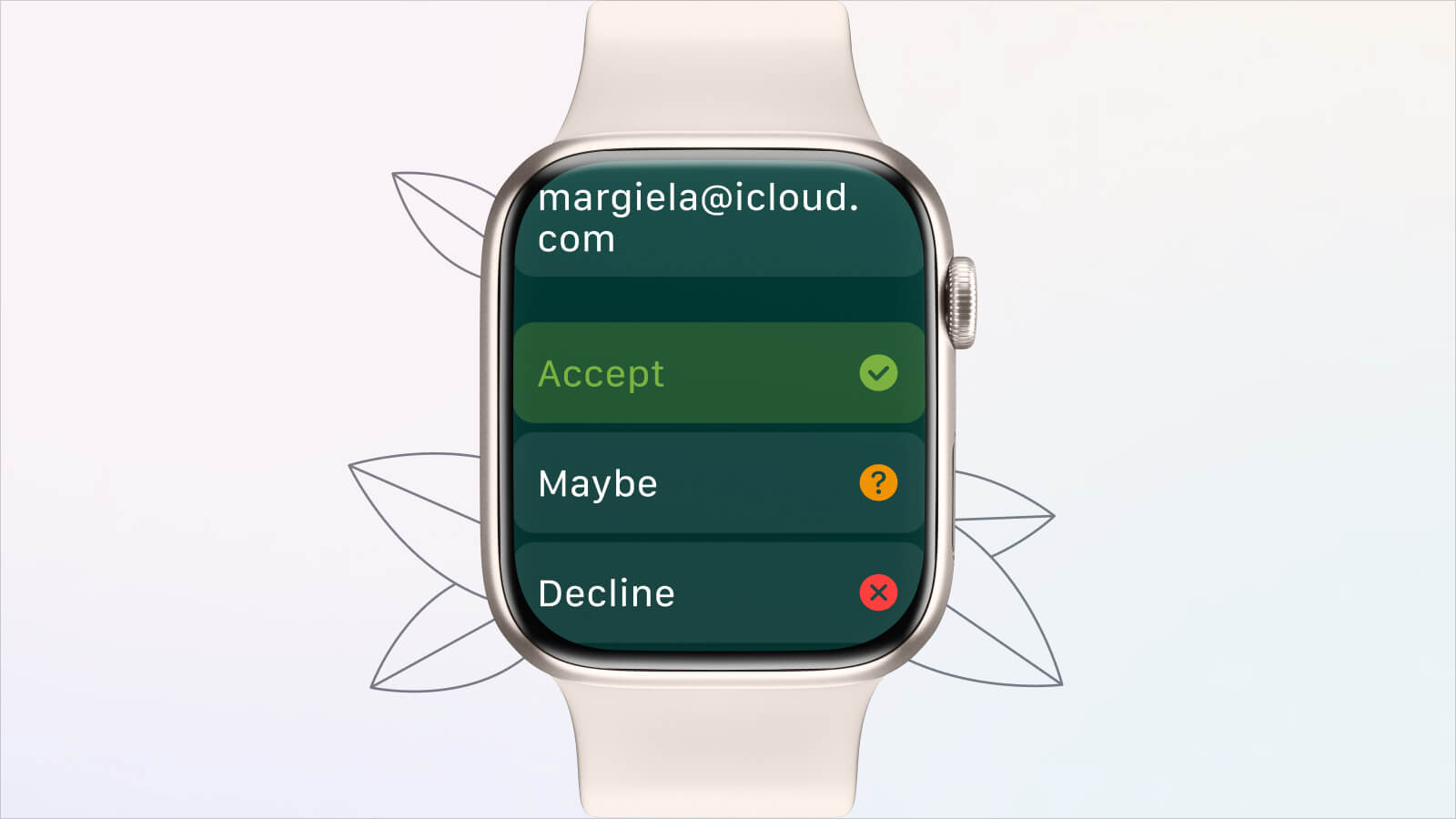
Seamlessly synchronized with your phone, the Calendars app ensures that your agenda is always up to day and even up to seconds. Swiftly respond to invites directly from your watch, effortlessly staying connected and informed regardless of your location.
Step 4: Customize your watch face
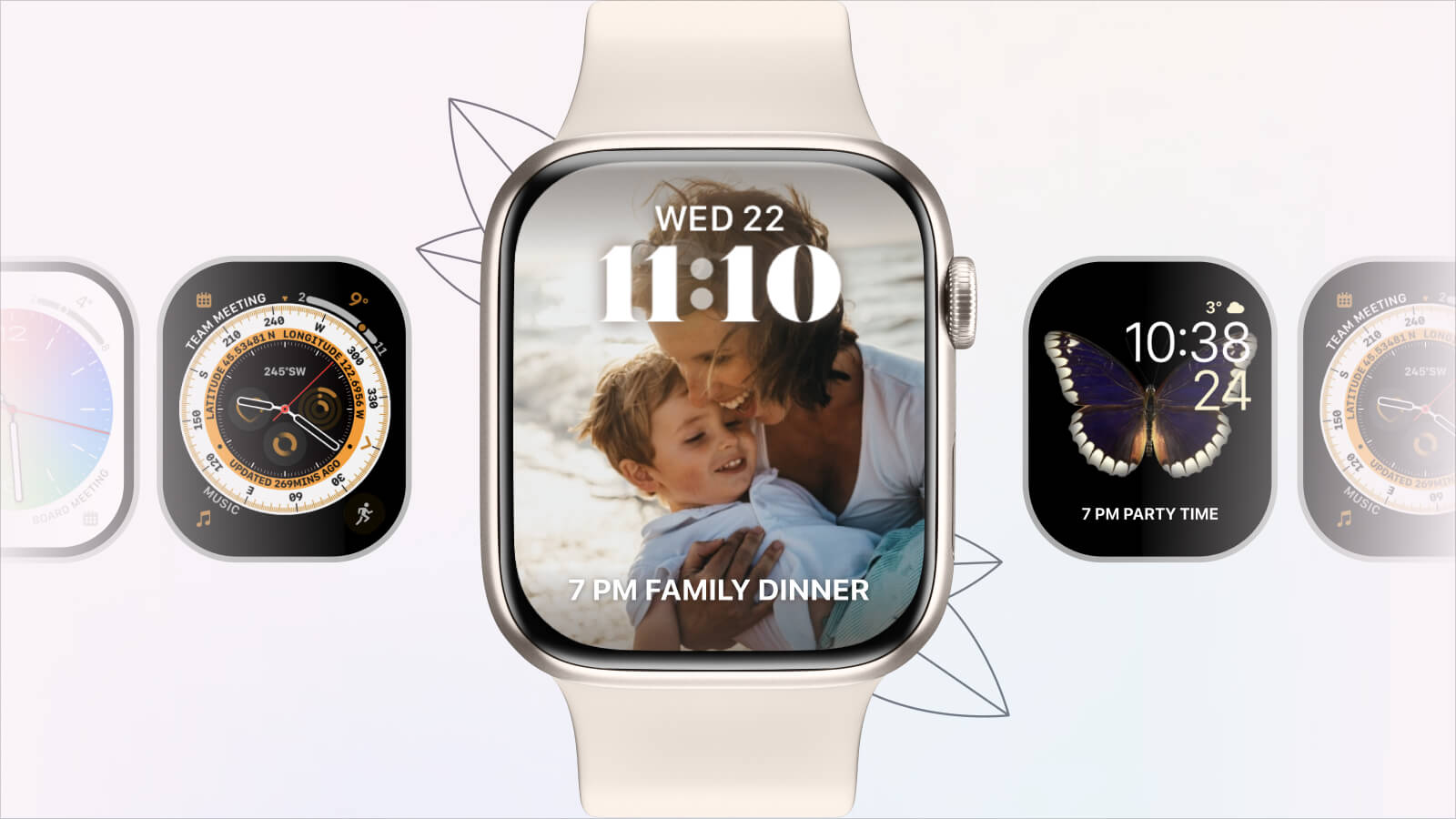
Our curated collection of six pre-designed watch faces seamlessly integrates with the Calendars app.
Simply follow the download link on your iPhone and let your preferred watch face shine without affecting your existing ones. Switch between different watch faces effortlessly, tailoring your Apple Watch up to your likeness.
Step 5: Add calendar complications
 Elevate your watch face functionality with Calendar complications, granting swift access to critical calendar information. A long tap on your Apple Watch screen > “Edit” will transport you to the watch face editing mode.
Choose an empty space or replace an existing complication with the remarkable "simplifications" of Calendars. Scroll until you find the Calendars option and verify the matching icon. Upon completing the editing process, revel in instant access to your essential calendar details directly on your watch face.
Step 6: Streamlined views and task management
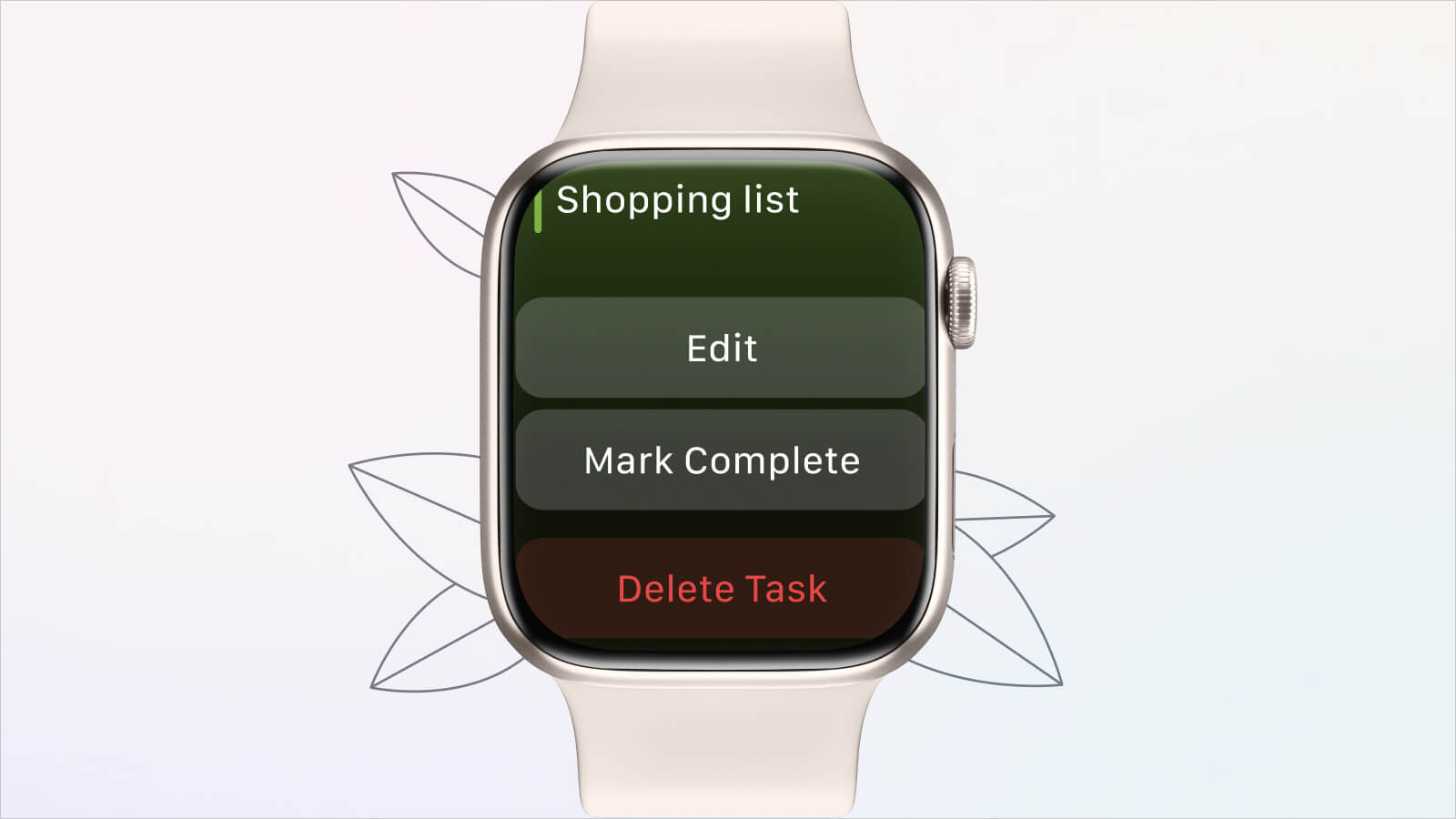
Embrace the elegance of the agenda (list view) or opt for the minimalist charm of the month view, catering to your personal preference. Stay in control of your tasks by marking them as complete, editing, or swiftly deleting them—all achieved conveniently from your watch. With the task list view, you'll conquer your appointments and to-dos with ease, even while on the move.
Conclusion
Calendars is the best app calendar for Apple Watch and makes your time working on your side. The latest version combines simplicity, convenience, and intuitive design to help you stay organized wherever you are.
Note: To enjoy the new features and functionalities mentioned in this guide, ensure that you have the latest version of the Calendars app installed on your iPhone, as well as the updated version for Apple Watch.
