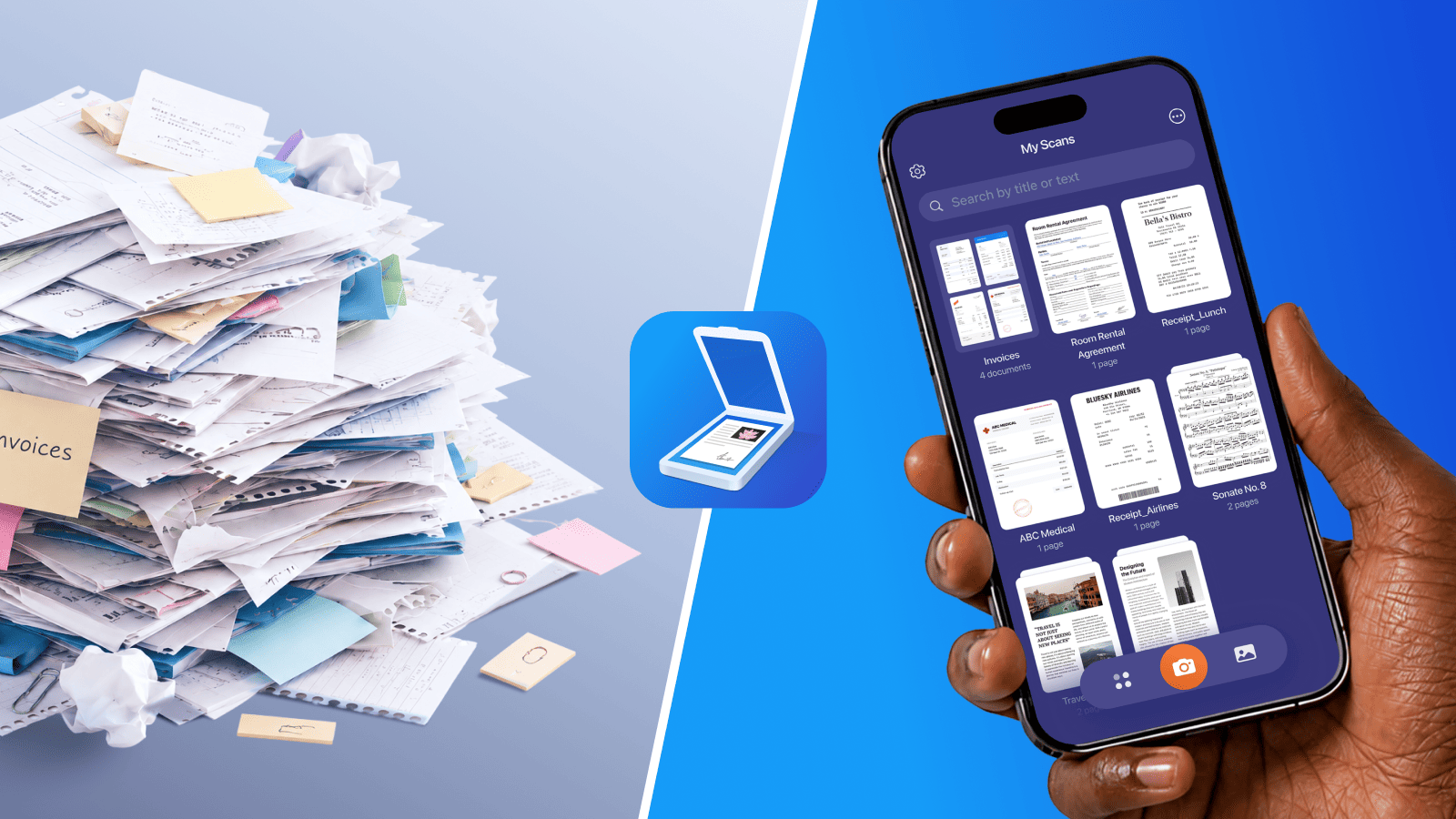
Most paper piles exist because there's no obvious answer for each piece that arrives. You put it down temporarily, and it temporarily becomes permanent. This guide covers two things: a fast way to sort through what's already there, and a digital workflow with Scanner Pro that keeps new paper from building up in the first place.
Start with a simple sort
Before you scan anything, you need to know what you have. Pull everything together: kitchen counter papers, desk drawers, the nightstand pile, the folder you've been avoiding, and put it all in one place.
Sort into four categories:
Toss. Old takeout menus, expired coupons, duplicate statements, old receipts. If you don't need it, it goes straight to recycling or trash.
Shred. Anything with account numbers, Social Security numbers, or medical details. Don't skip this to avoid real privacy risk.
Act on. Bills due this week, forms you need to fill out. This is the small pile that needs your attention today.
Digitize. Documents you need to keep but don't need physically: tax returns, insurance policies, medical records, kids' school papers, warranties, contracts. This is usually the largest pile, and where Scanner Pro earns its place.
A common point of failure with paper systems is leaving the "digitize" pile physical. If you set it aside with good intentions, months later it's the new pile. The fix is to scan it immediately, while you're already there.
How to digitize your paper backlog with Scanner Pro
Scanner Pro turns your iPhone or iPad into a document scanner that produces clean, searchable PDFs. Open the app, tap the orange Camera button, and hold your phone over a document. The app detects edges automatically and captures the scan when the document is in frame.
Batch scan multi-page documents. You don't have to scan one document, save it, then start over. Tap the camera and keep adding pages. Scanner Pro builds a multi-page PDF as you go, so a 5-page contract becomes one organized file.
Let Smart Categories sort for you. Scanner Pro automatically classifies documents: invoices, receipts, contracts, medical records, bills, tax forms, business cards,and you can search by category even when file names aren't descriptive.
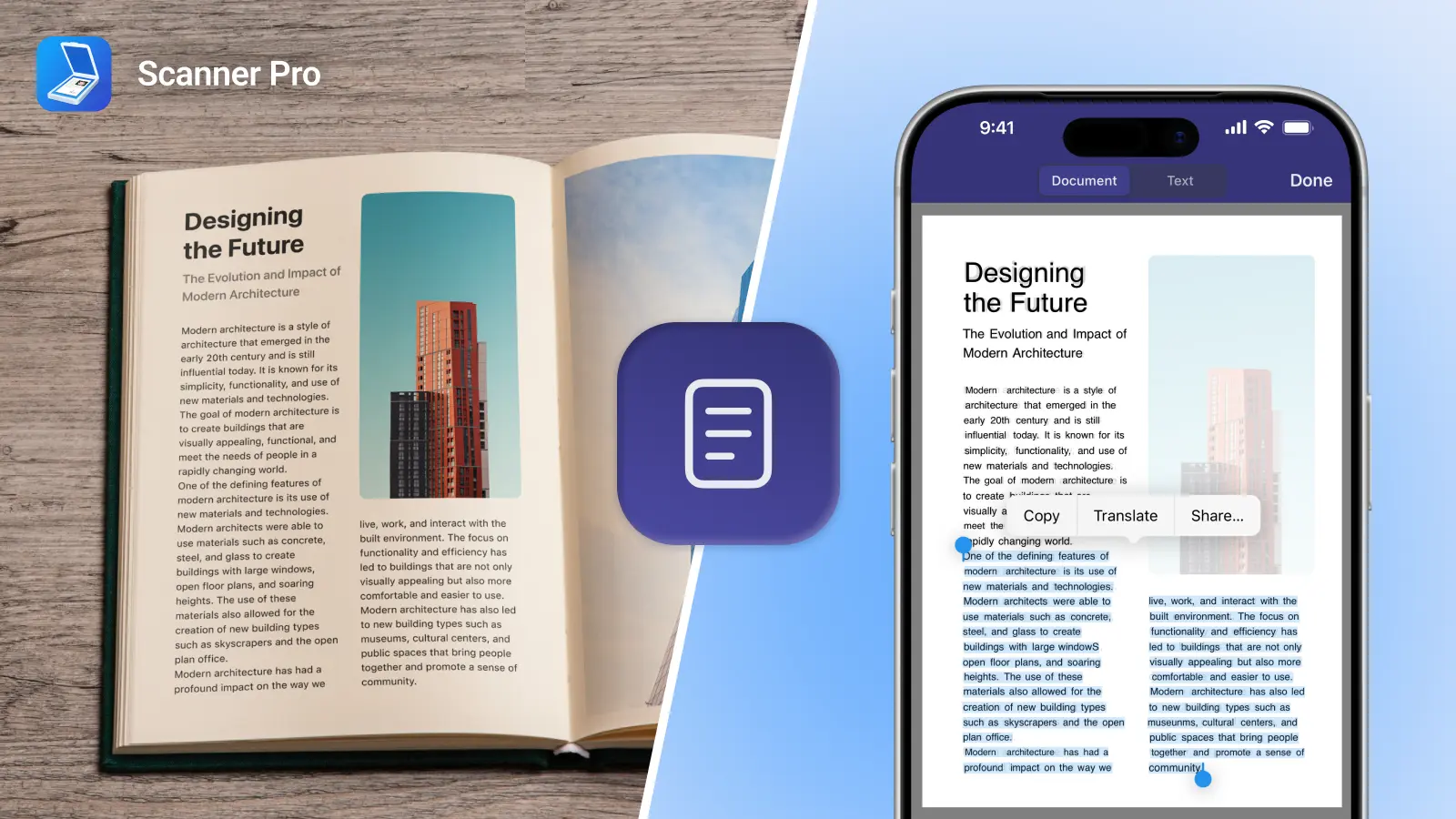
Run OCR on everything. Scanner Pro's OCR processes scans on-device, with no data sent to external servers, and makes every document fully text-searchable in 26 languages. Search "State Farm" and your insurance policy appears immediately, regardless of what you named the file.
Name as you go. After scanning, tap the filename at the top of the screen and rename it before moving on.
Build a folder structure that matches your life
In Scanner Pro, tap the three dots in the top right, then New Folder. Here's a starting point that works for most households:
- Financial – tax returns, bank statements, investment accounts
- Insurance – home, auto, health, life policies
- Medical – records, vaccination history, prescriptions
- Home – mortgage documents, warranties, appliance manuals
- Kids – school records, milestone artwork, certificates
- Identity – passport copies, birth certificates
You can also create folders by dragging one scan directly over another in the main screen: a folder prompt appears automatically.
The workflow that prevents the next pile
These things prevent the next pile:
A 10-minute weekly habit. Pick one day, like Sunday evening or Friday afternoon, and process the week's incoming paper. Gather anything that landed on surfaces, sort into Toss/Shred/Act/Digitize, and scan the "Digitize" pile. The habit has to happen regularly to work.
Smart Workflows for automatic filing. Scanner Pro Plus includes a Workflow automation engine. You build a chain of actions once, then trigger all of it with a single tap after scanning. For receipts, set a workflow that renames the file "Receipt-[Month]-[Year]," saves it to your "Financial/Receipts" folder, and uploads to Google Drive. Scan once; the workflow handles the rest.
Auto Upload for cloud backup. In Settings > Services, connect Google Drive, Dropbox, iCloud Drive, Box, or OneDrive. Enable Auto Upload and every new scan goes to the cloud automatically: no manual exporting required. Your documents are backed up before you close the app.
FAQ
What is the 5-5-5 rule for decluttering?
It asks three questions about each item: сould it be replaced for under $5? In less than 5 minutes? Would I actually replace it in the next 5 months? If yes to all three, toss it.
What is the 50% rule in decluttering?
Commit to discarding at least half of what you have in a category before deciding what to keep. It breaks the tendency to hold everything just in case.
What is the hardest thing to get rid of when decluttering?
Sentimental items, like handwritten letters, kids' first drawings, cards from people who've passed. Scanning these before letting go of the physical copies helps: the memory is preserved without the paper pile.
How do I keep paper organized after I've sorted it?
A single physical inbox where all incoming paper lands temporarily, plus a weekly processing habit. Nothing lives in the inbox indefinitely. Paper gets processed once a week: scanned, acted on, or tossed.
Can Scanner Pro handle receipts for expense tracking?
Yes. The Expense Report feature extracts vendor, date, amount, tax, and category from scanned receipts and generates a PDF or CSV report—useful for freelancers and small business owners tracking expenses for taxes.
Does Scanner Pro work on iPad?
Yes. Scanner Pro runs on iPhone (iOS 17.0+), iPad (iPadOS 17.0+), and Apple Vision Pro (visionOS 1.0+).