Time is one of your most valuable resources, but managing it well can feel harder than ever. With constant notifications, multitasking, and shifting priorities, it’s easy to feel busy without feeling productive. That’s where proven time management methods help.
Time management, at least in the real world, isn’t about becoming a productivity robot. It’s a mix of strategy, tools, and habits that help you decide what actually matters, protect time for those things, and then follow through without burning out.
When that mix works, productivity tends to go up, stress tends to go down, and your evenings stop feeling like cleanup for everything you didn’t manage to do between nine and five.
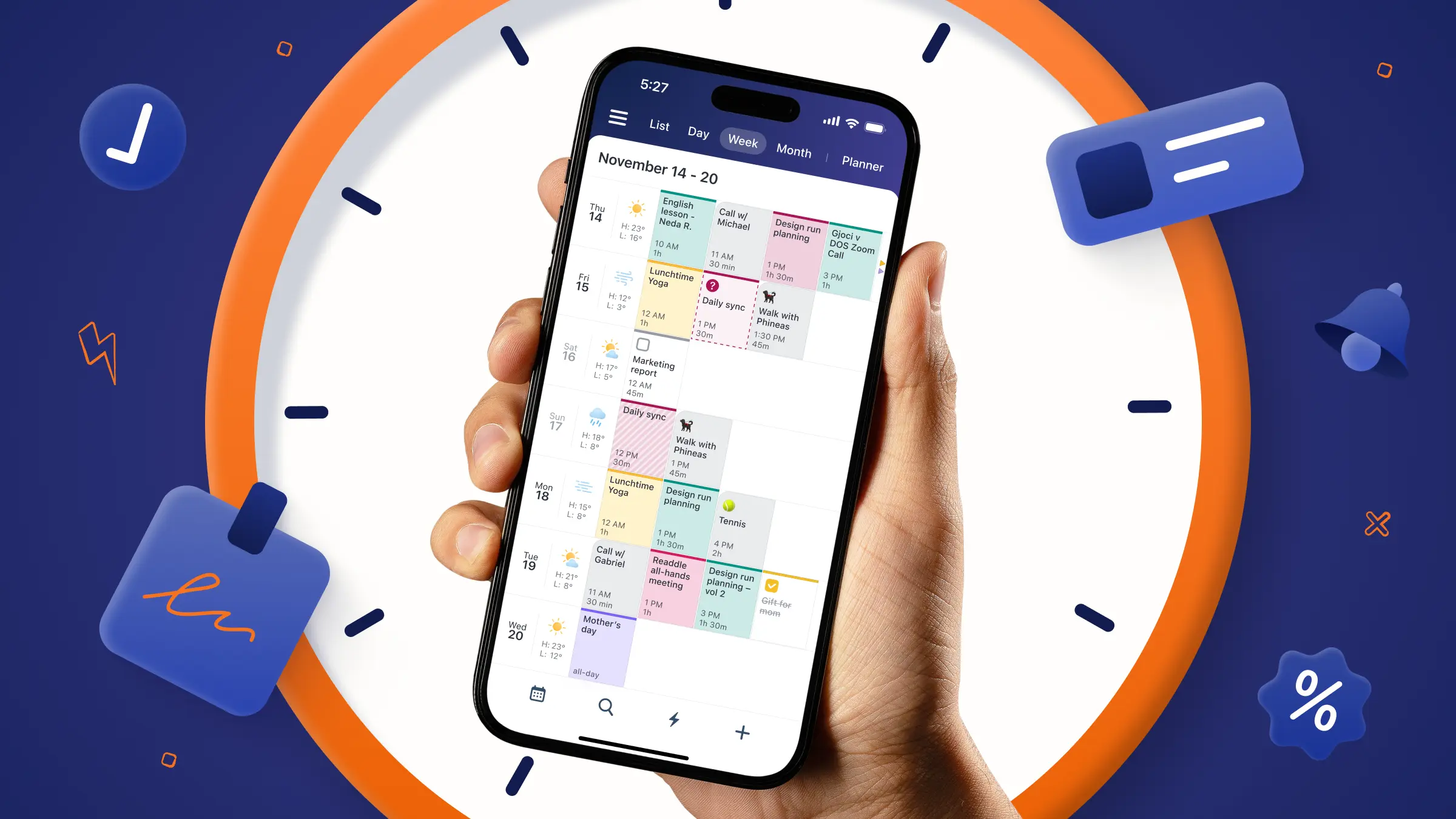
The catch is that even the best method needs a place to live day to day. That’s usually your calendar, whether you’re time blocking, batching tasks, or just trying to keep your week from turning into a blur. Calendars brings your events and tasks into one view, so whatever system you use is easier to plan and easier to stick to.
With that in mind, this article takes a tour through the most useful time management methods in modern productivity culture - Pomodoro, Eisenhower Matrix, time blocking, GTD, Eat That Frog, Kanban and more and shows how they can actually fit into everyday life when they’re backed by a tool like Calendars.
What are time management methods, really?
It helps to separate them into three layers: strategy, techniques, and skills.
Strategy
Your strategy is the big-picture approach.“Prioritize before you schedule” is a strategy. So is “batch similar tasks” or “do the hardest thing first.”
Techniques
Techniques are the branded, named methods that tend to dominate blog posts and YouTube thumbnails: the Pomodoro Technique, the Eisenhower Matrix, time blocking, GTD, Kanban. They’re specific recipes.
Skills
Skills sit underneath everything. Prioritization, planning, estimating how long things will take, communicating boundaries, and delegating work aren’t methods you “do once.” They’re muscles you build over time.
One way to think about it: your strategy is the operating system, the techniques are the apps, and your skills are the processor. If any one of those is severely underpowered or out of date, the whole experience lags.
A calendar app doesn’t magically give you skills, but it’s where all three layers meet. In Calendars by Readdle, your strategy shows up as the way you structure your week, your techniques are visible in how you block time and schedule tasks, and your skills determine whether you actually honour those blocks or constantly reschedule them into oblivion.
The four main types of time management methods
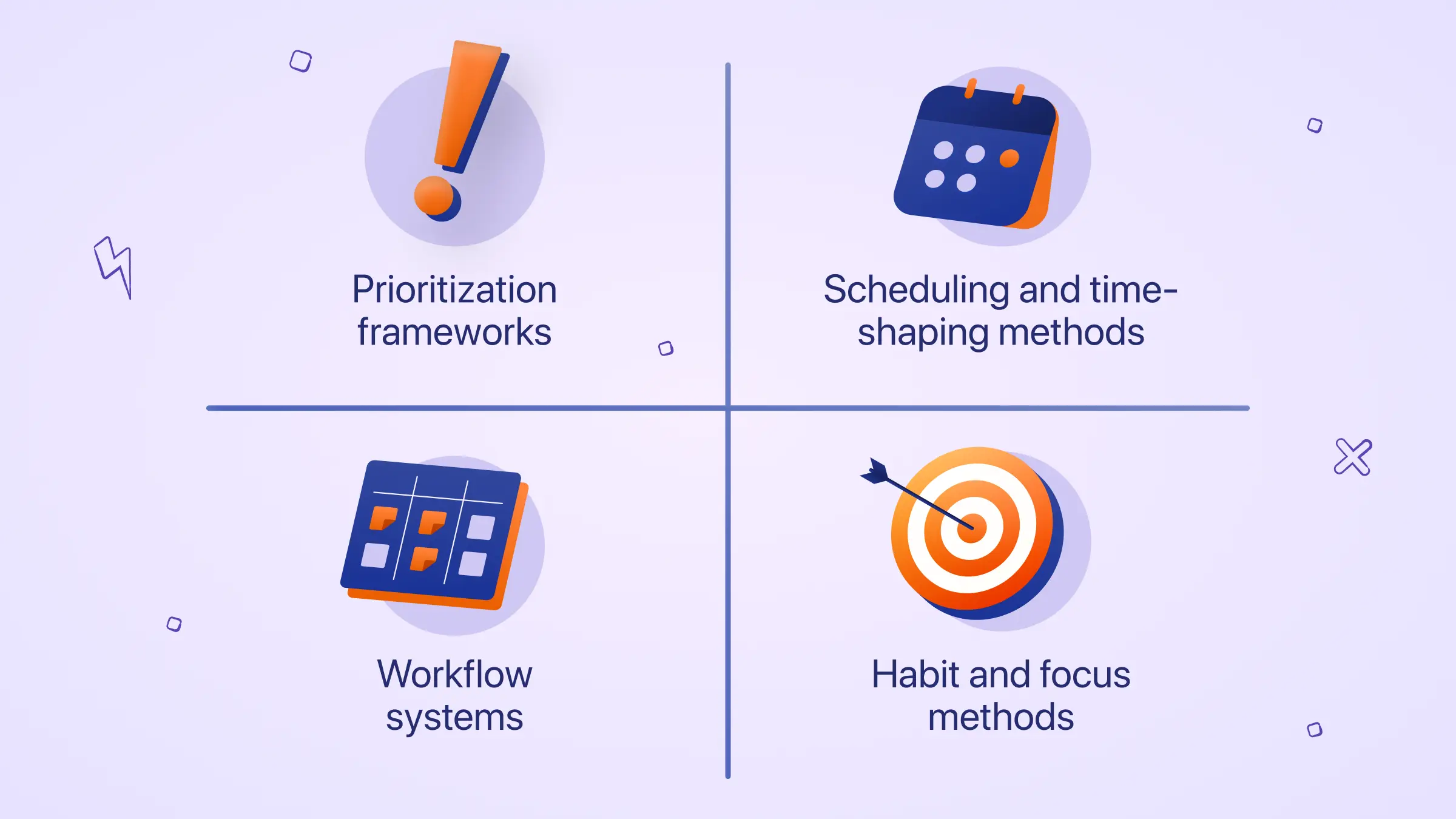
If you zoom out across academic guides, productivity blogs, and the more thoughtful corners of Reddit, most time management methods fall into four big buckets:
- Prioritization frameworks
- Scheduling and time-shaping methods
- Workflow systems
- Habit and focus methods
They’re not mutually exclusive. In fact, the most effective setups borrow at least one from each category.
Prioritization frameworks: deciding what deserves your time
Before you argue about where a task goes on your calendar, you need to decide whether it belongs there at all.
The Eisenhower Matrix
The Eisenhower Matrix is a classic example of a prioritization framework.
You split your tasks into four boxes: urgent and important, important but not urgent, urgent but not important, and neither. The idea is simple but uncomfortable: most of us spend too much time reacting to what’s loud and not enough time on what actually matters over the long term.
Quadrants:
Do Now: urgent + important
Schedule: important but not urgent
Delegate: urgent but less important
Eliminate: not urgent + not important
Example scenarios:
Do Now: Submit client report.
Schedule: Prepare next month’s strategy.
Delegate: Ask assistant to draft slides.
Eliminate: Check social media notifications.
Practically, you might sketch the matrix on paper at the start of the week, then move the “important” items into Calendars as either dated tasks or actual time-blocked events.
The non-important but urgent noise? That either gets delegated, batched into a small window, or removed from the calendar altogether. You’re using Calendars as the gatekeeper: only tasks that pass the “important” test earn a protected spot.
|
How to do it in Calendars Do the matrix on paper or in a note, then move your tasks into Calendars as events or tasks for the week ahead. You can:
Setting it up this way, you'll see that the quadrant that usually gets neglected becomes a visible part of your actual schedule. |
Pareto analysis
Pareto analysis, better known as the famous 80/20 rule, is less visual but just as ruthless. You list out the tasks or projects on your plate and ask which 20 percent will generate 80 percent of the results you care about. Those few tasks get prime slots in your calendar; everything else gets whatever’s left over. In a tool like Calendars, that might mean starring the 20 percent that really matter, then dragging only those into your most focused parts of the day, leaving the rest to fill in gaps.
|
How to do it in Calendars
|
Eat that Frog
Then there’s Eat That Frog, which sounds like a TikTok challenge but is really just the commitment to do the most important, most uncomfortable task first. You pick your “frog” the day before and give it a visible, non-negotiable block at the start of your day in Calendars. When 9am hits, you’re not debating what to do—you already made that decision yesterday.
Some people pair Eat That Frog with the Pickle Jar theory, which divides your day into rocks (high-value tasks), pebbles (nice-to-do), and sand (distractions and trivia).
Calendars is particularly handy here because you can literally make your “rocks” visible: long, solid blocks on your calendar. Pebbles become smaller blocks that fit around them. Sand doesn’t get scheduled at all, or it gets shoved into one small, clearly labeled corner instead of spilling everywhere.
|
How to do it in Calendars In Calendars, this might look like:
Because Calendars makes it easy to drag and drop events and tasks, reshuffling your jar midweek when life inevitably changes is painless. |
Scheduling and time-shaping: designing the shape of your day
Once you know what matters, the next set of methods focuses on when you’ll actually do the work and how your day should feel.
Time blocking
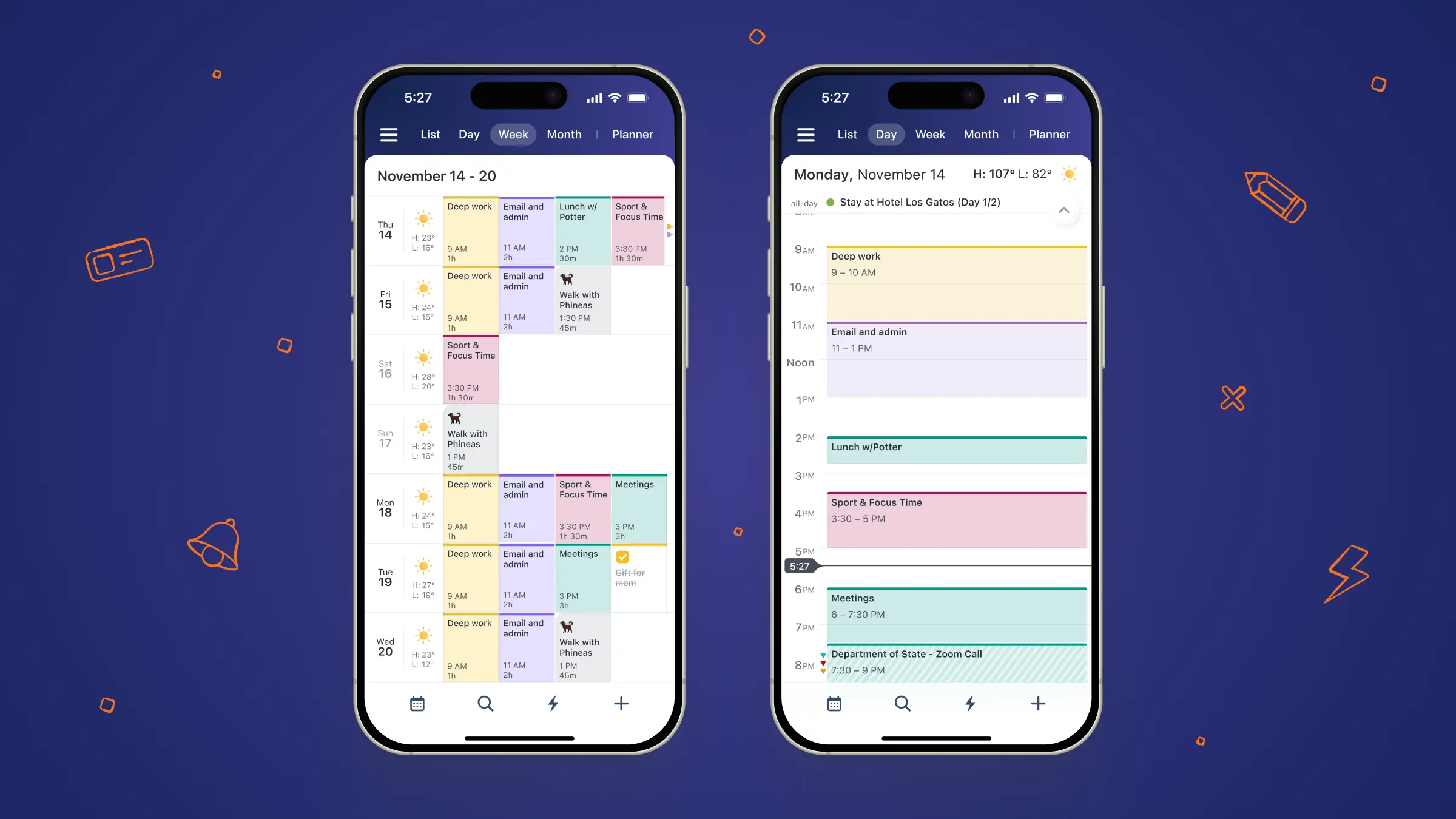
Time blocking is the most straightforward. You split your day into broad blocks—deep work, admin, meetings, learning—and assign types of work to each. It’s less about individual tasks and more about protecting stretches of time for focused work.
Calendars lends itself to this: you can create recurring “Deep work” events in the morning, “Email and admin” after lunch, “Meetings” in the afternoon, and drag tasks into the relevant windows.
Timeboxing
Timeboxing tightens that up. Instead of “Deep work, 9–11,” you give specific tasks a defined start and end inside those blocks: write the draft from 9:00 to 9:45, revise slides from 9:50 to 10:30, that sort of thing. The fixed time forces you to work within constraints instead of letting projects expand to fill the entire morning. On a screen, it looks like a series of chunky tiles across your day.
In Calendars, it actually feels like Tetris: you drag tasks onto your day, stretch them to the right length, and see instantly whether you’re trying to cram too much into a single afternoon.
|
How to do it in Calendars Calendars is built for this style of planning:
|
Pomodoro technique
The Pomodoro® Technique standardizes this even further: 25 minutes of focused work followed by a five-minute break, with a longer break after four rounds.
You don’t have to micromanage your entire calendar with 25-minute events, but many people find it useful to schedule one or two 90-minute “Pomodoro sessions” in Calendars, then run the sprints using a separate timer. The calendar tells you what you’ll be working on; the timer enforces how you’ll work.
What matters with all of these is that your calendar isn’t just a list of meetings imposed on you by other people. It becomes a map of your intentions. As soon as you start treating your tasks as blocks of time that actually need space on the calendar, you stop being surprised when 15 hours of todo items don’t fit into a seven-hour workday.
|
How to do it in Calendars Calendars doesn’t need a special Pomodoro feature for this to work. You can:
|
Workflow systems: keeping everything connected
If prioritization frameworks and scheduling methods are about deciding and planning, workflow systems are about keeping the whole machine moving.
Getting things done
Getting Things Done (GTD) is the heavyweight here. At its core, GTD is a five-step loop: capture everything that has your attention, clarify what each item means and what the next action is, organize those actions into lists and contexts, review regularly, and then engage with the right task in the moment.
There are five steps: Capture → Clarify → Organize → Reflect → Engage
Example:
Capture: Add “Call supplier about invoice” to your task list.
Clarify: Determine if it’s urgent or can be scheduled.
Organize: Assign a due date and category.
Reflect: Weekly review to ensure no tasks are forgotten.
Engage: Complete the call at the scheduled time.
You don’t have to adopt GTD in its purest form to benefit from the basic structure.
|
How to do it in Calendars Calendars works nicely as the home for the “organize” and “engage” steps:
Think of Calendars as your GTD “hard landscape”—the commitments and focus blocks you’ve actually put on the calendar—while your broader project lists can live in Reminders, Google Tasks, or another app that syncs in. |
Kanban
Kanban systems work from a different angle. Instead of lists, you have columns—typically “Backlog,” “To Do,” “In Progress,” and “Done”—and you move cards from left to right as work progresses. It’s great for visualizing bottlenecks and limiting how much you’re trying to do at once.
Most people use a dedicated Kanban tool for the board itself, but there’s still a role for your calendar.
If you’ve got ten cards sitting in “In Progress,” you can’t do them all today; Calendars becomes the reality check. You pick two or three, give each a clear slot on your calendar, and ignore the rest for now. It’s a simple way to force your Kanban system to acknowledge the physical limits of the day.
|
How to do it in Calendars You might still run your Kanban in tools like Trello, Jira, or Notion, but Calendars is where you timebox it:
|
SMART
SMART goals and project planning plug into these systems too. “Write more” doesn’t belong on a calendar; “Draft 1,000 words for chapter three on Tuesday from 9:30 to 11:00” does. The moment you can name a clear outcome and estimate a chunk of time, you can drop it into your week in Calendars and see where it fits.
Habit and focus methods: protecting your attention
The last group of methods is less about structure and more about behaviour - what you actually do when you sit down at your desk.
Time auditing
A time audit is a good starting point. For a few days, you write down what you’re actually doing in 30-minute chunks. It’s rarely comfortable reading. You discover that the “quick check of email” at 9am quietly turned into an hour, or that the task you scheduled for 45 minutes consistently takes two hours.
|
How to do it in Calendars With Calendars, you can:
|
Routines help reduce the startup friction. One of the powerful things about Calendars "Shortcuts" is that user needs manually drag them onto the timeline which creates the same "social contract' effect, maximizing chances of getting them done. On the opposite - a "recurring event" can serve the same purpose but they are populated automatically, so that "social contract" effect doesn't come into play.
Instead of deciding every day when you’ll write, when you’ll exercise, or when you’ll do admin, you can set up shortcuts in Calendars for the things you do regularly so scheduling becomes a breeze.
The routine might be as simple as: deep work every weekday morning, meetings after 11, email in two short windows in the afternoon. Over time, your brain starts to associate those blocks with specific modes, and it’s easier to drop into focus without a 20-minute warm-up.
Not-to-do-list
Then there’s the not-to-do list. Most people’s calendars are full of things they’ve agreed to; very few have a visible record of what they’re declining.
You can give that idea physical form by creating an all-day event called “No meetings after 3pm,” or by blocking off the first hour of the day as “No email, no Slack.” It sounds silly, but it works: once that block is on your calendar, breaking it feels like an active choice rather than a passive slide.
|
How to do it in Calendars A not-to-do list—explicitly listing the apps, meetings, or tasks you’re refusing—acts as a firewall for your attention. You can keep this as:
|
Delegation
Delegation fits here as well. If everything on your calendar has your name on it, you’re probably holding onto tasks that don’t actually require you.
One simple trick is to label events and tasks clearly when you’re not the person doing the work: “Follow up: design team to send mockups,” for example, with a small slot in your calendar reserved for checking in. You’re scheduling the follow-up, not the work itself.
So which time management method is actually best?
Here’s the unglamorous answer: the best time management method is the one you will realistically use, consistently, with the tools you already have.
That said, the setups that tend to survive more than a few weeks usually have the same shape. They use one prioritization method to decide what matters, one scheduling method to protect time for it, one workflow system to keep everything organized, and one or two habit-and-focus tricks to stop it all falling apart at 3pm.
A simple version might look like this:
- On Sunday, you spend ten minutes doing an Eisenhower-style review of your tasks and projects. You move the important ones into Calendars as tasks and blocks, time blocking your weekdays so that mornings are for deep work and afternoons are for meetings and admin.
- During those deep work blocks, you run Pomodoro sprints so you’re working in focused bursts instead of slowly dissolving into multitasking.
- In the background, you use Calendars as the hub for your GTD-lite system: tasks from Reminders or Google Tasks sync in, and you drag next actions into the days where they’ll actually happen.
- You don’t have to give this stack a name or write it on a whiteboard. You just need it to be simple enough that you keep doing it.
If you’re already overwhelmed, don’t try to adopt everything at once. Pick one prioritization method—Eisenhower or Pareto—and pair it with one scheduling approach—time blocking or a couple of daily focus blocks in Calendars. Run that for two weeks. Once it feels natural, add one more piece.
Where Calendars by Readdle fits in
A lot of these methods can live in a notebook. But if your day already runs through your phone, laptop, and watch, having a dedicated app that plays nicely with that ecosystem makes a difference.
Calendars by Readdle is built to be that hub rather than just another box to tick. It pulls in your existing calendars—Google, iCloud, Outlook—so you’re not rebuilding anything from scratch. Tasks from Apple Reminders or Google Tasks can sit alongside your events, which means your to-do list is no longer floating in space; it’s attached to actual time.
Because you can drag tasks onto your day, stretch them to set durations, and move them around as plans change, time blocking stops being a theoretical exercise. Creating routines is just a matter of making an event recurring. “Eat that frog” becomes a visible block at the top of your morning. Timeboxing turns your day into a series of intentional tiles instead of one long blur.
And crucially, all of this works across your iPhone, iPad, Mac, and Apple Watch. Your “system” isn’t something you check only when you’re at your desk; it’s the same view of your time that follows you around.
Treat your schedule like a live beta
Time management isn’t about squeezing every drop out of your day. It’s about making sure the drops you squeeze go into the right things.
You don’t need a perfect system to start. What you need is something good enough to test, a tool that makes it visible, and a commitment to review and adjust instead of abandoning the whole experiment the first time a day goes sideways.
Think of the next few weeks as a live beta of your schedule. Ship a small change—a weekly review, a couple of deep work blocks in Calendars, one new prioritization habit. Watch how it behaves in the wild. Fix the bugs. Iterate.
That’s how software improves. Your time management can work the same way.