Document management is just knowing where your stuff is. That's it.
You have documents. Receipts, contracts, medical records, tax forms, warranties. Document management means you can find them when you need them. Doesn't matter if they're paper or digital. The system works if you can put your hands on a specific document in under a minute.
Most people start with a shoebox of receipts or a filing cabinet they avoid opening. Papers pile up. You spend twenty minutes looking for last year's tax return. You can't find the warranty when the dishwasher breaks. You miss a deadline because the contract is buried somewhere.
A good system fixes this. Everything has a place, and you know where that place is.
Digital document management means:
- You can search your files by keyword instead of digging through folders
- Your documents are backed up so you won't lose them
- You can pull up a file on your phone while you're sitting in a meeting
- Sharing a document takes three seconds instead of a trip to the copy shop
This works whether you're organizing personal receipts, managing client files for work, or trying to keep business invoices from taking over your desk. And here's the thing: going digital is the fastest way to actually get control of the mess.
Why This Actually Matters
Paper creates problems you don't notice until you need something urgently.
The average person spends 150 hours a year looking for lost information. That's almost four full work weeks. Important documents get damaged. Or thrown away by accident. Or just... disappear. Filing cabinets eat up space in your home or office. And when you desperately need a document (the signed contract, the medical record, the receipt from six months ago) it's never where you left it.
Physical storage has hard limits. Paper degrades over time. Fire or water damage can destroy everything. If you need to share a document, you're making copies or scanning at a print shop or hoping the fax machine works.
Digital files don't have these problems. They don't degrade. They take up zero physical space. You can back them up automatically to three different places. Search works. Type a few keywords and find the exact document in seconds. Cloud storage means you access files from anywhere. Password protection keeps sensitive stuff secure.
But the biggest reason to go paperless? You won't lose things. A physical document disappears and it's gone forever. A digital file backed up to the cloud?
You'd have to actively try to lose it.
How to Digitize Your Documents
The process is simpler than you think. You scan stuff.
Take a photo of each document with your phone and save it as a PDF. That's digitizing. Modern phones have good enough cameras that you don't need a dedicated scanner anymore. Contracts, receipts, forms, handwritten notes. Your phone handles all of it.
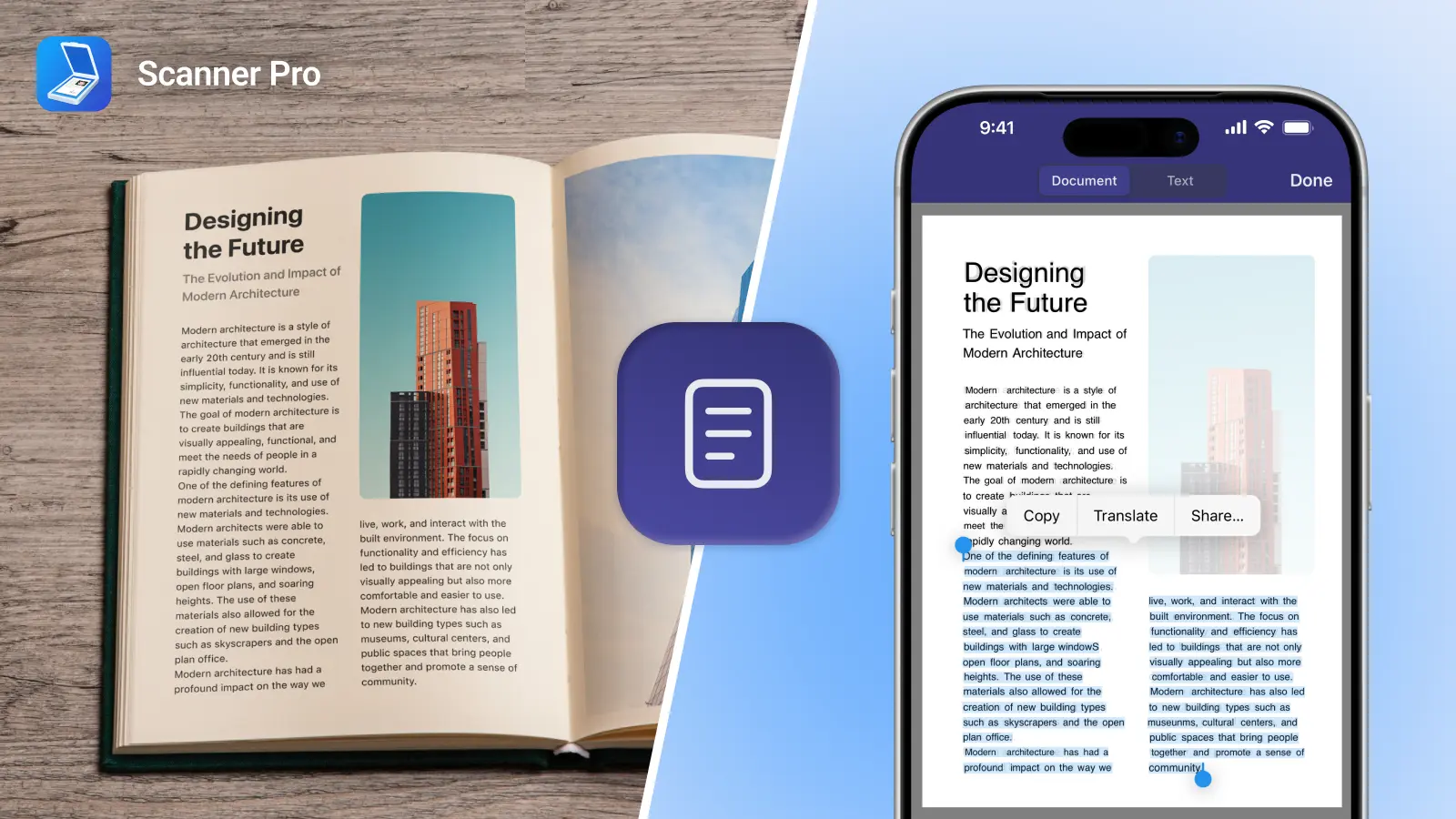
Here's how it works: Open your Scanner Pro app. Put the document on a flat surface with decent lighting. The app detects the edges, crops out the background, straightens the perspective so the page looks right. Most apps let you pick black and white for text or color for forms. Then you save it.
Once it's scanned, you can search it. Text recognition (OCR) reads the words in your document, so typing "2024 electric bill" pulls up the right file even if you named it something random. You can rename files, drop them into folders, upload them to cloud storage for backup.
Scanner Pro does this on iPhone and iPad with OCR that works in 31 languages, automatic edge detection that happens in real time, and shadow removal that fixes bad lighting. Everything processes on your device. No document data leaves your phone. Matters for medical records, tax forms, legal contracts, anything you wouldn't want floating around on someone else's server.
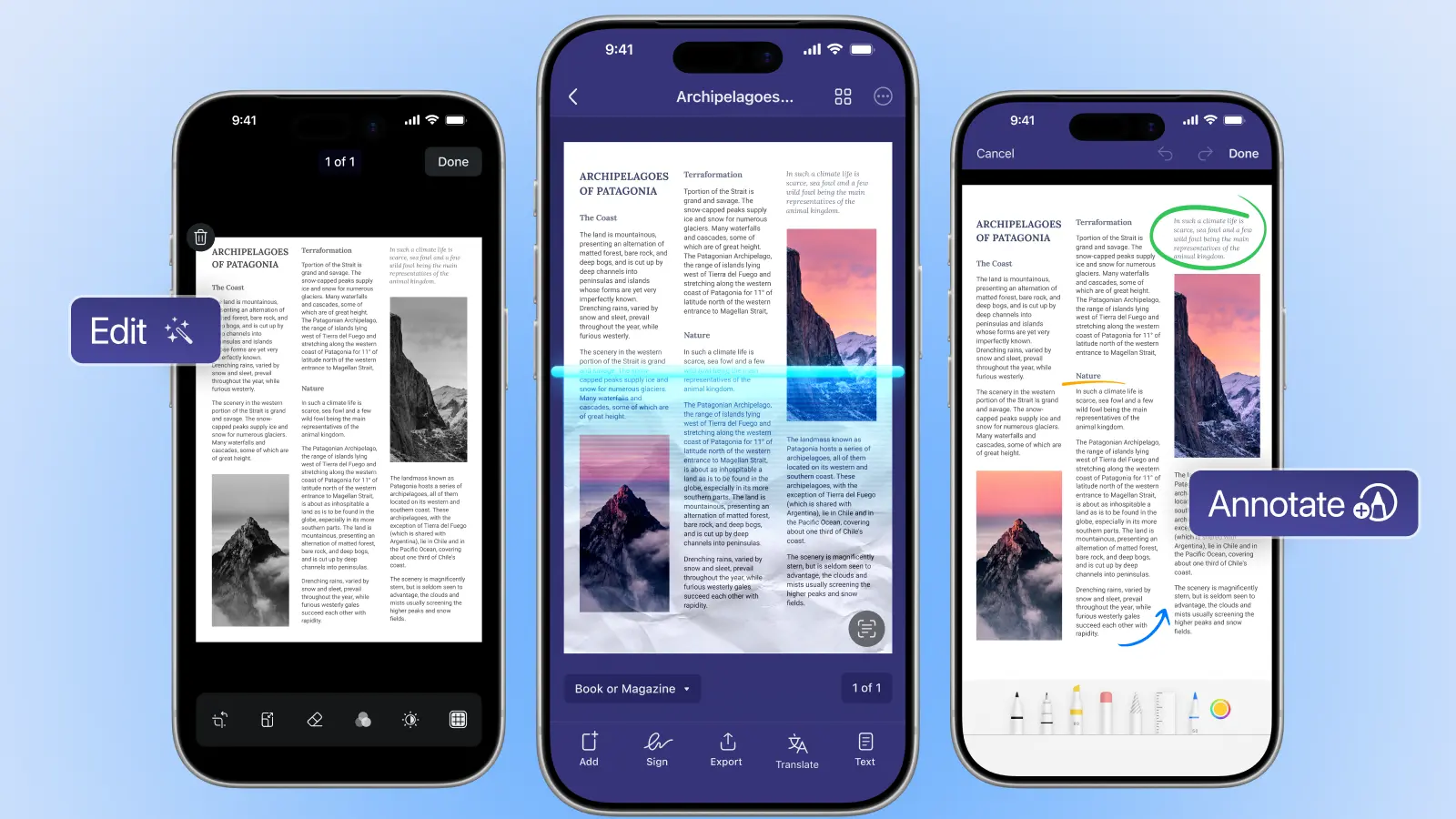
The reason mobile scanning beats a desktop scanner is you always have your phone. You can scan a receipt right after buying something. Capture a contract at a client meeting. Digitize a form the second it arrives in the mail. You don't have to carry documents home or find a copy shop.
Building a System That Actually Works
After you've scanned a bunch of stuff, you need a way to organize it. The goal is simple: find any document in under 30 seconds.
Start with folders.
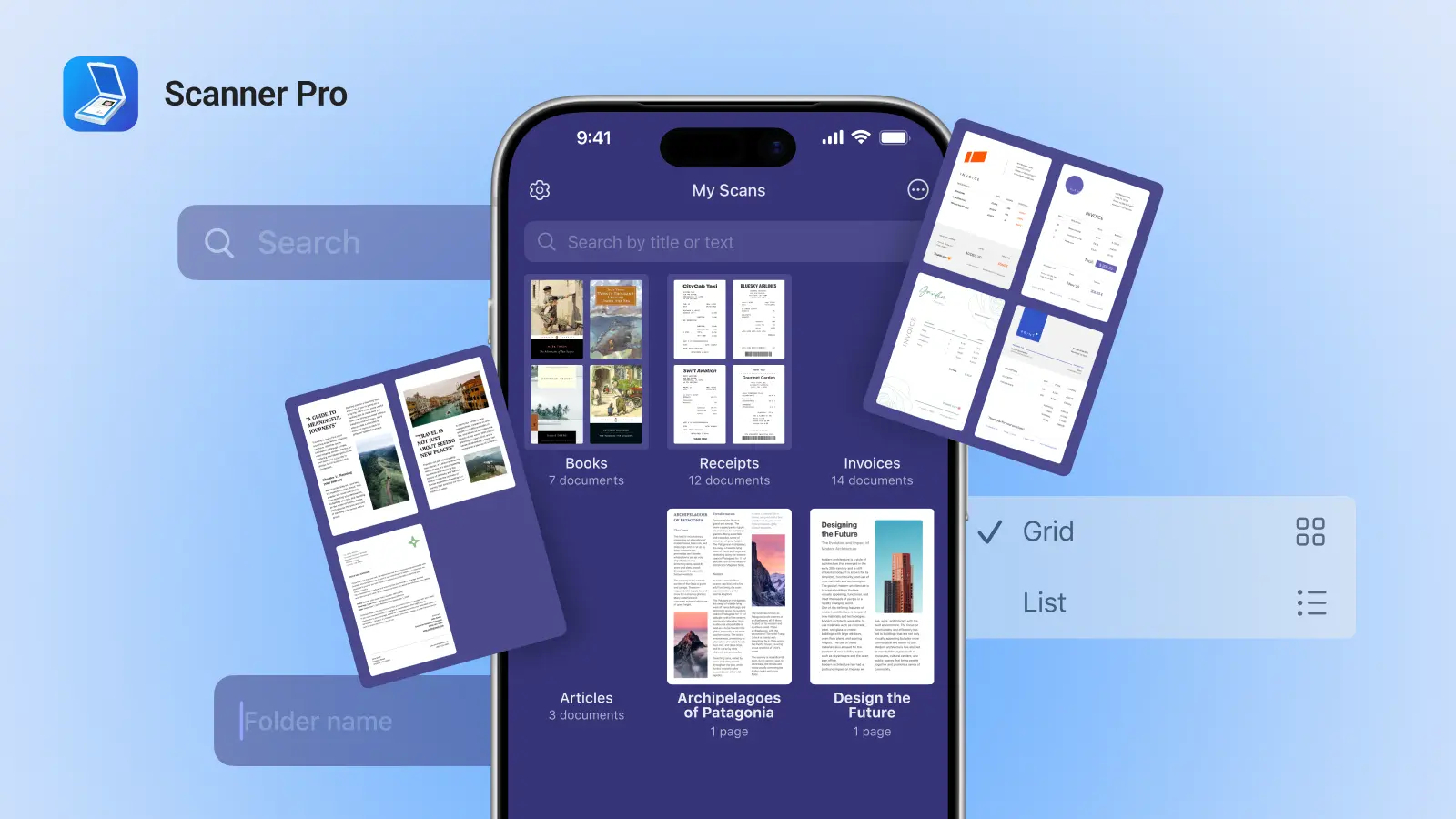
Create categories like taxes, medical, insurance, receipts, contracts, personal. Use subfolders for specific types. Keep it simple at first. You can always add more folders later. Scanner Pro lets you create these folders directly in the app, so everything stays organized from the moment you scan.
Name your files with dates and descriptions.
"2024-03-15_electric_bill.pdf" is better than "bill.pdf". Use the same naming pattern every time. Consistency is what makes searching work. Scanner Pro's OCR means you can search inside documents too, but good filenames still matter when you're scrolling through a list.
Set up automatic backups.
iCloud Drive, Google Drive, Dropbox, OneDrive. Pick one and turn on auto-sync. Your scanned documents back up without you thinking about it. If your phone dies, your files don't. Scanner Pro integrates with all the major cloud services, so you can have documents automatically upload to your preferred platform.
For important documents, add password protection.
Tax returns, legal agreements, financial statements. These should require authentication to open. Most scanning apps have this built in. Scanner Pro can export password-protected PDFs, adding an extra layer of security before you share sensitive documents. You set the password during export, not on the file itself, so you always have access to your original scan.
The system needs maintenance.
Review your documents every few months and delete what you don't need. Move old files into yearly archive folders. Update your folder structure when your needs change. Set a calendar reminder to do this quarterly. Scanner Pro's search and filter features make it easy to find candidates for archiving or deletion.
Different Documents Need Different Handling
Receipts work best when you scan them immediately.
Paper receipts fade fast, and you'll forget to scan them later. Organize by month or project. Export to CSV if you need to import expenses into accounting software.
Small business documents need stricter organization.
Keep client files separate from vendor contracts separate from invoices. Use the same naming conventions across your team so anyone can find files. Cloud sync lets multiple people access documents without emailing attachments back and forth.
Personal documents organize around life events.
Tax season, doctor appointments, insurance claims, home repairs, warranties. Scan documents as they arrive. When you need to file taxes or make a claim, everything's already digital and organized.
Legal and compliance documents need extra security and retention tracking.
Signed contracts, NDAs, compliance certificates go in password-protected folders. Some industries require keeping documents for specific periods. Receipts for seven years for taxes, for example. Date your files clearly and archive by year.
Common Questions About Document Management
What is document management and why does it matter?
Document management is how you store, organize, and retrieve documents efficiently. It matters because disorganized documents waste time, create stress, and risk losing important information. A good system lets you find any document in seconds and makes sure critical files are backed up and secure.
What is an example of a document management system?
Could be as simple as folders on your computer with consistent file names. Or as complex as cloud software with automatic tagging and workflows. For most people, a scanning app plus cloud storage creates an effective system. Businesses often use dedicated platforms that handle versioning, permissions, and compliance.
How do I start digitizing my paper documents?
Start with current documents. Anything from the past three months. Scan each page with your phone. Organize into folders by category. Rename files with dates and descriptions. Set up automatic backup to cloud storage. Once current documents are handled, work backward through old files when you have time.
What is the best way to organize important documents?
Create clear folder categories like "taxes," "medical," "insurance," "legal." Use subfolders for specific types. Under "medical," make folders for each family member or by year. Name files consistently with dates first (2024-03-15_document_name.pdf) so they sort chronologically. Back everything up to cloud storage. Enable password protection for sensitive files.
How do you create a paperless office?
Scan incoming documents immediately instead of filing them as paper. Set up workflows so scanned documents automatically upload to the right cloud folders. Cancel paper bills and statements. Switch to electronic delivery. Shred paper originals after scanning. Keep only documents that must be retained physically, like birth certificates with official seals. Default to digital-first for everything new.
What are the benefits of going paperless?
Paperless systems save physical space and eliminate filing cabinets. Digital documents don't degrade, can't be lost to fire or water damage, and back up automatically. You can search thousands of files instantly. Access documents from any device. Share files without printing or mailing. Going paperless also cuts costs. No paper, ink, filing supplies, or storage space.
Can I use my phone to scan and manage documents?
Yes. Phone cameras are sharp enough to capture readable scans. Scanning apps add automatic edge detection, perspective correction, and text recognition. Your phone's always with you, so you can scan documents immediately instead of carrying them home. Apps like Scanner Pro let you organize scans into folders, search by content, upload to cloud storage, and share files. All from your phone.
What is an electronic document management system?
An electronic document management system (EDMS) stores, organizes, and tracks digital files instead of paper. Usually includes full-text search, version control, access permissions, automated workflows, and backup. For individuals, this might be a scanning app plus cloud storage. For businesses, it's often specialized software that enforces policies and tracks compliance.
How should small businesses manage their documents?
Digitize all incoming documents immediately. Create a shared folder structure the whole team can access. Use consistent naming conventions so files are easy to find. Set up automated workflows for common tasks like invoice processing. Back up documents to cloud storage daily. Use password protection for client data and financial records. Establish clear retention policies so old files get archived or deleted appropriately.
What are the four C's of documentation?
The four C's are: Clear (easy to understand), Concise (no unnecessary information), Complete (includes all required details), and Correct (accurate and up-to-date). These principles help make sure documents serve their purpose whether they're instructions, contracts, or records. In digital document management, following the four C's makes files easier to search, share, and reference later.
Actually Making the Switch
You don't flip from paper to digital overnight. Start small. Scan new documents as they arrive instead of letting them pile up. Build the habit first. Work backwards through old files when you have time.
The tools are already in your pocket. A phone with a scanning app, cloud storage for backup, and a basic folder structure handles most personal and small business needs. Focus on consistency. Scan regularly, name files the same way every time, back up automatically.
Document management isn't about perfection. It's about knowing where your important documents are and finding them quickly when you need them. Once that system's in place, you'll wonder how you ever managed with filing cabinets and paper everywhere.
Scanner Pro is available for iPhone, iPad, and Apple Vision Pro running iOS 17.0 or later.

Take high-quality scans
Easily turn papers into PDFs with your iPhone and iPad. Scan receipts, books, IDs, invoices.