Wondering just how to add Google Calendar to your iPhone, iPad or Mac? We’ll show you the fastest and easiest way to do it. All you need is Calendars by Readdle, a beautiful calendar and planner app for iOS that helps millions of people organize their lives. Adding Google Calendar to iPhone or to Mac is pretty straightforward with Calendars. You can connect all your calendars in seconds, without tinkering with the system settings or dealing with Apple’s built-in calendar.
Where to start
To sync Calendars with your Google account, simply tap Google Calendar when you open the app for the first time. Next, enter your Google account credentials and grant Calendars access to your Google Calendar events.
If you skipped this step during the initial setup, no worries! You can sync Calendars with your Google Calendar at any time. Here’s how:
How to sync with Google Calendar on your iPhone or iPad
- Open the Calendars app.
- Tap the "three horizontal lines" button to open the Menu (skip this step on your iPad).
- Go to Settings > Tap the "Add Account" button under the Accounts section.
- Select the "Google" option and log in with your Google account credentials.
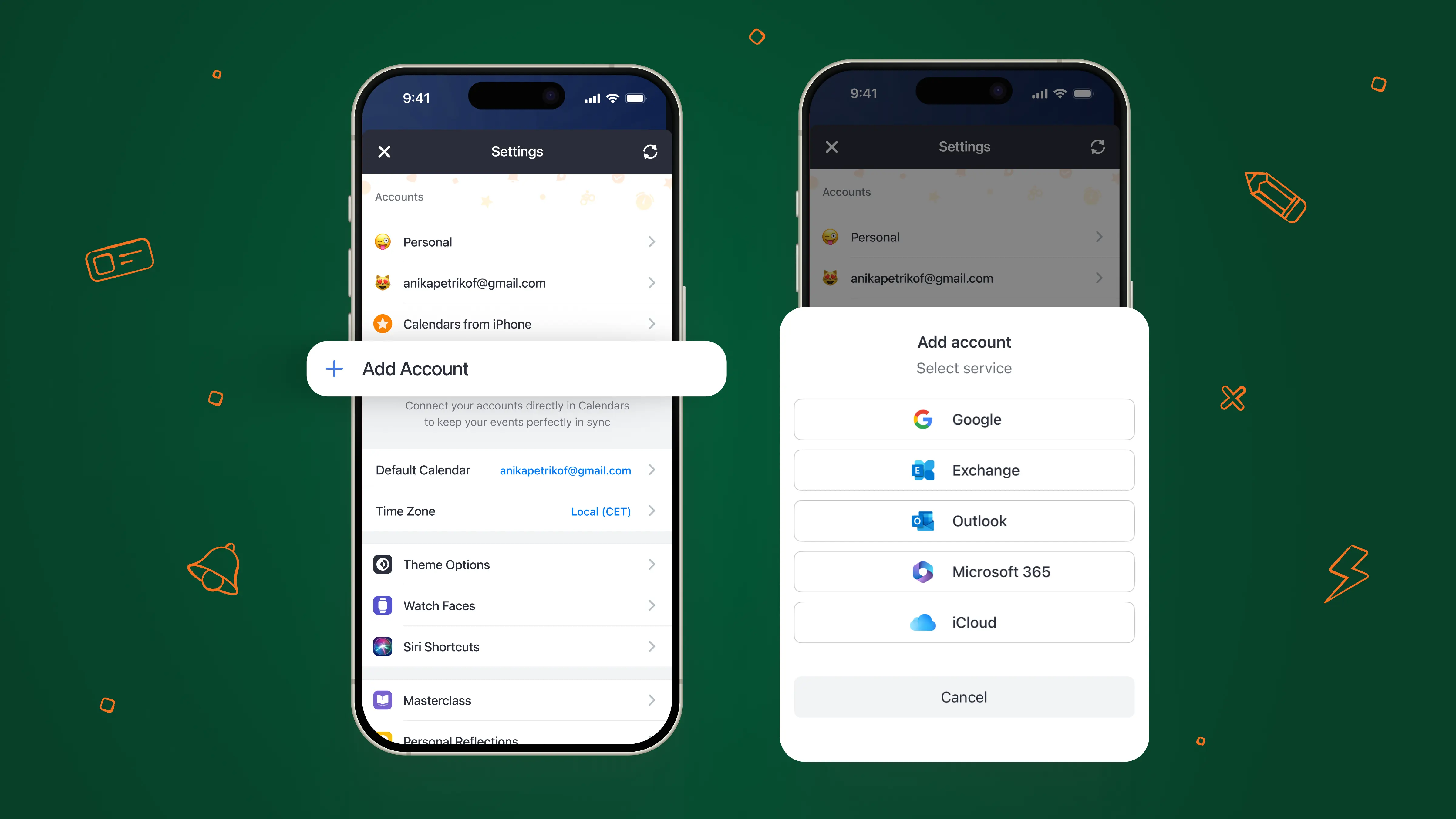
How to sync Google Calendar with iPhone:
- Download Calendars for free.
- On the intro screen, select Google.
- Enter your login and password.
It’s as easy as that! Now, you can work with Google Calendar on your iPhone and keep all important events at hand.
How to sync with Google Calendar on your Mac
- Open the Calendars app.
- Click the "Calendars" button in the Menu Bar at the top.
- Select Preferences > Click "Add Account" button.
- Select the "Google" option and follow the on-screen instructions to sign in.
In this way, you can sync as many calendar accounts as you wish. Calendars by Readdle also lets you connect your Outlook and iCloud calendars, so you can keep everything in one place.
Once you’ve learned how to sync Google Calendar with iPhone, feel free to explore the power of Calendars. We’ve created it as a smart and beautiful assistant that helps you organize your life. Create events with natural language, set up recurring events and reminders, and quickly show or hide different calendars.
Download Calendars for free to get the most out of your time!
