Juggling the demands of student life can feel overwhelming without a solid plan. Take this new semester as an opportunity for a reset. A well-structured student planner can turn the chaos of classes, exams, extracurriculars, and work shifts into one clean system that reduces stress, boosts productivity, and helps you maximize your semester.
But what is the best student planner app for you? With Calendars by Readdle, you can set up a personalized plan to manage your schedule, priorities, and assignments—and never again miss a deadline. This robust app is designed to help ace your studies this semester with a plan that’s more intuitive, efficient, and visually clear.
In this guide, we’ll show you how to set up a student planner in the Calendars app in just 30 minutes that balances your academic success and personal well-being.
How to set up a student planner in Calendars app in 30 minutes
With Calendars Planner, creating your own custom student schedule planner in the Calendars app is quick and easy, setting it up once and then maintaining it with minimal effort. Here’s how to do it in 30 minutes with five simple steps.
1. Add your fixed timetable
Start by laying the foundation with your fixed commitments, such as your weekly class schedule, mid-semester breaks, and end-of-term review weeks.
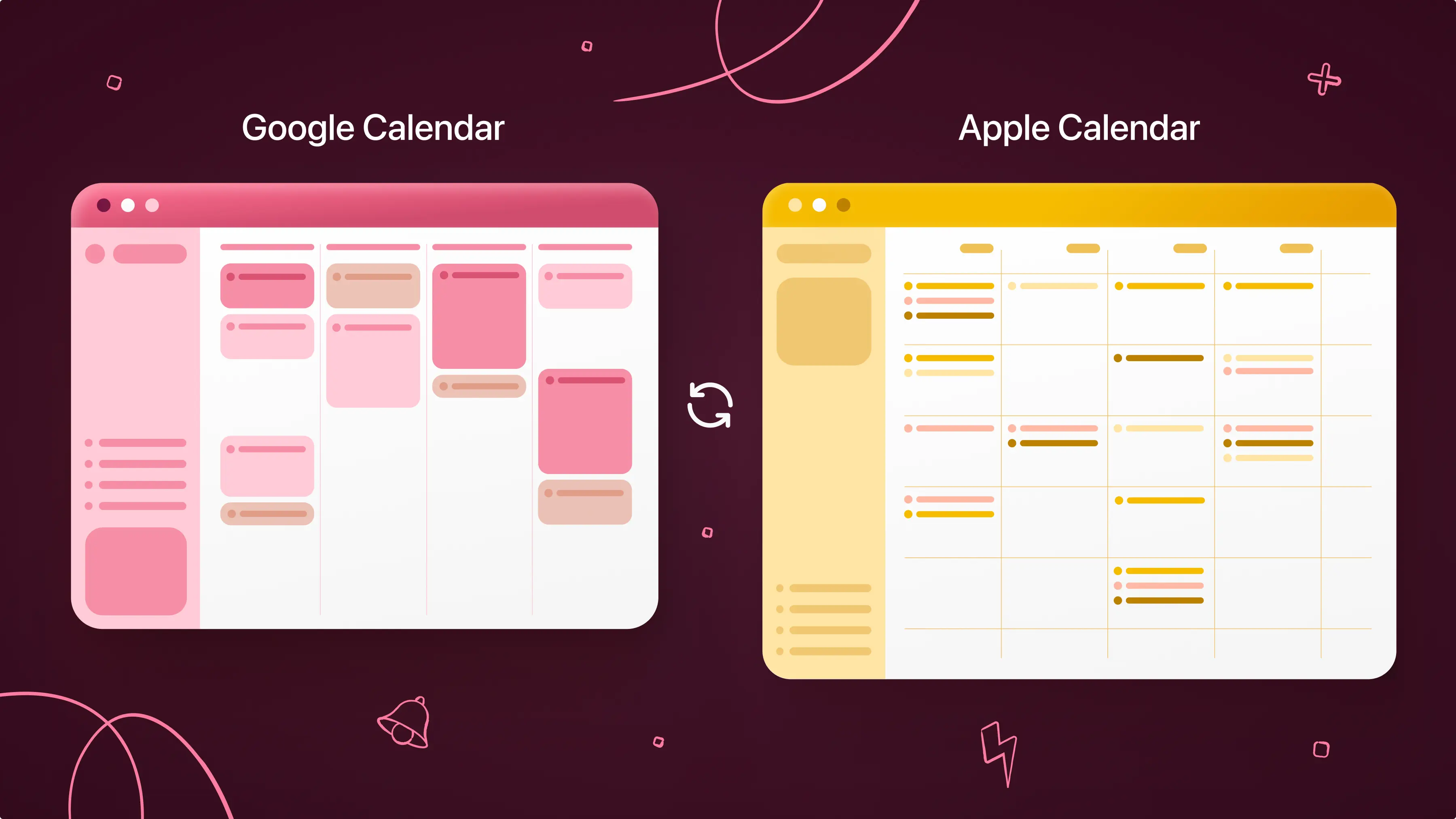
You simply connect your existing calendar account (e.g., Google, Outlook, iCloud) to the Calendars app to automatically add your school schedule and events in one place. You can also add events manually if you prefer. Make sure to use Calendars’ recurring events for any classes that repeat at the same time every week.
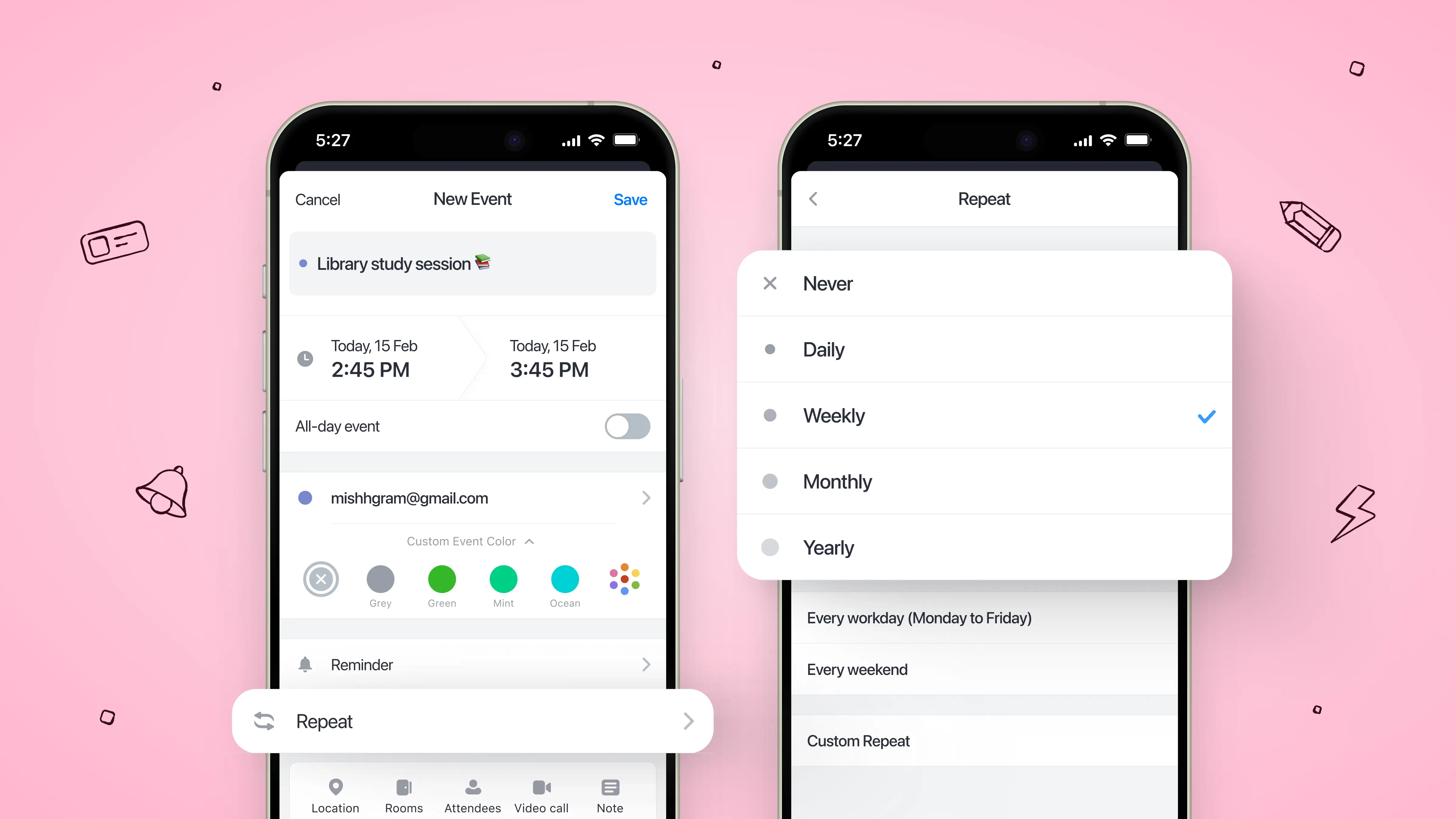
2. Add key semester dates
Next, plug in other major semester dates, including exams, tests, and assignment and project deadlines. You can also add key personal events such as commuting time or family obligations, and color code your schedule for easier viewing, perhaps setting your classes in blue, your study time in yellow, and personal events in orange.
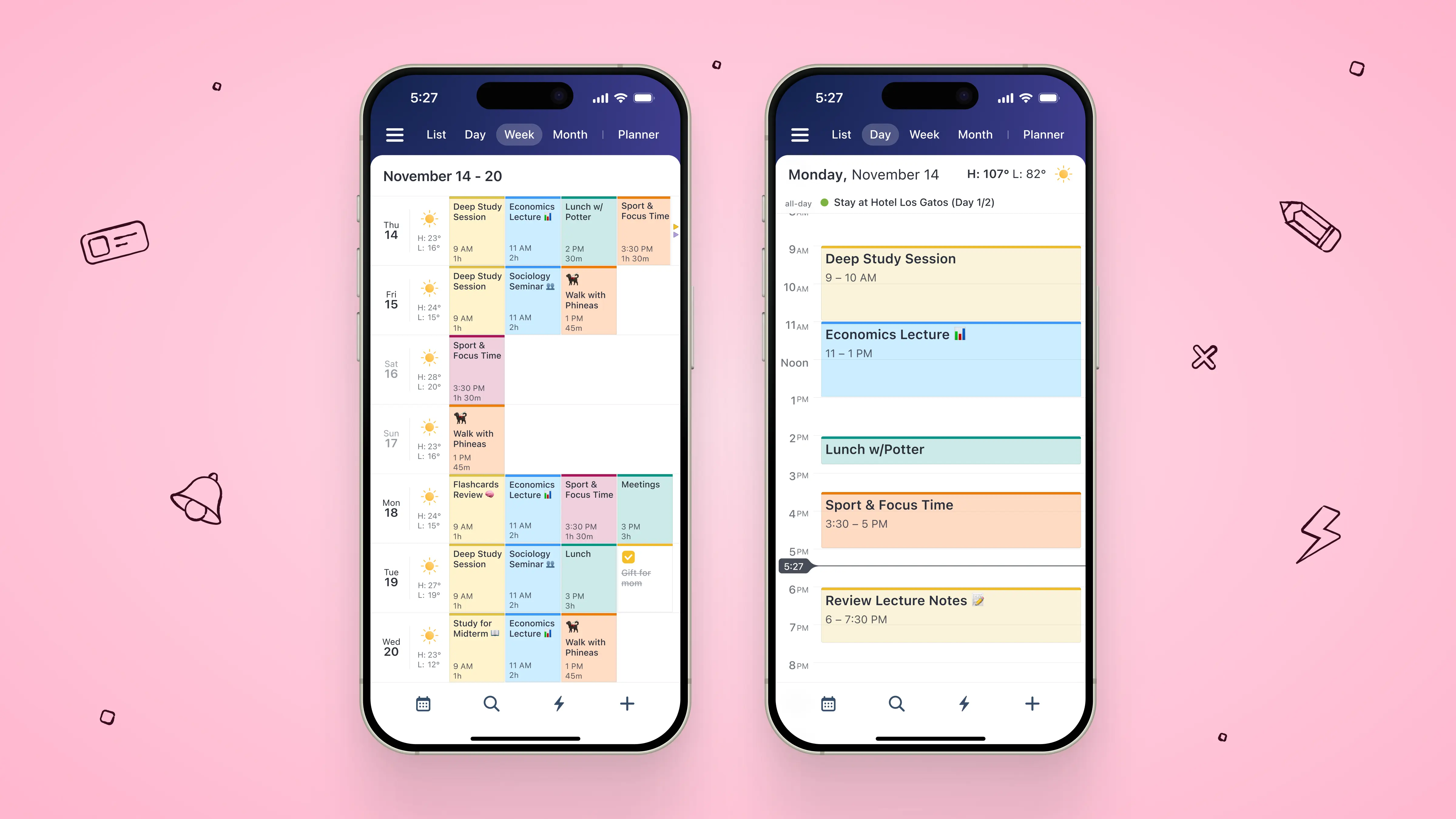
This will help you plan study sessions and work time around the semester’s key moments and deadlines, and avoid any surprises or last-minute cramming. You can also use this to factor in buffer time and prevent overloading your schedule, which will be key to preserving your energy, maintaining motivation, and preventing burnout.
3. Convert assignments into scheduled tasks
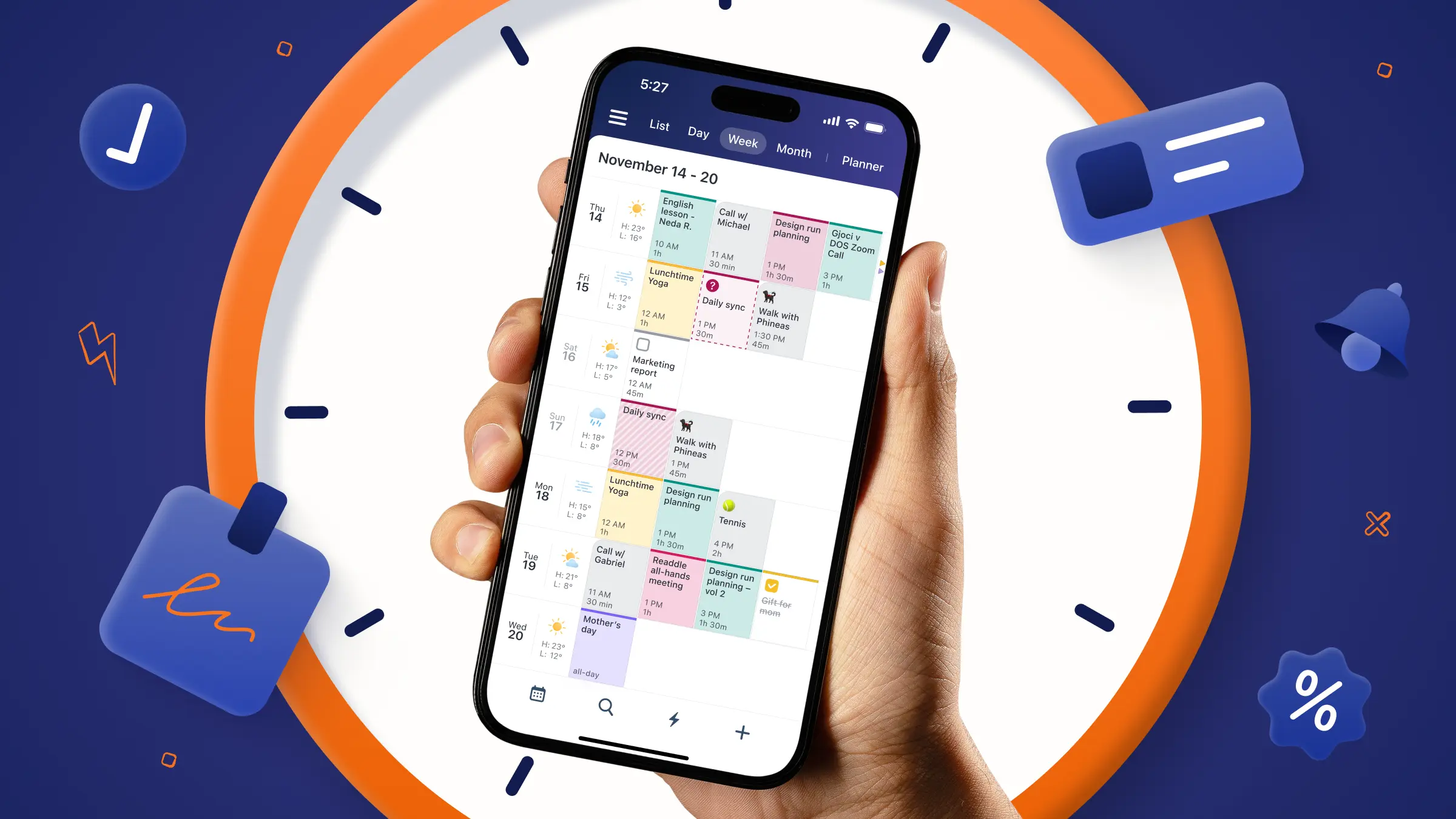
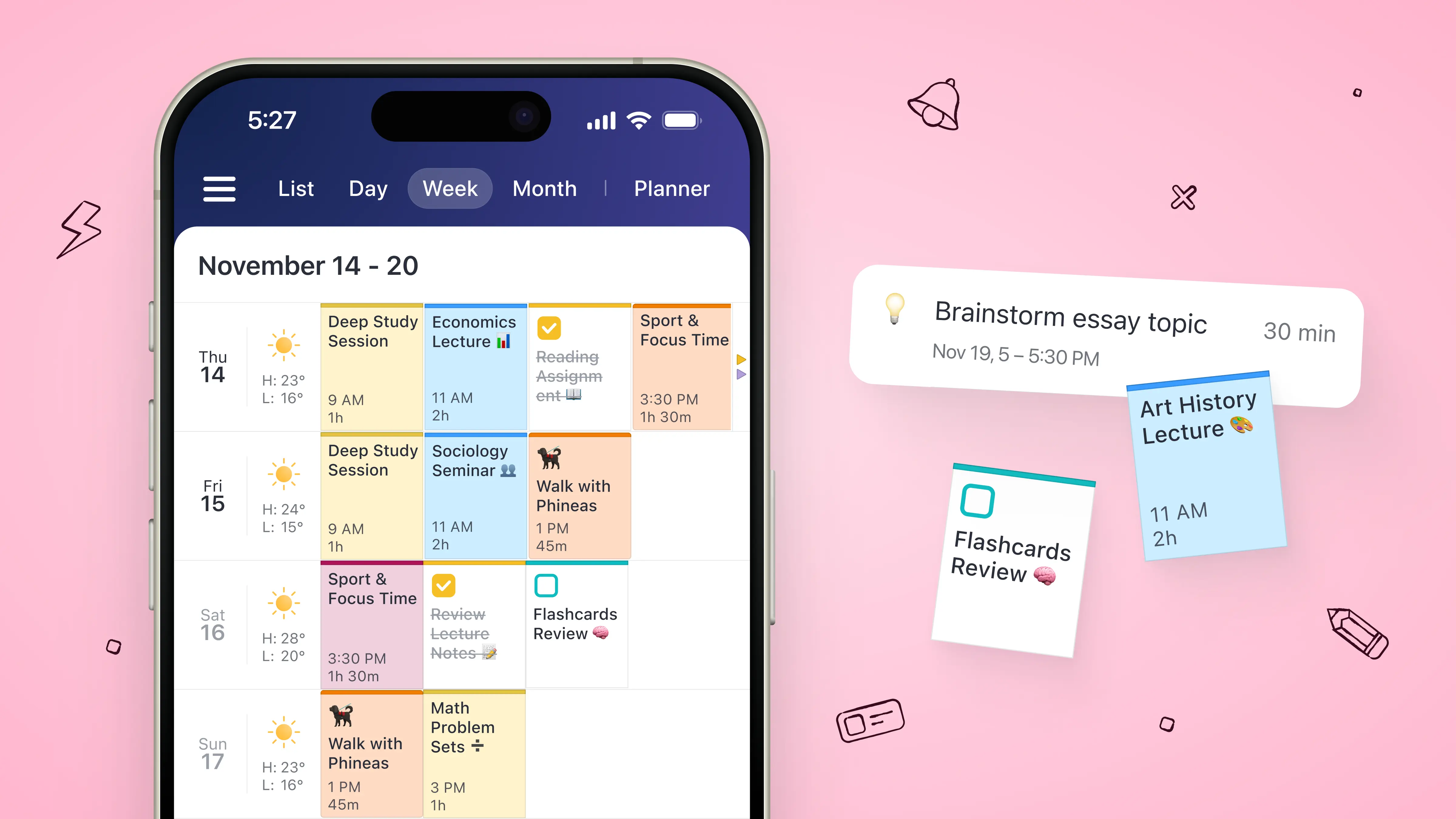
Once you have your high-level calendar set, you can start scheduling your assignments, study sessions, and other commitments as new tasks in open slots on your calendar’s Planner view. The most effective way to do this is with time blocking.
Create blocks in the Calendars Planner app for focused study sessions, assignment work time, exercise, meals, rest—everything you might need to maintain a productive and healthy day. Be realistic about how much time each task will likely take to complete.
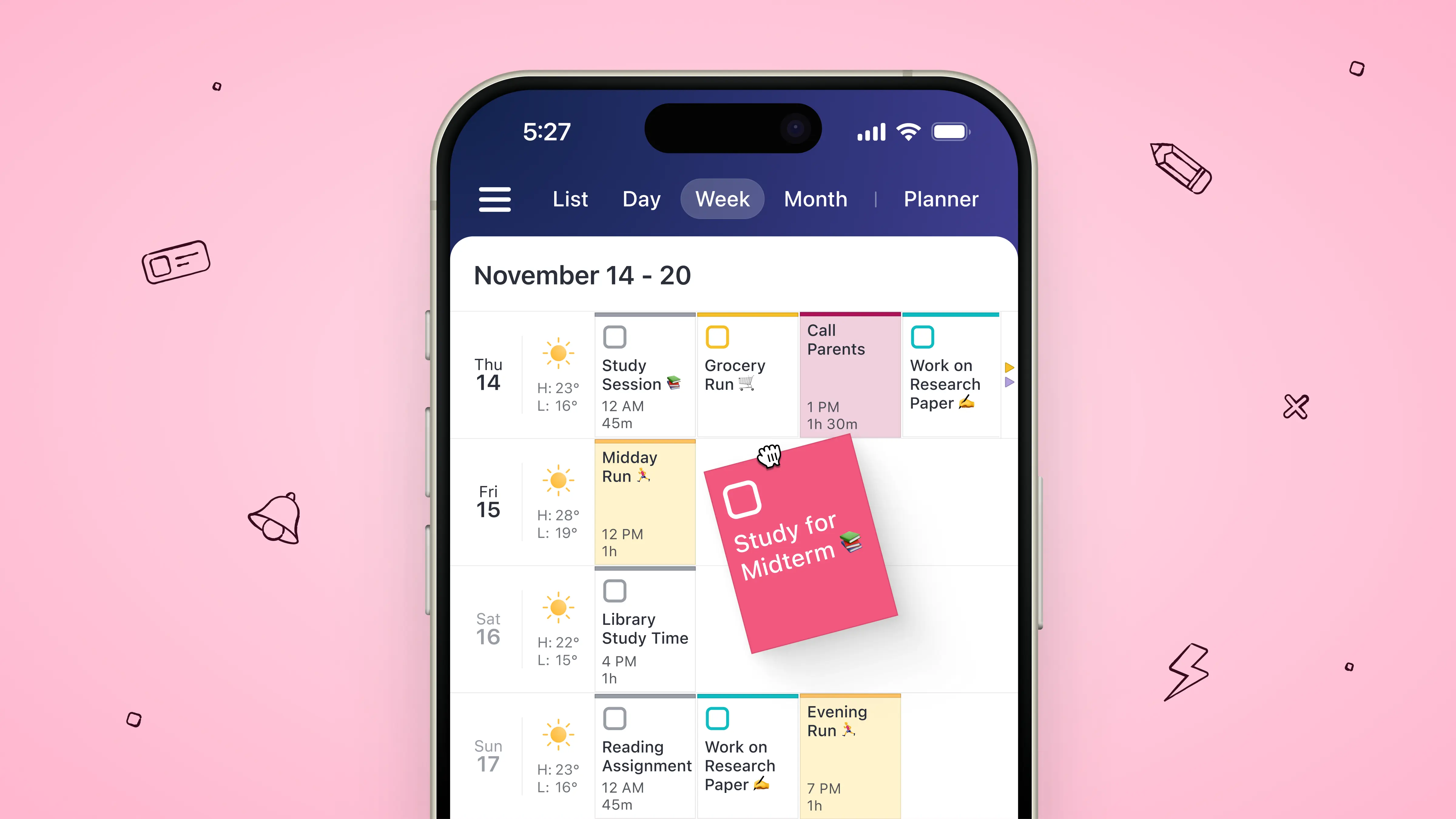
Make sure to add details about what you’ll be working on in each time block to reduce decision fatigue and get to work faster when the time comes. If you need to reschedule these time blocks as things shift, you can also easily drag and drop them right in the app on your phone, iPad, or computer.
4. Use Quick Scheduler to add fast events
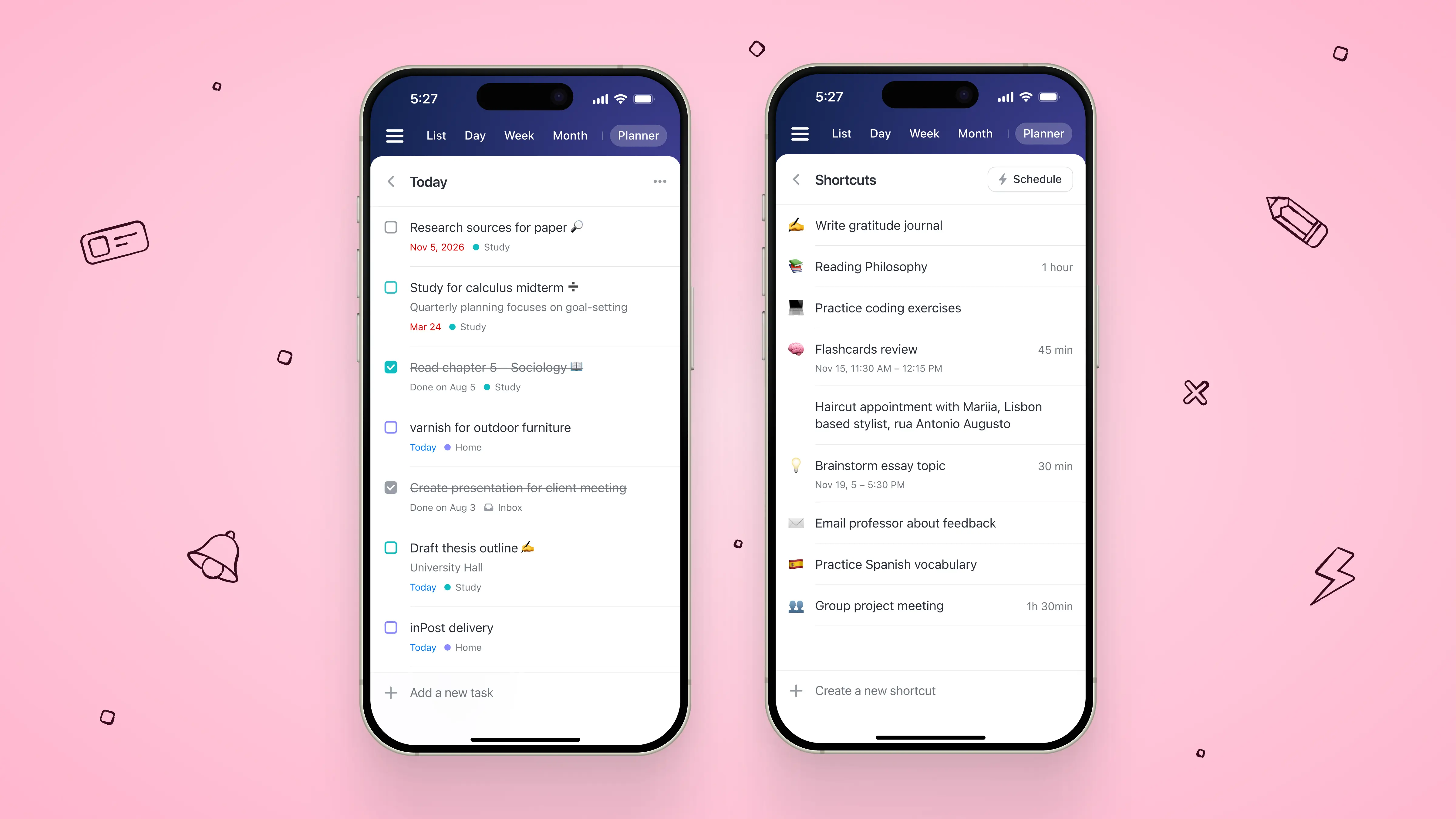
As you add in your scheduled time blocks and events, you can use Calendars Shortcuts tool for more rapid entry. You can create a routine with Shortcuts, customize it with emojis, and later drag and drop these templates to schedule events.
Shortcuts have a default duration of 1 hour, but you can adjust it to suit your needs.
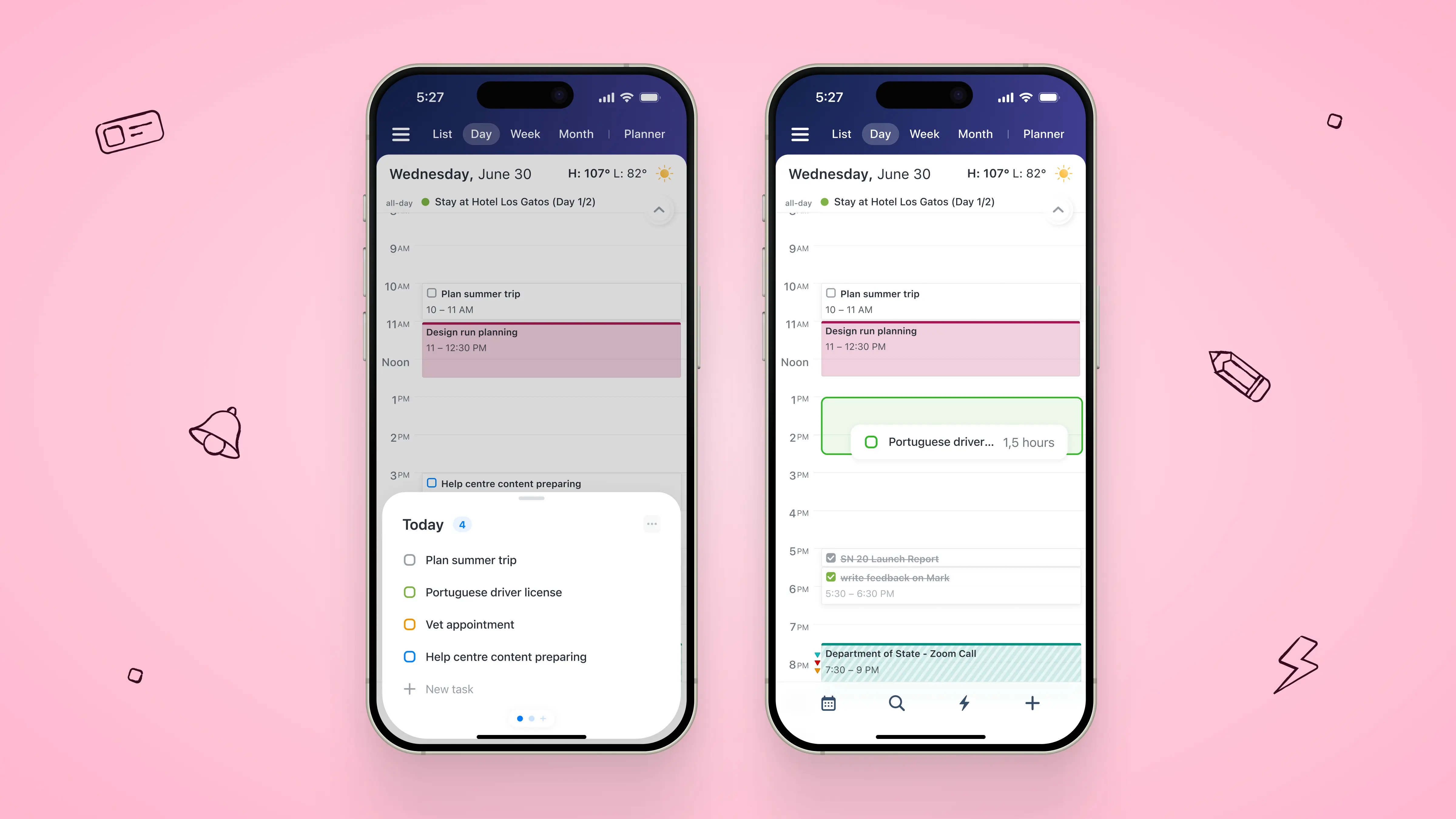
If you're also looking for a way to speed up your task workflow, use Quick Scheduler: it enables easy scheduling of all your tasks and to-dos. You can save time by managing everything in one place. It shows all your lists and tasks in one place, giving you a more detailed overview. Also, this is a tool for dropping your tasks on the timeline on the go.
5. Do a weekly reset to keep it working
Once you’ve set your plan, that isn’t the end of it. Life can be unpredictable, so staying flexible is also important. Your student planner may need to adjust to new deadlines, commitments, and personal goals.
At the end of every week, spend five minutes reviewing what worked and what didn’t in your student planner app. Did some tasks take longer than you expected? Do your blocks need to shift to make better use of energy peaks and dips? Does your schedule reflect your priorities?
Make a recurring event at the end of every week to reflect and adjust your schedule for the next week as needed—drag and drop time blocks, update their recurring duration and details, archive old tasks, and add new ones based on what you’ve learned from the past week.
It’s also good to do the same review at the end of the semester. So make sure to block off time at the end of the term to reflect on the lessons learned and reset your priorities for the next semester.
The best tips for setting up your student planner app
As you set up your student planner in the Calendars app, here are a few best practices to help you get the most out of your plan for the new semester.
Set automated reminders
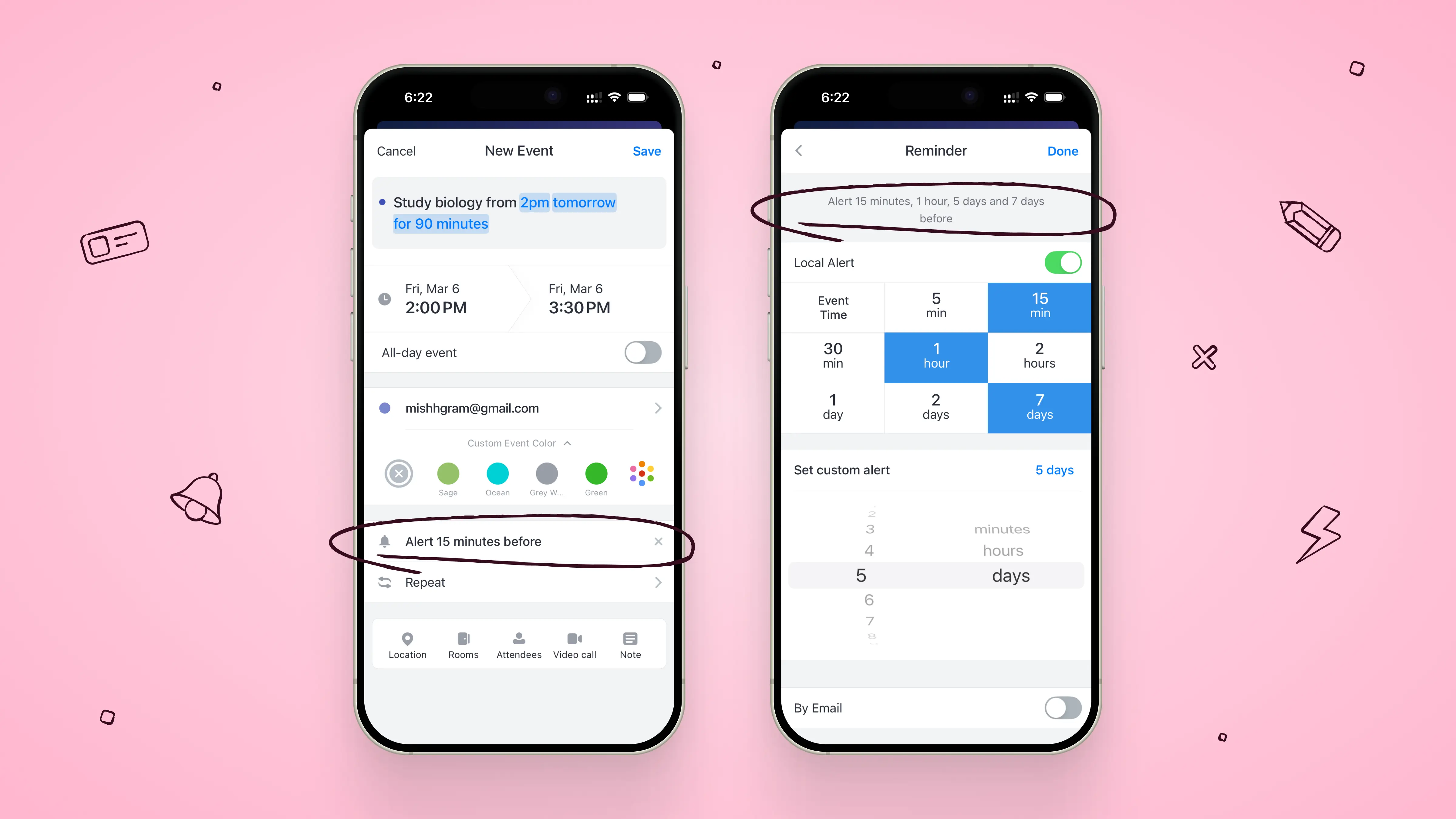
With the Calendars app, you can set up to five default alerts to automatically remind you about upcoming events. You can also sync your tasks with iOS Reminders or Google Tasks, and set reminders when you edit them. These tricks will help you stay on top of deadlines and prevent things from slipping through the cracks.
Use time-blocking tricks
There are several techniques around time blocking to help you work smarter, not harder. Test each out to see which are most effective for you and the way you work best.
One method is the Pomodoro technique of scheduling 25-minute blocks for work time, followed by 5-minute breaks to recharge, with a longer break after four full rounds. Another is task batching or grouping similar tasks into one time block, such as doing all of the assigned reading for one week or replying to your emails and messages all at once.
You can also use themed days by assigning a specific focus to certain days of the week, such as lecture reviews on Mondays, group projects on Tuesdays, lab reports on Wednesdays, or exam prep on Thursdays.
Lastly, time boxing can be helpful by setting a strict time limit for each task. According to Parkinson's Law, work expands to fill the time allotted for its completion. For example, you could give yourself one hour to work on your paper and then stop, even if it's not perfect. This helps prevent perfectionism from eating up your entire day.
Break big projects into smaller tasks
Dividing large projects (e.g., writing a research paper) into smaller parts (e.g., finding sources, writing an outline, creating citations) will make scheduling easier. You’ll be better able to estimate how much time these small tasks will take, and set time blocks for each batch of tasks that add up to the bigger project.
Balance your priorities
Set priority levels across all of your tasks, both school and personal commitments, in terms of their urgency and importance (such as with the Eisenhower Matrix). Then use these priorities to ensure that you tackle the most important first, stay on track, and use your time and energy wisely.
Priorities will also help delineate what you need to get done before you can let yourself go have fun. Tempted to go to a friend’s party or campus event? Consider first whether you’ve completed your top priorities for the day or week.
Manage your energy levels
Schedule blocks for downtime and self care. For example, blocking time to shower in the morning before class can give you time to prepare for the day ahead. You can also carve out 15-minute blocks to respond to friends’ messages, clean your room, or just take a much-needed mental break.
Make sure this is part of your weekly review as well, assessing how the past week’s schedule affected your energy levels and if things need to shift to manage that better.
How Calendars goes beyond other student planner apps
Calendars by Readdle simplifies the way you can manage your class schedule, tasks, and to-do lists. As a student, your schedule moves fast and it can be hard to find time to manage a time-consuming planner.
The Calendars app combines flexible time blocking with fast, intuitive scheduling to support busy student lives. Its Planner visualizes your entire week at a glance, while Quick Scheduler lets you instantly add new classes, study sessions, tasks, and deadlines—making your student planning simple, adaptable, and stress-free.
Ready to give it a try? A small amount of planning now can mean a big payoff for you later. Start building your student planner in the Calendars app and get your new semester set up for success!