Turn Any Paper Document Into Searchable, Editable Text
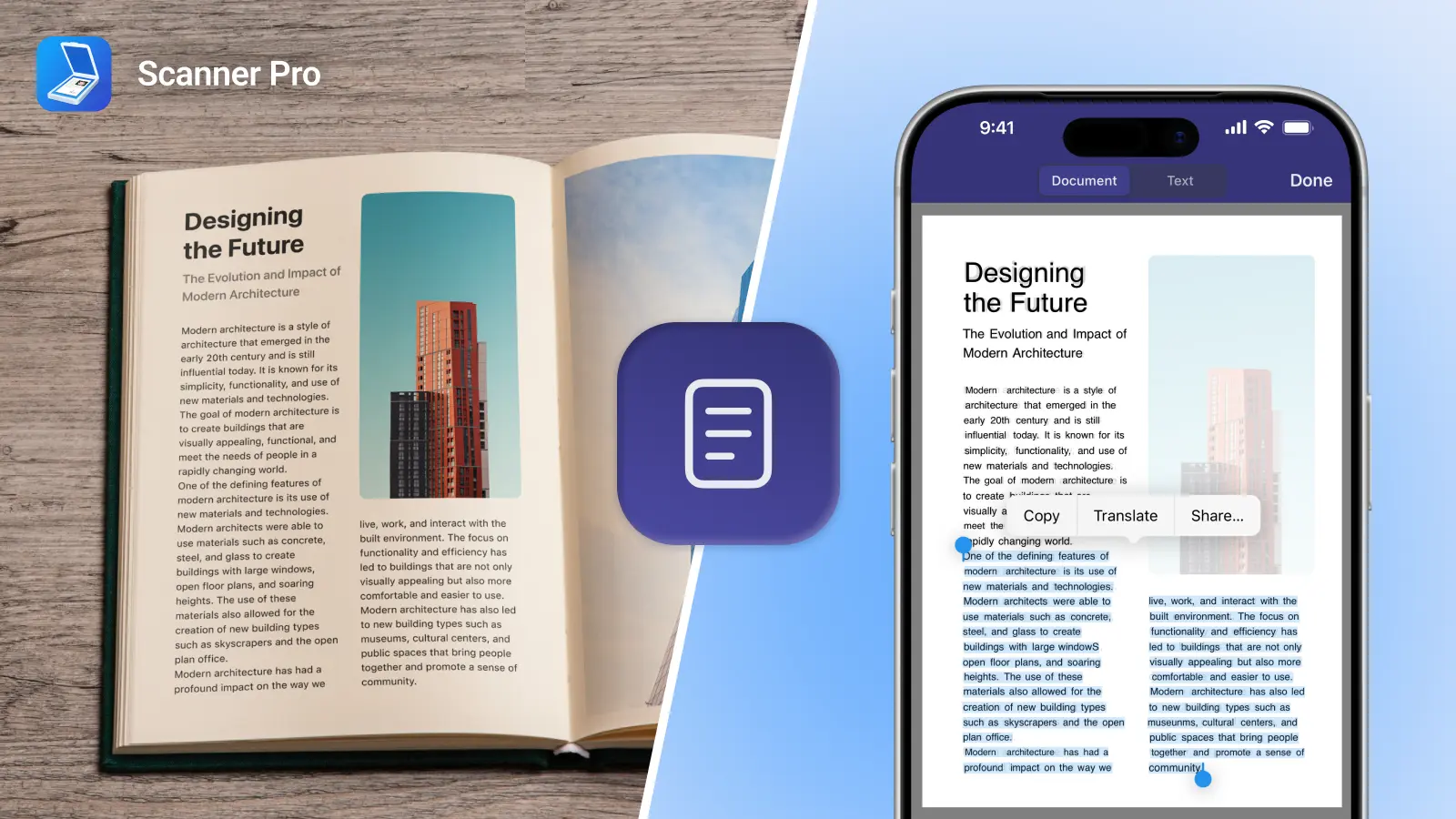
OCR (Optical Character Recognition) converts images of text into actual digital text you can search, edit, and copy. When you photograph a receipt, contract, or business card, your phone stores it as a picture (a grid of pixels). OCR reads those pixels, recognizes the letter shapes, and converts them into text your device understands.
OCR lets you search across hundreds of scanned documents in seconds by typing a word or phrase, copy text from paper documents without retyping, convert scanned PDFs into Word or PowerPoint files, and organize documents automatically based on their content.
This technology is essential for digitizing receipts for expense reports, archiving signed contracts, extracting information from business cards, and building searchable document libraries. Scanner Pro's Text Vision OCR processes everything on your device. No internet required, no data uploaded to cloud servers.
What OCR Does: The Simple Explanation
OCR acts as a translator between two formats: visual information (an image of text) and digital text (characters your computer can process).
When you scan a restaurant receipt, your phone sees it the same way it sees a photo of a sunset: as colored pixels. It cannot "read" the words. OCR examines the shapes in that image, identifies them as letters, numbers, and symbols, and converts them into text. The result is a file where you can search for "April 2026" or copy the total amount directly into your expense tracker.
Real-world example: You scan 200 business receipts from a conference. Without OCR, you'd need to open each image individually to find the one from the hotel.
With OCR, you type "Marriott" in the search box and find it instantly.
How OCR Technology Works
Modern OCR uses artificial intelligence and neural networks to recognize text. The process happens in five steps:
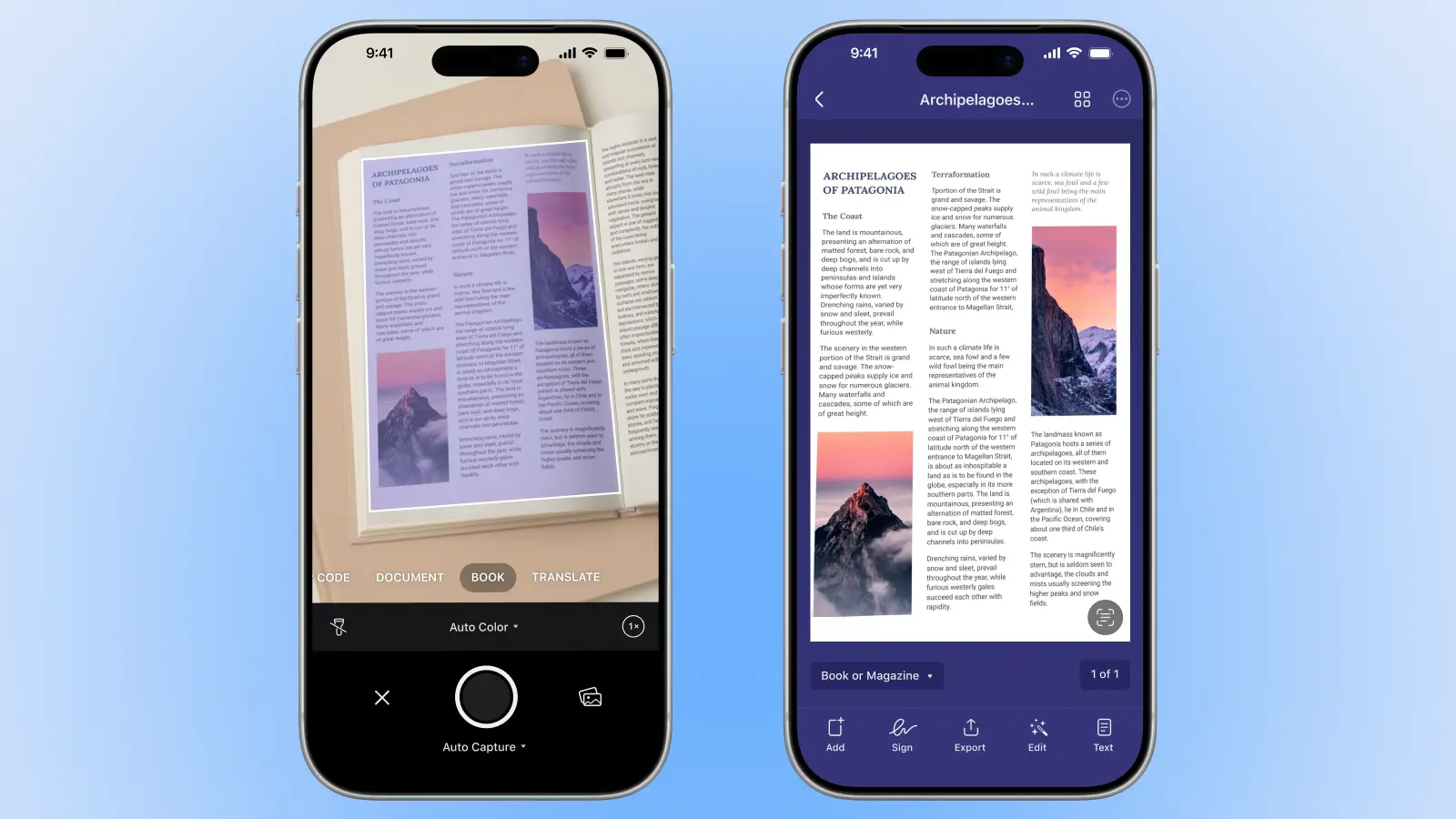
1. Image Capture
A document is photographed, scanned, or imported as a digital file. Image quality matters. 300 DPI or higher produces the best results. Most phone cameras capture more than enough detail for accurate OCR.
2. Image Enhancement
The software cleans up the image before processing: straightening crooked documents, adjusting brightness and contrast, removing shadows, and converting to high-contrast black and white. This preprocessing dramatically improves accuracy.
3. Text Detection
The system identifies where text exists on the page, breaking it into blocks, lines, words, and individual characters. Modern AI handles complex layouts including multi-column documents, tables, and mixed content.
4. Character Recognition
Neural networks analyze each character's structural features (curves, lines, intersections) and classify it. Unlike older pattern-matching systems that only recognized specific fonts, modern OCR learns from millions of examples and handles diverse typefaces, sizes, and even some handwriting.
5. Text Output
Recognized text is refined using language dictionaries and context analysis. For example, the system distinguishes "0" (zero) from "O" (letter) based on surrounding text. The final output can be a searchable PDF, plain text file, or structured data.
Modern OCR achieves high accuracy on clear printed text. Quality improves significantly when documents are well-lit, properly aligned, and scanned at adequate resolution.
Common Uses for OCR
Personal Use Cases
- Receipt tracking: Scan receipts, search by merchant or date, organize for tax season
- Recipe digitization: Convert printed recipes to searchable text, adjust serving sizes digitally
- Business card management: Extract contact information automatically
- Travel document archival: Store boarding passes, hotel confirmations, and itineraries as searchable files
Professional Applications
- Contract management: Digitize signed agreements, search across hundreds of contracts for specific clauses
- Form processing: Convert filled-in paper forms to structured data
- Legal discovery: Search thousands of case documents in seconds instead of hours
- Meeting notes: Scan handwritten notes, convert to editable text for distribution
Business Operations
- Invoice automation: Extract vendor names, dates, amounts, and line items automatically
- Compliance archiving: Build searchable archives of regulatory documents
- Identity verification: Process driver's licenses and passports for KYC requirements
- Inventory management: Scan product labels and shipping documentation
Businesses that implement OCR-based automation report significant time savings in document processing workflows. The key to unlocking these benefits on your iPhone or iPad is choosing an OCR solution that balances power with privacy.
Scanner Pro's Text Vision: OCR for All Those Use Cases
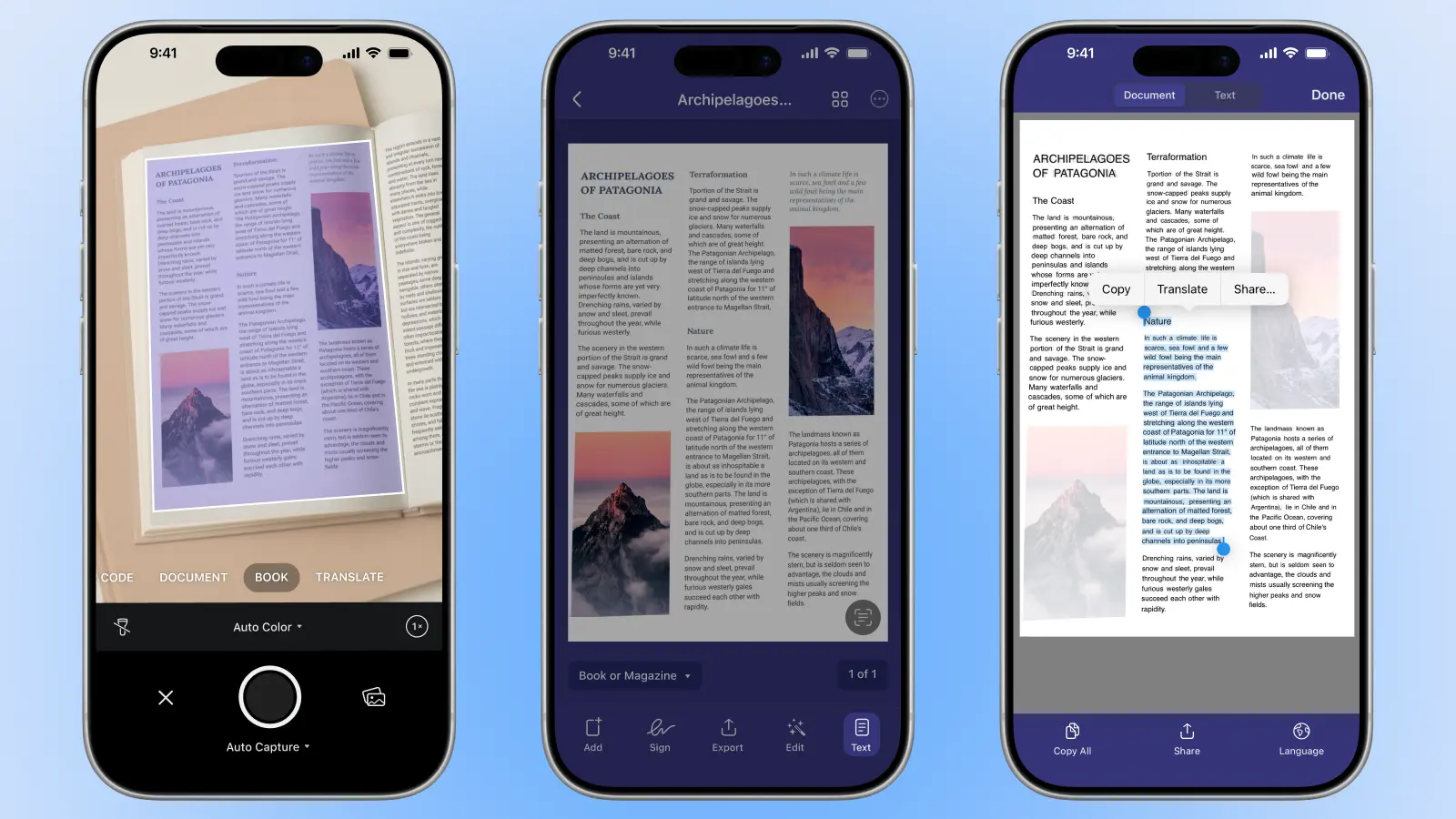
Whether you're tracking receipts, archiving contracts, or managing business cards, Scanner Pro's Text Vision uses on-device neural network-based OCR for 31 languages, including English, Spanish, French, German, Japanese, Simplified and Traditional Chinese, Russian and Ukrainian.
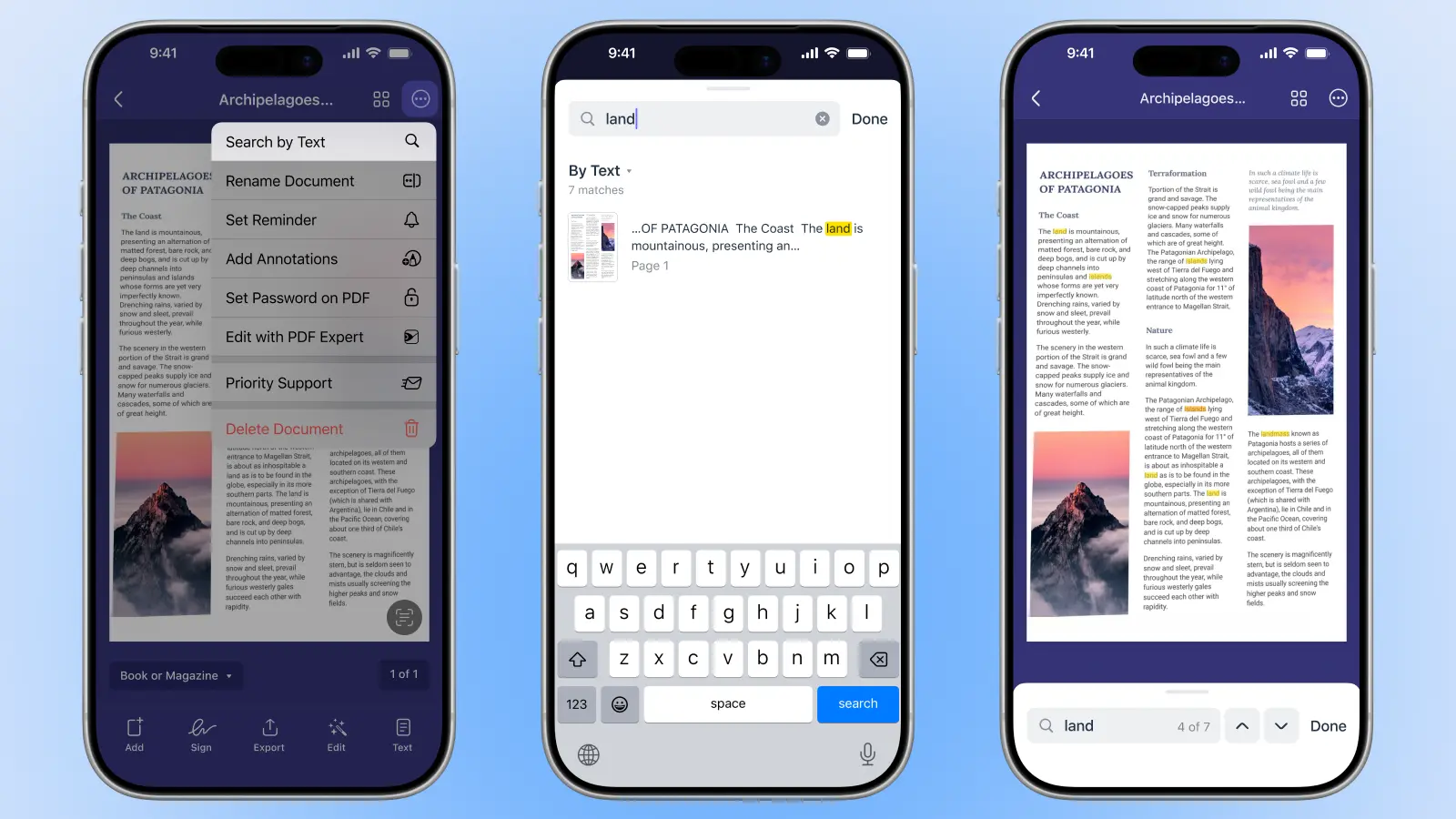
Scanner Pro processes everything locally on your device with no data uploaded to cloud servers. The app auto-detects Latin-based languages like English, French, and Spanish, while non-Latin scripts like Chinese, Japanese, and Russian require manual language selection in Settings. Full-text search works across all your scans (not just file names), and the entire system works completely offline.
Scanner Pro's Smart Categories feature uses OCR data to automatically classify documents into types like receipts, IDs, invoices, and business cards, making organization effortless.
Why On-Device OCR Matters for Privacy
The fundamental difference between on-device and cloud-based OCR is where your documents are processed.
Cloud OCR sends images to remote servers over the internet. The service provider processes your document on their infrastructure and returns the text. This requires internet connectivity and involves transmitting potentially sensitive information to third parties.
On-device OCR processes everything locally on your iPhone or iPad using the device's Neural Engine. As Readdle's official documentation states: "Scanner uses an on-device OCR model. That means that we don't upload the recognized text to any cloud storage and it is being safely stored on your device only."
On-device processing means zero data transmission (your images never traverse any network), no third-party access to document contents, no cloud storage or temporary file retention, no risk of training data memorization or reproduction, and a reduced attack surface without API keys or exposed endpoints. For professionals handling contracts, medical records, financial documents, or confidential correspondence, on-device processing eliminates entire categories of security risk.
On-device OCR also simplifies compliance with GDPR, HIPAA, and other data protection regulations by eliminating cross-border data transfers and third-party processor agreements.
Frequently Asked Questions
What does OCR stand for?
OCR stands for Optical Character Recognition. It's the technology that converts images of text (scanned documents, photos, PDFs) into editable, searchable digital text.
How accurate is modern OCR?
Modern OCR systems achieve very high accuracy on clear printed text. Accuracy depends heavily on input quality. Good lighting, flat documents, and high resolution produce better results than blurry or poorly lit images.
Can OCR read handwriting?
Modern AI-powered OCR handles clear, printed-style handwriting reasonably well. Cursive and messy handwriting remains challenging for most OCR systems, though newer AI models are improving.
Does OCR work offline?
Yes, it can work offline depending on the system. On-device OCR like Scanner Pro's Text Vision works completely offline without internet connection. Cloud-based OCR services require connectivity.
What languages does Scanner Pro's OCR support?
Scanner Pro supports 31 languages including English, Spanish, French, German, Italian, Portuguese, Russian, Ukrainian, Japanese, Simplified Chinese and Traditional Chinese. Latin-based languages are auto-detected; non-Latin scripts require manual language selection in Settings.
Can I search through OCR text in Scanner Pro?
Yes. Scanner Pro offers full-text search across all scans. Search from the home screen to find any document containing specific words, or search within a single document to locate specific passages.
Does OCR work on poor quality scans?
Modern OCR handles poor quality better than older systems using AI-based image enhancement. However, accuracy still degrades with very low resolution, extreme blur, or severely damaged documents. Best practice: ensure good lighting and hold your phone steady when scanning.
Is OCR secure for sensitive documents?
On-device OCR like Scanner Pro's is highly secure for sensitive documents because processing happens entirely on your device. No text is uploaded to cloud storage. Everything is stored locally on your device. Cloud-based OCR services transmit documents over the internet to remote servers, creating potential security and privacy risks.
Turn Paper Into Searchable Digital Documents
OCR transforms how you handle paper documents, from receipts and contracts to business cards and handwritten notes. Scanner Pro's Text Vision processes everything on your iPhone or iPad with 27-language support, full-text search, and privacy-first on-device processing.
Download Scanner Pro for iPhone, iPad, and Apple Vision Pro. Requires iOS 17.0 or later.
OCR features require Scanner Pro Plus subscription. Learn more about Scanner Pro Plus.