Need to send a physical document via email but don't have access to a traditional scanner? Scanner Pro turns your iPhone into a document scanner and lets you email files in seconds. You can scan contracts, receipts, forms, or any paperwork with your iPhone camera, then email PDFs directly from the app without saving to Photos first. The app gives you control over file format and size before sending, and works with Mail, Gmail, Outlook, and any email app on your device.
This feature is perfect for business professionals sending contracts, students submitting assignments, or anyone who needs to digitize and share documents quickly. Here's how to scan and email a document using Scanner Pro.
How to Scan and Email Documents Using Scanner Pro
Step 1: Scan Your Document
Before you can email a document, you need to scan it. Scanner Pro's camera mode captures documents with automatic edge detection and perspective correction.
- Open Scanner Pro and tap the orange Camera button
- Position your document in the camera frame
- Tap the shutter button (Scanner Pro captures automatically)
- Review the scan and tap Save
Scanner Pro saves scans to your My Scans library automatically. You can email documents immediately after scanning or email existing scans from your library anytime. You can find a full guide on how to get the best scans here.
Step 2: Email Your Scan Using the Mail App
Once you have a scanned document, sending it via email takes just a few taps.
- Open Scanner Pro
- Select the scan you'd like to email
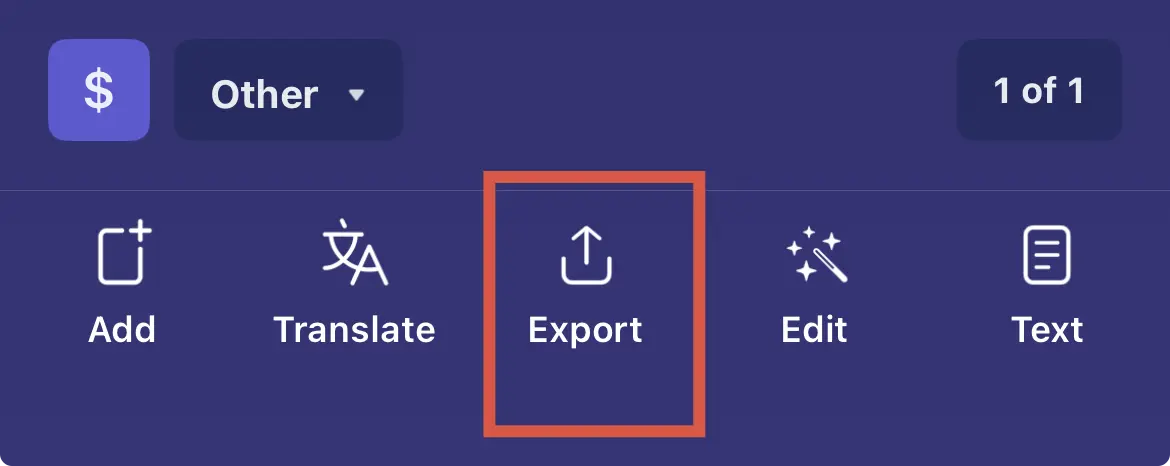
- Tap Export at the bottom
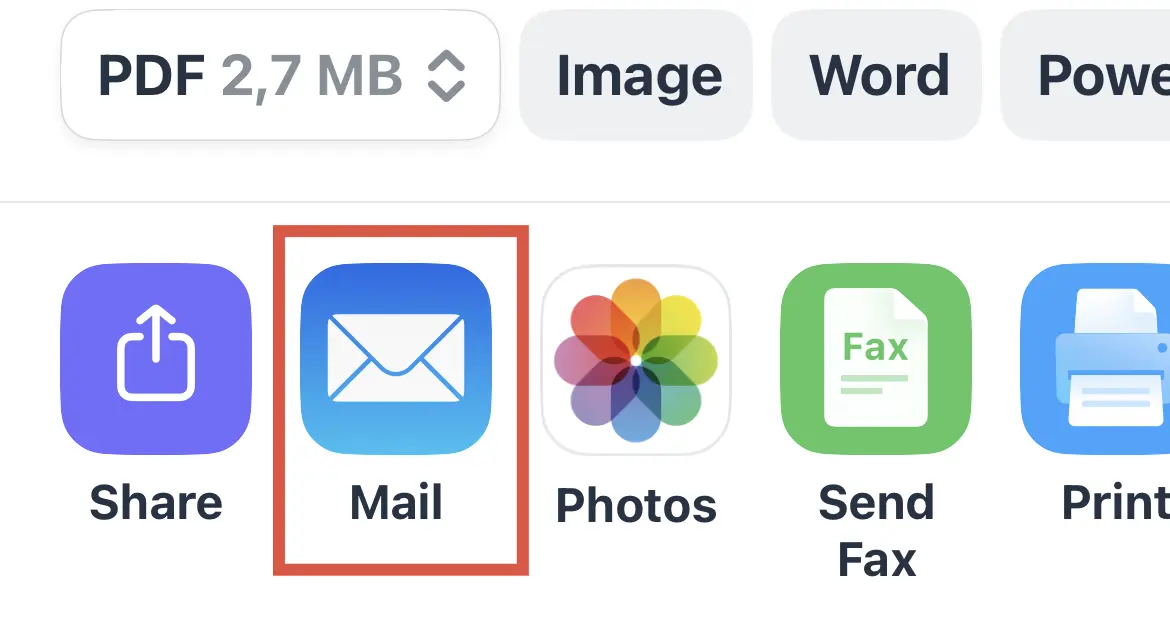
- Select Mail
- Enter the recipient's email address and subject
- Tap Send
The scanned document attaches to your email as the format and size you selected. This method works with the default Mail app on your iPhone.
💡Note:
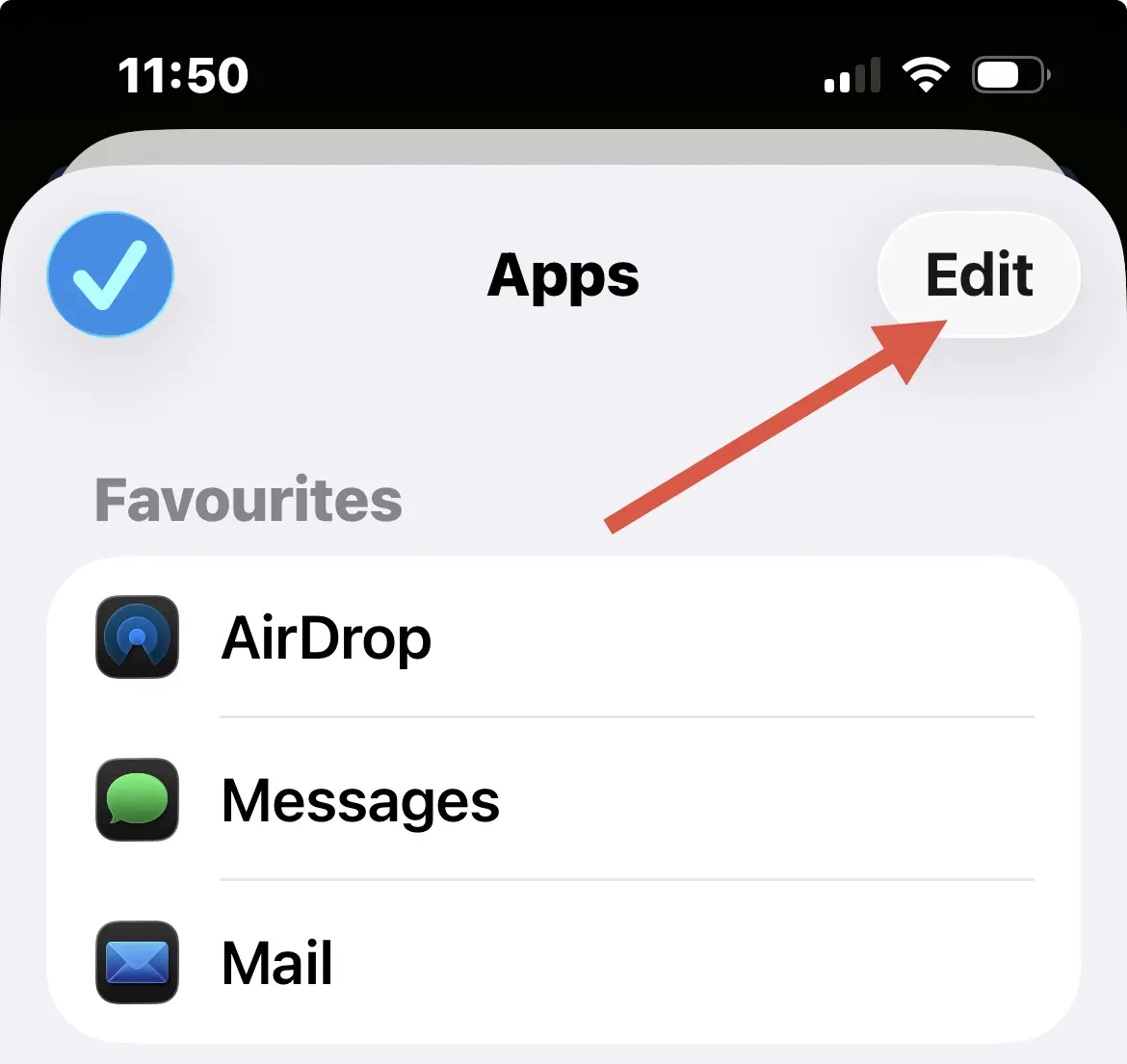
If you don’t see the needed app in the list or it appears grayed out, scroll to the left and tap More to find it.
If it still doesn’t appear, tap Edit to edit and customize the list of available apps.
Choosing the Right File Format for Email
Scanner Pro offers multiple export formats, and you should choose based on what your recipient needs to do with the document.
PDF is the best format for most situations because it preserves formatting, works on all devices, and looks professional. Recipients can view PDFs on any computer or phone without compatibility issues, and the format prevents accidental editing.
Image format (JPEG or PNG) works when you need a photo format or when the recipient doesn't need to work with text. This is common for sharing receipts or reference materials that will be viewed but not edited.
Word format lets recipients edit document text directly, which is useful for collaborative work or when someone needs to extract information. PowerPoint format works similarly for presentations or slide-format documents. Both Word and PowerPoint export require Scanner Pro Plus.
Text format extracts only the OCR-recognized text from your scan with no formatting. Use this when someone needs the raw text content without images or layout.
Scanner Pro also lets you choose file size before sending. Original quality maintains full resolution and is best for printing or archival purposes, but creates larger files. Medium size balances quality and file size and is recommended for most emails. Small size compresses the scan for faster sending and works well for quick reference when print quality doesn't matter.
Most email services limit attachments to 25 megabytes. If your scan exceeds this, choose Medium or Small size, or use Scanner Pro's Share by Link feature instead of direct email attachment.
Frequently Asked Questions
Can I scan and email multiple documents at once?
Yes. Select multiple scans from your My Scans library using the More menu, then tap Export. Scanner Pro will attach all selected documents to your email as separate files or as one merged PDF if you use Merge & Save first.
How do I change the default email account in Scanner Pro?
Scanner Pro uses your iPhone's default Mail account. To change it, go to Settings > Apps > Mail > Default Account on your iPhone and select the email address you want to use as the default for all apps.
Can I email scans as Word or PowerPoint files?
Yes. Scanner Pro can export scans as Word or PowerPoint files. This feature requires a Scanner Pro Plus subscription. Free users can email scans as PDF or image formats.
What file format should I use to email a scanned document?
PDF is the best format for most situations. It preserves document quality, works on all devices, and recipients can't accidentally edit it. Use Image format only when you need photo compatibility, and use Word or PowerPoint when the recipient needs to edit the content.
How do I scan and email a document from a printer?
If your printer has scan-to-email capability, check your printer's manual for setup instructions. Scanner Pro is designed for scanning documents with your iPhone camera, not controlling network printers. Most office printers from HP, Canon, and Epson include scan-to-email features in their control panels.
Does Scanner Pro work with Outlook or Yahoo Mail?
Yes. Scanner Pro works with any email app installed on your iPhone. Use the Share button in the Export screen to select your preferred email service from the list of installed apps.
Can I email scanned documents without saving them to my phone first?
Scanner Pro stores scans in its own My Scans library, not in your Photos app. When you email a scan, it attaches directly from My Scans without creating duplicates in your Photos library. This keeps your Photos app organized while maintaining access to all your scanned documents in Scanner Pro.
Start Scanning and Emailing Today
Scanner Pro makes it simple to scan documents with your iPhone camera and email them as professional PDFs in seconds. Whether you're sending contracts to clients, submitting forms to your employer, or sharing receipts with your accountant, the Export feature gives you full control over file format and quality before hitting send.
The app works with Mail, Gmail, Outlook, and any email service on your device. You can send multiple documents in one message or choose specialized formats like Word and PowerPoint when needed. Scanner Pro requires iOS 17.0 or later and is available for iPhone, iPad, and Apple Vision Pro.

Take high-quality scans
Easily turn papers into PDFs with your iPhone and iPad. Scan receipts, books, IDs, invoices.