If you've got a work calendar, a personal Outlook account, and maybe a Google or iCloud calendar too, you already know the problem: nothing lives in one place. You double-book yourself. You open three apps just to check your availability.
Outlook does let you merge calendars but "merge" doesn't mean what most people expect, and it only handles calendars that already live inside Outlook. If you're trying to combine Outlook with Google or Apple calendars, you'll need a different approach. Here's how to do both, and how to see everything in one calendar.
Can you merge two calendars in Outlook?
Yes, but Outlook actually gives you two different features that get called "merging," and they do very different things:
- True merge: copies items from one calendar into another so they live permanently in a single calendar folder.
- Overlay view: stacks multiple calendars on top of each other visually, so you can see everything at a glance, but each calendar stays separate and keeps its own events.
Most people asking "can you merge two calendars in Outlook" actually want option 2 — it's faster to set up, easier to undo, and it's what most people mean when they picture multiple Outlook calendars combined into one view.
How to merge two calendars in Outlook
This is a genuine merge, since it copies events from one calendar into another. It's a two-step export-then-import process.
Step 1: Export the calendar you want to merge in
- Click the File tab.
- Click Options, then Advanced.
- Under Export, click Export.
- Choose Export to a file, then Next.
- Select Outlook Data File (.pst), then Next.
- Pick the calendar folder you want to export. Clear the Include subfolders box, then click Next.
- Choose a save location and file name, then click Finish.
This only copies the items, and nothing is deleted from the original calendar.
Step 2: Import that file into your main calendar
- Click File > Open > Import.
- Select Import from another program or file, then Next.
- Choose Outlook Data File (.pst) > Next.
- Browse to the file you just exported and click OK.
- Under Options, select Do not import duplicates > Next.
- Under Select the folder to import from, choose the Calendar folder and clear Include Subfolders.
- Choose Import items into the same folder, then pick the destination account if you have more than one.
- Click Finish.
Your two calendars are now one. This only works for calendars that already exist inside Outlook (multiple Outlook accounts, shared calendars) It won't pull in a Google or Apple calendar unless that calendar is already connected to Outlook first.
How to overlay two calendars in Outlook
If you just want to view calendars together without permanently combining them, overlay is much simpler and works in new Outlook, classic Outlook, and Outlook on the web.
In new Outlook:
- Go to Calendar in the navigation bar.
- In your calendar list, check the box next to every calendar you want to view together.
- In the Arrange group, make sure the Split view is turned off. With Split view off, your calendars overlay on top of each other, each in its own color.
- Turn Split view back on any time you want to see them side by side instead.
That's the whole trick: Split view on gives you calendars side by side. Split view off gives you calendars overlaid into one view. This is the feature people usually mean when they search "show calendar on the side of Outlook": Outlook can do both layouts from the same screen.
How do I combine all my calendars into one?
Merge and overlay only work with calendars already inside Outlook; that means Outlook, Exchange, or Microsoft 365 calendars. If your real problem is combining Outlook with Google and Apple calendars, you're dealing with three ecosystems that don't talk to each other by default.
You can technically add a Google calendar to Outlook via a subscription link, or add an Outlook account to your iPhone's Calendar app, but each workaround has limits: subscribed calendars often update on a delay, and native syncing usually means editing settings on every device separately.
If what you actually want is one clean view of all your Outlook meetings, a Google calendar for the kids, an iCloud calendar for personal stuff. A dedicated app built for exactly this is faster than stitching Outlook's tools together.
Combine Outlook, Google, and Apple calendars in Calendars by Readdle
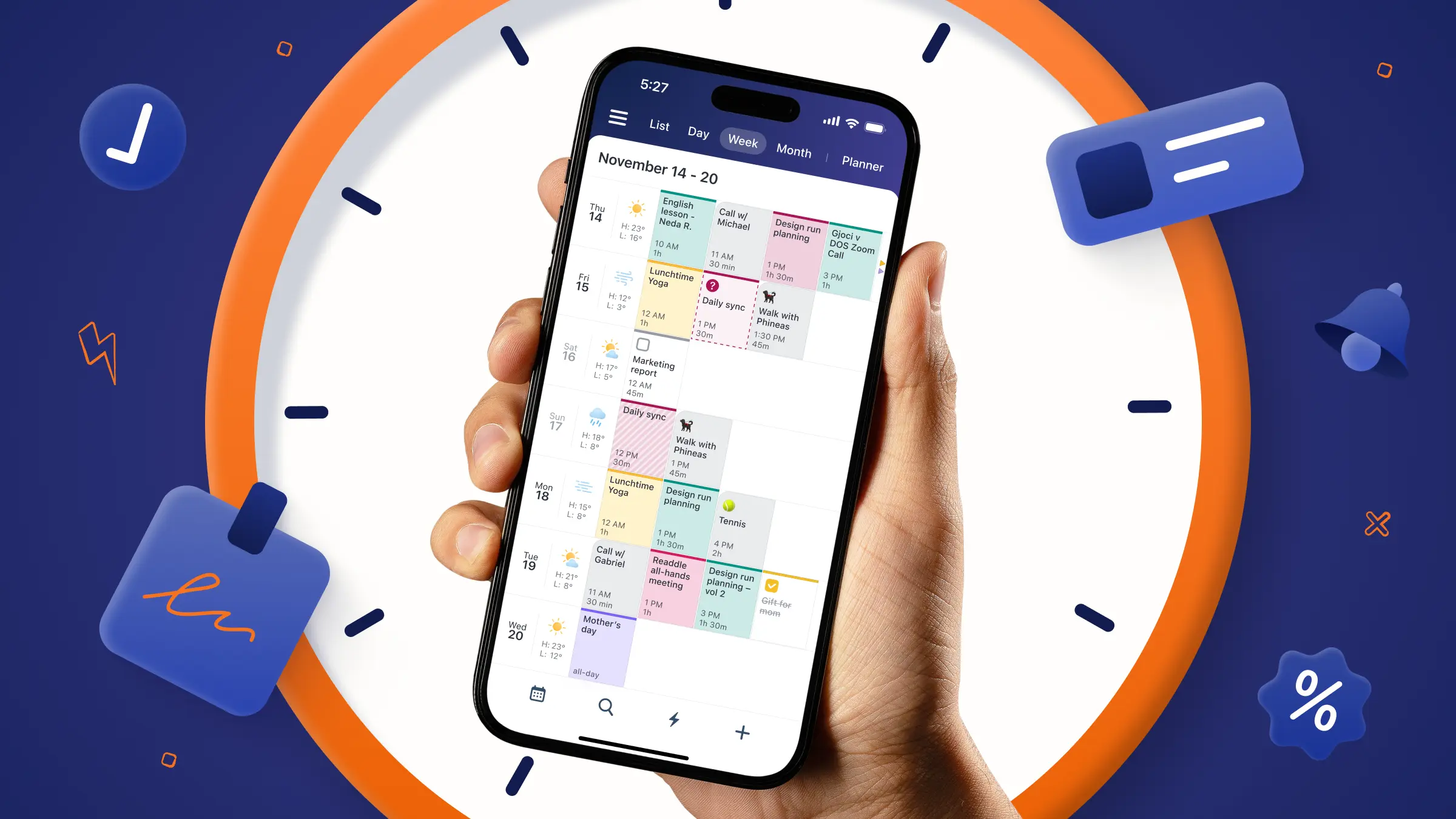
Calendars by Readdle is built around the idea that your Outlook calendar shouldn't live in a different app than everything else you're scheduling. Connect your Outlook account alongside Google, iCloud, or Exchange accounts, and every calendar shows up together: color-coded, overlaid, and synced automatically, so there's nothing to export or re-import when something changes.
To add your Outlook calendar to Calendars:
- Open the Calendars app.
- Tap the three-line menu icon in the top-left corner (skip this on iPad).
- Go to Settings > Accounts.
- Tap Add Account.
- Select Outlook and log in with your Outlook credentials.
Add your Google and iCloud accounts the same way, and Calendars puts every event on one screen. Each calendar keeps its own color, so you can still tell at a glance whether that 2 p.m. block is a work meeting or your kid's dentist appointment — something a true Outlook merge can't offer, since merging flattens events into a single calendar with no way to tell them apart afterward.
A few ways this plays out:
- Professional: keep your Outlook work calendar and a client's shared Exchange calendar overlaid, so you never double-book a call
- Personal: sync a family Google calendar next to your iCloud calendar, so school pickups and your own plans stop colliding
- Business: run a Microsoft 365 Outlook account alongside a Google Workspace account for a side project, without switching apps to check either one
Calendars connects directly to each account's servers rather than storing a separate copy, and sidebar toggles let you hide or mute individual calendars without disconnecting them; it’s handy if you want your Outlook calendar visible during the workday and muted on weekends.
FAQ
Can you merge two calendars in Outlook?
Yes. Outlook has a genuine merge feature (export one calendar, then import it into another) for calendars that already exist inside Outlook. For calendars from other services, like Google or Apple, Outlook doesn't merge them — you'd need to connect them through a subscription link or a separate app.
How do I overlay two calendars in Outlook?
Select the calendars you want to view in your calendar list, then turn off Split view in the Arrange group. The calendars will stack on top of each other in a single view, each keeping its own color.
How do I combine all my calendars into one?
If all your calendars are inside Outlook, use the export/import merge process above. If you're combining Outlook with Google or Apple calendars, a cross-platform app like Calendars by Readdle will show everything together without needing to export or convert anything.
How do I merge two calendars in the new Outlook?
New Outlook doesn't have a built-in true-merge option the way classic Outlook does. Your options in the new Outlook are overlay and split view. For an actual merge, or to include non-Outlook calendars, use classic Outlook's export/import steps or a third-party calendar app.
Does merging calendars in Outlook delete anything?
No. Exporting makes a copy of your events — nothing is removed from the original calendar, and importing skips duplicates if you select that option.