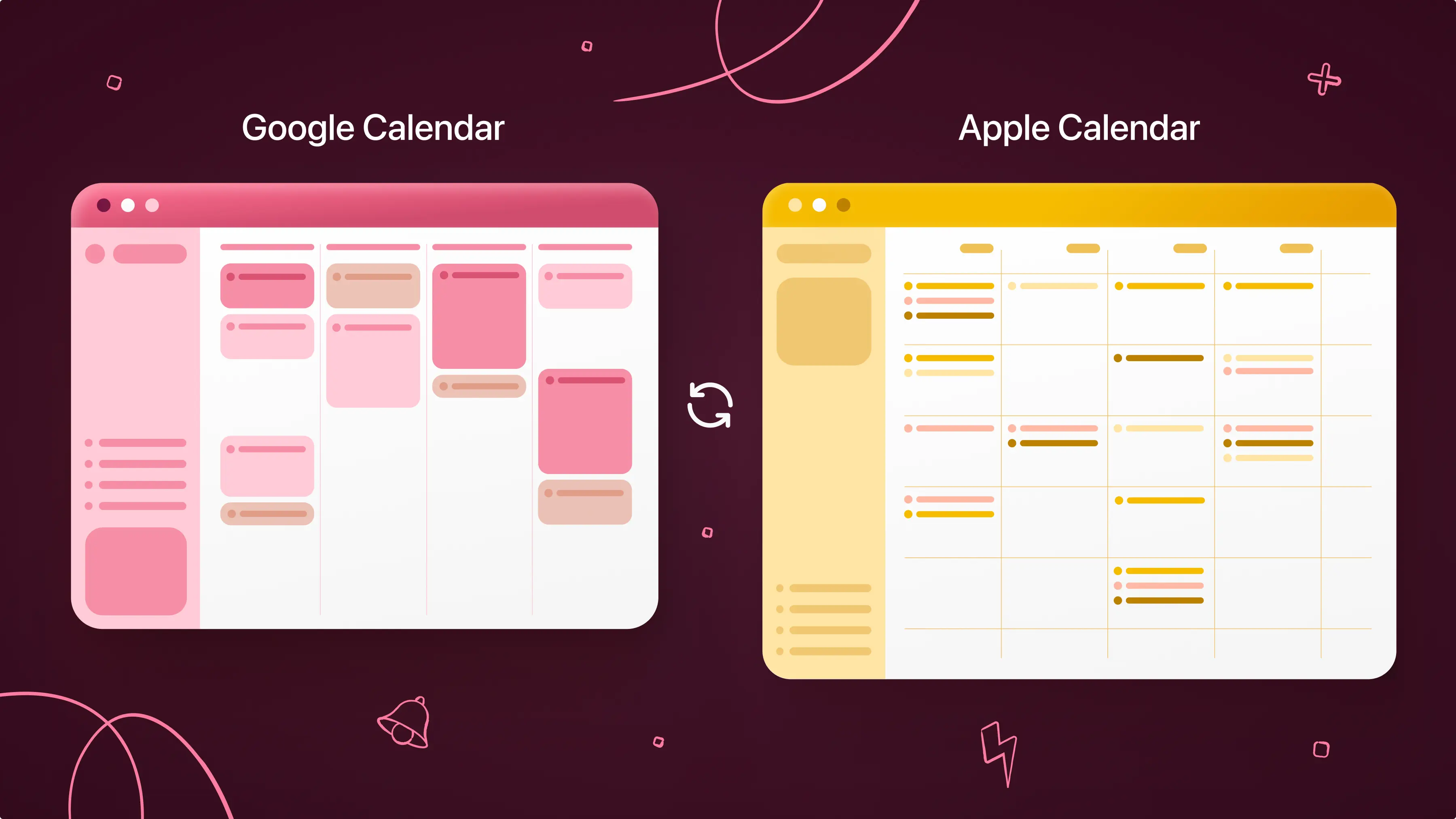
If you use both Apple Calendar and Google Calendar, keeping everything in sync can feel confusing. Maybe you use an iPhone and a Mac for personal life, but rely on Google Calendar for work, or you’re switching between devices and don’t want to miss events.
In this article, you’ll learn how to sync Apple Calendar to Google Calendar in multiple ways. We’ll cover both one-way and two-way syncing, how to connect accounts on iPhone, iPad, and Mac, and how to fix common syncing issues.
If you want a simpler way to manage everything, we’ll also show you how to sync both calendars using Calendars by Readdle, so you can view and organize all your events in one place.
Is there a way to sync Google Calendar with Apple Calendar?
Yes, but how it works depends on the method you choose. Here are a few options:
-
Two-way sync: Add your Google account to Apple Calendar. Events update across both automatically.
-
One-way sync: Share an iCloud calendar with Google Calendar using a public link.
-
App-based sync: Use Calendars by Readdle to connect both accounts in one interface.
Two Way Sync with Google Calendar to Apple Calendar
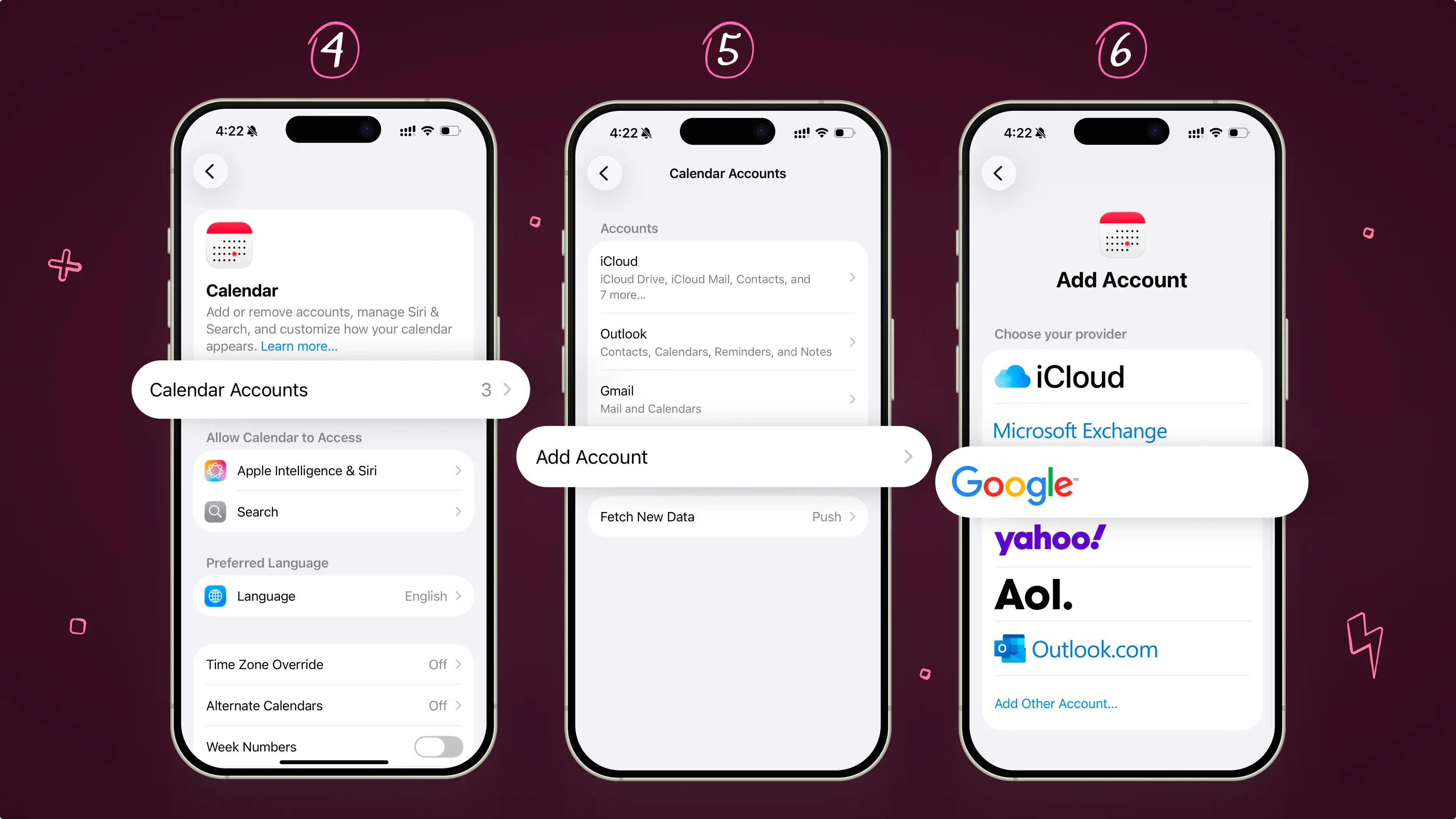
On iPhone or iPad
-
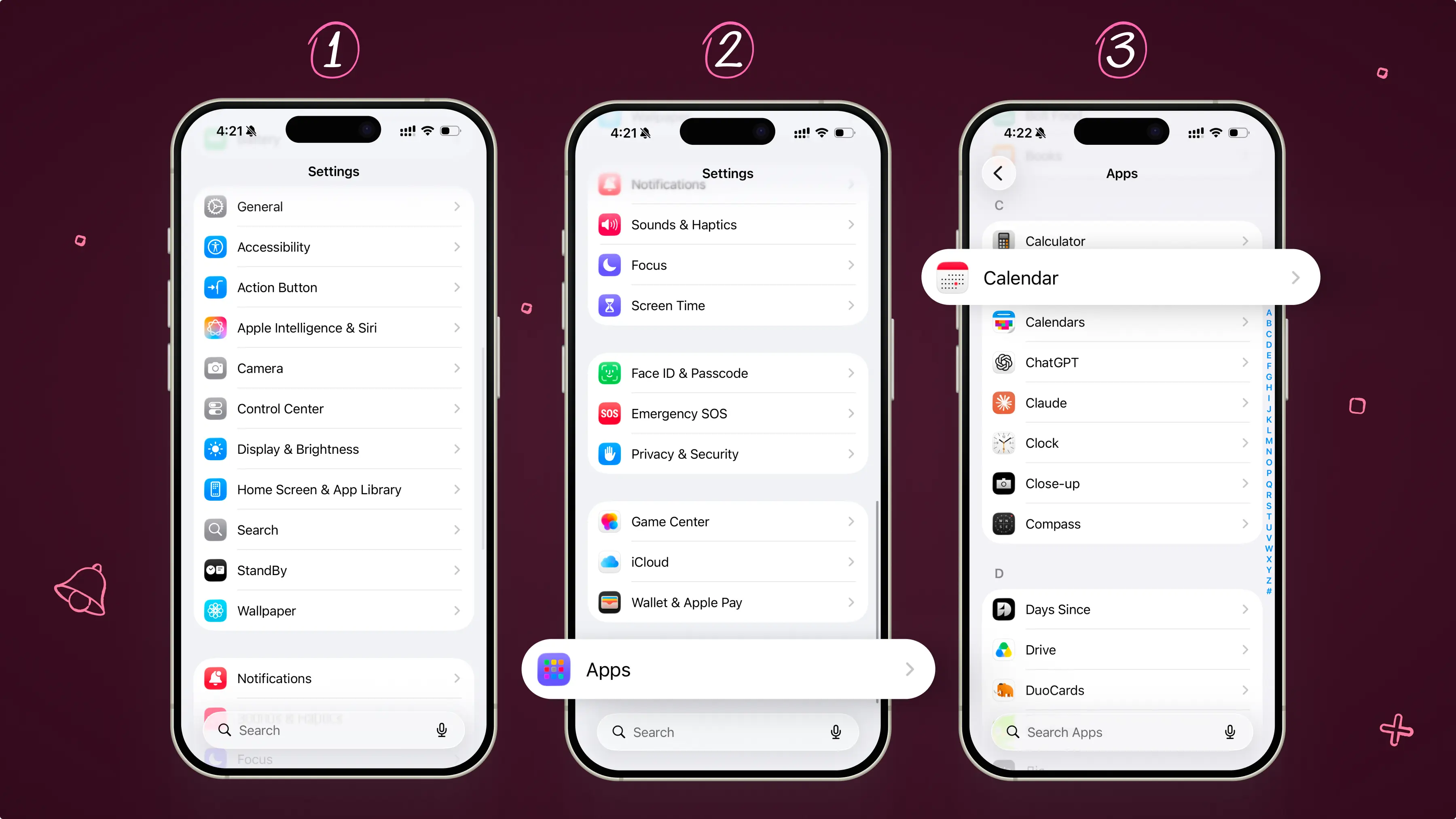
Open the Settings app
-
Scroll down and tap Apps
-
Scroll down and tap Calendar
-
Tap Accounts
-
Select Add Account
-
Choose Google
-
Enter your email and tap Next
-
Enter your password (or an app password if you use 2-Step Verification)
-
Tap Next
-
Make sure the Calendars toggle is turned on
Once connected, your Google Calendar events will appear in the Apple Calendar app. Any new events you create will sync across both platforms.
On Mac
-
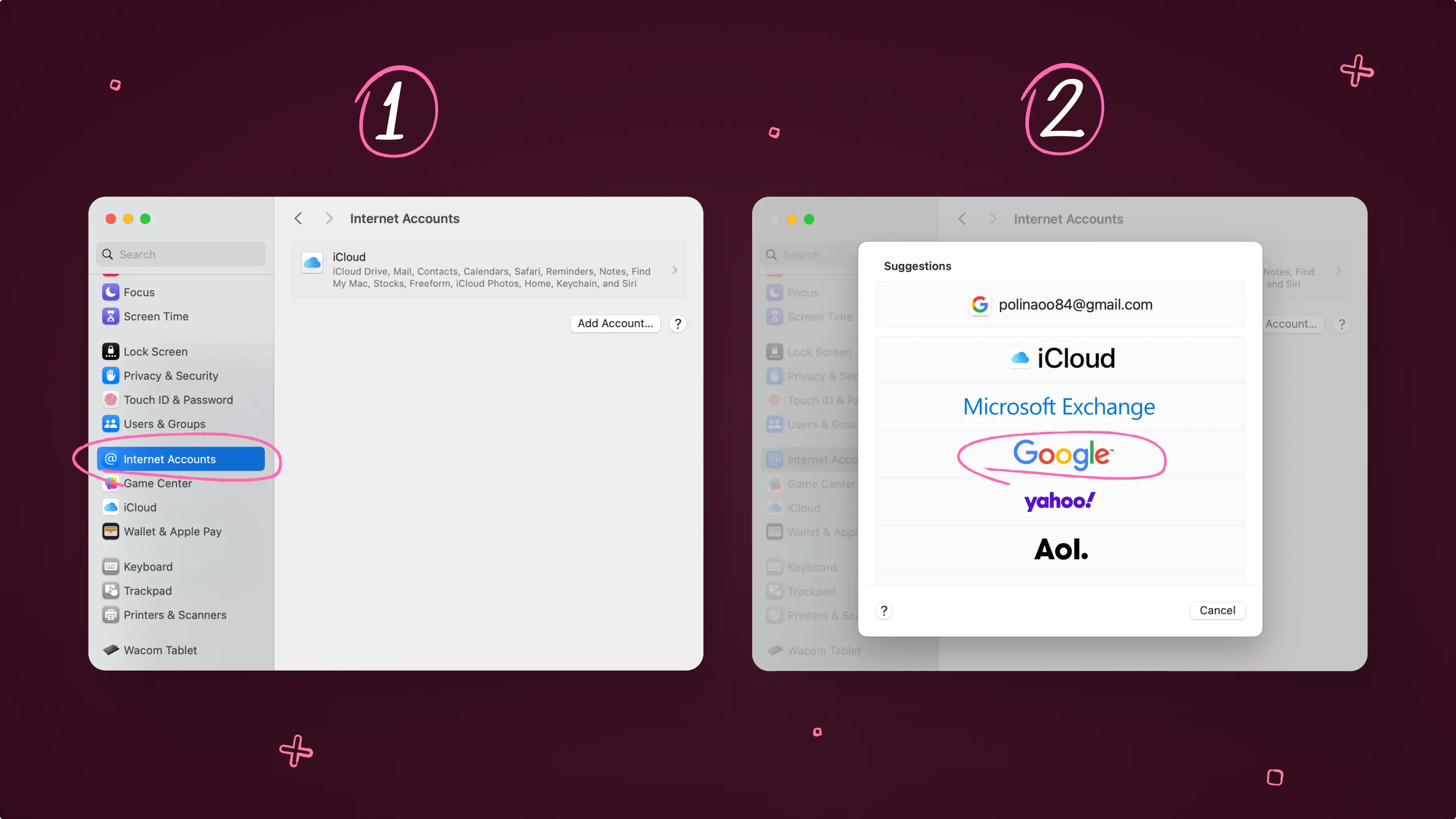
Open System Settings
-
Click Internet Accounts
-
Select Google
-
Sign in with your Google account
-
Make sure the Calendars option is checked
Once connected, your Google Calendar will appear in the Apple Calendar app, just like it does on your iPhone or iPad.
What Syncs (and What Doesn’t)
Most events will sync seamlessly between Apple Calendar and Google Calendar, but there are a few limitations.
What syncs:
-
Events and event edits
-
Event details like time, location, and notes
What doesn’t sync:
-
Email notifications for Google Calendar events
-
Creating new Google calendars from the Apple Calendar app
-
Advanced features like room scheduling
One Way Sync with Apple Calendar to Google Calendar
If you only want to view your Apple Calendar in Google Calendar, you can share it using iCloud.
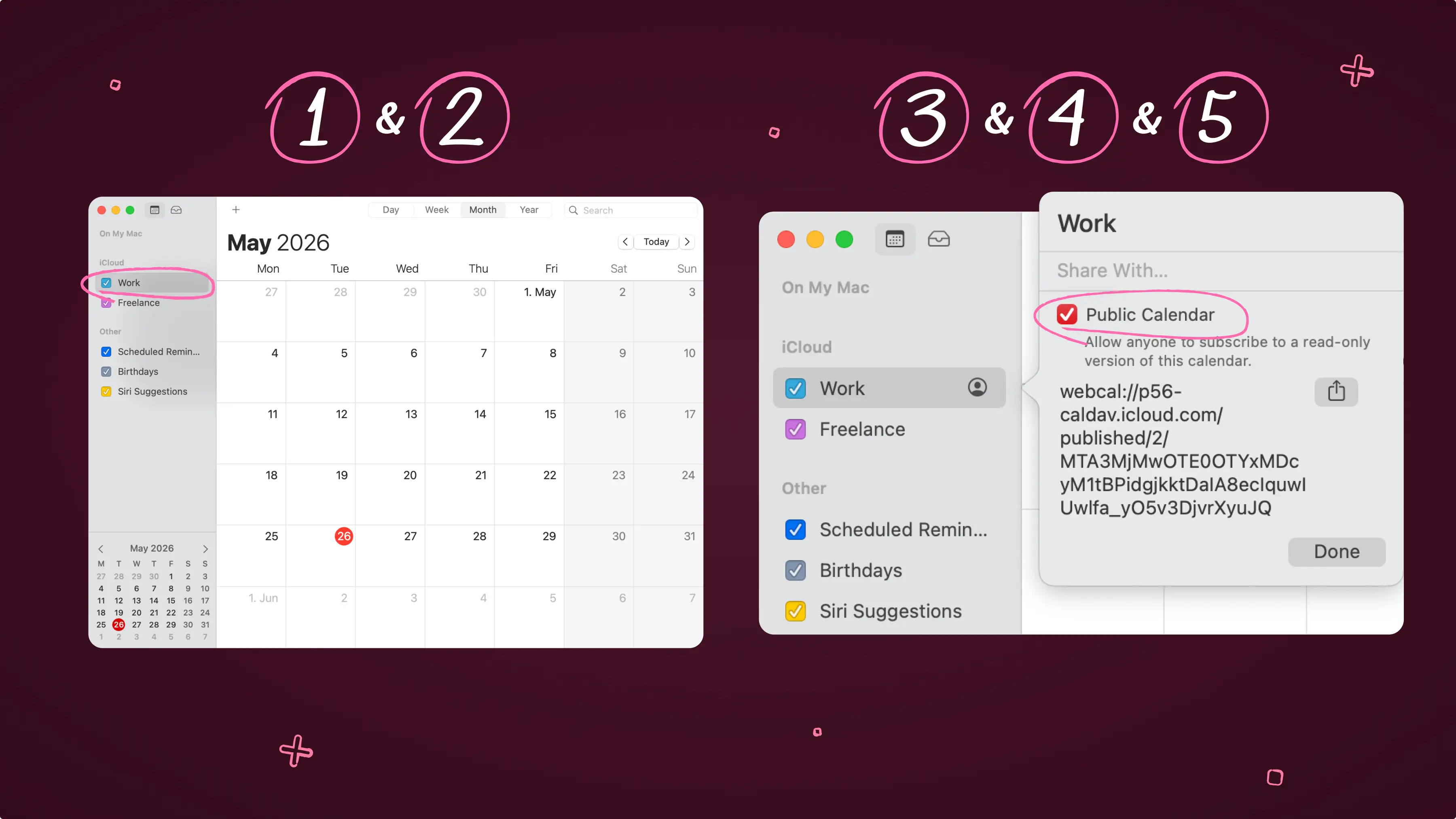
Step 1: Get your iCloud calendar link
-
Open Apple Calendar on your Mac
-
Find the calendar you want to share
-
Tap the info button on the right hand side of the calendar.
-
Click the toggle to enable Public Calendar
-
Copy the link
Step 2: Add it to Google Calendar
-
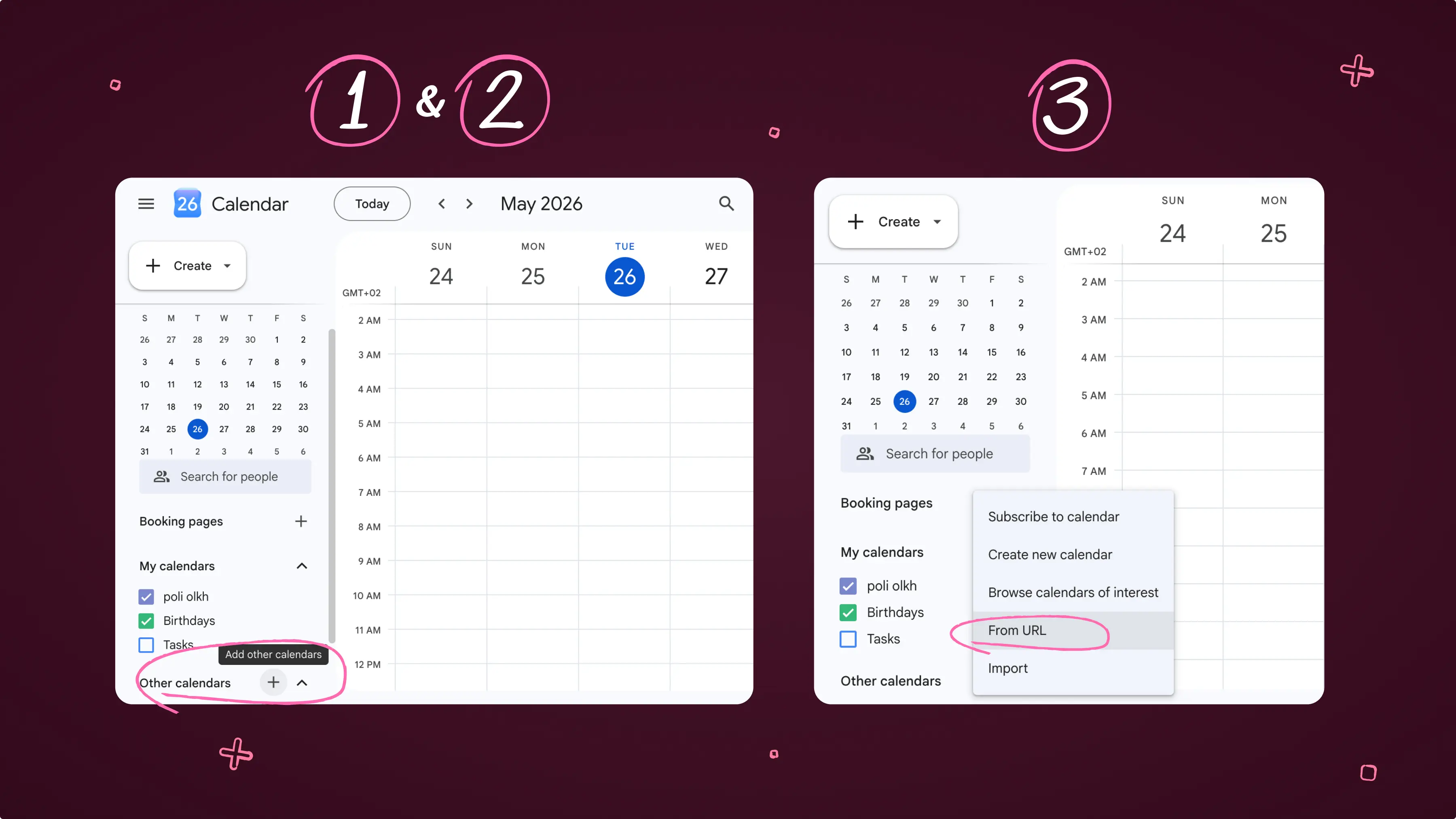
Open Google Calendar in a browser
-
Click the + next to “Other calendars” in the bottom left corner
-
Select From URL
-
Paste the iCloud link
-
Click Add calendar
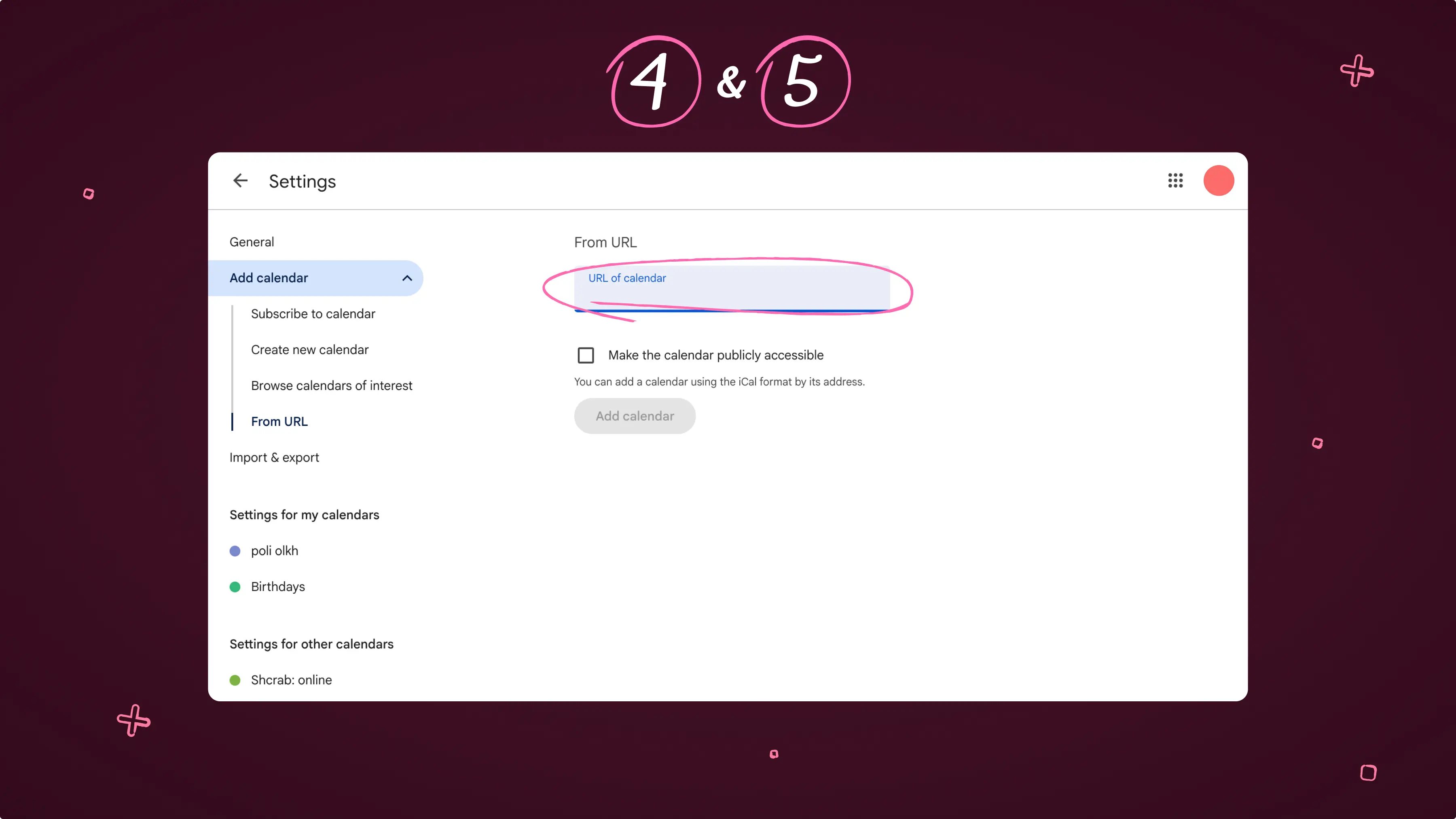
Now your Apple Calendar events will appear in Google Calendar, but note: This is one-way sync only. Changes made in Google Calendar won’t update in Apple Calendar.
How to Sync Apple and Google Calendars using Calendars by Readdle
If you use multiple calendars across different platforms, switching between apps can get messy. That’s where Calendars by Readdle comes in.
Instead of trying to force Apple Calendar and Google Calendar to sync perfectly, you can connect both accounts in one app and manage everything from a single place. Calendars acts like a control tower for your schedule, bringing all your calendars together in one clean interface.
Here’s how you can connect all of your different accounts to Calendars. After you’ve downloaded the app, just follow these steps:
-
Open Calendars.
-
Scroll down and tap Settings.
-
Select Add Account.
-
Pick an account you’d like to connect to.
Final thoughts
Syncing Apple Calendar to Google Calendar can be simple once you choose the right method:
-
Use Google account integration for full two-way sync.
-
Use iCloud public links for one-way visibility.
-
Use Calendars by Readdle for the easiest all-in-one experience.
If you’re constantly juggling devices, accounts, or calendars, having everything in one place can make a huge difference.
Download Calendars for free and take control of your schedule no matter which platform you use.
FAQ
Why are my Google Calendar events not updating on my iPhone or Mac?
If your events aren’t updating, it’s usually a settings or connection issue.
Try this:
-
Go to Settings > Calendar > Accounts on your iPhone and make sure your Google account is added
-
Check that the Calendars toggle is turned on
-
Refresh the calendar app or restart your device
-
Make sure you’re connected to the internet
If the issue continues, remove your Google account and add it again to reset syncing.
Why do I see duplicate calendars or events?
Duplicate events usually happen when the same calendar is added more than once. For example, you may have both iCloud and Google calendars showing the same events or the same Google account is connected multiple times.
To fix this:
-
Open the calendar app you’re using.
-
Check which calendars are enabled.
-
Turn off duplicates or remove extra accounts.
Why is my calendar syncing delayed?
Sometimes syncing isn’t instant, especially with iCloud calendar sharing. Delays can happen because Apple Calendar doesn’t always push updates in real time or Google Calendar may take time to refresh subscribed calendars. To speed things up, check your internet connection, open the calendar app you’re using, and manually refresh.