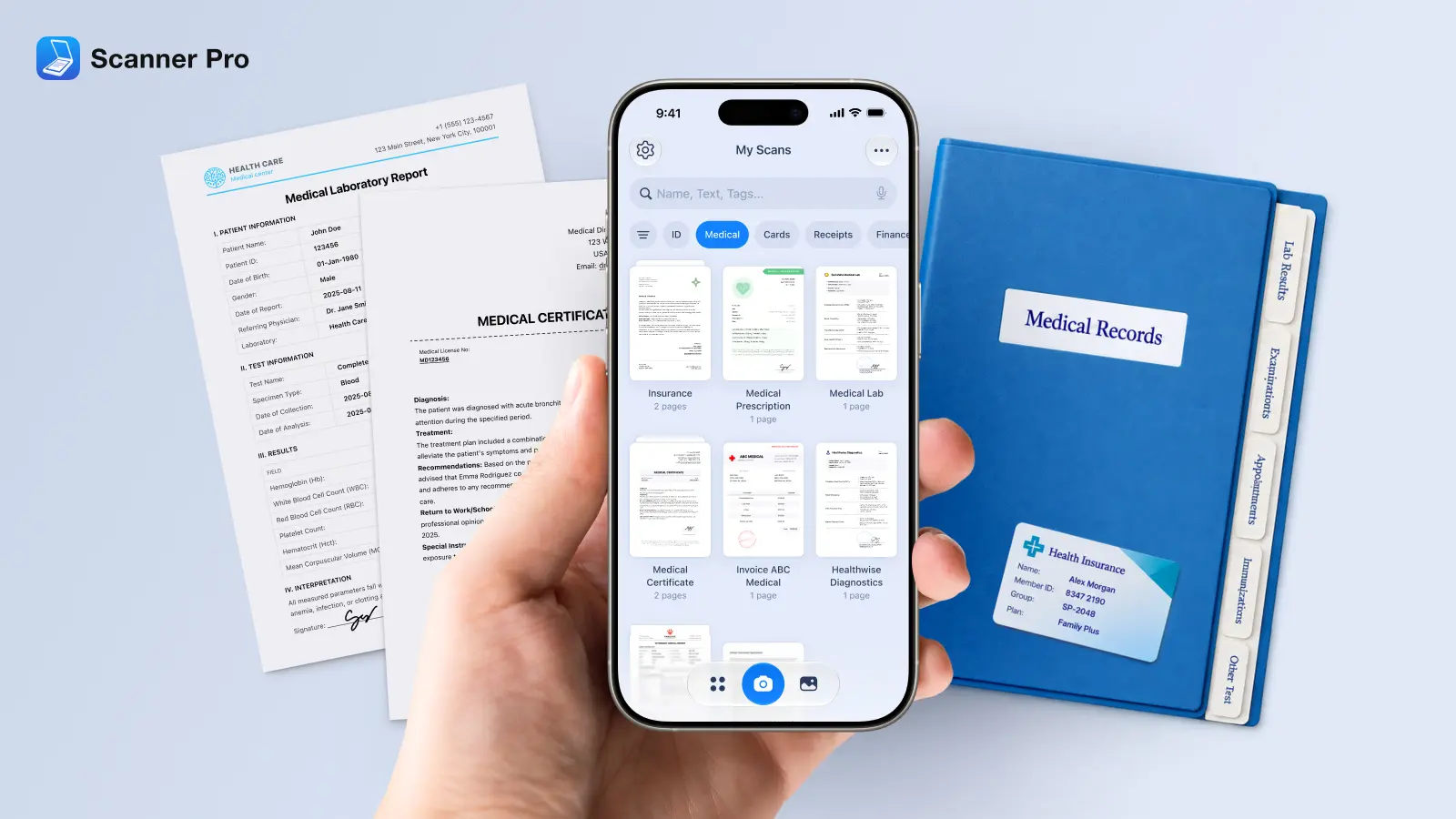
Medical paperwork piles up fast. Lab results from three different labs, prescription printouts from two pharmacies, an insurance card that's been through the wash.
If you're managing your own health records, or those of a child with complex needs, an ageing parent, or a family member with a chronic illness, scattered paper is a real problem that shows up at exactly the wrong moment.
Scanner Pro turns your iPhone or iPad into a medical record scanner you already have in your pocket. Scan a lab result after the appointment, file it before you leave the doctor’s office, and find it by searching any word in the text. All processing happens on your device, so your health information doesn't pass through any third-party server.
What to digitize first
Not every piece of paper is worth scanning, but these categories are worth prioritizing:
- Ongoing documents (scan as you receive them)
- Lab results and blood panels
- Prescription records and medication lists
- Referral letters and specialist reports
- Insurance cards and benefit statements
- Vaccination records
- Any document you'd need to reproduce in an emergency
One-time archive (batch scan when you have a chance)
- Past surgical or hospital summaries
- Allergy documentation
- Prior imaging reports (MRI, X-ray, CT)
- Long-term condition diagnoses
- Children's school health forms
Start with the ongoing category. Once you have a habit of scanning new documents as they arrive, you can tackle the backlog.
How to scan medical records with Scanner Pro
Scanner Pro's camera applies automatic edge detection, so you don't need to hold your phone perfectly still. It also corrects perspective automatically, which matters when you're photographing folded or wrinkled prescription printouts.
Step 1: Open Scanner Pro and tap the camera button
Point your phone at the document. The blue border shows the detected edges. If it looks right, the scan triggers automatically. For faded or low-contrast documents, tap the shutter manually.
Step 2: Check and adjust
After scanning, you can crop, rotate, or adjust the color mode. For most medical documents, Black & White mode produces the cleanest, most readable result. For documents with color coding (allergy bands, highlighted drug interactions), keep Color mode. Auto Color detection selects the best mode automatically.
Step 3: Name the document before saving
Tap the document name and rename it before you tap Save. A consistent naming format saves significant time later. A simple convention that works:
YYYY-MM-DD [Type] [Provider]
Examples:
- 2026-03-14 Blood Panel GP Surgery
- 2026-05-02 MRI Report Dr Chen
- 2026-06-01 Prescription Metformin
This keeps documents sortable by date and findable by any part of the name.
Step 4: Save to the right folder
Before tapping Done, move the scan directly into the correct folder. This takes two seconds at scan time and saves five minutes of filing later.
Setting up your medical records: folder structure
Scanner Pro lets you create as many folders as you need inside the My Scans library. A straightforward structure for personal or family health records:
For an individual:
- Medical / Lab Results
- Medical / Prescriptions
- Medical / Specialists
- Medical / Insurance
- Medical / Vaccinations
- Medical / Hospital
For a family or caregiver managing multiple people's records:
- [Name] / Lab Results
- [Name] / Medications
- [Name] / Specialists
- [Name] / Insurance
To create a folder: tap the three dots icon at the upper right on the My Scans screen and select New Folder. After this, type the name, and tap Done. To move a scan into a folder: tap the three dots icon again, tap Select, choose the scan, tap Move, and select the destination.
One current limitation to be aware of: Scanner Pro does not support subfolders. If you need nested organization (e.g., Specialists → Cardiology → Dr Smith),
use the naming convention to compensate — Cardiology Dr Smith 2026-05 — and rely on full-text search to find specific documents.
Finding records when you need them
The point of any organization system is being able to find documents under pressure: at a pharmacy counter, in a hospital waiting room, on the phone with an insurance company.
Full-text search (in Scanner Pro Plus) indexes the text inside your scanned documents. Search for "metformin" and every prescription containing that word appears, regardless of what you named the file. Search "Dr Rodriguez" and everything from that provider comes up. This is particularly useful for caregivers managing records across multiple providers.
Smart Categories automatically classifies documents by type: forms, ID cards, receipts, letters and more. You can search by category even without knowing the filename.
Sort by Date Created within any folder to see the most recent documents at the top. For conditions with ongoing monitoring (diabetes, hypertension, thyroid disorders), this makes it quick to pull up the latest lab values for comparison.
Syncing and backup
Paper can be lost, damaged, or left at home. A digital copy that lives only on one device has the same problem.
iCloud sync keeps your Scanner Pro library available across all your iOS devices. Enable it under Settings > iCloud Sync. If your phone is lost or damaged, your records are still accessible from another device.
Auto-upload to cloud storage automatically backs up new scans to Google Drive, Dropbox, OneDrive, Box, or other connected services without any manual step. Configure it under Settings > Cloud Services > Auto Upload. Useful for those who want records accessible from a computer as well as a phone.
Share Link lets you generate a secure link to a specific document, which you can send to a new specialist or add to a patient portal message, without emailing the entire file.
Practical workflows for caregivers and people with chronic conditions
After every appointment: Scan any paperwork before you leave the building or the car. One minute now saves twenty minutes of searching later. Name the file with the date and provider before saving.
Prescription pickup: Scan the prescription label and the information leaflet. If a pharmacist flags a drug interaction months later, you'll have the original documentation to reference.
Pre-appointment preparation: Open the relevant folder and review the last three lab results or the specialist's most recent letter.
Emergency situations: If you or a family member needs emergency care, having current medication lists, allergy documentation, and recent diagnoses in a searchable app on your phone is faster than any paper system and more reliable than memory.
For children with complex medical needs: Maintain a single folder per child with their diagnoses, medication schedules, specialist contacts, and school health plans. Share relevant sections with schools, childminders, or respite carers by exporting specific documents.
FAQ
What is the best way to organize medical records at home?
Digitize as you go rather than in large batches. Scan each document immediately after receiving it, name it consistently (date + type + provider), and file it into a folder structure you'll actually remember. Scanner Pro's full-text search means even imperfect organization becomes workable, and you can always find a document by searching for a medication name, a diagnosis, or a doctor's name.
How do I organize health records for an elderly parent?
Create a folder named after the person (or use their initials if you're managing multiple family members' records). Scan documents during or after their appointments. If needed, enable cloud sync so the records are accessible from your own device.
Does Scanner Pro work for organizing medical records for chronic illness?
Yes. People managing ongoing conditions typically accumulate a large volume of records over time: repeated lab panels, multiple specialists, long medication histories. Scanner Pro's full-text OCR search means you can retrieve any document by searching for the condition name, the medication, or the clinician's name, regardless of when it was scanned.
Are my medical documents secure in Scanner Pro?
Scanner Pro's OCR processing happens entirely on your device. Document data isn't sent to Readdle's servers for processing. For storage security, your scans are protected by your iPhone's standard device security (Face ID or passcode). Password protection for individual documents is available with Scanner Pro Plus.
What are the 5 C's of medical records?
The 5 C's of good medical record documentation are: Concise (relevant information only), Complete (all necessary details present), Clear (unambiguous and legible), Correct (accurate and factual), and Chronological (in date order). When organizing personal health records, applying the same principles helps: keep only what's relevant, include full context, label clearly, verify accuracy before filing, and sort by date.
Can I merge multiple medical documents into one PDF?
Yes. Scanner Pro supports merging multiple scans into a single PDF. This is useful for consolidating a series of lab results into one annual record, or combining a hospital admission, discharge summary, and follow-up letter into a single file per episode of care.
What's the best way to organize medical records when switching doctors?
Export the relevant folder or specific documents as PDFs and share via email or a secure link using Scanner Pro's Share Link feature. A new specialist can receive a complete PDF of your history without requiring access to any app or patient portal. Having a current medication list, your most recent bloodwork, and any ongoing diagnoses in a single shareable document is more useful than a folder full of loose papers.
Does Scanner Pro work for organizing medical records in a home office setting?
Yes. Scanner Pro is designed for personal and professional use on iPhone and iPad (iOS 17.0+). It's not intended for clinical practice management or enterprise document workflows: for those settings, dedicated medical record management software applies. But for individuals, carers, and small healthcare practices needing a mobile-first document scanning system, it fits well.