Turn the paper pile on your desk into a searchable digital library
A typical school runs through nearly 2,000 sheets of paper a day, and a typical U.S. teacher works a median of 54 hours a week, with just 46 percent of that time in the building spent actually teaching, according to the 2022 Merrimack College Teacher Survey administered by the EdWeek Research Center. Worksheets, permission slips, graded work, and handouts eat up much of the rest. A paperless classroom does not fix a schedule, but it removes one recurring chore: copying, sorting, filing, and hunting for paper.
Scanner Pro turns your iPhone or iPad into a scanner that captures a page, cleans it up, reads the text, and files it where you want it.
This guide shows how to move a working classroom to digital documents one step at a time, what the education research says about the payoff and the pitfalls, and how to set up a routine you will actually keep.
What a paperless setup gives a teacher:
- A worksheet master you scan once and reuse every year, instead of re-copying
- Every handout, form, and student sample searchable by text, not by memory of which folder it's in
- Documents backed up to the cloud, so a lost binder is no longer a lost unit
This works for digitizing worksheets and answer keys, collecting signed permission slips, and building a per-student portfolio of work.
Before you start: what you need
- An iPhone or iPad running iOS 18.0 or iPadOS 18.0 or later
- Scanner Pro installed (the free tier scans, organizes, and shares; free scans carry a watermark)
- A cloud account you already use: iCloud Drive, Google Drive, Dropbox, OneDrive, Box, OneNote, or Evernote
- A rough folder plan: most teachers sort by class period, then by subject or unit
A note before you scan anything with a student's name on it: signed permission slips, graded work, and health forms are "education records" under FERPA, the federal student-privacy law, which the U.S. Department of Education defines as records "directly related to a student" that are "maintained by an educational agency or institution." Check your district's policy on where student records may be stored before you upload them to a personal cloud account. Scanner Pro's text recognition runs entirely on your device, so no document data leaves your phone during scanning, which helps, but your cloud provider's terms still apply once a file is uploaded.
How to build your paperless classroom
Step 1: Scan your first stack
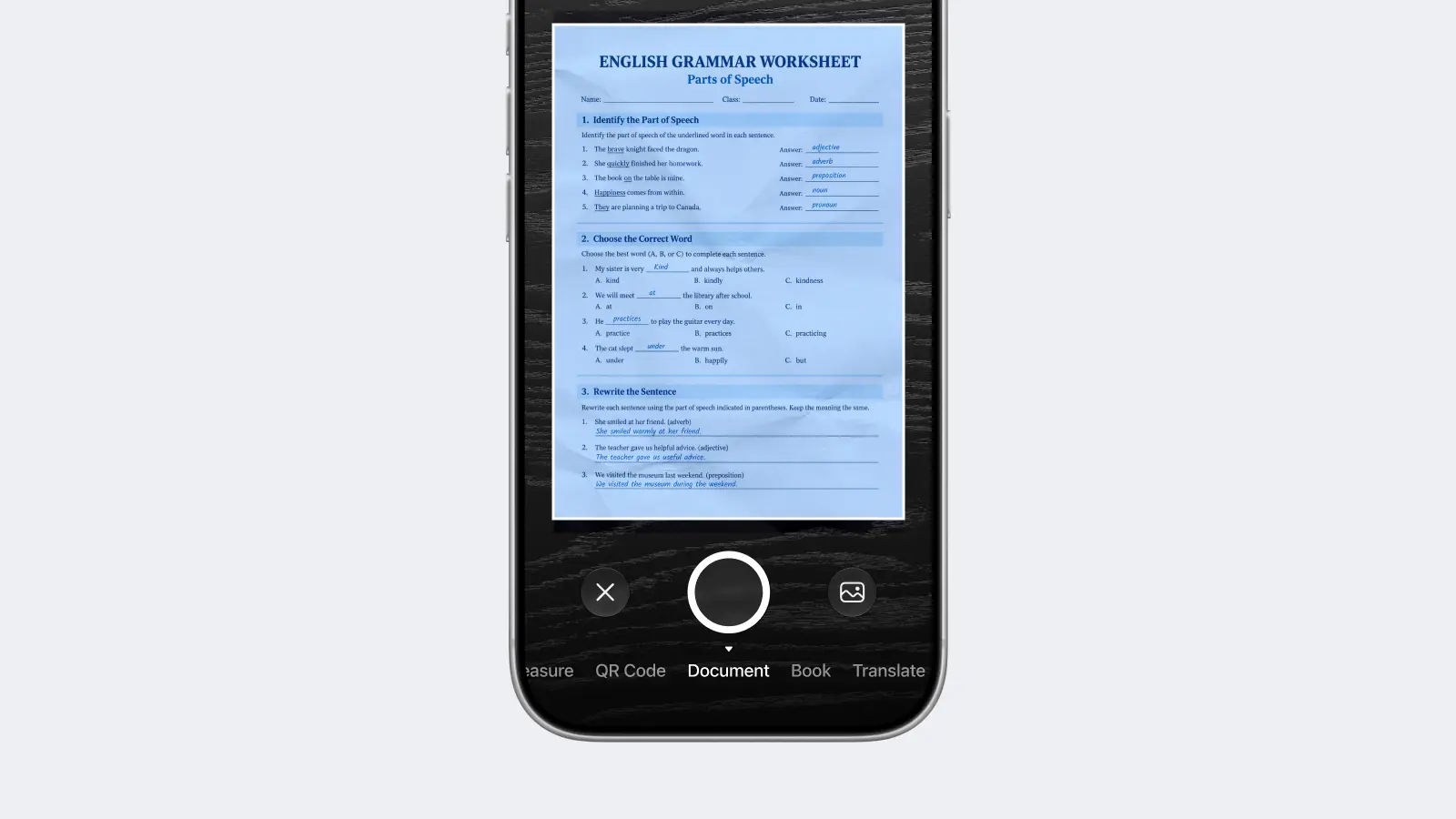
Open Scanner Pro and tap Camera. Hold the page flat in the frame. The app finds the edges automatically and captures the page; for a multi-page worksheet, keep going and it adds each page to the same document. Auto Color Detection picks color or black-and-white per page, and Shadow Removal clears the gray blur your hand or the desk lamp throws across the page.
Start with something low-stakes, like a stack of answer keys or reference sheets, not your only copy of anything. Scanning ten pages takes a couple of minutes.
Step 2: Clean up and name the document
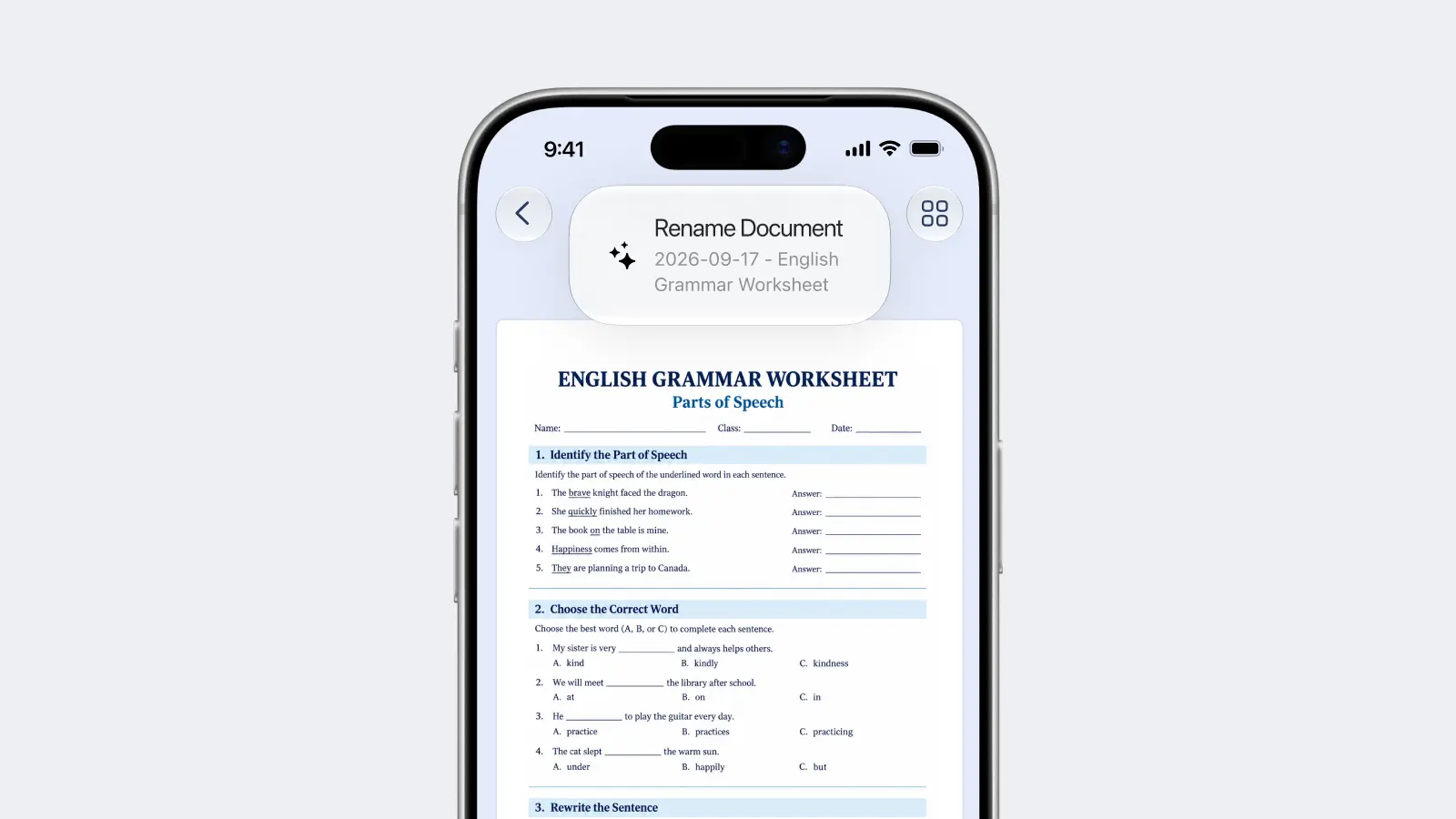
If a scan caught a finger, a staple mark, or a coffee ring, open the scan, tap "Edit" at the bottom menu and use the Magic Eraser to remove it. Tap the document name at the top to rename it. A plain, consistent scheme saves you later: Grade5-Fractions-QuizA reads better in a long list than Scan 04-16-2026.
Renaming every scan by hand adds up fast. Scanner Pro doesn't read a page and name it for you, but a Smart Workflow (Step 5) can insert the date and time into a file name automatically, so at least that part of the name stops being manual typing. Scanner Pro also offers the option to set a Default Name for scans in the settings: Scanner Pro → Settings → Scanning → Default Name.
Step 3: Make it searchable with OCR
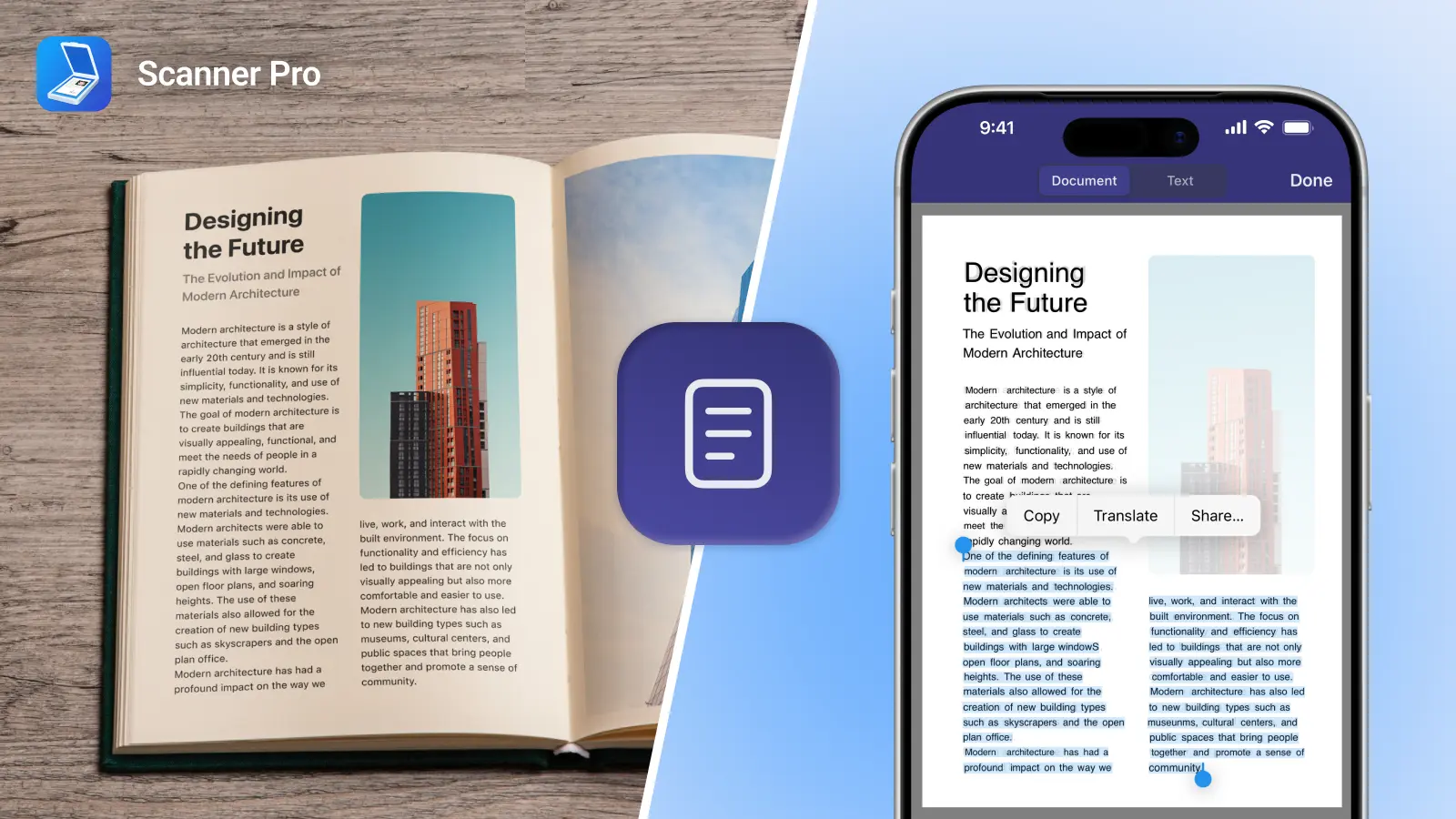
Open a scan and tap Text. Scanner Pro reads the page and adds a searchable text layer in 25+ languages, all processed on-device. Once a document has been through text recognition, the search box in My Scans looks inside your documents, not just at file names, so typing "field trip" finds the permission slip even if you named it something else. Text recognition and full-text search require a Scanner Pro Plus subscription.
This matters for accessibility, too. OCR turns a flat image into text a screen reader or text-to-speech tool can read aloud, which helps students who rely on assistive technology to access print material, such as students with dyslexia or low vision, work from the same handout as everyone else.
Step 4: Organize by class and student
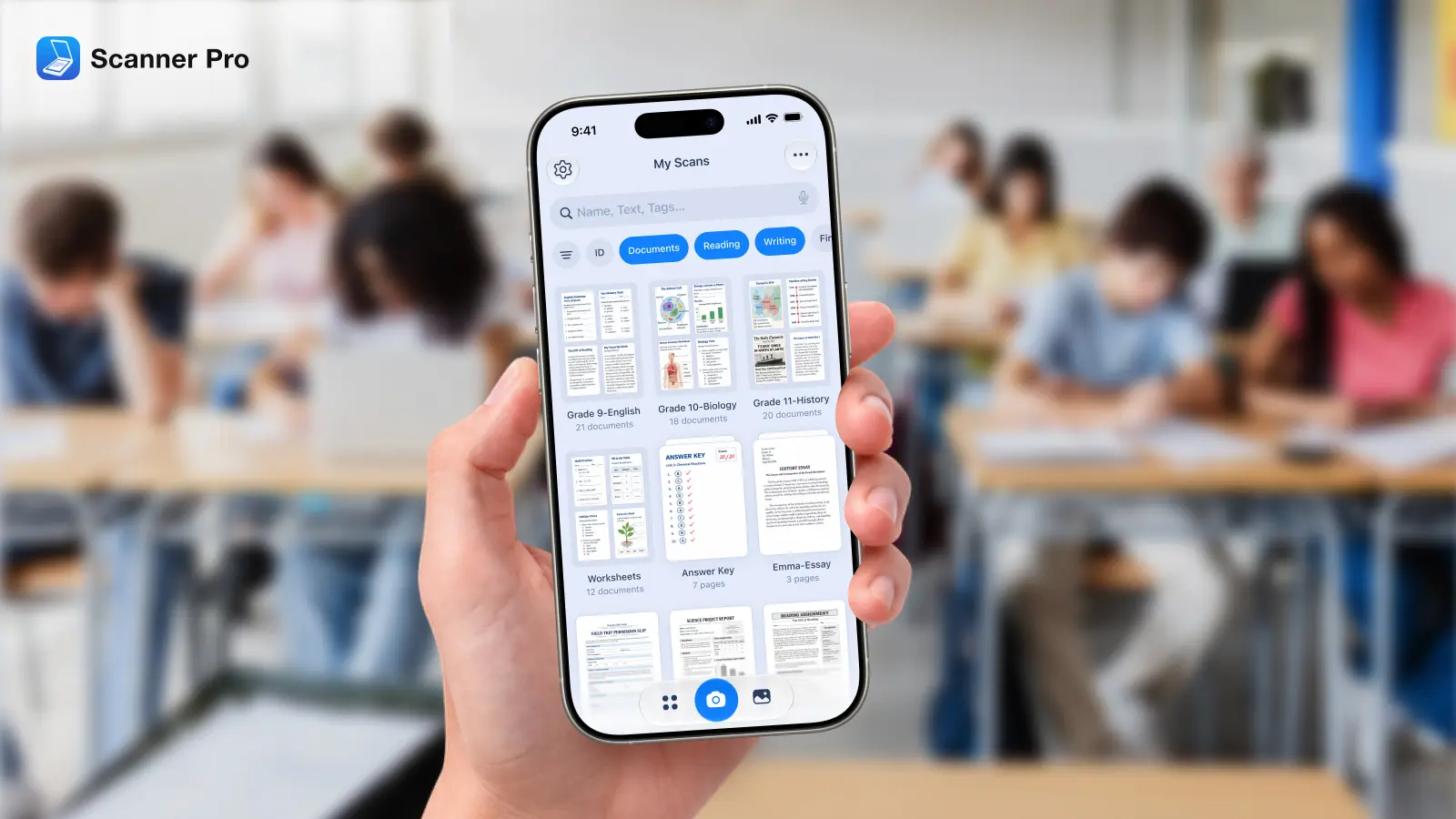
Every new scan gets sorted automatically by Smart Categories, which labels documents as forms, receipts, letters, ID cards, and other types based on what's on the page.
Build on top of that with folders: tap Create a folder from My Scans and drop scans in as you go. One useful limit to know: Scanner Pro doesn't support subfolders, so you can't nest a "Student A" folder inside a "Period 3" folder. Pick one level and stick to it, either a folder per class period or a folder per student, and use your file naming convention (from Step 2) to capture the other dimension.
Use Merge to combine several scans into one PDF, so a student's three-page project stays together as a single file. Merge and cloud auto-upload are Scanner Pro Plus features.
Use Smart Filters to automate sorting even further: they add a filter bar just under the search field in My Scans (and inside each folder), so you can jump straight to receipts, forms, letters, or ID cards without scrolling through everything else. If a scan gets miscategorized, tap its name and choose Change Category to fix it. Like Merge, Smart Filters need a Scanner Pro Plus subscription and aren't available in China, so it's worth keeping in mind when deciding on a plan for the whole class.
Step 5: Automate the filing with Smart Workflows
This is the step most teachers skip, and it's the one that makes the rest stick. A Smart Workflow chains several actions into one tap after a scan. Open Settings, tap Workflows, then Add Workflow, and pick your actions.
A realistic classroom workflow: rename the scan with today's date, upload it to a "Period 3 – Turned In" folder in Google Drive, and save a local copy, all from one tap on the Export button after scanning. Set up a workflow per class and collecting a stack of student work becomes a thirty-second job. Smart Workflows are a Scanner Pro Plus feature, and no competing scanner app offers a direct equivalent.
Why go paperless, and what the research actually says
The case for digital is strong but not absolute, and the research on it cuts both ways. On the upside, teachers in a 2017 qualitative study of a paperless school, Shonfeld and Meishar-Tal, "The Voice of Teachers in a Paperless Classroom," Interdisciplinary Journal of e-Skills and Lifelong Learning, described real gains in efficiency and in preparing students for digital work. Digital files don't get lost in a backpack, they're searchable, and skipping the copier means less paper bought and less paper thrown away, day after day, all year.
The honest caveats: in the same study, some teachers worried a fully paperless room could weaken students' handwriting and reading habits. And Bay View Analytics' national K-12 teacher survey found 59% of teachers agree that "students learn better from print materials than they do from digital," and 57% "prefer print materials over digital for teaching." The takeaway is not "go 100% digital." It's that scanning and archiving your own materials, masters, records, and forms, is low-risk and high-payoff, while what students read and write on can stay a deliberate mix.
Troubleshooting real classroom obstacles
"Our Wi-Fi is unreliable"
Scanning, editing, and OCR all run on the device, so a dropped connection doesn't stop you from working. Cloud upload is the only step that needs a network; if a Smart Workflow can't upload, it holds the file locally and syncs when the connection returns. SMART Technologies' Lumio survey of teachers, released in December 2024, found 30% of educators cited technical problems ("things don't work!") as the biggest challenge to technology integration, so a tool that works offline is worth having.
"I have handwritten worksheets and old forms that were never digital"
That's exactly what a phone scanner is for. Point Camera at the paper, let edge detection and Shadow Removal do the cleanup, and you have a clean PDF of a document that only ever existed on paper.
"Some of my students don't have devices or internet at home"
This is the hard limit, and it's a documented equity issue: a Pew Research Center analysis found roughly 15% of U.S. households with school-age children lacked a high-speed internet connection at home, an estimate widely cited as affecting millions of students, sometimes called the homework gap. Digitizing your files does not require students to have devices: you can still print on demand for the students who need paper. Going paperless on your side of the desk and going paperless for every student are two different projects; do the first without waiting on the second.
"I don't have time to learn another app"
EdSurge's reporting on edtech adoption barriers splits obstacles into external ones, like devices and support, and internal ones, like time and confidence. Beat the time barrier by starting with a single stack and a single workflow, then add more once the first one is running on its own.
Frequently Asked Questions
Is Scanner Pro free for teachers?
The free tier scans, organizes, and shares, but free scans carry a watermark. Text recognition, cloud auto-upload, Merge, password protection, and Smart Workflows require a Scanner Pro Plus subscription.
Can I scan a multi-page worksheet into one file?
Yes. Keep scanning pages in one session and they're added to the same document, or use Merge to combine separate scans into a single PDF. Merge requires Scanner Pro Plus.
How do I find a specific document later?
Run text recognition on your scans, then use the search box in My Scans. It searches the text inside your documents, not just file names. Full-text search requires Scanner Pro Plus.
Is it safe to scan documents with student names on them?
Scanner Pro processes scans on-device, so nothing leaves your phone during scanning. But signed forms and graded work are student education records under FERPA, so follow your district's policy on where those records may be stored before uploading to any cloud account.
Does it work on Android or Mac?
Scanner Pro runs on iPhone, iPad, and Apple Vision Pro (iOS 18.0, iPadOS 18.0, or visionOS 2.0 and later).
Can I password-protect a sensitive scan?
Yes. Scanner Pro can export a password-protected PDF, which is useful for records you email or share. Password protection requires Scanner Pro Plus.
What's the fastest way to collect a class set of student work?
Build a Smart Workflow per class that renames, files to the right cloud folder, and saves a local copy in one tap. Smart Workflows require Scanner Pro Plus.
Related Features
- Smart Workflows: automate what happens after every scan
- Text Recognition (OCR): make scans searchable and copyable
- Cloud Backup: auto-upload scans to iCloud Drive, Google Drive, Dropbox, and more
- Merge Documents: combine multiple scans into one PDF
- Smart Categories: automatic sorting of documents by type
Start with one stack
You don't have to convert a classroom in a weekend. Download Scanner Pro, scan one pile of masters, set up one Smart Workflow for one class, and let the routine build from there. The paper on your desk becomes a library you can search from your pocket.
Scanner Pro is available on iPhone, iPad, and Apple Vision Pro (iOS 18.0, iPadOS 18.0, or visionOS 2.0 and later). Some features require a Scanner Pro Plus subscription.