World Paper Free Day falls on November 6, and in 2026 that's a Friday. AIIM, an information-management nonprofit, started it in 2010 to get people and companies to cut back on paper. Paper is still the largest single category of U.S. municipal solid waste: about 67 million tons in 2018, according to the EPA.
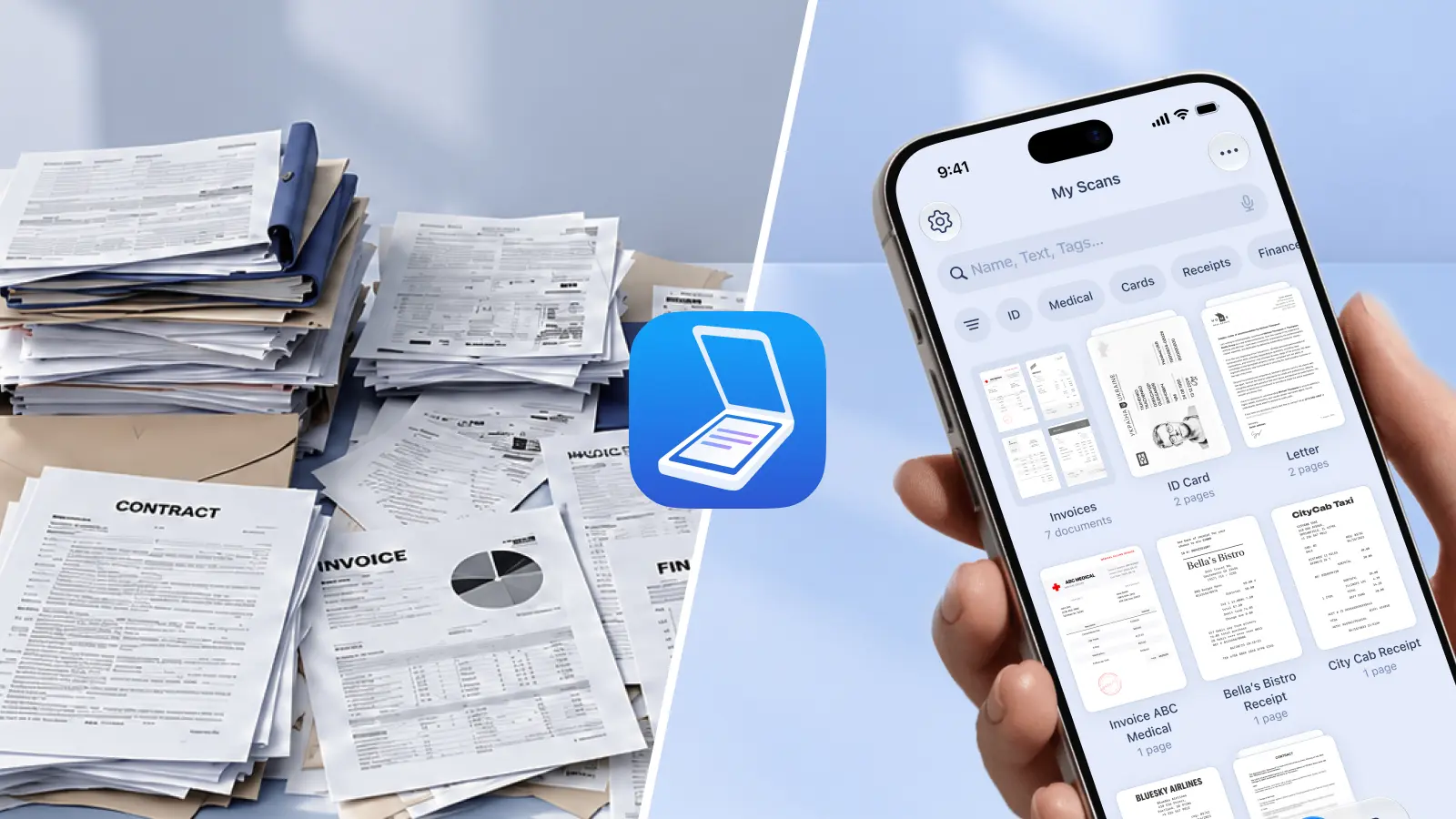
Scanner Pro turns the paper you already have into searchable PDFs on your iPhone or iPad. You can file it, find it, and send it without printing a copy.
What you can finish on the go:
- Scan receipts, contracts, and forms, then find them later by searching their text
- Back up scans to iCloud Drive, Google Drive, Dropbox, and other services automatically
- Send documents by email or link instead of printing
- It works for clearing a drawer at home, keeping client paperwork organized, or getting a small business's receipts under control.
How to go paperless with Scanner Pro in 5 steps
Step 1: Scan the paper on your desk
Tap the Camera button on the main screen and hold your phone over the page. Scanner Pro detects the edges, corrects the perspective, and removes shadows, so a page shot on a kitchen table still comes out flat and readable. Start with whatever you'd otherwise print or file this week: bills, warranty cards, a lease.
Step 2: Import the files you already have
Some paper is already digital, just scattered across your phone. Tap More (the three dots at the top right of My Scans), tap Import Files, and pick PDFs or images from the Files app. Imported files keep their original names and behave like scans you made yourself. Create an "Imported" folder first if you want them kept apart.
Step 3: Make everything searchable
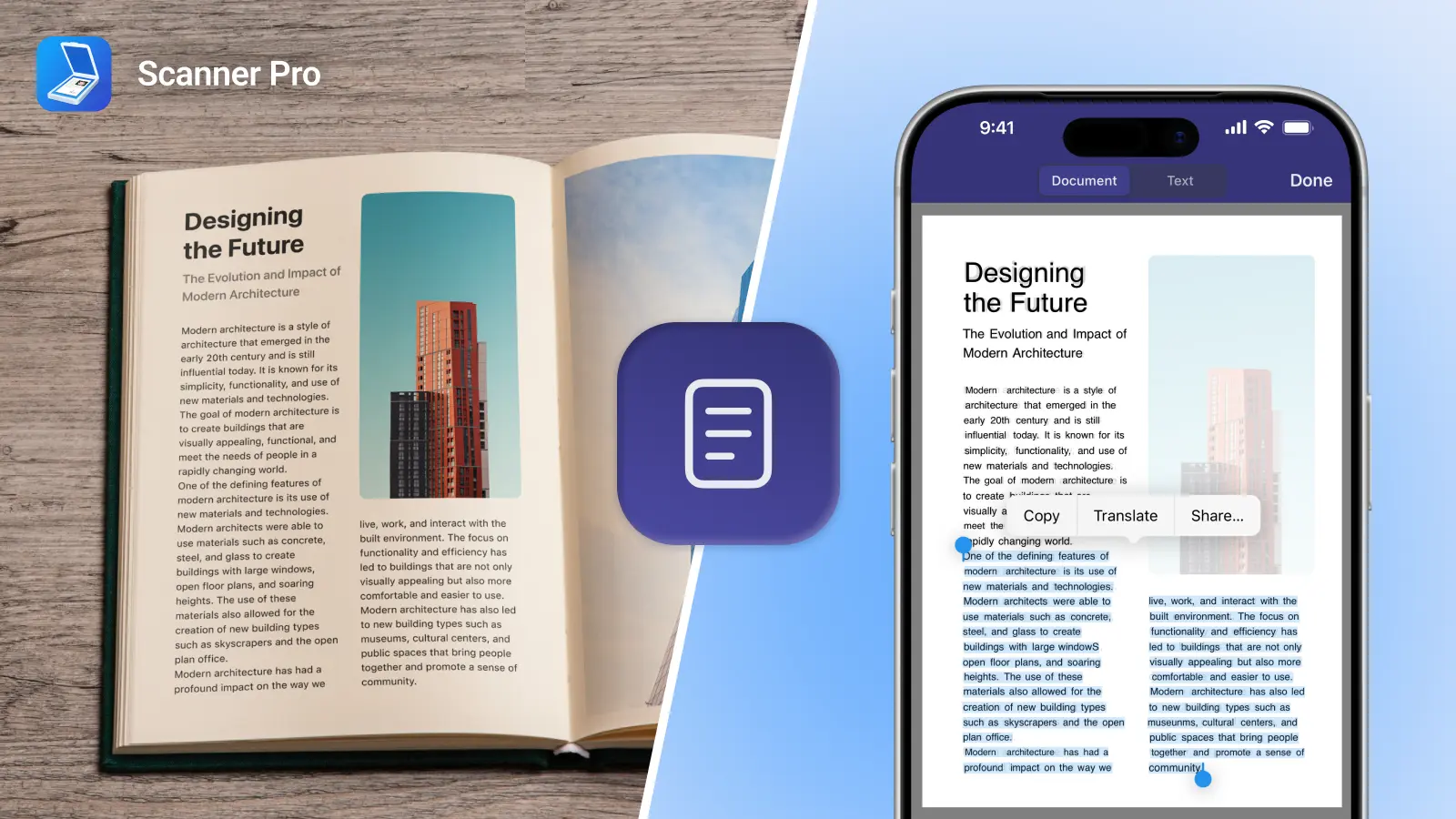
Scanner Pro runs text recognition (OCR) on your device, in 26 languages. Open Settings > Text Recognition and turn on Auto Text Recognition. To pull text out of a scan, open it, tap Text, then tap Copy All. OCR and full-text search require Scanner Pro Plus.
Step 4: Back up and send without printing
Scanner Pro connects to iCloud by default. To add another service, tap the Settings icon at the top left, tap Cloud & Network > Add Service, choose Google Drive, Dropbox, Box, OneDrive, OneNote, Evernote, or WebDAV server, and sign in. When the pop-up appears, tap Enable to upload all future scans automatically. Auto Upload requires Scanner Pro Plus, and it's one-way: deleting a file in your cloud storage doesn't delete it from Scanner Pro.
To send a document, open it and tap Export. Choose Mail, or tap Share Link to share a link that stays active for seven days and supports files up to 50 MB. Share Link requires Scanner Pro Plus.
Step 5: Automate the jobs you repeat
A Workflow chains actions into one tap after you scan. A typical one renames the file with the date, uploads it to a specific cloud folder, emails it, and saves a local copy. Workflows require Scanner Pro Plus.
Paper-free ideas for home, work, and small business
At home
Scan the drawer: insurance policies, warranties, medical forms, school paperwork. Sort them into folders with More > New Folder. For sensitive files, lock the whole app under Settings > Privacy & Security > Password Protection, or tap the three dots on a single scan to Select > the lock icon > Password on PDF. Password protection requires Scanner Pro Plus.
For freelancers and professionals
Scan a signed contract on-site and email it before you leave the parking lot. Set a workflow that renames each scan by date and sends it to the client's cloud folder. Add a password to the PDF before sending; the recipient needs it to open the file.
For small businesses
Receipts pile up fastest. Open More > Expense Report, select your receipts, and tap Continue. Scanner Pro reads the vendor, date, amount, tax, currency, and type, then builds a report. Use the PDF/CSV toggle to choose your export format. CSV files open in most accounting software, though Scanner Pro doesn't connect directly to platforms like QuickBooks or Xero.
Expense Report is a separate add-on from Scanner Pro Plus. It includes a 7-day free trial with 15 receipts and needs an internet connection.
What stays on your device
Text recognition runs on your device. So does the Translator, which works with more than 20 languages and needs iOS 26. Cloud upload, Share by Link, and Expense Report use the internet, so choose them for documents you're comfortable sending.
FAQ
When is World Paper Free Day?
November 6, every year. In 2026, it falls on a Friday.
Is Scanner Pro free?
The app is free to download. Basic scanning, organizing, and sharing are free, but free scans carry a watermark. Scanner Pro Plus removes the watermark and adds OCR, Auto Upload, password protection, Merge, Share by Link, and Workflows.
Can I go paperless with just my iPhone?
Yes. Scanner Pro runs on iPhone and iPad (iOS and iPadOS 17.0 or later) and on Apple Vision Pro (visionOS 1.0 or later). There's no Mac or Android version.
What should I scan first?
Start with documents you need to find fast: receipts, contracts, insurance papers, and tax forms.
Can I throw away paper after scanning it?
Not always. Some legal, tax, and identity documents must be kept in original form. Check the rules for your situation, or ask your accountant or lawyer, before you shred anything.
How do I combine several scans into one PDF?
Use Merge, a Scanner Pro Plus feature. It combines multiple scans into a single file, which makes a paperless folder easier to send.