Going paperless means replacing physical documents like bills, receipts, contracts, mail, notes with digital versions you can search, back up, and access from anywhere. It's not one action, it's a system: digitize what you have, stop new paper from piling up, and store everything somewhere safe. This guide covers all three, using Scanner Pro to handle the part most people get stuck on: turning the paper you already have into usable files.
What does it mean to go paperless?
Going paperless doesn't mean printing nothing, ever again. It means your default storage for documents is digital instead of a folder, drawer, or shoebox. A paperless system has three parts: digitizing existing paper, redirecting incoming paper (bills, statements, mail) to digital delivery, and storing everything somewhere searchable and backed up.
Is it possible to go fully paperless? For most home and office paperwork, yes — bank statements, bills, contracts, receipts, business cards, insurance documents, tax records, and notes can all be digitized. A few categories still need a physical original, like birth certificates, vehicle titles, and wills. You can scan those for backup, but keep the original in a fireproof box or safe deposit box.
Step 1: Digitize what you already have
This is the foundation: everything else in a paperless system depends on getting your existing paper into digital form first.
Open Scanner Pro and tap the orange Camera button. Edge detection runs in real time and captures each page automatically. For a stack of documents — a year of receipts, a folder of old bills — keep tapping the shutter; each page adds to the same document instead of starting over.
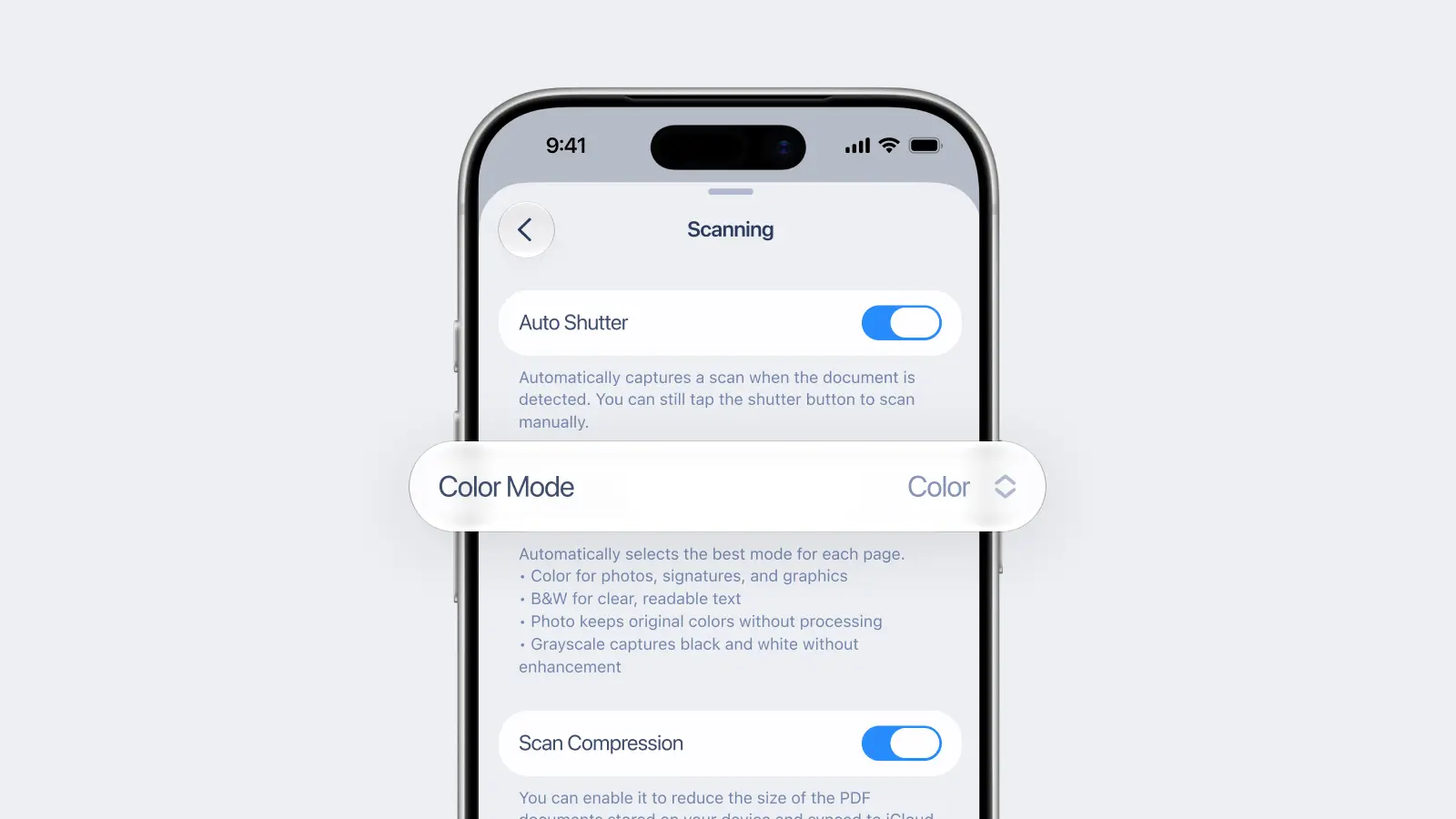
- Color mode can be set if you tap the three dots icon at the top right to switch between Black & White, Color, Photo, or Grayscale. You can also choose the Auto Color mode
- Multi-page documents scanned in sequence stay grouped as one file — a 10-page contract becomes one PDF, not ten
- Auto Color Detection picks black-and-white or color per page automatically, useful when batch-scanning a mixed pile of invoices and color forms
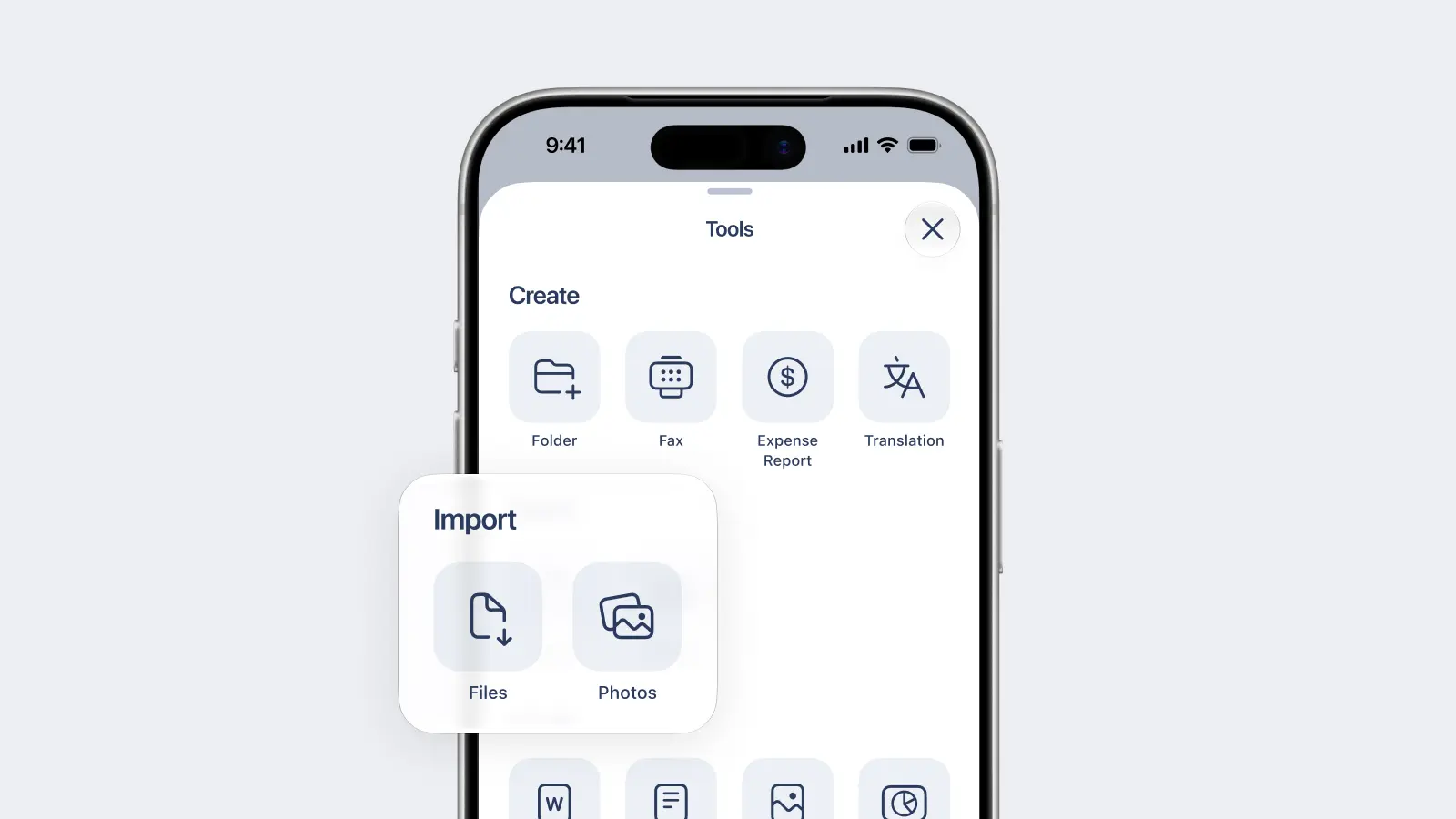
For documents that are already digital, like email attachments or downloaded statements, tap Tools (next to the Camera button) > Import Files to add them to your library instead of re-scanning.
Step 2: Make it searchable, not just stored
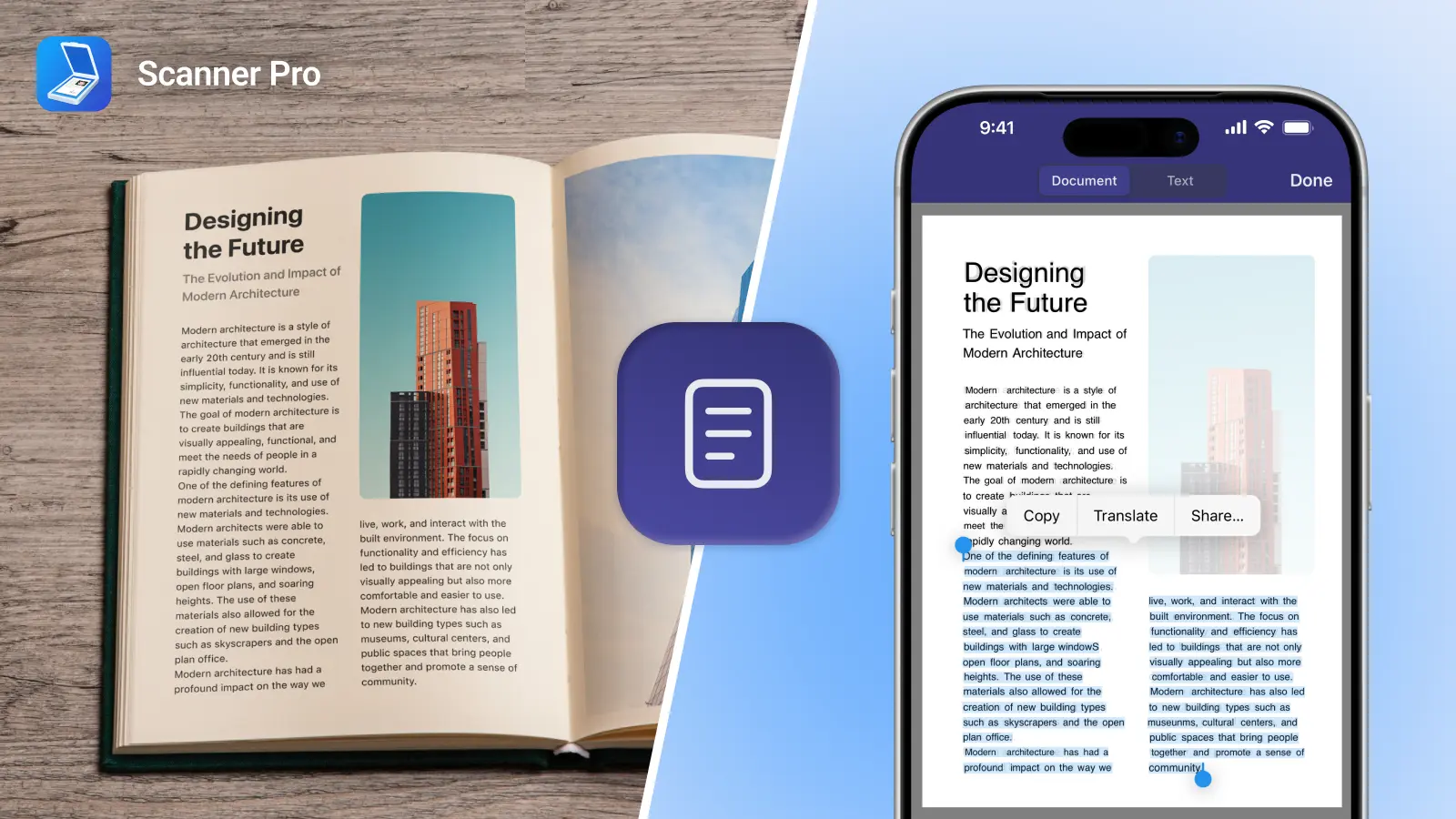
A digital pile is still a pile if you can't find anything in it. Scanner Pro's OCR reads the text on every scan and processes it entirely on-device — worth knowing if you're scanning tax records or client contracts. OCR covers 26 languages, and once a document is processed you can search your whole library by any word in the text, not just the filename (OCR and full-text search are part of Scanner Pro Plus).
Smart Categories adds another layer: scans are automatically sorted into types like invoices, receipts, forms, and bills, so you can browse by category before you even search.
Step 3: Organize into folders
Group scans the way you'd have used a filing cabinet — by year, by client, by category. From My Scans, tap the three-dots menu, select New Folder, and name it. To move several existing scans at once, tap Select, choose the documents, tap Move, then create or pick a folder.
You can also drag one scan directly onto another to create a folder on the spot — folders instead of drawers, search instead of flipping through papers.
Step 4: Back it up to the cloud
A folder of scans on one phone can’t be considered a backup. Go to Scanner Pro Settings > Services and connect a provider: iCloud Drive, Google Drive, Dropbox, Box, OneDrive, OneNote, Evernote, or a WebDAV server.
Scanner Pro will offer to turn on Auto Upload, which sends every new scan to that destination automatically (as a part of Scanner Pro Plus). Prefer to choose what goes up? Tap Cancel and upload manually. Sync is one-way: changes made in the cloud storage itself won't sync back into Scanner Pro.
Step 5: Stop new paper from piling up
- Digitizing the backlog solves the past. Stopping it from reforming means changing a few habits:
- Switch bills, bank statements, and utility accounts to e-statements wherever the provider offers it
- Set up Smart Workflows so every new scan is handled automatically — rename with date variables, upload to a specific folder, email to your accountant, and save locally, all in one tap after scanning (as a part of Scanner Pro Plus)
- Scan receipts the day you get them instead of stuffing them in a wallet or drawer — easier to keep up once scanning takes five seconds
For business expenses, Scanner Pro's Expense Report reads the date, vendor, amount, tax, and category of a receipt and compiles a PDF or CSV report: most of what "going paperless in the office" needs for expense tracking.
Going paperless at work vs. at home
The steps are the same; the documents differ.
At home: medical records, warranties, insurance policies, kids' school forms, household bills — folder by category (Medical, Insurance, Home) and set a recurring 10-minute habit, like scanning whatever came in that week every Sunday evening.
At work or in the office: contracts, invoices, business cards, meeting notes, expense receipts — folder by client or project, use OCR so contract terms are searchable, and set up a Workflow that routes signed contracts straight to a shared cloud folder.
FAQ
How do I go paperless at home?
Scan what's already piled up, organize it into folders by category, then switch recurring bills and statements to e-delivery so new paper stops arriving.
What does it mean to go paperless?
Going paperless means making digital your default for documents — not printing nothing, but storing, searching, and sharing files digitally instead of on paper.
How do I ask clients to go paperless?
Be specific about what's changing, offer an easy alternative for anyone who needs paper, and make the digital version at least as easy to access as the paper one was.
Do I need Scanner Pro Plus to go paperless?
Basic scanning, organizing, and manual sharing are free. OCR, full-text search, auto-upload, and Smart Workflows — the pieces that make a paperless system work at scale — require Scanner Pro Plus.
What's a good digital alternative to a filing cabinet?
A scanning app with OCR and folders, paired with cloud backup, replaces a filing cabinet's two jobs: storage and retrieval. Folders replace drawers, full-text search replaces flipping through hanging files.
Is it safe to scan sensitive documents like tax forms or medical records?
Scanner Pro's OCR processes text entirely on-device — nothing is sent to a server to read the content — and documents can be password-protected before you share or export them.