Turn Scanned Documents Into Searchable, Copyable Text
A scanned document is just an image. You can see the text, but you can't search it, select a clause to paste into an email, or copy a phone number without typing it out manually. OCR — optical character recognition — changes that. Scanner Pro's Text Recognition feature reads the text in your scans and adds a searchable layer, so you can select, copy, and share content directly from any document in your library.
The whole process runs on your device. No document data is sent to any server, which matters if you're regularly scanning contracts, medical records, financial statements, or anything confidential. For anyone managing more than a handful of scans, it's what turns Scanner Pro from a camera into a document system.
Text Recognition is available across 30+ languages and requires a Scanner Pro Plus subscription for new users.
How to Choose a Language for Text Recognition
Scanner Pro recognizes Latin-based languages like English, German and Italian automatically by default, and others are detected without any setup. If you're scanning documents in a non-Latin script, you'll need to configure the language first.
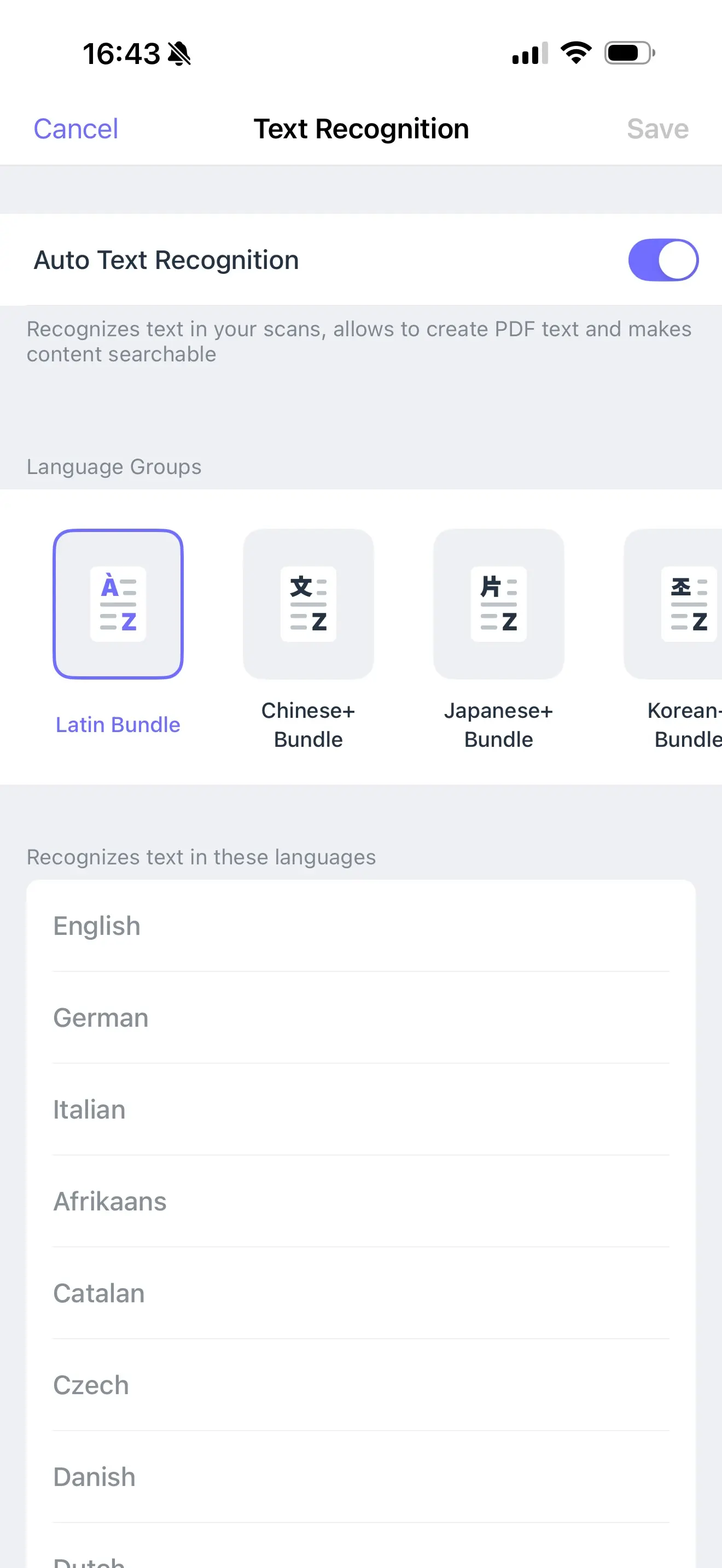
To switch to another language:
- Open Scanner Pro and go to Settings
- Tap Text Recognition (OCR)
- Make sure the Auto Text Recognition toggle is enabled
- Select the appropriate Language Group: Chinese+, Japanese+, Korean+, Cyrillic, or Other (which includes Greek)
- Tap Save at the top right
Once saved, Scanner Pro will use that language group to process all new scans until you change the setting again.
How to Recognize, Copy, and Share Text
- Open any scan and tap Text in the bottom toolbar
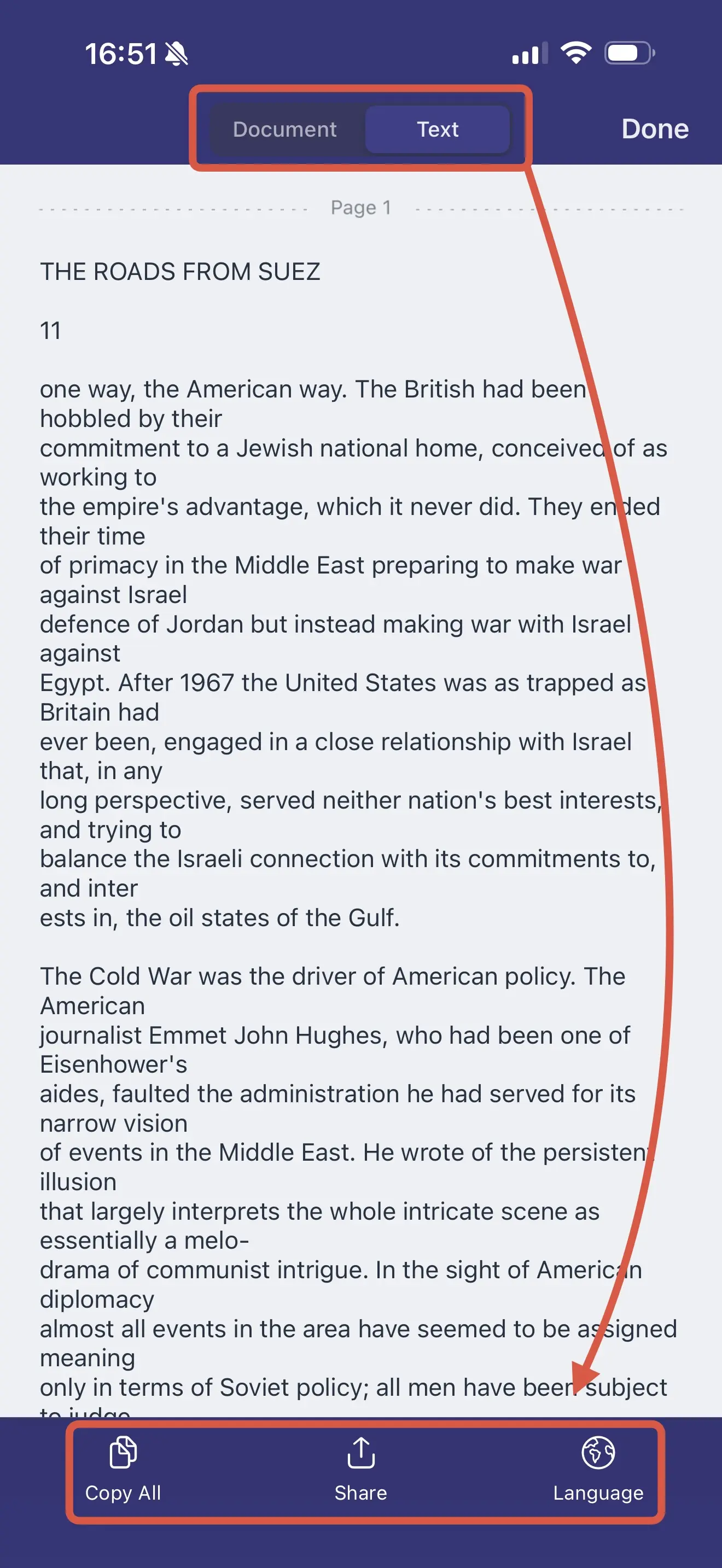
- Choose between two views at the top of the screen:
- Document — your original scan with a text layer overlaid on it, good for reading in context
- Text — just the extracted text, stripped of the original layout, good for copying or exporting clean content
- If the scan's language differs from your current setting, tap Language in the bottom toolbar and select the correct one:
- For a Latin-based language, make sure the Latin-based Language Bundle is selected
- For a non-Latin language that differs from your Settings default, select the correct Language Bundle and tap Reprocess
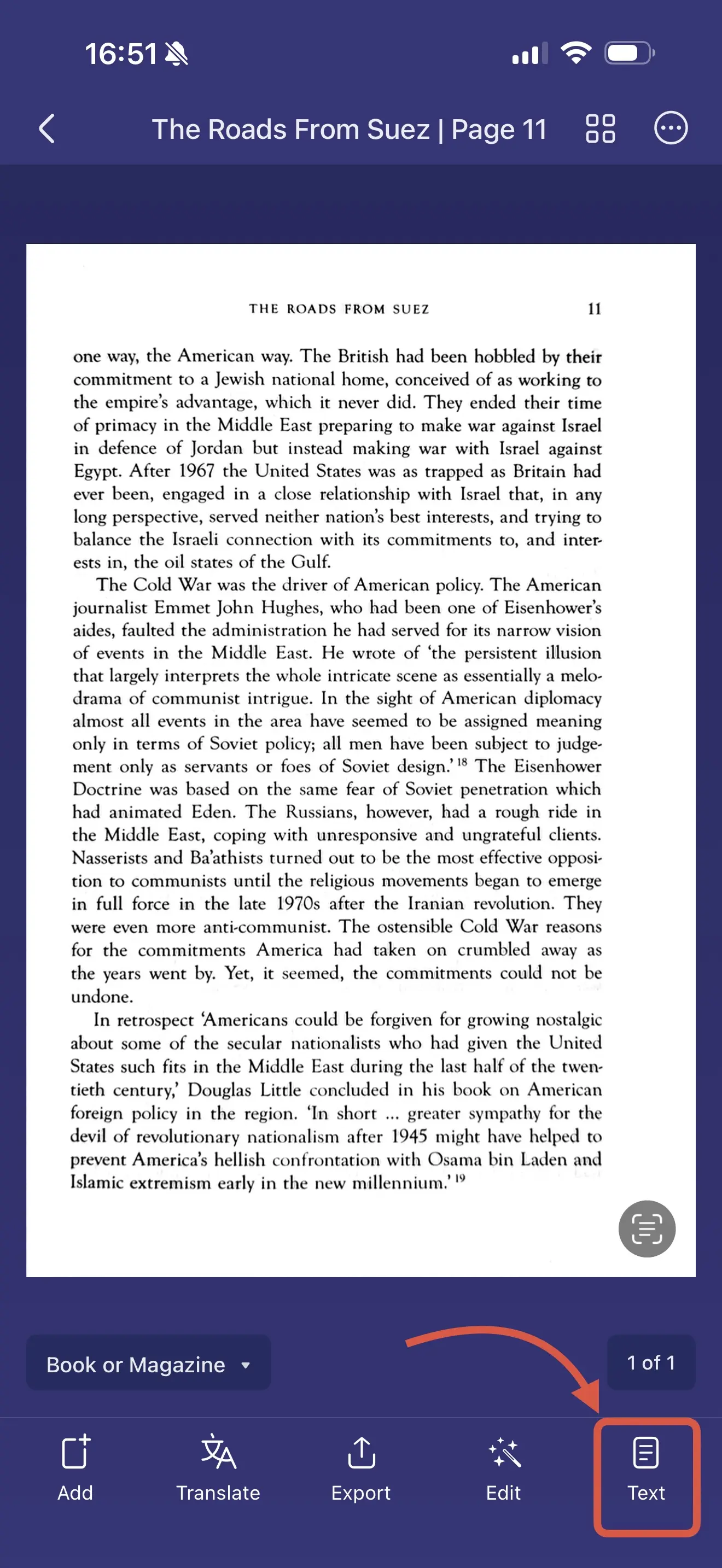
- From either view, you can select a specific portion of text, tap Copy All in the bottom toolbar to grab everything at once, or tap Export to send the text layer to another app
- When finished, tap Done at the top right
Searching Across Your Scans
Once OCR has processed your documents, you can search across your entire library — not just filenames, but the actual content of every scan.
To search your whole library: Tap the search icon in the My Scans view and type your query. Scanner Pro returns results across all documents, showing which page contains the match.
To search within a specific document: Open the scan and tap Search in the bottom toolbar. Use the navigation buttons to move between matches, then tap Done when finished.
This is where OCR earns its keep. A library of 200 scans becomes something you can actually navigate. You can find a client name, a contract clause, or an invoice number in seconds.
Tips for better results when using OCR text recognition
Scan in good lighting. OCR accuracy depends on image quality. Even lighting with no harsh shadows gives the recognition engine the clearest input to work with.
Use Black & White mode for text-heavy documents. It produces cleaner contrast than Color or Photo mode, which typically improves recognition accuracy. You can change the color mode after scanning via Edit → the color mode icon.
Set your language before bulk scanning. If you're about to scan a stack of documents in a non-Latin language, configure the language group in Settings first. It's faster than reprocessing individual scans afterward.
One language group at a time. Scanner Pro supports one active non-Latin language group at a time. For mixed-language documents, you can reprocess with a different bundle as needed via the Language button inside the Text view.
Is using OCR safe for privacy?
Scanner Pro's OCR model runs entirely on-device. Recognized text is never uploaded to Readdle's servers or any cloud storage — it stays on your iPhone or iPad. To review the full data handling policy, go to Settings → Privacy Policy inside the app.
Troubleshooting
Text isn't being recognized.
Check that Auto Text Recognition is enabled: Settings → Text Recognition (OCR) → confirm the toggle is on. Also make sure you have the latest app version installed.
Wrong characters in the extracted text.
The language group is likely mismatched. Open the scan, tap Text → Language, select the correct bundle, and tap Reprocess.
The Text button isn't visible.
Text Recognition requires a Scanner Pro Plus subscription. Free-tier users will need to upgrade to access the feature.
Frequently Asked Questions
Does OCR work on PDFs I've imported, not just documents I've scanned with the camera?
Yes. Text Recognition works on any document in your Scanner Pro library, whether you scanned it or imported it from the Files app.
Does OCR change my original scan?
Recognition adds an invisible text layer on top of the scan — the original image is preserved exactly as captured. The Document tab always shows you the original scan with the text overlay.
Will switching language groups affect the recognition on my existing scans?
No. Changing the language setting only affects new scans going forward. Already-recognized documents stay searchable.
Can I use OCR on a document that's in two different languages?
Not simultaneously. Scanner Pro supports one active language group at a time. For mixed-language documents, you can reprocess with different settings using the Language button inside the Text view, though results may vary on heavily mixed content.
What languages does Scanner Pro support?
30+ languages, organized into groups: Latin-based languages (English, German, French, Spanish, Italian, and more) are detected automatically. Non-Latin options include Chinese+, Japanese+, Korean+, Cyrillic, and Other (Greek). The full list is visible under Settings → Text Recognition (OCR).
Related Scanner Pro Features
- Import Documents — OCR works on imported PDFs and images, not just new scans
- Translator — translate recognized text into 20+ languages without leaving the app
- Smart Categories — automatically sorts recognized documents into types like invoices, receipts, and forms
- Smart Workflows — automate OCR as part of a multi-step scanning workflow
- Export Options — share the text layer as a TXT file or searchable PDF
Start Using Text Recognition
Open any scan, tap Text, and you'll have selectable, copyable, searchable content in seconds. For anyone managing a growing document library, it's one of the most useful things Scanner Pro does.

Take high-quality scans
Easily turn papers into PDFs with your iPhone and iPad. Scan receipts, books, IDs, invoices.