Some productivity advice sounds like it was written by someone who has never met an inbox, a meeting request, or a child with a sudden “urgent” question about where socks go.
Time blocking is not that.
It’s simple: you divide your day into blocks of time, and each block gets a job. That job might be writing, replying to emails, deep work, errands, or even lunch.
The point is that your calendar becomes your plan, not just a record of other people’s plans.
And the best part is that time blocking works even if you’re not a morning person, even if your schedule changes daily, and even if your brain occasionally tries to convince you that “just checking Slack for one second” is a hobby.
What is time blocking?
Time blocking is a time management method where you split your day into specific time slots, and you assign each slot a specific task (or a small group of similar tasks).
Instead of keeping an open-ended to-do list and hoping the important work “fits,” you start with a concrete schedule of what you’ll work on and when.
If you’ve ever ended a busy day thinking, “I did a lot… but not the thing,” time blocking is designed to fix that.
Why time blocking helps
Time blocking tends to work because it makes decisions ahead of time. You’re not constantly re-deciding what to do next, which is where focus goes to die.
Done well, it can help you protect focused work, add structure, and reduce the mental strain of juggling a dozen priorities at once. Todoist highlights benefits like better focus, clearer structure, and stronger time management.
It’s not magic, though. Time blocking works best when you treat it as a plan you’re allowed to edit, not a rigid script you must obey.
How do I start time blocking?
Here’s a practical way to begin that doesn’t require a brand-new personality.
Step 1: Collect your tasks (don’t trust your memory)
Get everything out of your head and into one place. List what you need to do for the week, not just what feels urgent today. Todoist recommends identifying tasks first, then prioritizing them (they even suggest using frameworks like the Eisenhower Matrix).
Step 2: Group tasks into “types,” not 47 separate calendar events
This is where productivity scheduling becomes easier. Instead of scheduling every tiny action, group similar work into batches: email, admin, calls, writing, errands, planning. Todoist calls this “task batching,” and the goal is to reduce context switching.
Step 3: Put the important blocks in first
Start with the work that needs real focus. If your day has one block of genuine attention in it, protect that before meetings and messages colonize your calendar.
Step 4: Add buffers like you actually live in the real world
Most time blocking fails because the schedule assumes a frictionless universe. Add transition time between blocks, and keep at least one “catch-up” block for the tasks that take longer than expected.
Step 5: Review and adjust daily
At the end of the day, move unfinished tasks into future blocks instead of stretching today’s block until it becomes a time swamp. Todoist explicitly recommends reviewing and adjusting as you go.
A simple time blocking template you can copy
Use this as a starting point, then adjust the times to match your energy and your life.
| Time block | What you do | Notes |
| 09:00 - 09:30 | Daily plan + triage | Pick 1–3 priorities; park everything else |
| 09:30 - 11:00 | Deep work block | One project, one outcome |
| 11:00 - 11:30 | Messages + quick replies | Batch email/Slack; don’t “browse” |
| 11:30 - 12:30 | Project work block | Smaller tasks that still need focus |
| 12:30 - 13:15 | Lunch | Yes, schedule it |
| 13:15 - 14:00 | Meetings / collaboration | If meetings must exist, contain them |
| 14:00 - 15:00 | Admin block | Docs, approvals, scheduling, follow-ups |
| 15:00 - 15:15 | Break | Reset your brain |
| 15:15 - 16:15 | Deep work block (lighter) | Editing, problem solving, planning |
| 16:15 - 16:45 | Catch-up block | Overflow from earlier blocks |
| 16:45 - 17:00 | Shutdown review | Reschedule, capture loose ends |
If you want a “time blocking planner” feel, reuse the same structure Monday–Friday and only swap the tasks inside each block. Consistency is what makes it easy.
Time blocking vs. timeboxing: what’s the difference?
These two get mixed up constantly, and they’re close cousins.
- Time blocking is about assigning a specific time slot to a task or activity: “I will write from 9–11.”
- Timeboxing adds a constraint and usually a finish-line outcome: “I will finish a first draft from 9–11.”
One useful way to remember it: time blocking protects your time from everything else, while timeboxing protects your time from the task expanding forever.
In practice, you can combine them. Use time blocking to structure your day, and timeboxing inside a block when you need urgency.
Is time blocking actually effective?
It can be, especially if you struggle with distraction, context switching, or “reactive days” where other people’s needs decide your schedule.
But it’s effective for a specific reason: it turns intentions into appointments. You’re more likely to do the work when it has a place to live on your calendar. That’s the core idea behind calendar blocking.
If you try it and it feels like it “doesn’t work,” the usual culprit is one of these:
Your blocks are too tight
If every minute is spoken for, one surprise meeting collapses the whole day. Build in buffers and a catch-up block.
Your blocks are too vague
“Work on project” is a recipe for drifting. Define the output: outline, draft, review, send.
You’re time blocking tasks that belong in a batch
Email, messages, small admin tasks: contain them to one or two blocks so they don’t leak everywhere. This is where task batching can come in handy.
You never review
Time blocking is a loop. Plan, do, adjust.
What are the best tools for time blocking?
The “best” tool is the one you’ll actually open tomorrow morning. That said, here are a few tool categories that make time blocking dramatically easier.
A digital calendar that’s fast to edit
Time blocking depends on quick changes. If it’s annoying to reschedule, you’ll stop doing it. So the best calendar for time blocking isn’t the one with the most features - it’s the one that makes edits feel frictionless.
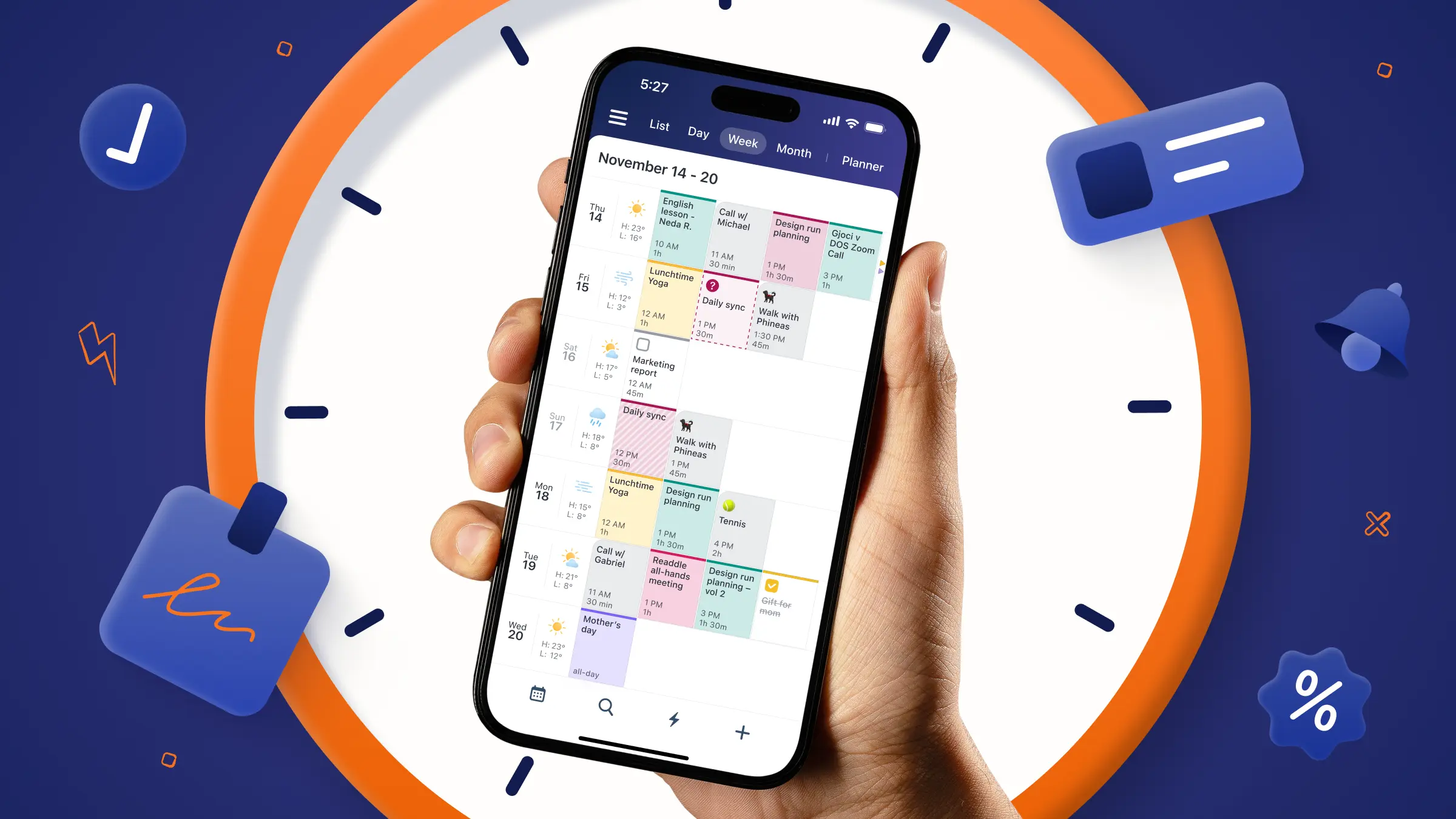
With Calendars by Readdle, the big advantage is that planning looks less like “administration” and more like moving pieces around on a timeline. You can drag tasks straight onto your day, then tweak them until the schedule feels realistic.
Readdle’s Planner workflow is built around exactly that: drag-and-drop scheduling on your timeline, then adjusting task durations in Day view so your plan reflects actual time, not optimistic vibes.
It’s also designed to be fast at the moment you think of something. You can create events and tasks quickly using natural language input (type what you mean, and it parses the time/details), which matters because time blocking falls apart when capturing work is slow.
And because routines are where a lot of time blocking wins happen, Calendars includes templates/shortcuts for recurring events and daily routines — the kind of thing that turns “I should do this more” into “it’s already on the calendar.”
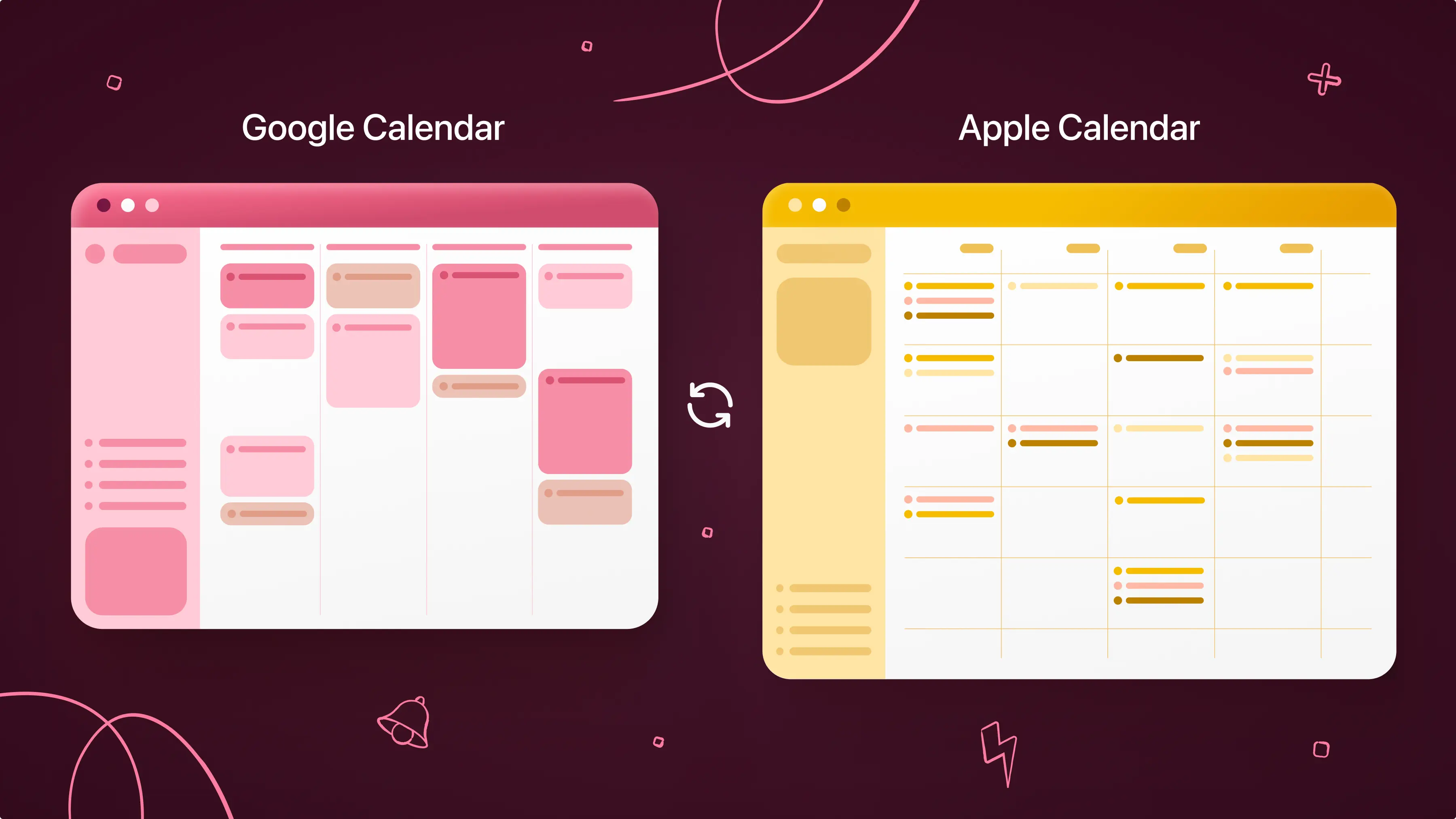
Finally, it helps if your calendar isn’t split across ten places. Calendars is built to connect multiple calendars and tasks into one view, so you’re not time blocking in one app and discovering conflicts in another.
Calendars by Readdle for time blocking on Apple devices
If you want your calendar and tasks in the same place, Calendars by Readdle is designed around that “planner” workflow: calendar, tasks, and daily planning in one app across Apple devices.
What makes it especially relevant for time blocking is the “drag tasks onto the timeline” style planning. Readdle’s Planner update means you can drag tasks to your timeline and adjust task durations in Day view to time-block effectively.
A quick way to use it for time blocking (without overthinking it):
- Create tasks first, then drop them into the day
- In Calendars, you can create tasks from the Planner/Tasks area and drag them onto your calendar.
- Turn tasks into real blocks by adjusting duration
- In Day view, you can adjust task durations to match the time you actually want to spend, which is the whole point of time blocking.
- Use natural language input for speed, which is handy when you’re planning on mobile and don’t want to tap through menus.
If your goal is “focus management,” the real win is seeing the day as a single timeline where tasks and events compete for the same finite space. That’s the honesty time blocking forces.
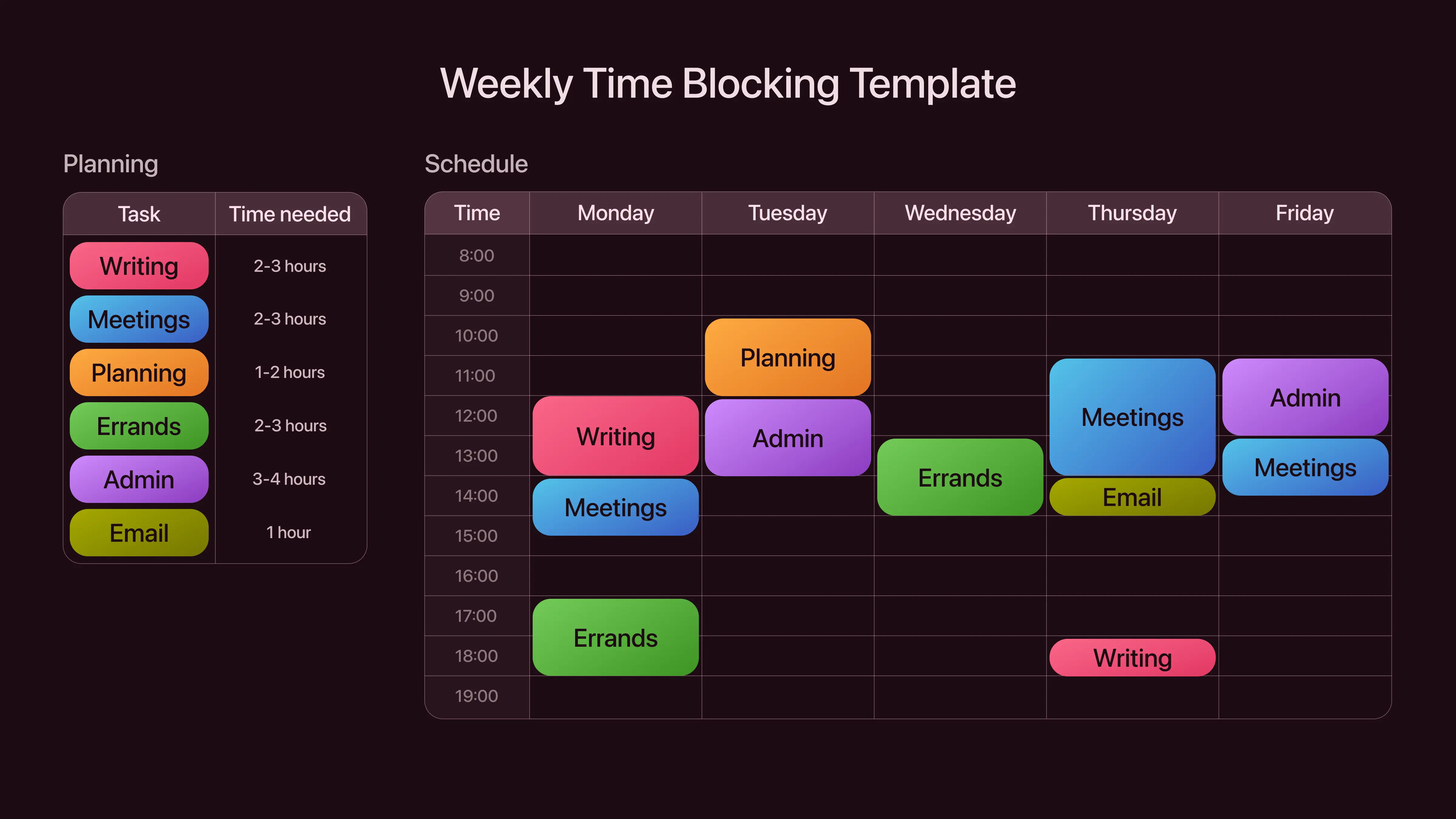
A more realistic way to plan your day with time blocking
If you only take one thing from this article, make it this: time blocking is not about creating the perfect schedule. It’s about creating a schedule that makes it easier to start the right work and harder to drift into the wrong work.
Try this tomorrow:
- Block one deep-work session (60–90 minutes) for your most important task
- Block one admin/messages session (20–45 minutes) so communication doesn’t take over
- Block a 15-minute planning session at the end of the day to reset the next day
That’s enough to feel the difference without turning your calendar into a fragile work of art.