If you juggle multiple calendars across various devices, you're all too familiar with the challenge of staying organized. However, there's good news: With Calendars by Readdle, you can easily merge and sync multiple calendars, regardless of your device. In this guide, we'll show you how to merge Google calendars, combine two calendars, and sync Google and Outlook calendars, all in just a few simple steps.
Step 1: Open Calendars App and Navigate to Settings
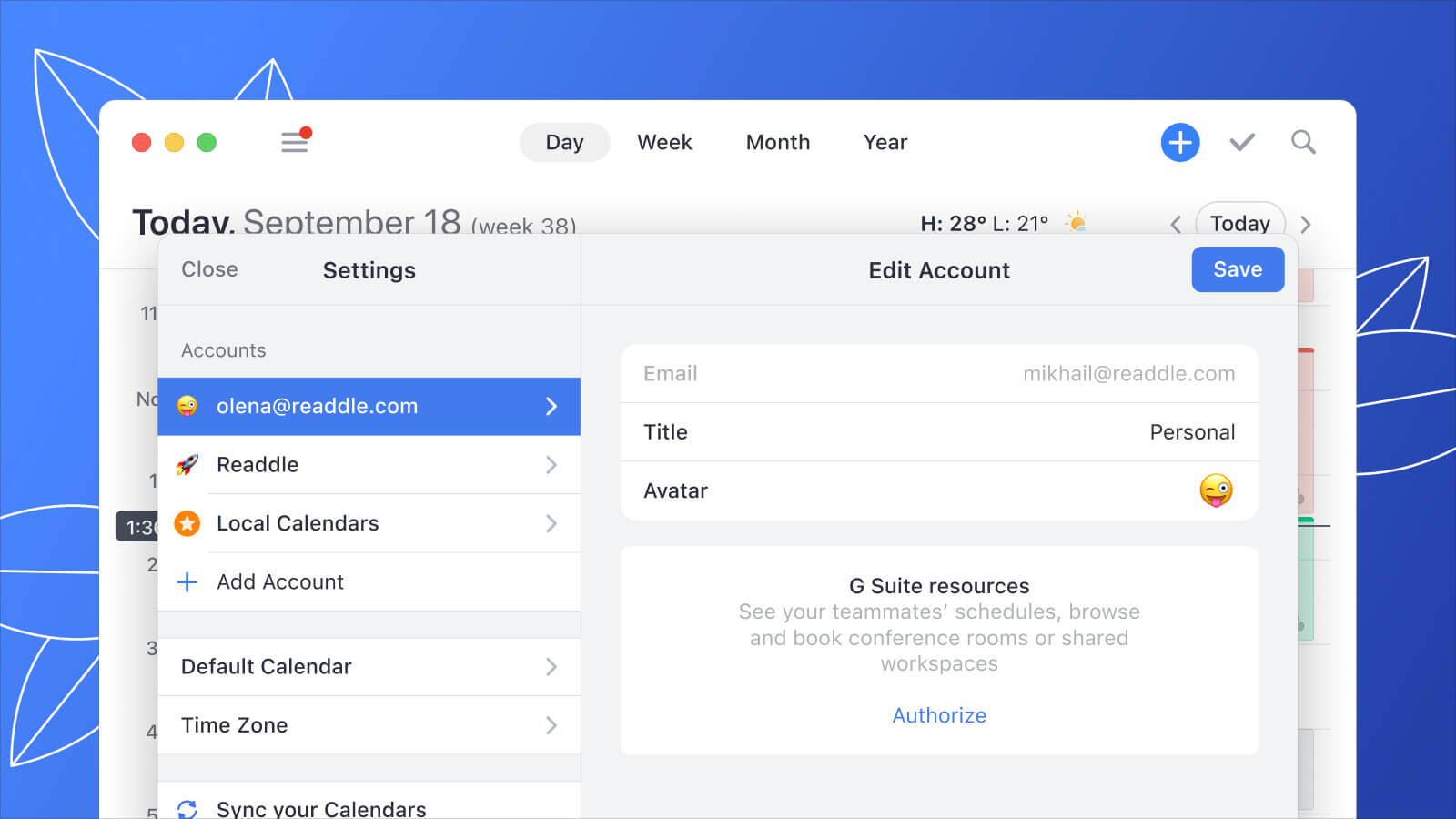
The first step is to open the Calendars app on your iPhone, iPad, or Mac. From there, navigate to the settings menu, which can typically be accessed by tapping the gear icon or selecting "Settings" from the main menu.
Step 2: Choose "Accounts" and Select "Add Account"
Once in the settings menu, select "Accounts" and then choose "Add Account." This will prompt you to enter the login information for the Google, Exchange, Outlook, Office 360, or iCloud account you want to merge with Calendars. In such a way, you can combine two calendars or more.
Step 3: Grant Permission for Calendars to Access Your Account
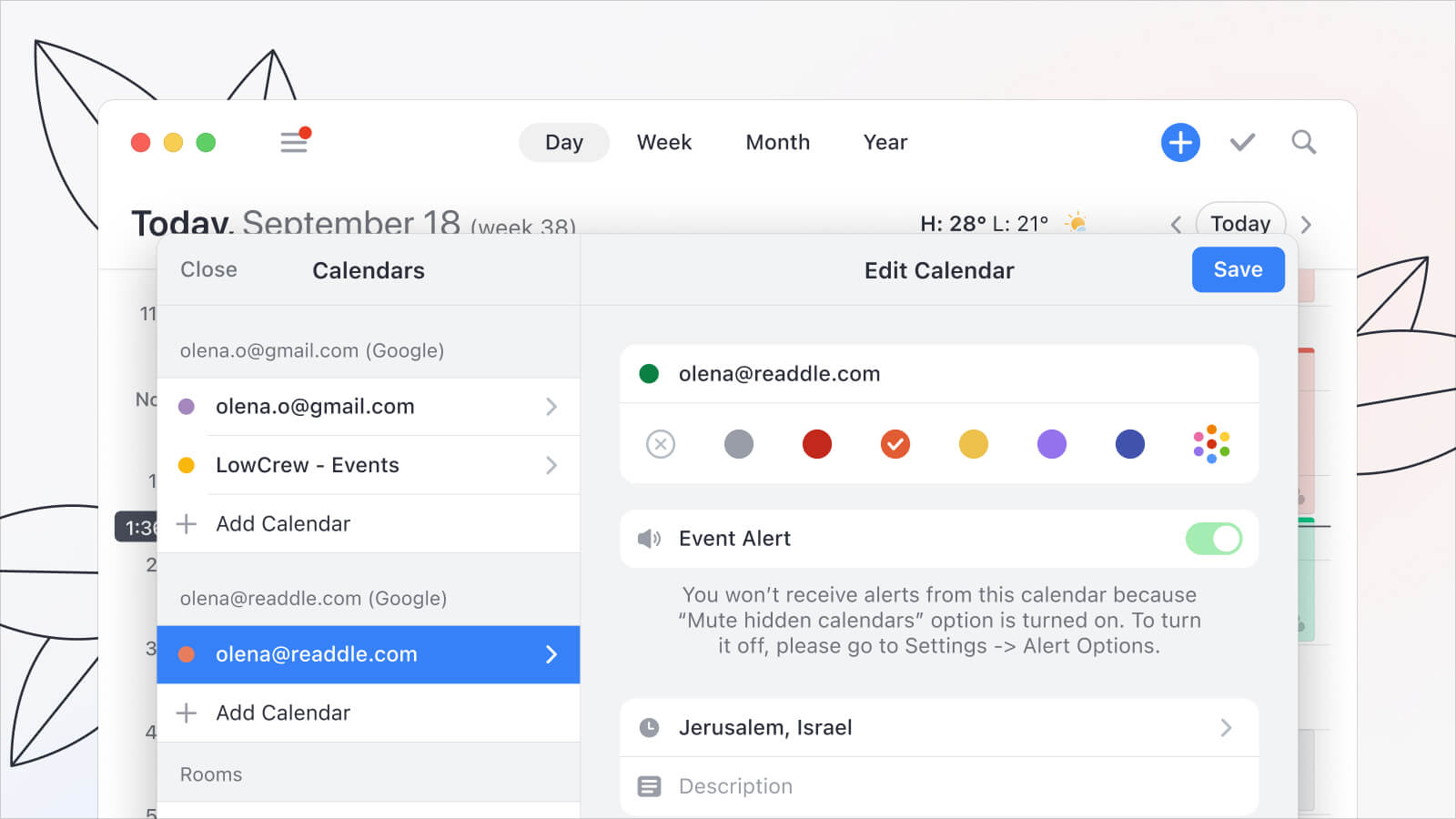
After you've entered your login information, you'll be prompted to grant permission for the Calendars app to access your account. This is necessary for Calendars to pull in your events and appointments from the other calendars you're merging.
Step 4: Enable Calendars to Merge with Your Other Accounts
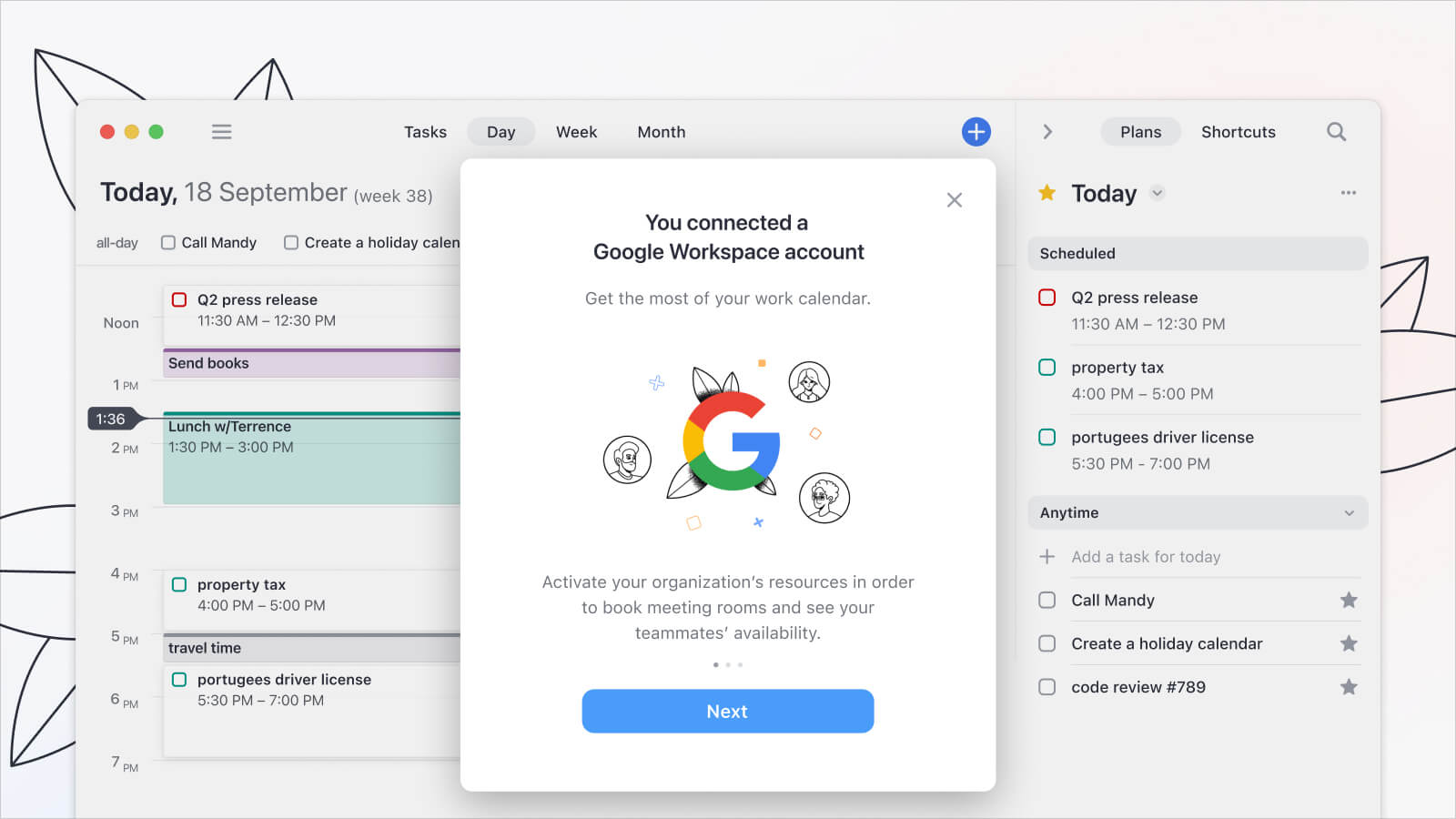
Once granted permission, you'll need to enable Calendars to merge with your other accounts.
To do so, tap “Allow” when Calendars asks about getting permission.
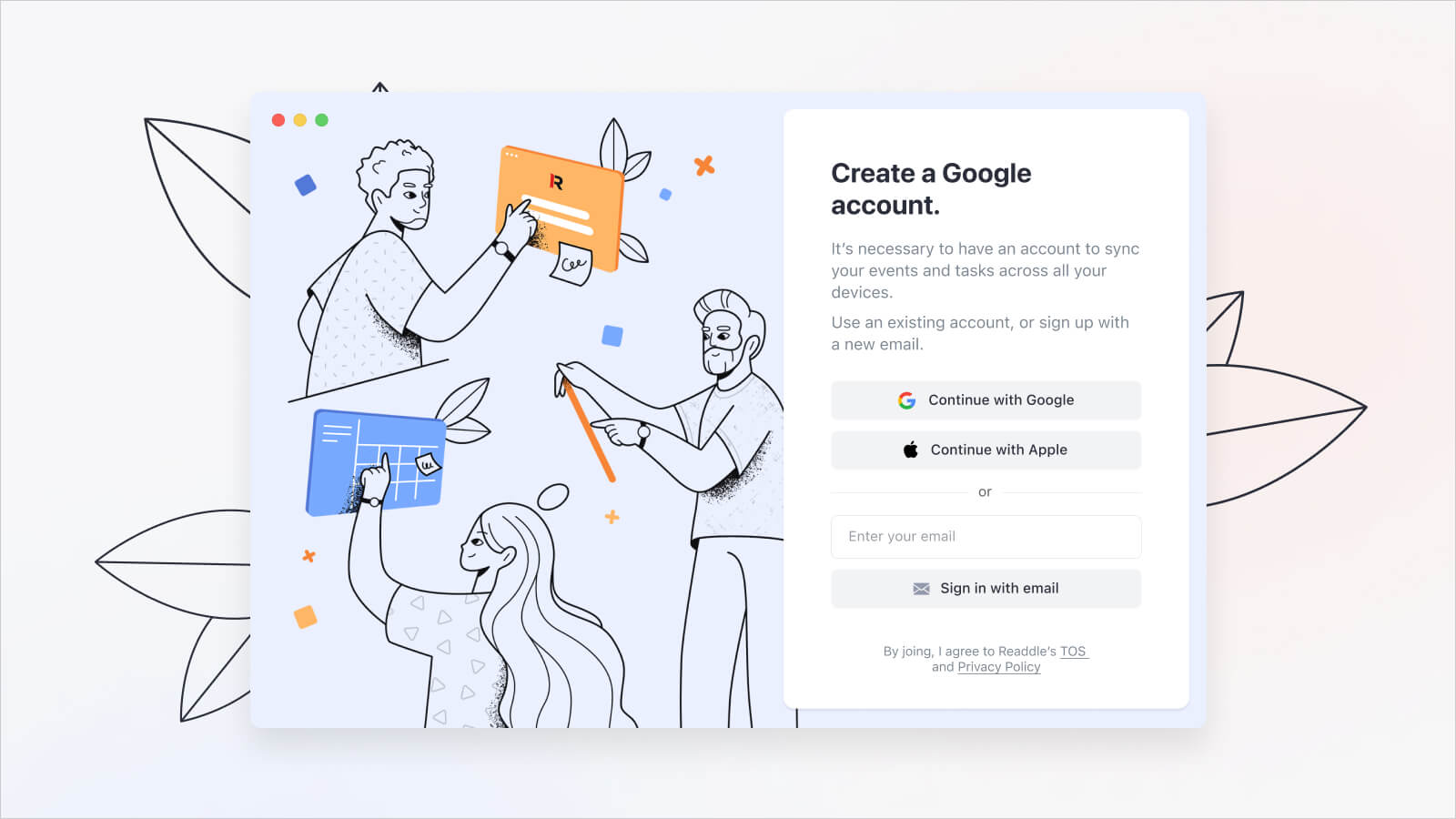
For instance, to merge Google calendars, you have to tap “Continue” when Calendars asks
about “google.com” to Sign in.
Step 5: Customize Your Calendars Settings
After you've enabled Calendars to merge with your other accounts, you can customize your settings to fit your preferences. For example, you can choose which calendars to display and whether to receive notifications for upcoming events.
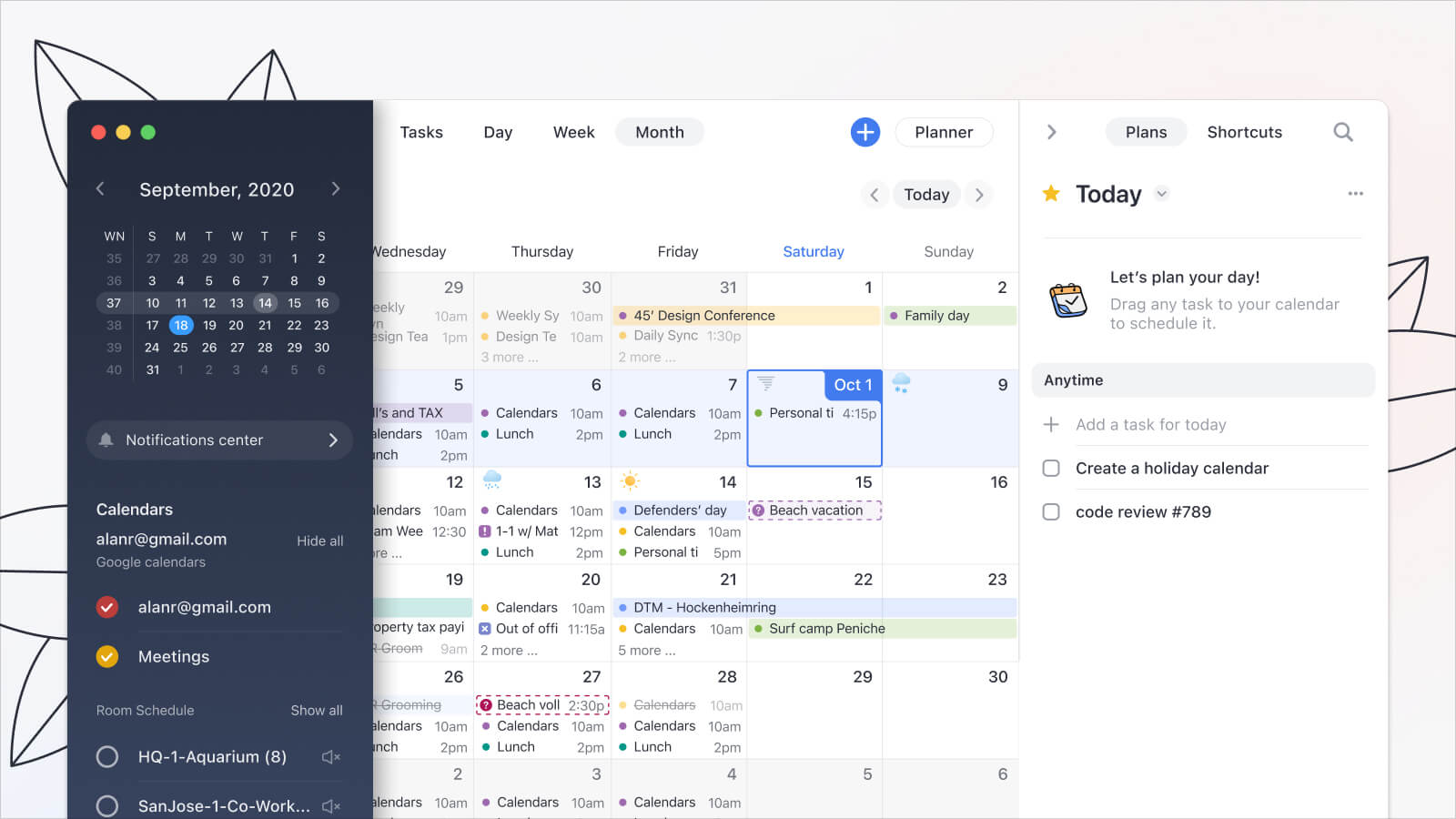
Merge Your Calendars with Ease
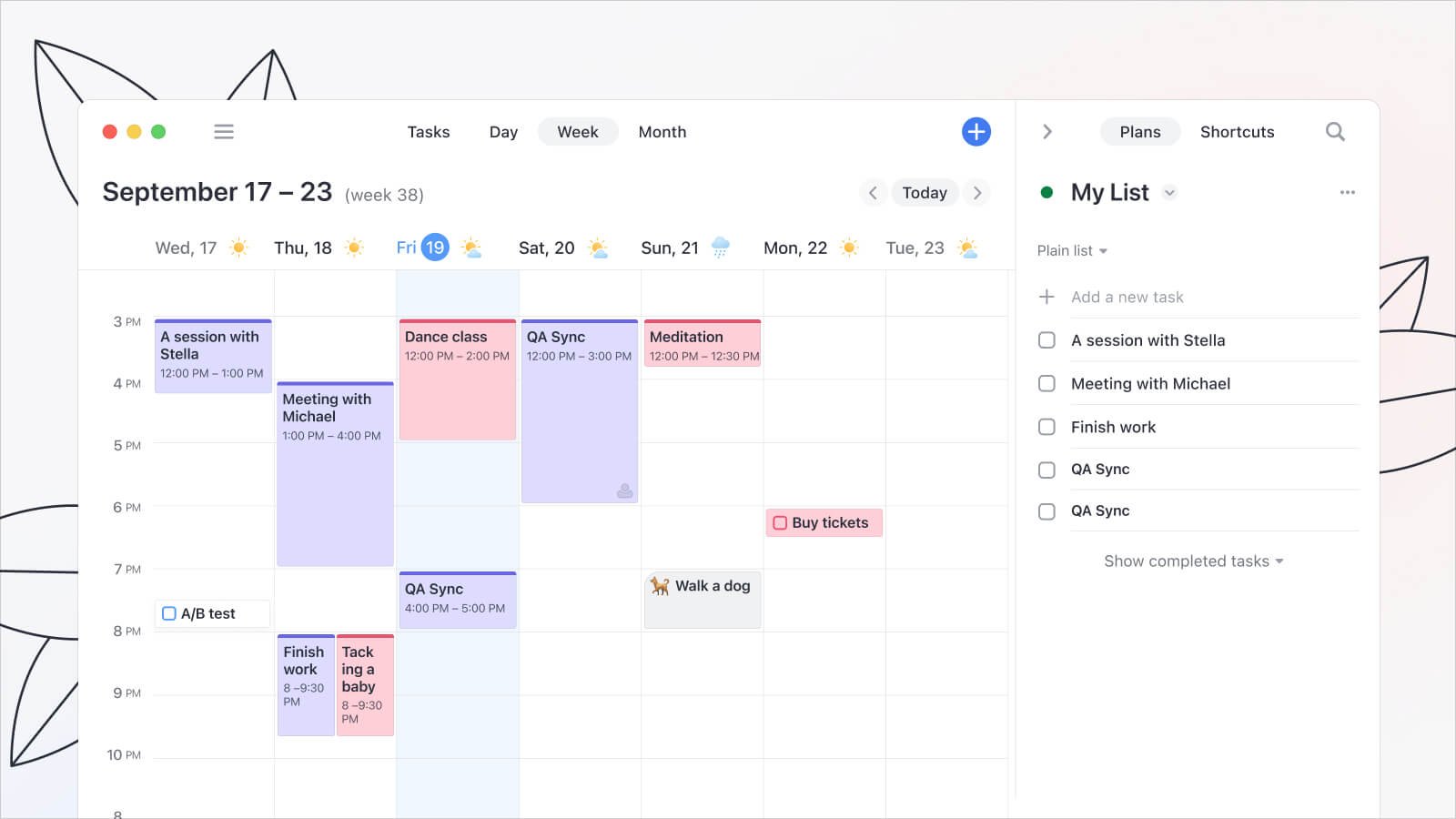 With Calendars by Readdle, merging your calendars has never been easier. Whether you're looking to merge Google calendars or sync Google and Outlook calendars, the process is quick and painless. So why not try it and see how much more organized your schedule can be?
