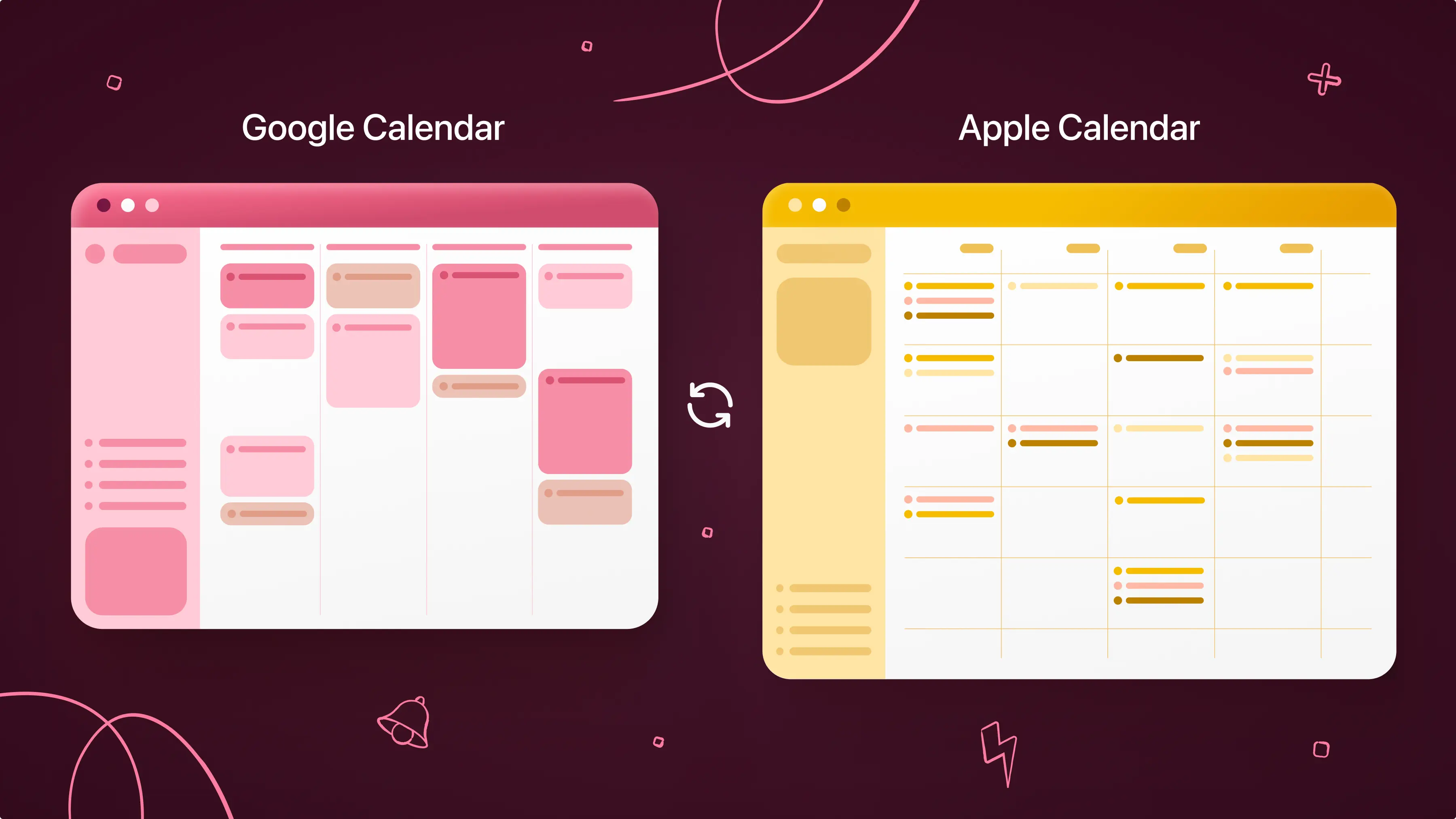
Choosing the right calendar app is essential for productivity—especially as we juggle work, personal life, and goals. Google Calendar and Apple Calendar are two of the most popular default options, and each has its own strengths and limitations.
If you’re trying to decide which calendar app to commit to, this guide will help you weigh the pros and cons of each, and compare features like platform compatibility, accessibility, ease of use, and integration with other tools (including AI).
If you still can’t decide or do without either, we’ll also show how you can take your calendar management to the next level by adding Calendars by Readdle as a powerful unifying layer.
What are the advantages and disadvantages of Google Calendar?
Google Calendar is an ideal choice for people who want a strong web experience, cross-platform accessibility, high customization and collaboration, and integration with third-party apps. This versatile calendar app is easier to share with others, schedule across multiple calendars and time zones, and manage across a mix of platforms, including web, Android, and iOS.
On the other hand, the main downside to Google Calendar is its busier, information-rich interface. The additional features have to fit somewhere, resulting in a slightly more cramped view, especially on mobile. While such a robust platform offers more depth and detailed control for power users, it can be overwhelming for new users.
Google Calendar’s offline experience could feel less seamless on desktop, since offline access depends on enabling offline mode and having events synced and cached in advance.
What are the advantages and disadvantages of Apple Calendar?
Apple Calendar is usually the simplest choice for those who live entirely inside the Apple ecosystem and want a straightforward, native experience. The clean design, intuitive navigation, and automatic updates make it an ideal choice if all of your devices are in the iOS family and you don’t need many extra features.
However, Apple Calendar does come with some disadvantages. The biggest one is the lack of compatibility with non-iOS devices. If you don’t use only all Apple products or need to collaborate with anyone outside the Apple ecosystem, you will encounter issues with things like syncing, sharing, and push updates.
Additionally, Apple calendar prioritizes simplicity over complex features. For example, the app’s web version doesn’t offer offline access. So it may not be the best option if you like using your calendar on desktop or with a lot of app integrations and customizations.
Google Calendar vs. Apple Calendar: Side-by-Side Comparison
Let’s look at the Google Calendar vs. Apple Calendar comparison in a side-by-side review of all the key features.
|
Features |
Google Calendar |
Apple Calendar |
|
Platform and Accessibility |
Works across web, Android, and iOS with easy and responsive access on all devices and platforms |
Built into iOS, iPadOS, macOS, and watchOS with deep system integration. Limited experience on web, Android, and Windows |
|
User Interface and Views |
Customizable view options beyond the standard Day/Week/Month/Year, with contextual information (e.g., event text, guests) |
View is clean and minimalist with a traditional Day/Week/Month/Year grid optimized for Apple devices |
|
Customization and Organization |
Highly customizable with multiple calendars, distinct colors, custom reminders, recurring patterns, and advanced repeat options |
Prioritizes simplicity over customization with basic color coding tied to calendars and simple alert options |
|
Integrations |
Integration with Google apps (e.g., Gmail, Google Meet, Google Tasks, Gemini) and third-party apps (e.g., Zapier, Slack), including automatic event creation from emails |
Integration with Apple Reminders, Mail, Siri, and Maps with location-based Time to Leave and weather alerts, but limited direct integration with non-iOS apps |
|
Sharing and Collaboration |
Robust sharing with granular permissions, easy guest invites, and collaborative scheduling across platforms |
Easy sharing via iCloud within the Apple ecosystem, but more limited and inflexible permissions outside it |
|
Recurring Events and Time Zones |
Flexible recurring options and automatic time zone handling, ideal for scheduling across multiple time zones |
Standard recurrence options, while time zone settings are simpler and often manual |
|
Offline Access |
Offline access via mobile apps, cloud sync, and Chrome web offline support |
Local offline access on Apple devices with local storage and iCloud sync |
|
Tasks and To-Dos |
Integration with Google Tasks, and linked notes via Keep in some views |
Integration with Apple Reminders, but task detail and event-to-task linking is more limited |
|
Security and Privacy |
Strong account protection with two-factor authentication and standard encryption, with data tied to Google's data-driven ecosystem |
Stronger emphasis on privacy with stronger on-device safeguards, encrypted data, and less advertising-based data model |
Overall, both of these calendar apps are top notch services that can work for just about anyone. They both offer easy setup and event creation, intuitive interfaces, custom alerts, reliable syncing and offline access, and AI-enhanced features (Siri for Apple Calendar, Gemini for Google Calendar).
So either is a great choice. It really comes down to which nuances feel more or less compatible with your devices and ways of working. Though if you’re already using one of them, there’s not much reason to go through the hassle of switching to the other unless you want an ever-so-slightly different set of features.
How Calendars by Readdle supercharges both
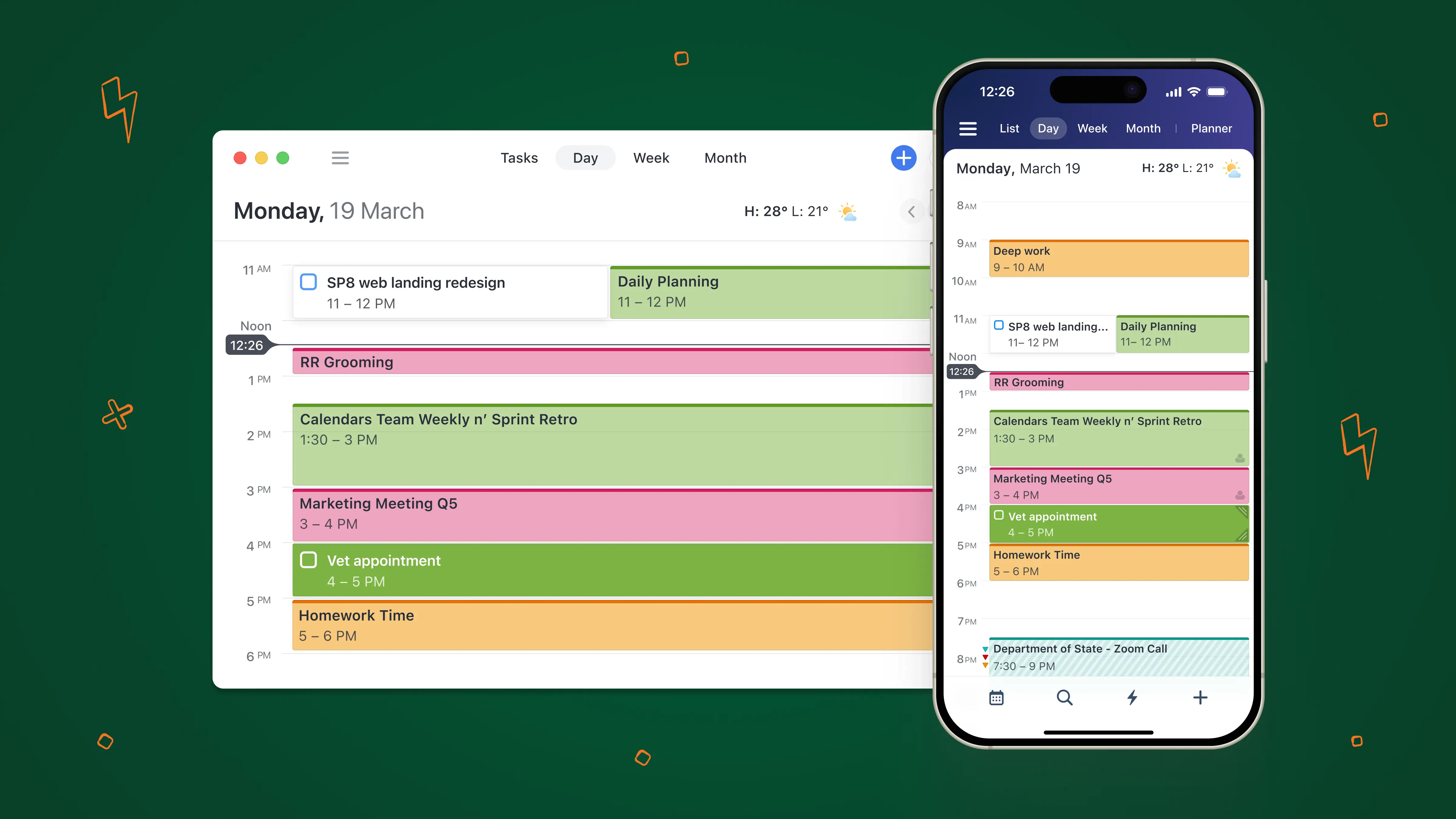
You can have the best of both worlds with Calendars by Readdle, the power-user layer that cuts out the friction. If you already use Apple Calendar or Google Calendar (or both) and want an even better experience, this can level up your everyday calendar management with more control and flexibility, smarter scheduling, and easier daily planner workflow—all in one unified view.
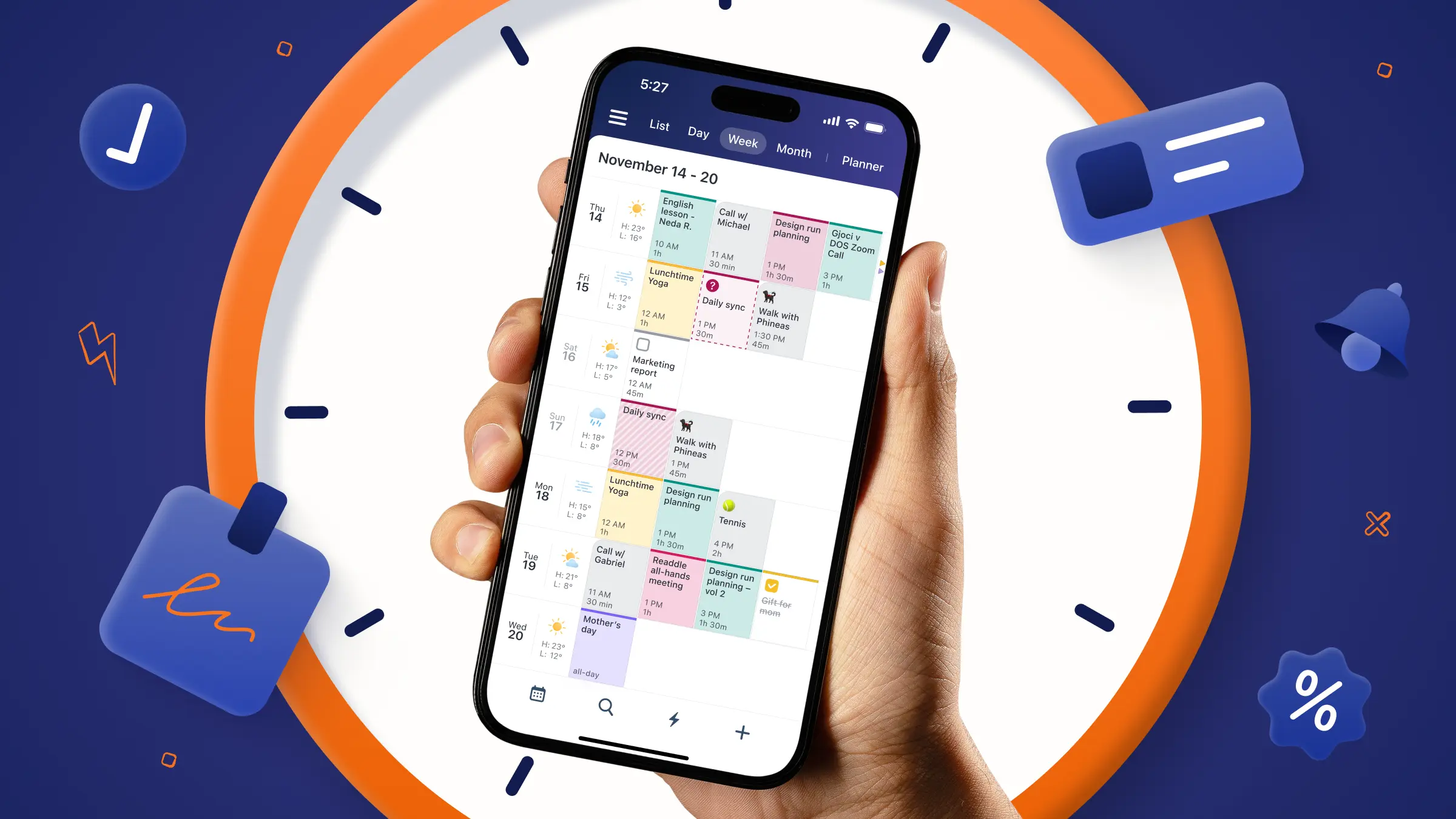
The Calendars app feels familiar, yet offers these additional thoughtful features that supercharge your time and calendar management above and beyond other calendar apps.
Clean cross-calendar syncing
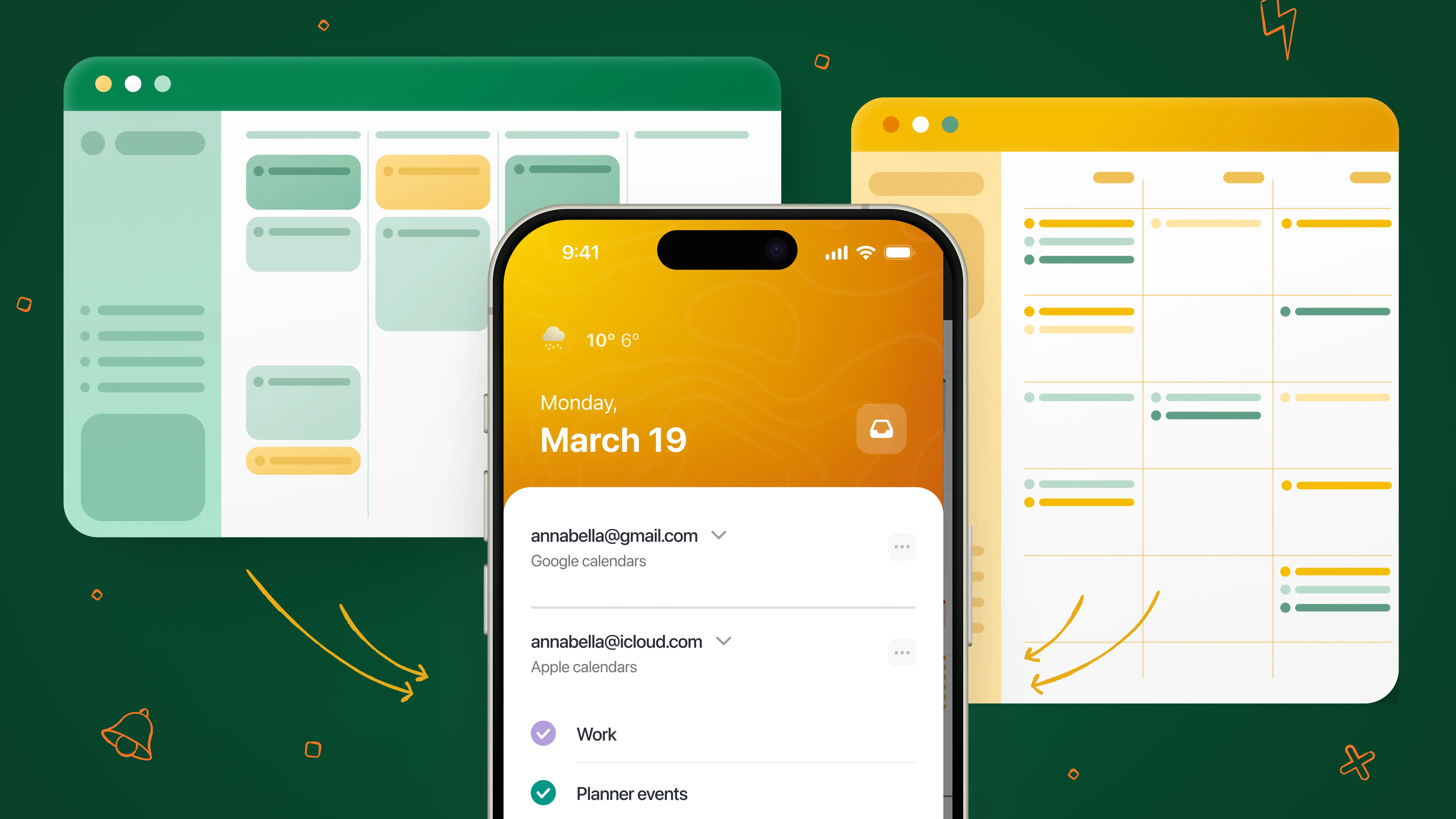
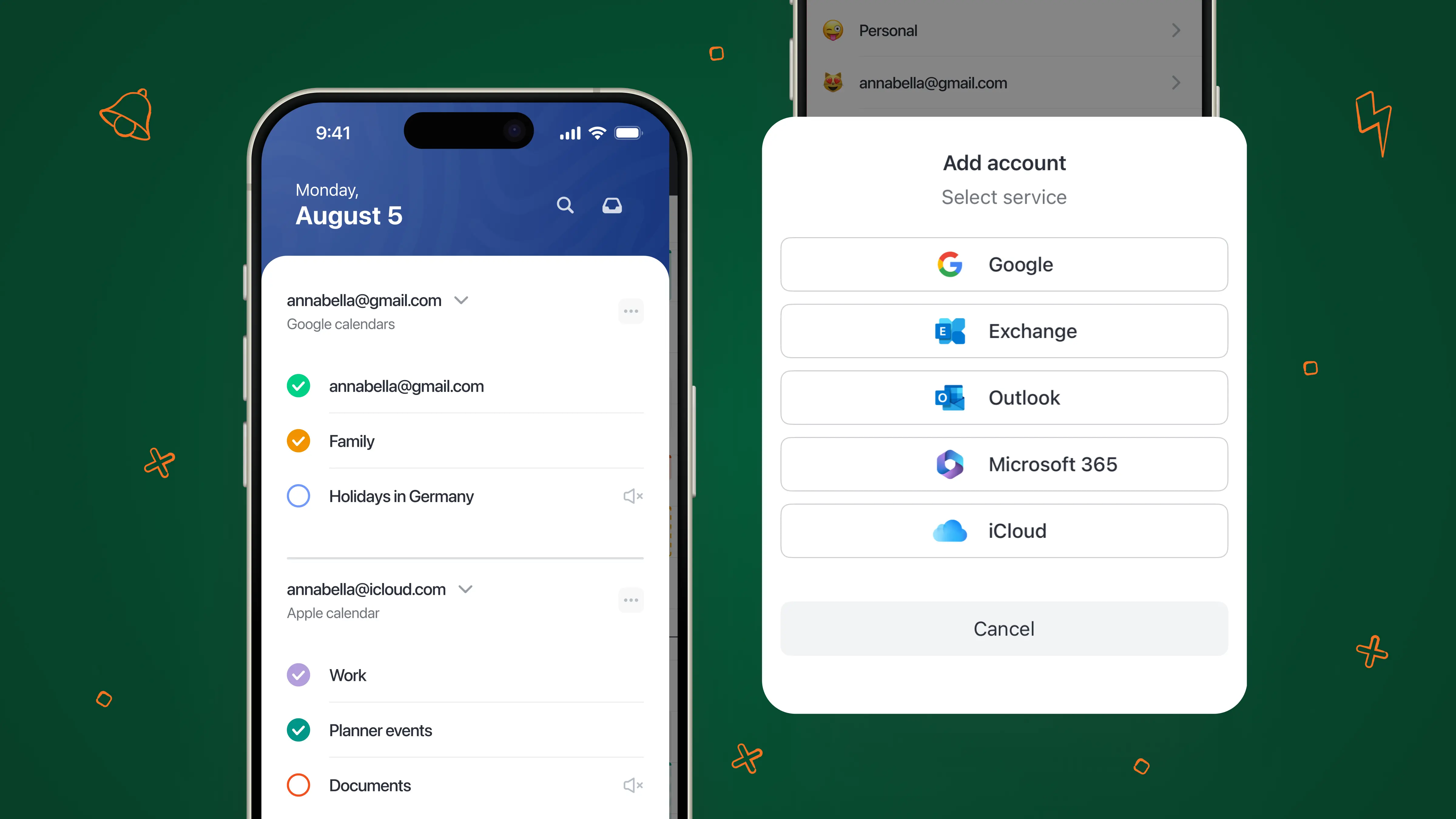
With Calendars, you can not only view and manage events from all of your synced calendars, but also see other people’s calendars. No need to switch between different calendars anymore—all of your important dates, meetings, and events are collected together in one place.
Natural language input
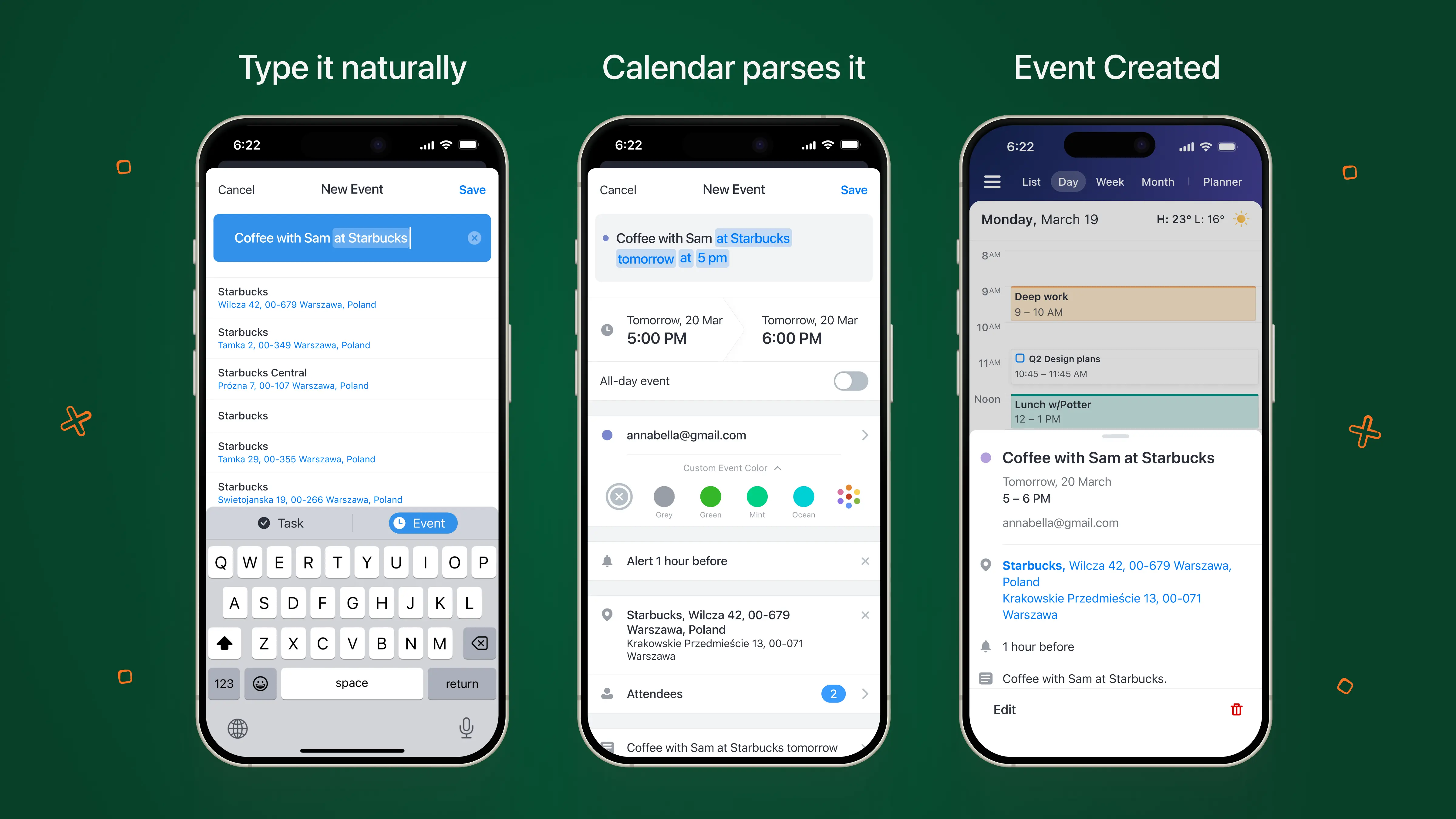
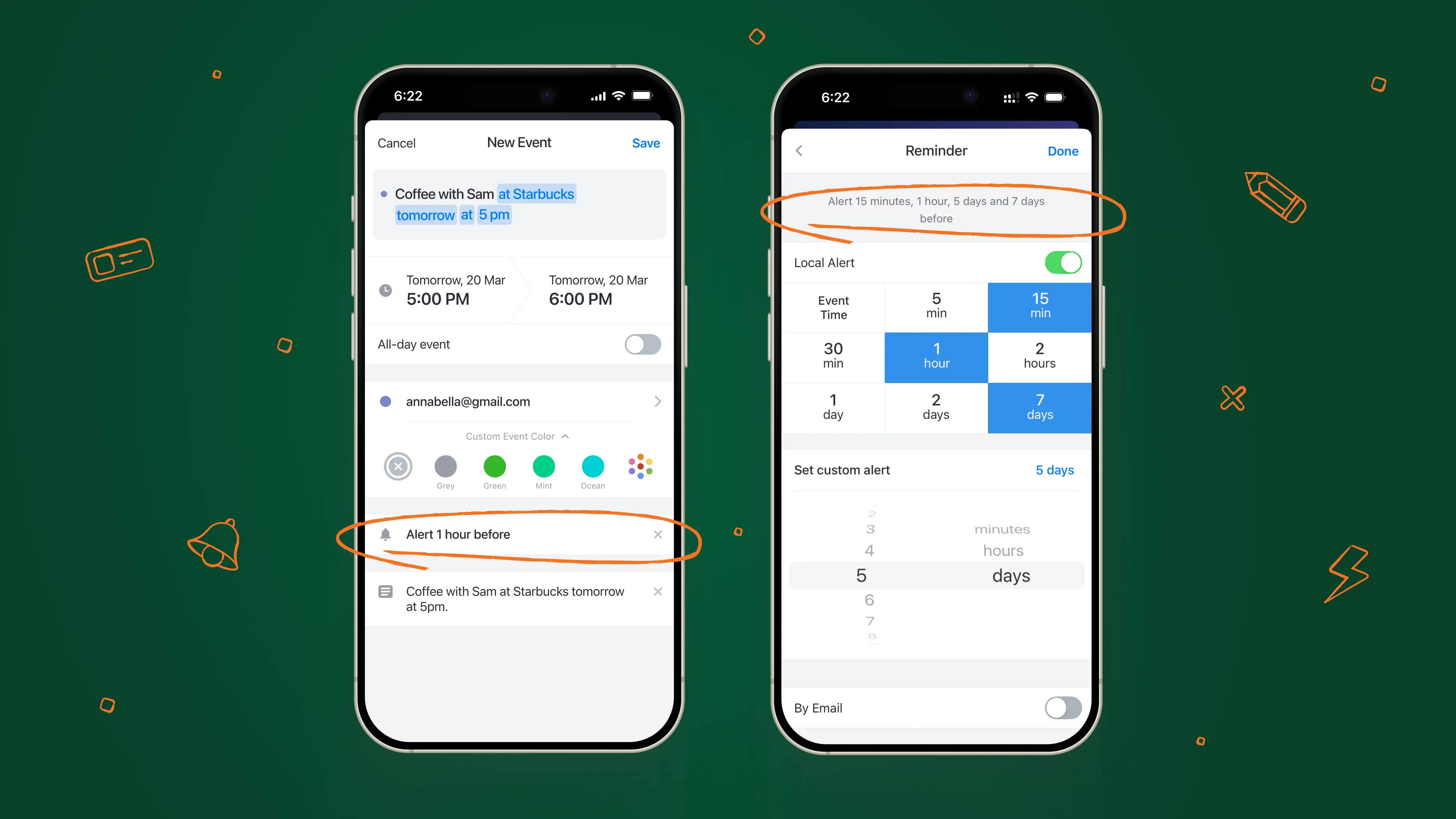
For example, type “Coffee with Sam at Starbucks tomorrow at 5pm” and the Calendars app transforms that sentence into a fully-formed event with title, time, date, and location.
Easy event creation
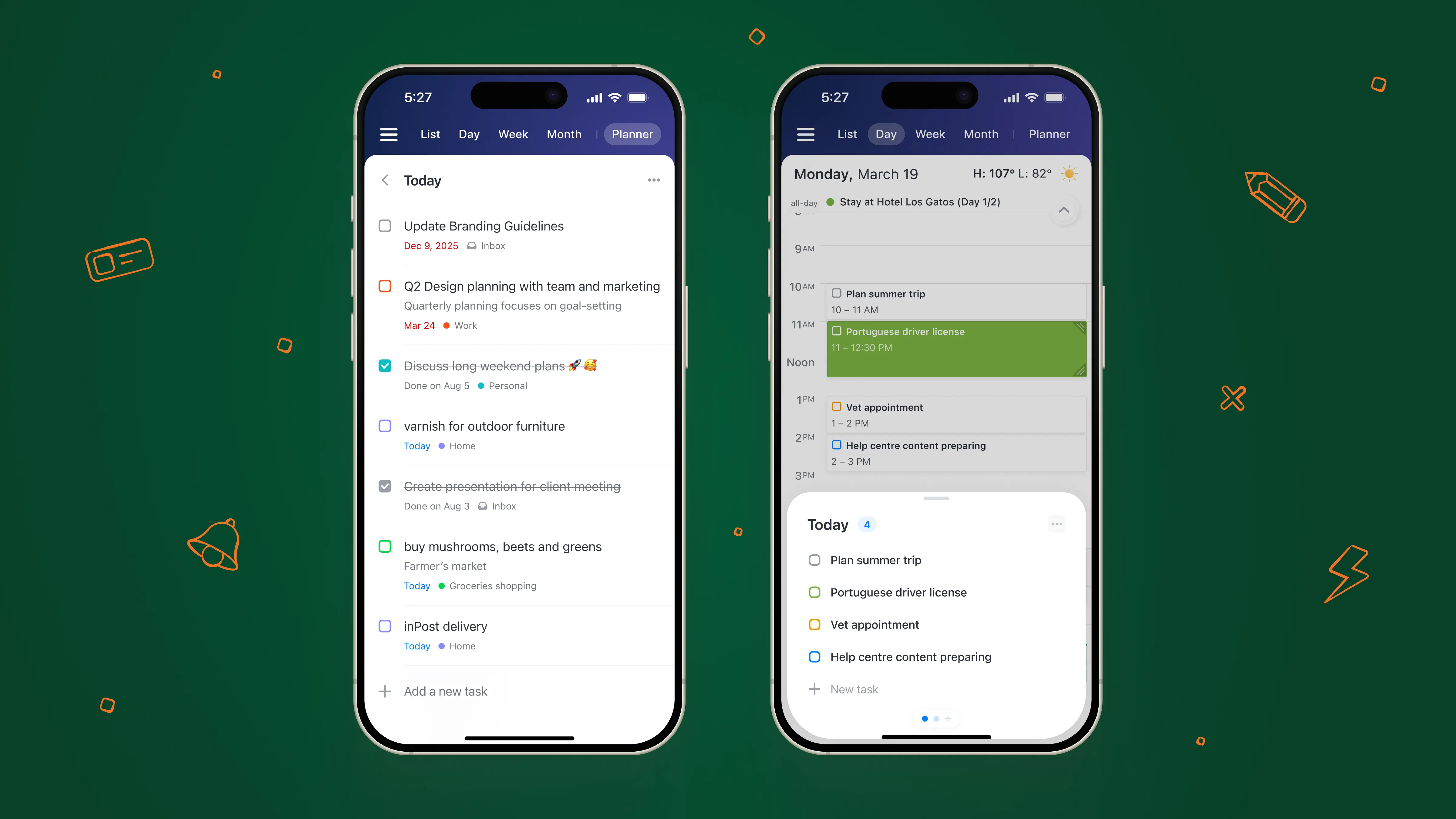
Use Quick Scheduler (the feature behind the ⚡️ icon the tab bar) to quickly time-box tasks onto the calendar view, and also allows quick access to Shortcuts - event templates for routines that you can easily add to your calendar to save time.
Visual planning for busy weeks
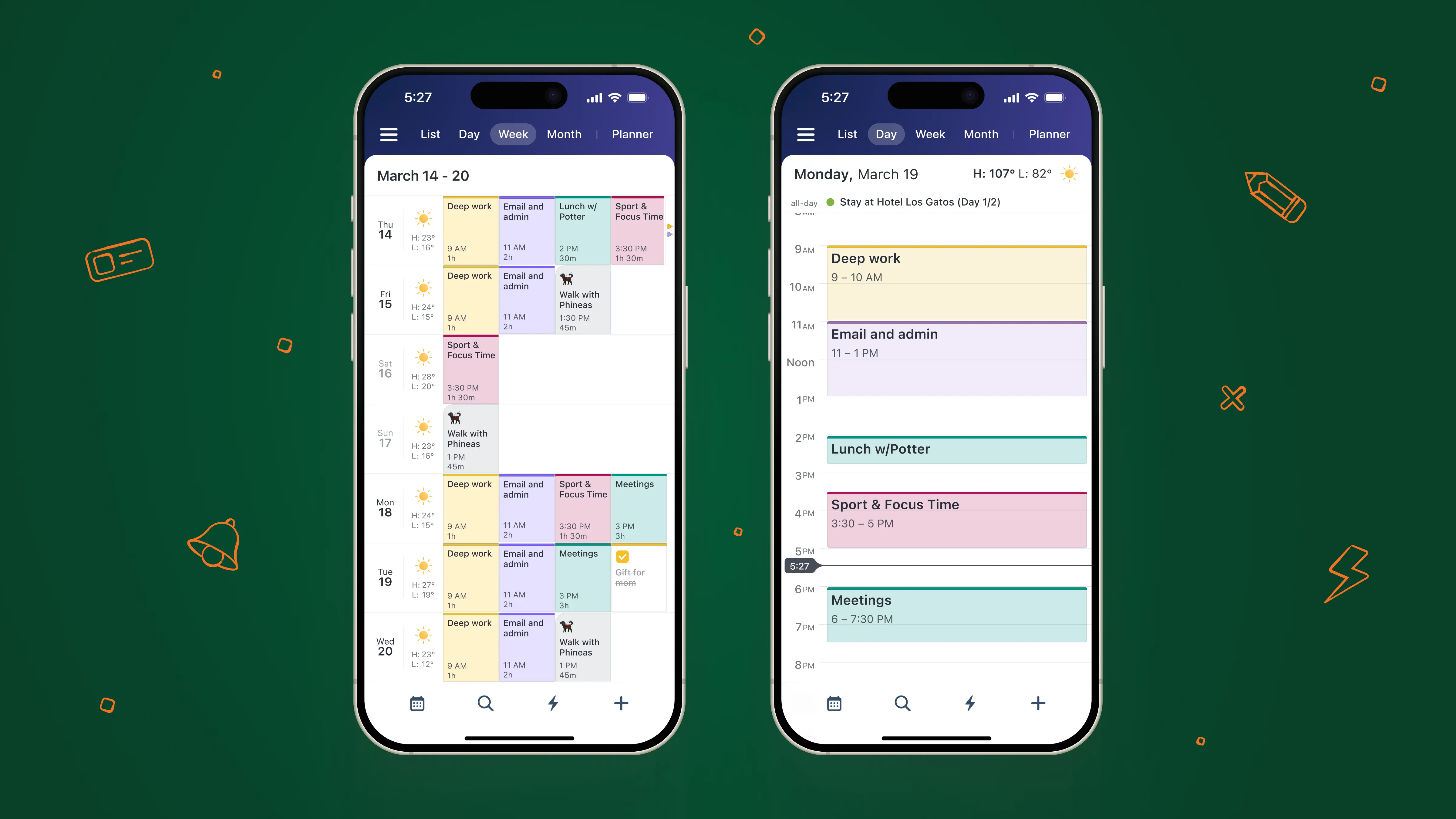
Use time blocking in Calendars Planner to more clearly view and manage a busy schedule.
Sync tasks across platforms
Seamlessly integrate your task list into Calendars from iOS Reminders or Google Tasks to manage all of your deadlines in one place.
Automated event reminders
Set default alerts that will be automatically applied to all newly created events to ensure consistent, timely reminders.
Unified and simplified workflow
Everything is on one page. No hidden menus. No jumping around. Add events, invite people, sync tasks, and track your daily workflow all in one place.
Get started with Calendars by Readdle
It’s very easy to get started. When you open Calendars for the first time, you’ll be prompted to add a calendar account you already use—such as Google Calendar, Apple iCloud, or a Local iOS Calendar—and sign in. The app will then walk you through each step to automatically pull in all of your events and meetings, so that you can see your full schedule in one clear, unified view.
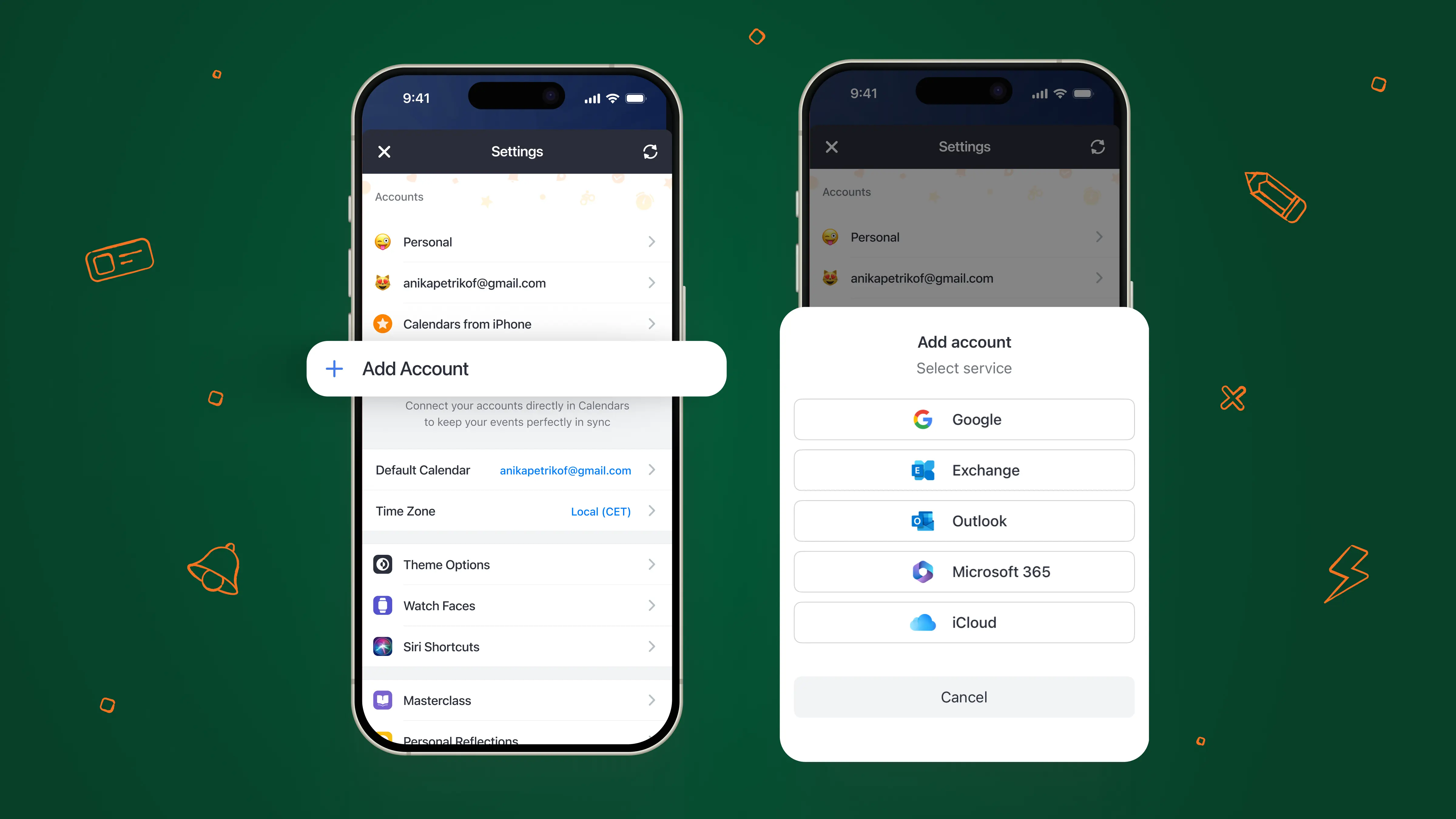
If you add multiple accounts, you can set different colors for each source (e.g., blue for Google, green for Apple) to tell them apart. Now you’re ready to start adding events quickly with Calendars Planner and Quick Scheduler, natural language input capabilities, time blocking, smart reminders, and other advanced features.
Ready to upgrade your calendar with smart scheduling? Download Calendars for free and discover how multiple calendar management can be much simpler than you think.