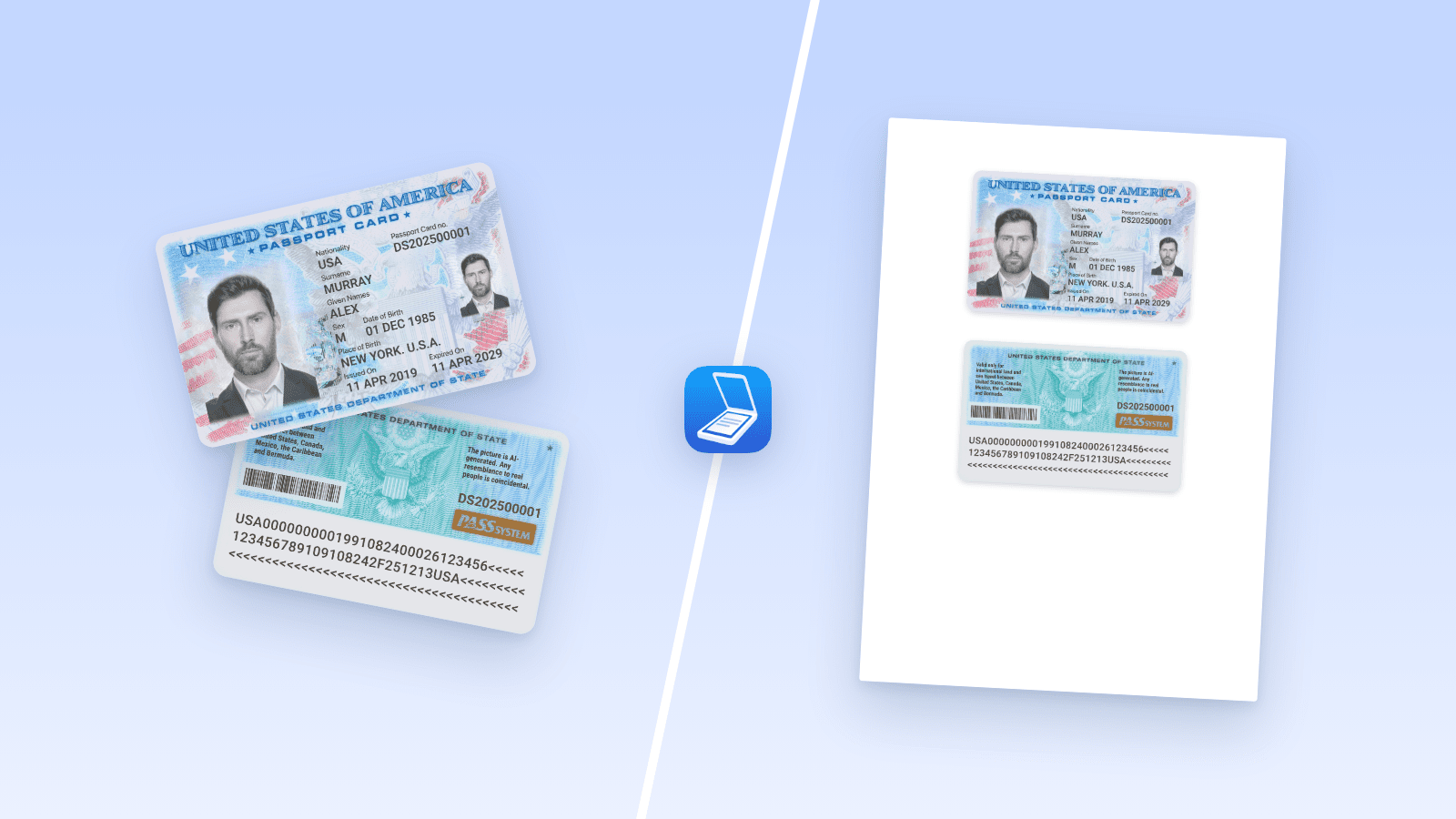
A landlord, a bank, a new employer, or a visa office asks for "a copy of your ID, both sides, on one page." It sounds simple until you're standing at a copier wondering how to flip a card mid-scan, or you've sent two separate photos and been asked to try again.
The good news: you can do it in about a minute. Below are three methods, starting with the fastest one, which only needs your iPhone or iPad.
Method 1: Use Scanner Pro on your iPhone or iPad (fastest)
No copier nearby? Your phone is enough. Scanner Pro detects the card's edges automatically, cleans up glare and shadows on-device, and saves the result as a PDF you can email, print, or upload.
For a fuller walkthrough of scanning, storing, and protecting ID scans, see How to scan and store your ID documents using Scanner Pro.
- Open Scanner Pro and tap the camera button to start a new scan.
- Place your ID on a flat, dark, contrasting surface. A plain table or a sheet of dark paper helps the app find the card's edges.
- Hold your phone parallel to the card. In Auto-capture mode, Scanner Pro snaps the front as soon as it sees the borders.
- Tap the checkmark to confirm the crop. The camera reopens automatically, so flip the card and capture the back right away.
- Tap the page counter to review both sides. Use Edit to tighten the crop or adjust brightness if any text looks faint.
- Tap the title to rename the scan, then save it. Both sides are stored together as a two-page PDF.
Need both sides on a single sheet?
Some forms accept only one page. You can combine them right on your phone with PDF Expert:
- In Scanner Pro, export the scan as JPEG images (one per side).
- In PDF Expert, tap the blue + button and choose Blank PDF.
- Tap Edit PDF on the top toolbar, select Image, tap near the top of the page, and pick the image of the front.
- Repeat for the back, placing it below the front. Drag the corners to resize both to roughly the card’s real size (about 8.6 × 5.4 cm, or 3.4 × 2.1 in).
- Share the page as a PDF.
Note: adding images requires a PDF Expert subscription.
Why this beats a copier? There's no queue, the scan is sharper than most office machines produce, and the file is already on your phone, ready to attach to an email or upload to a form.
Note: The free version adds a Scanner Pro watermark to exported scans. A Scanner Pro Plus subscription removes it.
Method 2: Use the ID Card Copy mode on a photocopier
Many office copiers and all-in-one printers have a built-in ID copy mode. On Epson models, for example, it's called ID Card Copy and sits under the copy settings. Other brands use names like "ID Copy" or "Card Copy."
- Select Copy on the printer's screen and look for the ID copy option (often under Advanced or More settings).
- Place the card face-down near the corner of the glass, as shown on the screen.
- Start the copy. The machine scans the front, then prompts you to flip the card.
- Turn the card over in the same position and continue. Both sides print on one sheet.
No ID mode? Copy the front with the card at the top of the glass, put the same sheet back in the paper tray, then copy the back with the card at the bottom. It works, but expect a wasted sheet or two.
Method 3: Use a flatbed scanner and a document editor
If you have a home scanner but no ID mode, you can assemble the page yourself.
- Scan the front of the card and save it as a JPG or PNG.
- Scan the back the same way.
- Open a blank A4 or Letter page in Word, Pages, or Google Docs.
- Insert both images, one above the other, at the card's real size (about 8.6 × 5.4 cm, or 3.4 × 2.1 in).
- Export the page as a PDF.
This gives you full control over layout, but it takes the longest. If you do it often, Method 1 skips the editing step entirely.
Tips for a clean, accepted ID copy
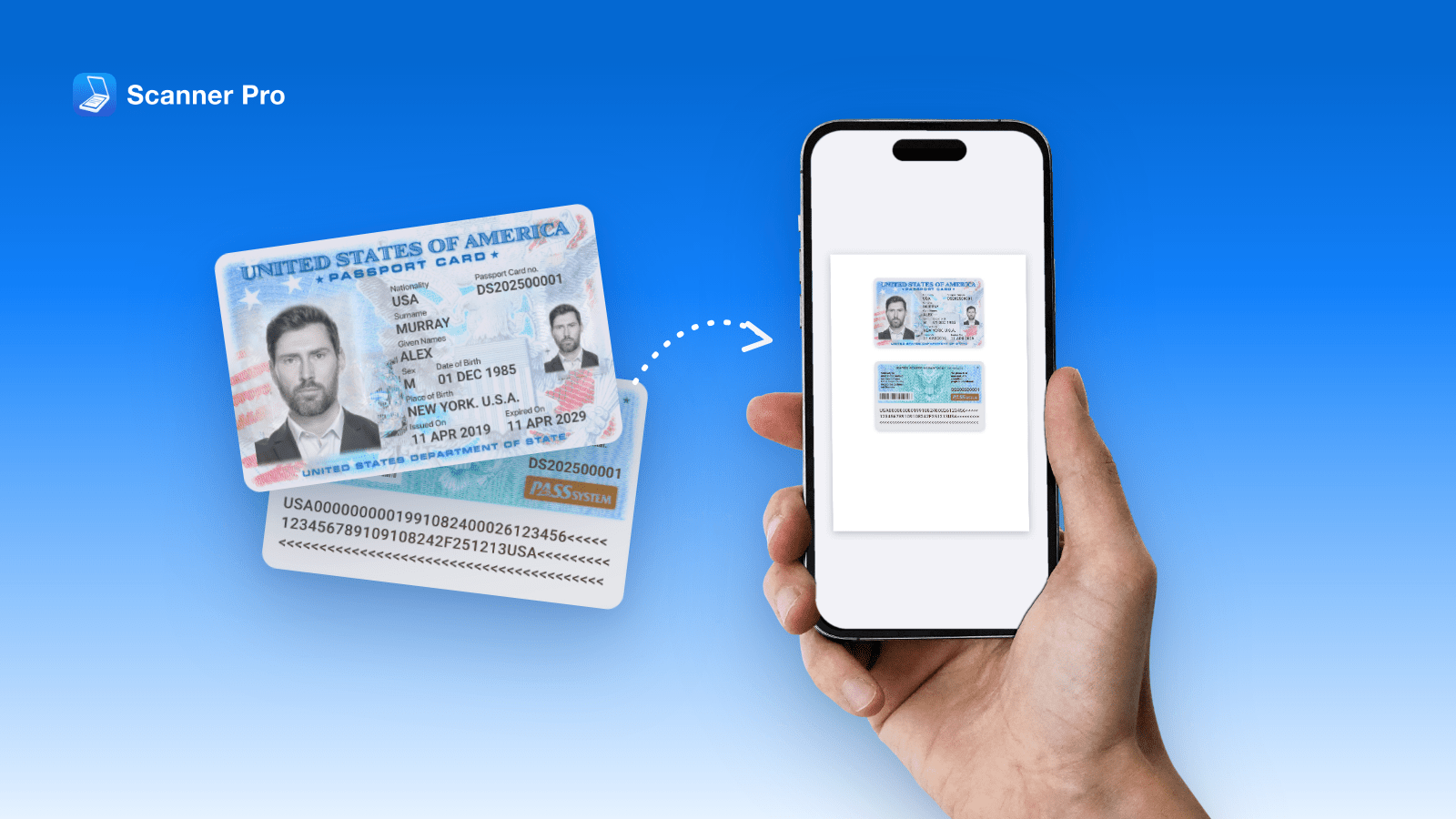
- Keep it life-size. Most offices expect the card at roughly its real dimensions. Don't stretch it to fill the page.
- Use a contrasting background. A dark surface makes edges crisp and helps automatic cropping.
- Kill the glare. Laminated cards reflect light. Shoot in soft, indirect light and turn the flash off.
- Check every detail is readable. Name, photo, ID number, and expiry date should all be legible at 100% zoom.
- Protect the copy. Add a password to the PDF before emailing it. Scanner Pro Plus lets you password-protect shared PDFs.
- Label its purpose. Some people write "Copy for [company] rental application only" across the page to limit misuse. Make sure the text doesn't cover key details.
FAQ
Can I just send two separate photos? Sometimes, but many forms and HR systems accept only one file. A single-page PDF avoids a back-and-forth.
Is a phone scan accepted instead of a photocopy? For most rental, banking, and employment requests, yes. Official bodies that require a certified copy will still need it stamped in person.
What paper size should I use? A4 in Ireland, the UK, and most of the world; US Letter in the US and Canada.
Does this work for driver's licences and residence permits? Yes. Any card-sized document works the same way.
Is it safe to scan my ID on my phone? Scanner Pro processes scans on your device, and you can password-protect the PDF before sharing.
The quickest way to get it done
A copier with an ID mode works if you're already standing next to one. For everyone else, your iPhone is the faster option: scan both sides, get one clean page, and send it in under a minute.
Download Scanner Pro for free and keep a ready-to-send copy of your ID in your pocket.