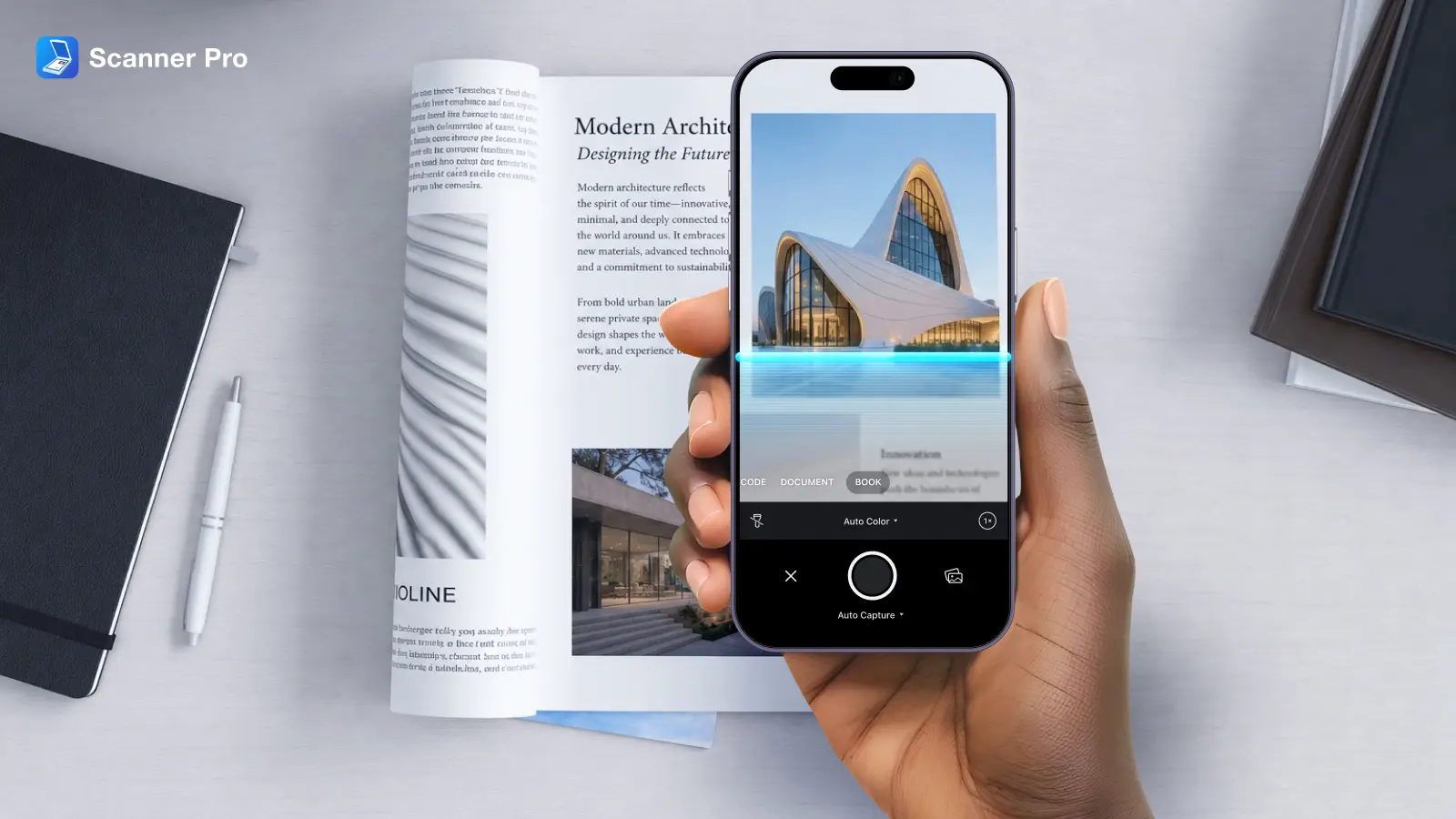
Every scan you take in Scanner Pro goes through an enhancement pipeline that corrects color, removes shadows, and sharpens text — entirely on your iPhone or iPad. That pipeline has been a core part of the app since the beginning, and it's something we've continued to improve with every major release.
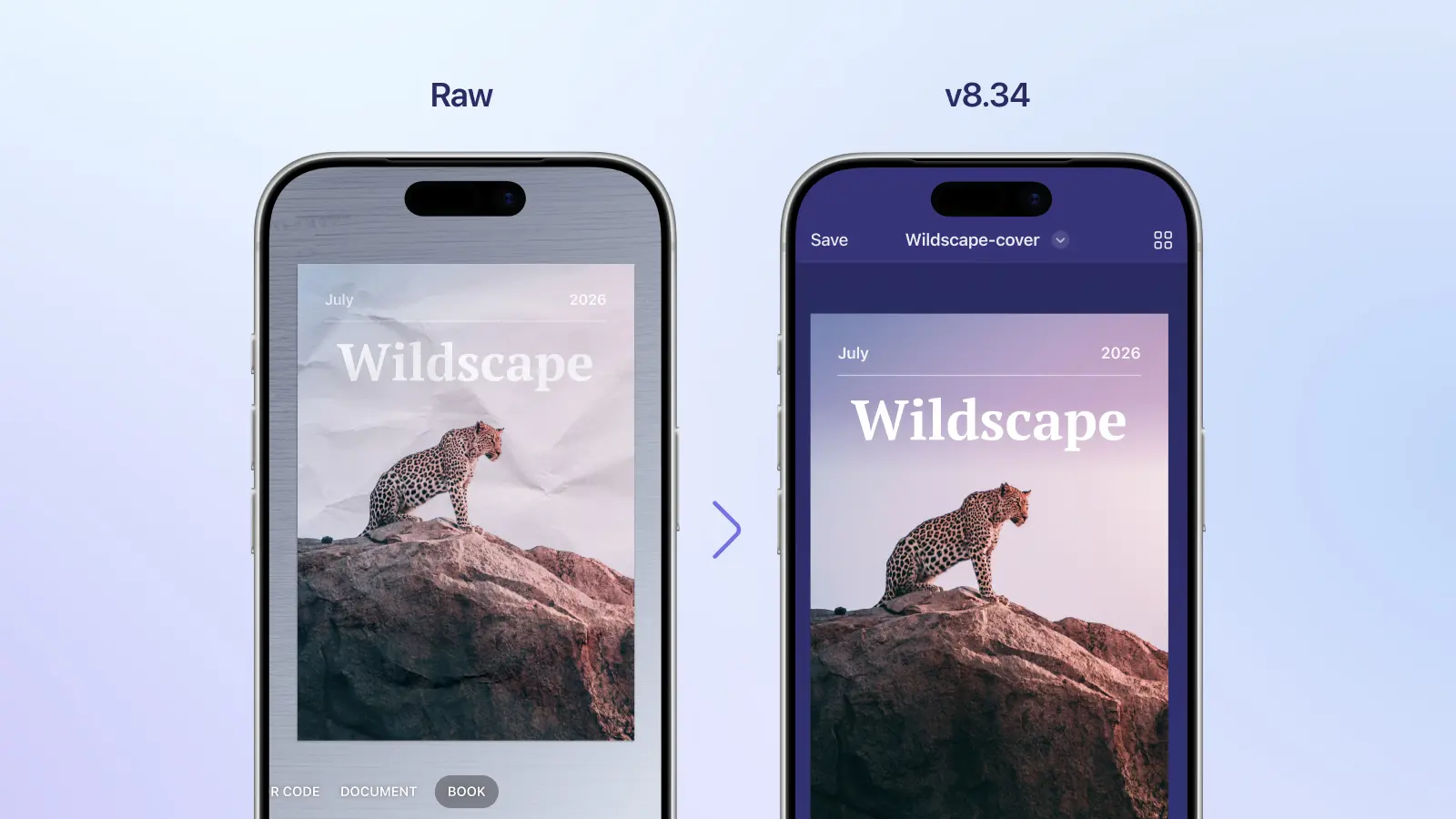
The March 2026 update (v8.34) is the most significant change to the color processing mode in the app's history. This article explains what's changed, why we made those changes, and what it means for the documents you scan every day.
Scan quality has always been a moving target
Getting a great scan from a phone camera is harder than it looks. Even under decent lighting, raw camera images have problems: uneven brightness, color cast from artificial lighting, shadows from your hand or body, soft edges on text. The scanning engine's job is to fix all of that before the image reaches your library.
The previous version of the algorithm did this well for the most common case: white-background documents like printed pages, letters, and forms. It reliably removed simple shadows, whitened the background, and sharpened text. For the majority of scans, it produced clean, professional results.
But document scanning in the real world is messier than that. Users scan receipts with colored backgrounds, brochures with full-bleed imagery, color-coded forms, and magazines. Those documents exposed the limits of the original approach — and drove us to rebuild the engine from scratch.
What changed in version 8.34
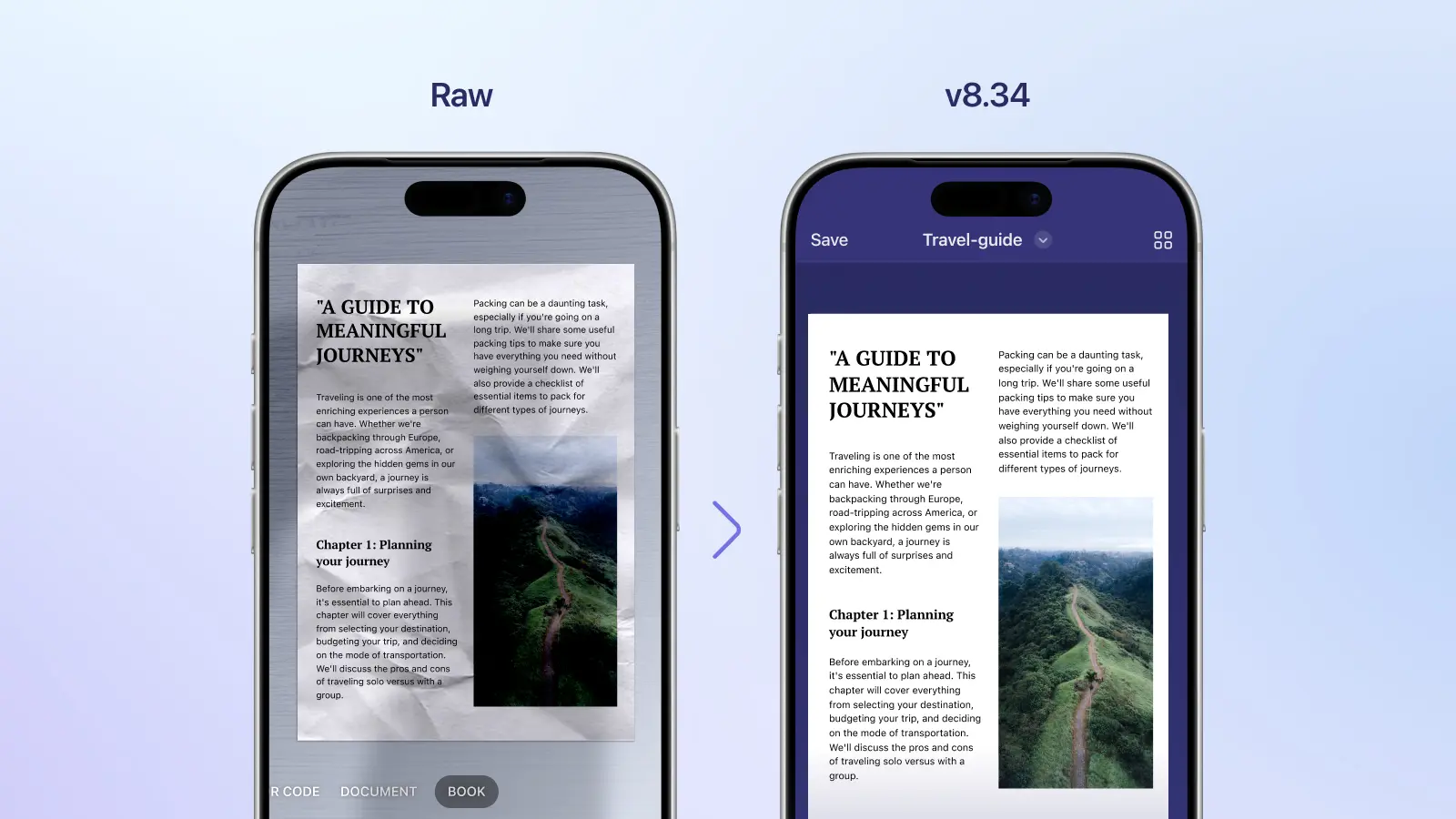
The v8.34 update replaced the colour mode image processing algorithm with a neural network based one trained on a much wider range of document types and lighting conditions.
Better handling of color documents
The original algorithm struggled when a document had large colored areas. Removing shadows from a white page is straightforward; removing shadows from a page with a red header or a colored background is not — the same correction that cleans up a shadow can also shift the underlying colors in ways that look unnatural.
The new algorithm handles this by training specifically on color documents with complex shadows, overlapping shadows, and colored lighting. In practice:
- Deep shadows are reduced without washing out the colors underneath
- Original document tones are preserved more accurately, especially on non-white backgrounds
- Color magazines and brochures scan more reliably than before
- Documents scanned under warm or tinted lighting produce more neutral, accurate results
If you've ever rescanned a colored document because the first attempt looked off — colors slightly wrong, or shadows still visible in places — v8.34 is the update that addresses that.
Improved shadow removal on complex documents
Shadow Removal uses on-device AI to identify and eliminate shadows cast by your hand, phone, or surroundings. The previous version handled straightforward cases well: a single shadow falling across a white page, or uneven illumination from a nearby window.
The new model was trained on harder cases: shadows with color in them, multiple overlapping shadows, and shadows on documents with patterned or colored backgrounds. These are exactly the situations where the old algorithm would leave residual shadows or overcorrect.
Shadow Removal runs automatically on every scan — there's no setting to enable. The v8.34 update improves what it can handle, not how you use it.
Sharper text at high resolutions
When scanning large documents like floor plans, architectural drawings or multi-page spreads, the engine processes the image in sections. The challenge with section-based processing is consistency: neighboring sections can end up with slightly different brightness or color, producing visible seams in the final scan.
The updated engine adds a third processing stage specifically for high-resolution images. It refines each section while keeping the overall enhancement consistent across the whole document, and it also removes the small halos and color ringing around text that tend to appear when a high-resolution image is processed at lower resolution. The result is a scan that holds up under close inspection, not just at normal viewing distance.
How the enhancement pipeline works
The scanning engine processes every image through three stages, each handling a different class of problem.
Global correction looks at the entire image and fixes large-scale issues: overall brightness, color balance, uneven illumination, and major shadows. This sets the baseline for the scan.
Local refinement zooms in on fine details — small shadows near edges, slight halos around text, minor artifacts in specific areas — and corrects what the global stage couldn't resolve. It adds corrections rather than replacing the image, so improvements at this stage don't undo the global adjustments.
Patch processing handles high-resolution images by working in sections while using the global correction as a reference, preventing inconsistencies between sections and cleaning up text-level artifacts that only the full-resolution image reveals.
All three stages run on-device, using Apple's Neural Engine for performance and efficiency.
What stays the same
The workflow hasn't changed for users. Scan a document, and enhancement runs automatically. There are no settings to configure and no mode to select. The improvements in v8.34 are entirely under the hood.
Auto Color Detection also continues to run automatically, deciding per page whether to save in color or black-and-white. A typed page on white paper gets saved as black-and-white for smaller file size and sharper text. A page with photos, logos, or colored backgrounds gets saved in color. Auto Color Detection is included in Scanner Pro Plus; free users can select the color mode manually.
If a scan still needs adjustment after enhancement, editing options let you crop, rotate, change the color mode, or use the Magic Eraser to remove stray marks, punch holes, or staple marks.
On-device processing
Every part of the scanning and enhancement pipeline — including the new neural model — runs on your iPhone or iPad. No image data is sent to Readdle's servers or any external service.
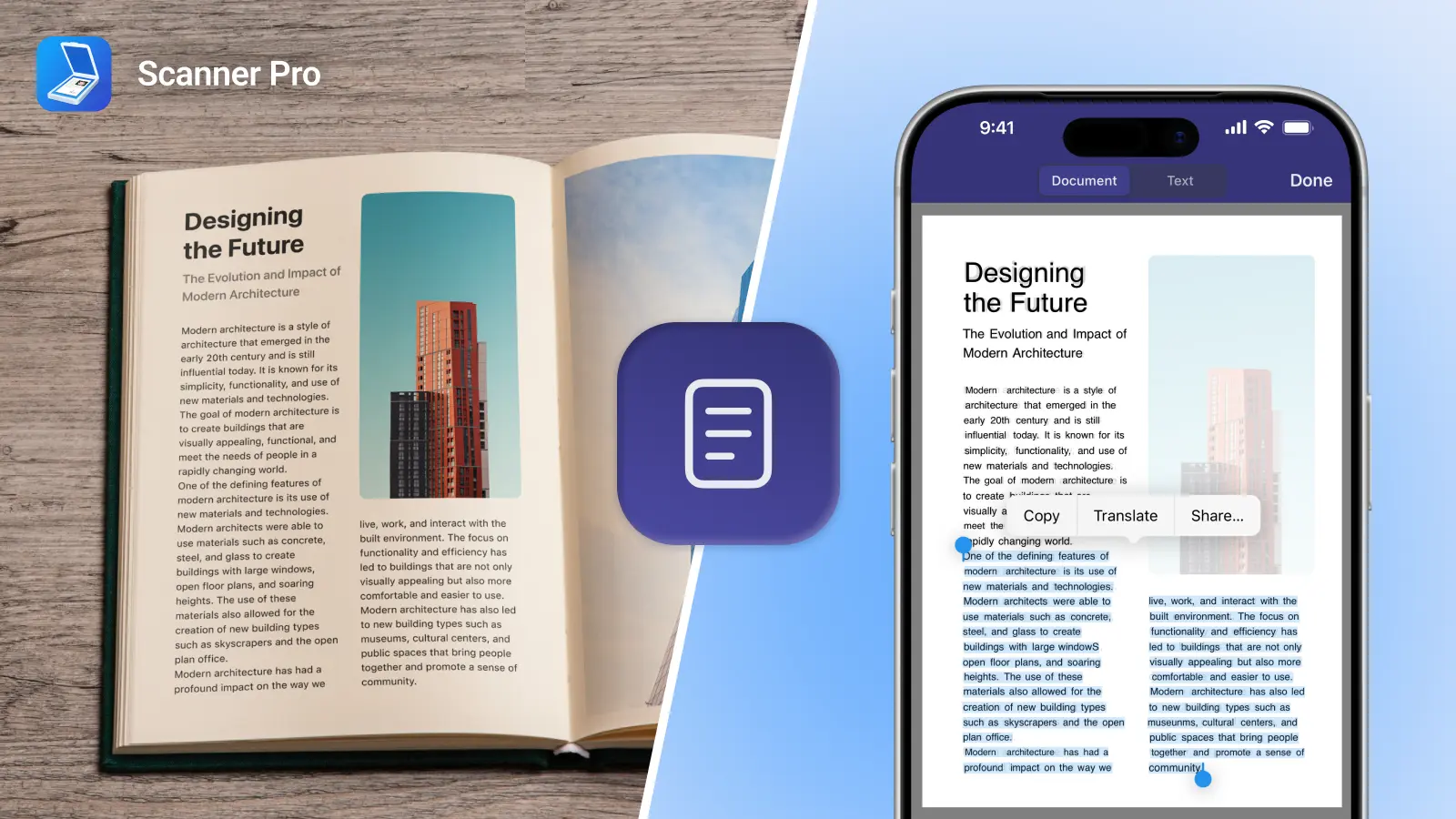
For legal documents, medical records, financial statements, or anything you'd rather keep private, Scanner Pro processes and enhances your documents without them ever leaving your device. OCR text recognition works the same way — 26 languages, entirely on-device. See also: how to search through recognised text.
For more on how Scanner Pro handles your data, see the Scanner Pro Privacy FAQ.
Tips for getting the best results
The enhancement engine corrects a lot, but it works with what the camera captures. Better input produces better output.
Lighting: Even, bright lighting is the single biggest factor. Overhead light is better than light from one side. If the room is dark, move closer to a window or lamp before scanning.
Angle: Hold the phone directly above the document. Scanner Pro's edge detection handles mild angles, but the flatter the better. If a scan comes out skewed, crop and rotate it afterwards.
Stability: Let auto-capture trigger naturally rather than tapping manually. It fires when the document is steady and edges are detected, which produces a sharper image than a manual tap.
Color documents: Keep the full document within the frame, including a small margin around the edges. The enhancement works better with context around the document borders.
Frequently asked questions
Do I need to do anything to get the improved scanning in v8.34?
No. Update to the latest version and the improvements apply automatically to every scan.
Does Scanner Pro enhance scans automatically?
Yes. Enhancement runs on every scan. There's no setting to enable or configure.
Why does my color scan look slightly different from the original?
Enhancement adjusts brightness and contrast, which can shift colors slightly. The v8.34 update improved color preservation significantly, but some shift is normal — the goal is a clean, readable scan, not an exact photographic reproduction. If accuracy is critical, re-scan in better lighting.
Can I control how much shadow removal is applied?
Not directly. Shadow Removal applies automatically based on what it detects. For most documents, the result is good without adjustment.
Does enhancement affect file size?
Color scans are larger than black-and-white scans. Auto Color Detection keeps file sizes reasonable by selecting the right mode per page.
Is enhancement available on the free version?
Basic enhancement and shadow removal are available to all users. Auto Color Detection requires Scanner Pro Plus.
Does any of this processing happen in the cloud?
No. All enhancement, shadow removal, and OCR runs on your device.
What iOS version does Scanner Pro require?
iOS 18.0 or later on iPhone, iPadOS 18.0 or later on iPad.