Scanner Pro's Count Objects feature does something really useful: point your iPhone or iPad camera at a pile of items, tap the shutter, and get an accurate count in seconds, no manual tallying required. Whether you're processing a stack of receipts, cataloging physical inventory, or tracking paperwork before a meeting, Count Objects handles the tedious part so you don't have to.
This guide covers exactly how to use the tool, where to find it, and the situations where it saves the most time.
What Count Objects does
Count Objects uses AI to detect and count items visible through your camera. You don't draw boxes or tap individual items — the tool analyzes the image and returns a total.
What you can count with it:
-
Stacks of receipts or invoices before creating an expense report
-
Paper documents before scanning or filing
-
Small physical items: product samples, labels, cards, parts
-
Anything you'd normally count by hand and lose track of
The feature works on iPhone and iPad. It requires an internet connection to process, since the AI analysis runs server-side. It's available to Scanner Pro Plus subscribers, and free users get 10 complimentary attempts to try it out.
Note: Count Objects is not available for users in China.
How to access Count Objects
There are two ways to open the tool:
-
From the Tools tab: Open Scanner Pro and tap Tools at the bottom of the screen. Scroll to find Count Objects and tap it.
-
From the Camera: Tap the orange Camera button to make a new scan. At the bottom of the screen, swipe through the scanning modes and select Count.
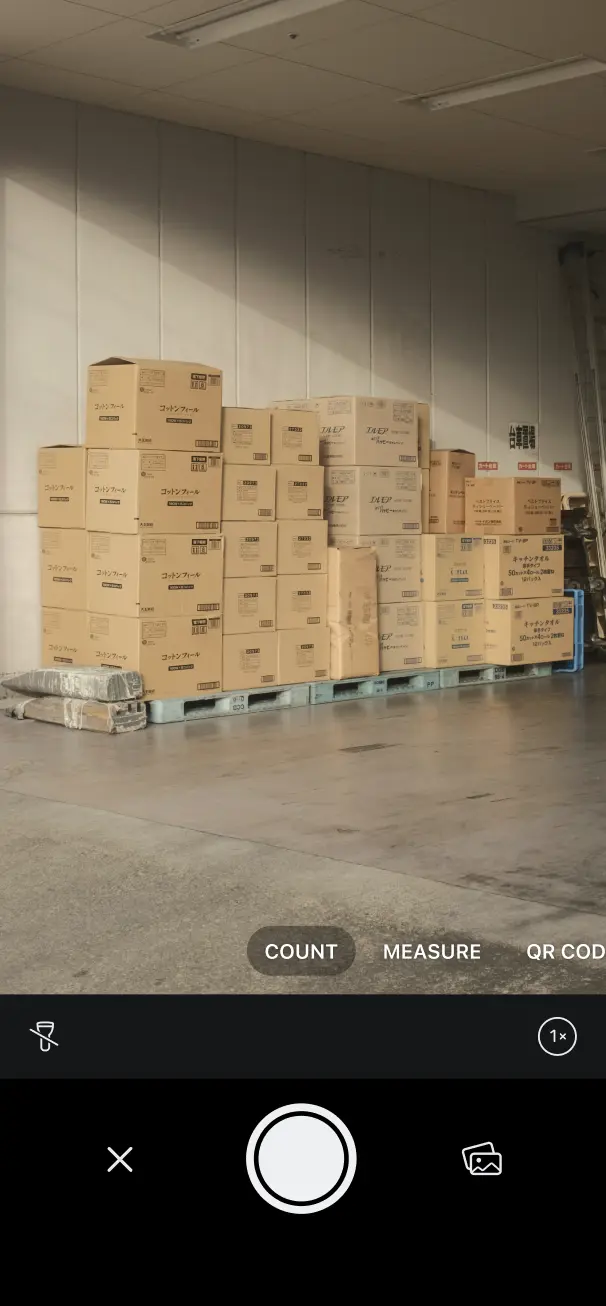
Both routes get you to the same place. Use whichever fits your current workflow — if you're already in scanning mode, switch to Count directly from there.
How to Count Objects
-
Make sure you have an active internet connection. Count Objects requires connectivity to process the image.
-
Activate Count Objects using either entry point above (Tools tab or Camera > Count mode).
-
Read and accept the consent message that appears on screen before the tool activates.
-
Position your camera over the objects you want to count. Fit as many items as possible in the frame, and make sure there's reasonable contrast between the items and the surface below them.
-
Tap the Shutter button and hold still while the tool processes.
-
Review the count displayed on screen. The result appears automatically once the AI finishes analyzing the image.
For most use cases, like receipts on a desk, a stack of documents, a row of items, the entire process takes under 30 seconds.
When Count Objects is most useful
Processing receipts before an expense report
Before using Scanner Pro's Expense Report feature, you might want to know exactly how many receipts you're working with, especially if you're approaching a monthly limit. Count Objects gives you that number in one tap instead of counting by hand.
Checking document counts before scanning or filing
If you're about to scan a batch of contracts, forms, or invoices and need to confirm the total number of pages or documents, Count Objects lets you verify the count before you start. This is useful when you're handing a batch to someone else and need to tell them exactly what to expect.
Light inventory tasks
Small business owners tracking physical stock, like business cards, product samples, printed materials, parts can use Count Objects for quick quantity checks without a spreadsheet. It won't replace dedicated inventory software, but for fast spot-checks it's considerably faster than counting manually.
Packing and shipping verification
If you're packing orders or shipping physical items in batches, Count Objects lets you confirm quantities before sealing packages. One tap is faster than counting twice.
Tips for Better Results
Keep the surface neutral. Items count more accurately when they sit on a plain, uncluttered background. A desk, table, or sheet of paper works better than a patterned carpet or busy surface.
Don't overlap items if you can avoid it. The AI has an easier time with clearly separated objects than with items stacked on top of each other. Fan out a stack of receipts before scanning rather than capturing them in a tight pile.
Good lighting matters. Natural light or a well-lit room produces sharper images, which gives the AI more to work with. Dim rooms or strong shadows can reduce accuracy.
For large quantities, count in sections. If you have 200 items to count, consider breaking them into groups and counting each section separately, then adding the totals. This also gives you a natural way to double-check the result.
FAQ
Does Count Objects work offline?
No. The feature requires an active internet connection to process images. Make sure you're connected to Wi-Fi or cellular data before using it.
How accurate is the count?
Accuracy depends on how clearly the objects are separated and how consistent the lighting is. Well-separated items on a plain surface under good light produce the most reliable results. Overlapping items or low-contrast backgrounds can affect the count.
How many free attempts do I get?
Free users get 10 complimentary Count Objects attempts. After that, a Scanner Pro Plus subscription is required.
Can I count objects from an existing photo or scanned image?
Count Objects works through the live camera view. It's not designed to analyze photos already saved to your library: use it in real-time by pointing the camera at your items.
Where is Count Objects in the app?
You can find it under Tools > Count Objects, or by switching to Count mode in the Camera.
Is Count Objects available on all devices?
It's available on iPhone and iPad. It is not available for users in China.
Does counting use my Scanner Pro Plus receipt allowance?
No. Count Objects is a separate tool from the Expense Report feature. Using Count Objects does not reduce your monthly receipt processing limit.

Take high-quality scans
Easily turn papers into PDFs with your iPhone and iPad. Scan receipts, books, IDs, invoices.