Scanner Pro connects directly to eight cloud services: Google Drive, Dropbox, iCloud Drive, OneDrive, Box, Evernote, OneNote, and WebDAV. Manual upload to any of these cloud storages is free.
If you want scans to land in the right folder automatically, without touching anything after the shutter fires, that's Workflows, a Scanner Pro Plus feature.
Here's how both options work.
What cloud services does Scanner Pro support?
Scanner Pro integrates with:
- iCloud Drive
- Google Drive
- Dropbox
- OneDrive
- Box
- Evernote
- OneNote
- WebDAV (for self-hosted or enterprise servers)
You can connect multiple services simultaneously and route different document types to different destinations using Workflows.
Auto-upload and Workflows are Scanner Pro Plus features. Basic manual sharing to the cloud is available on the free tier.
How to connect Scanner Pro to cloud storage
Before you can scan directly to the cloud, you need to link your accounts.
- Open Scanner Pro and tap Settings.
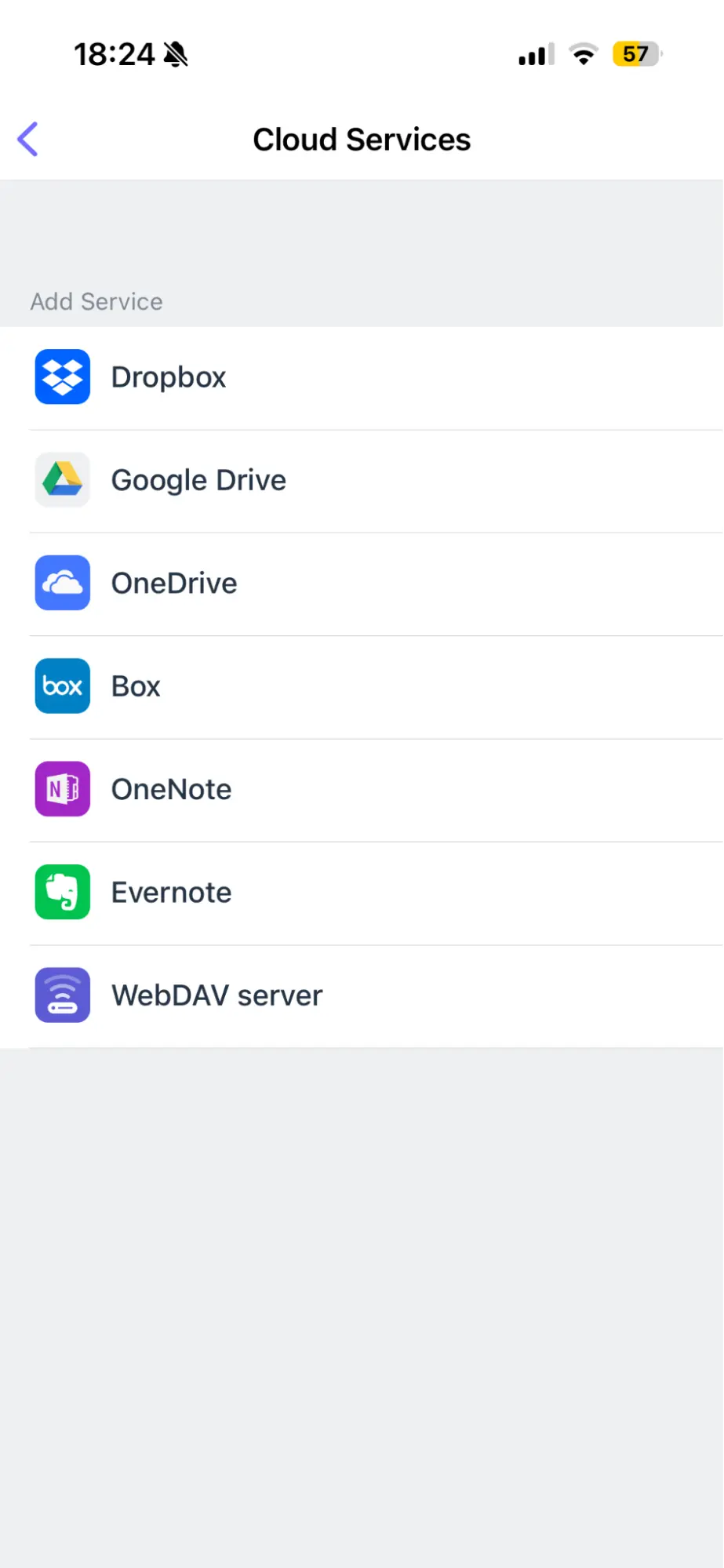
- Tap Services.
- Tap the service you want to connect: Google Drive, Dropbox, OneDrive, etc.
- Sign in with your account credentials.
- Grant Scanner Pro the necessary permissions.
Repeat for each service you want to use. Once connected, the service appears as an available destination in your sharing and workflow options.
How to scan documents to cloud storage manually
For a quick, one-off upload without setting up automation:
- Scan your document.
- After scanning, tap the document to open it.
- Tap the Export icon.
- Select your service (Google Drive, Dropbox, iCloud Drive, etc.).
- Choose the destination folder.
- Tap Upload.
How to set up automatic cloud upload for scans
This is where Scanner Pro separates itself from basic scanning apps. With Workflows, every scan you take can automatically upload to a specific folder: no tapping required after the scan is done.
Setting up auto-upload with a Workflow
- Launch Scanner Pro.
- Open Settings > Workflows.
- Tap Add Workflow.
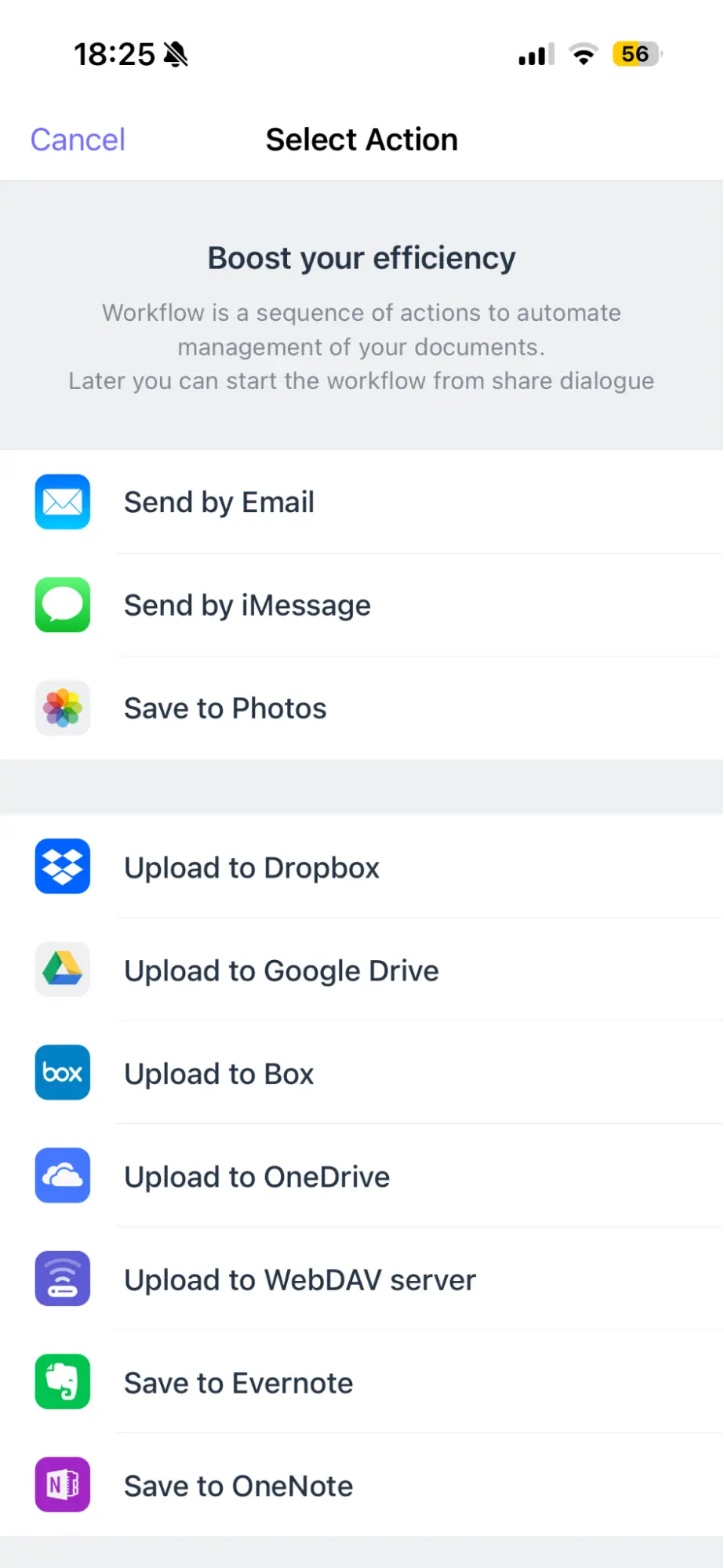
- Add the actions you want in sequence:
- Send by Email
- Send by iMessage
- Save to Photos
- Upload to Cloud
- Rename Document
- Save to Folder
- Delete Document
- Tap Save.
- Enter Workflow Name.
- Tap Save once again.
When you scan, just tap your Workflow name from the sharing sheet. Everything runs in one tap.
Example workflows that you can actually use:
- Scan invoice > rename with date > upload to Google Drive "Invoices/2026" folder > email to accountant
- Scan lease > upload to Dropbox "Tenants/[Name]" > save local copy
- Scan handwritten notes > upload to iCloud Drive "Coursework" > convert to searchable PDF
How to scan to specific cloud services
How to scan to Google Drive on iPhone
- Select Google Drive in Scanner Pro Settings > Services.
- Sign in with your Google account.
- Open the needed scan.
- Tap Export > Google Drive.
- Navigate to or create the destination folder.
- Tap Upload.
For automatic uploads every time, set up a Workflow with Google Drive as the upload destination.
These instructions can also be used for other supported services, like Dropbox, OneDrive, OneNote, Box etc.
How to scan to iCloud Drive on iPhone
iCloud Drive is the most seamless option for iPhone users because it syncs automatically across all your Apple devices: iPhone, iPad, and Mac.
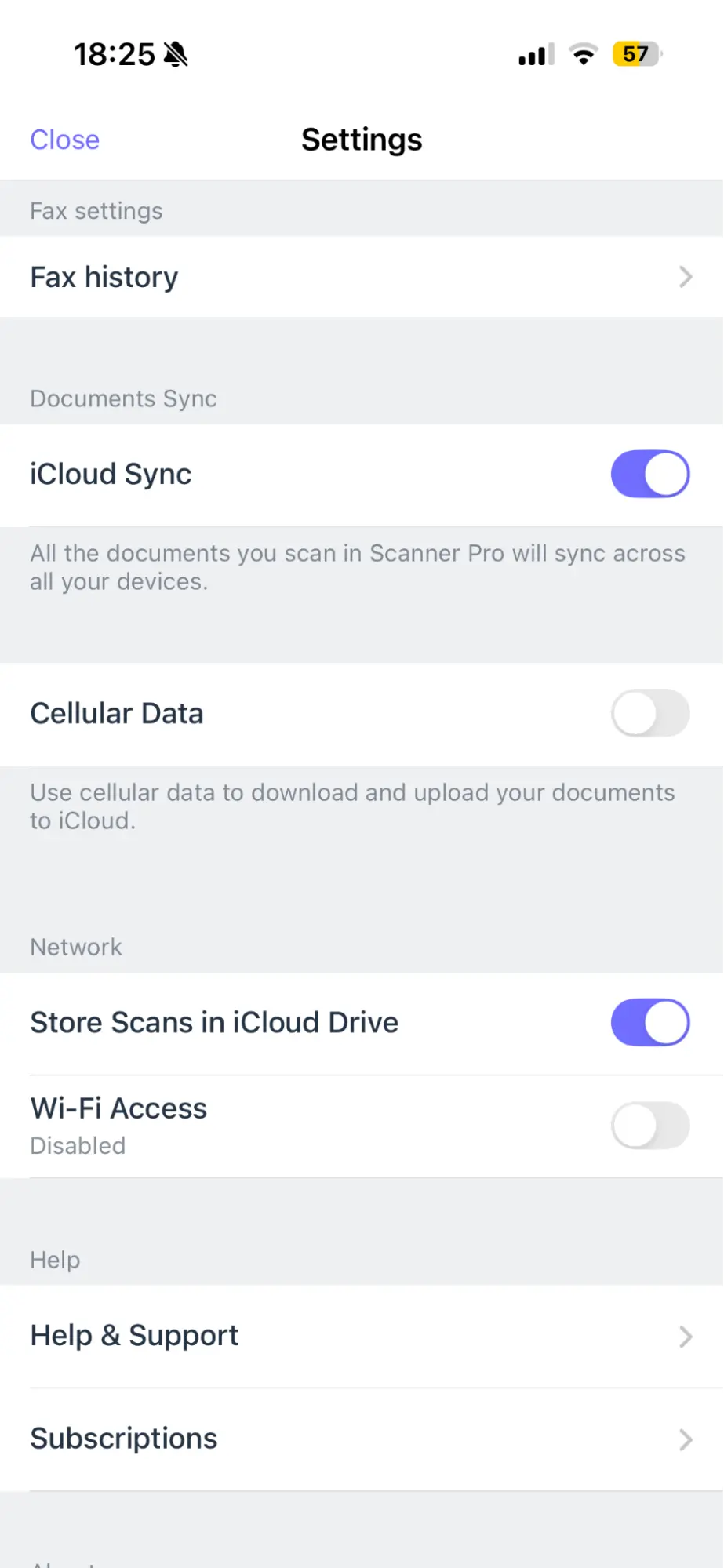
- Go to Scanner Pro Settings.
- Enable iCloud Sync toggle.
- For the backup purposes, you can also enable Store Scans in iCloud Drive toggle.
Your scan appears instantly on any other Apple device signed into the same iCloud account.
How to scan large volumes of documents to cloud
For bulk scanning (a stack of contracts, a season's worth of receipts) combine Auto-capture mode with a Workflow.
- Set up a Workflow with auto-upload to your destination folder.
- Enable Auto-capture mode: Scanner Pro scans automatically when it detects a document. You can do so under the shutter icon in the scanning mode.
- Flip through pages - Scanner Pro stitches them into one PDF.
- Tap your Workflow to name and upload the whole batch in one step.
For receipts, the Expense Report add-on extracts date, vendor, amount, and category from each receipt and generates a PDF or CSV.
How to access scanned documents from another device
Once your scan is in Google Drive, Dropbox, OneDrive, or iCloud Drive, open that service's app on any device to access it. For iCloud Drive, scans sync automatically across iPhone, iPad, and Mac, with no additional steps.
Is it safe to save scans to the cloud?
Scanner Pro processes everything on the device. OCR, shadow removal, edge detection, and other tools all run locally on your iPhone.
When you upload to a cloud service, your document goes directly from your phone to your chosen provider (Google, Apple, Dropbox, Microsoft) under that provider's security and privacy terms. Scanner Pro itself never sees or stores your cloud files.
For professionals handling sensitive documents — legal, medical, financial — this on-device processing model means your content isn't analyzed by a third-party scanning service before it reaches your chosen storage.
FAQ
How do I connect Scanner Pro to my cloud storage?
Go to Settings > Services, tap the service you want, tap Connect, and sign in. Repeat for each service.
Does Scanner Pro support auto-upload to Google Drive?
Yes, with Scanner Pro Plus. Set up a Workflow with Google Drive as the upload action, and every scan triggers the upload automatically.
Can I scan to multiple cloud services at once?
Yes. In a Workflow, you can add multiple Upload to Cloud actions: one for Google Drive and one for Dropbox, for example, and both run in sequence from a single tap.
How do I scan to cloud without a computer?
Everything happens on your iPhone. Scan, set up a Workflow or upload to cloud, and your document goes directly to your chosen service. No computer involved.
Where do scanned documents go on iPhone?
By default, scans are saved inside Scanner Pro's local library. If you've set up a cloud Workflow or upload to a cloud, they also appear in your chosen cloud service.
What cloud services work with Scanner Pro?
iCloud Drive, Google Drive, Dropbox, OneDrive, Box, Evernote, OneNote, and WebDAV.

Take high-quality scans
Easily turn papers into PDFs with your iPhone and iPad. Scan receipts, books, IDs, invoices.