A shared calendar lets other people see your availability, schedule, and events. Sharing your calendar is one of the simplest ways to keep everyone on the same page, whether you're coordinating with teammates, planning family schedules, or working with clients.
Benefits of a Shared Calendar
- Increase visibility across teams: Everyone sees meetings, deadlines, events, and availability in real time.
- Reduces scheduling friction: No more guessing or messaging back and forth, people book time based on what they see.
- Boosts collaboration: Managers, assistants, or coworkers can add or update events when given permission.
- Stay aligned during busy periods: Families, partners, and project groups can coordinate without constant check-ins.
How to Share Your Outlook Calendar
There are two main ways to share your Outlook calendar:
- Directly in Outlook (Windows, Mac, Web).
- Using Calendars by Readdle on iPhone or iPad. Ideal for quickly sharing your daily, weekly, or monthly schedule on mobile. Download the app for free!
This article walks you through both so you understand when and why to use each option.
How to Share Your Calendar in Outlook (Microsoft 365)
- Open Outlook in a browser and sign in.
- Select Calendar from the from the navigation pane.
- On the left side, select add calendar.
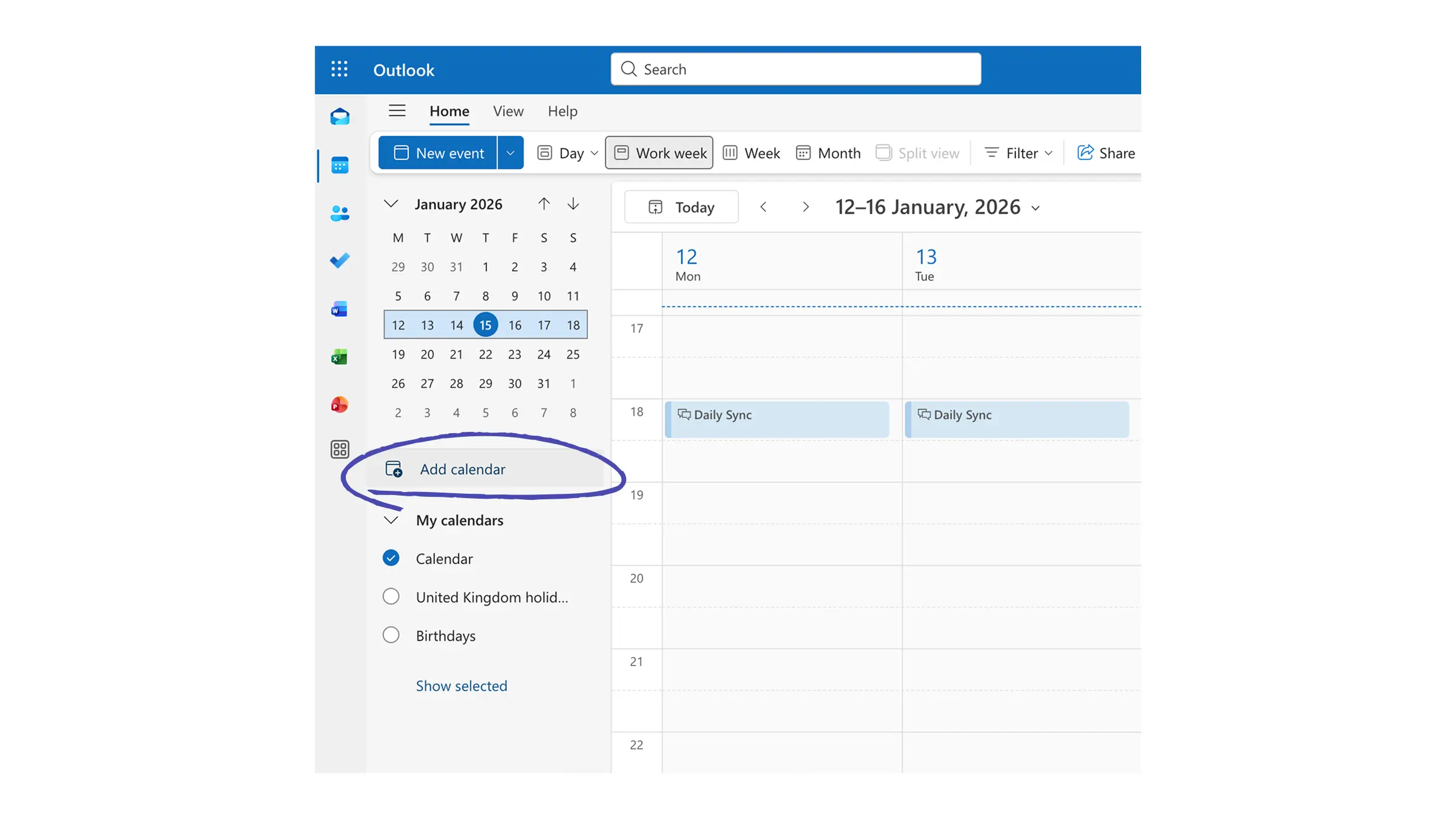
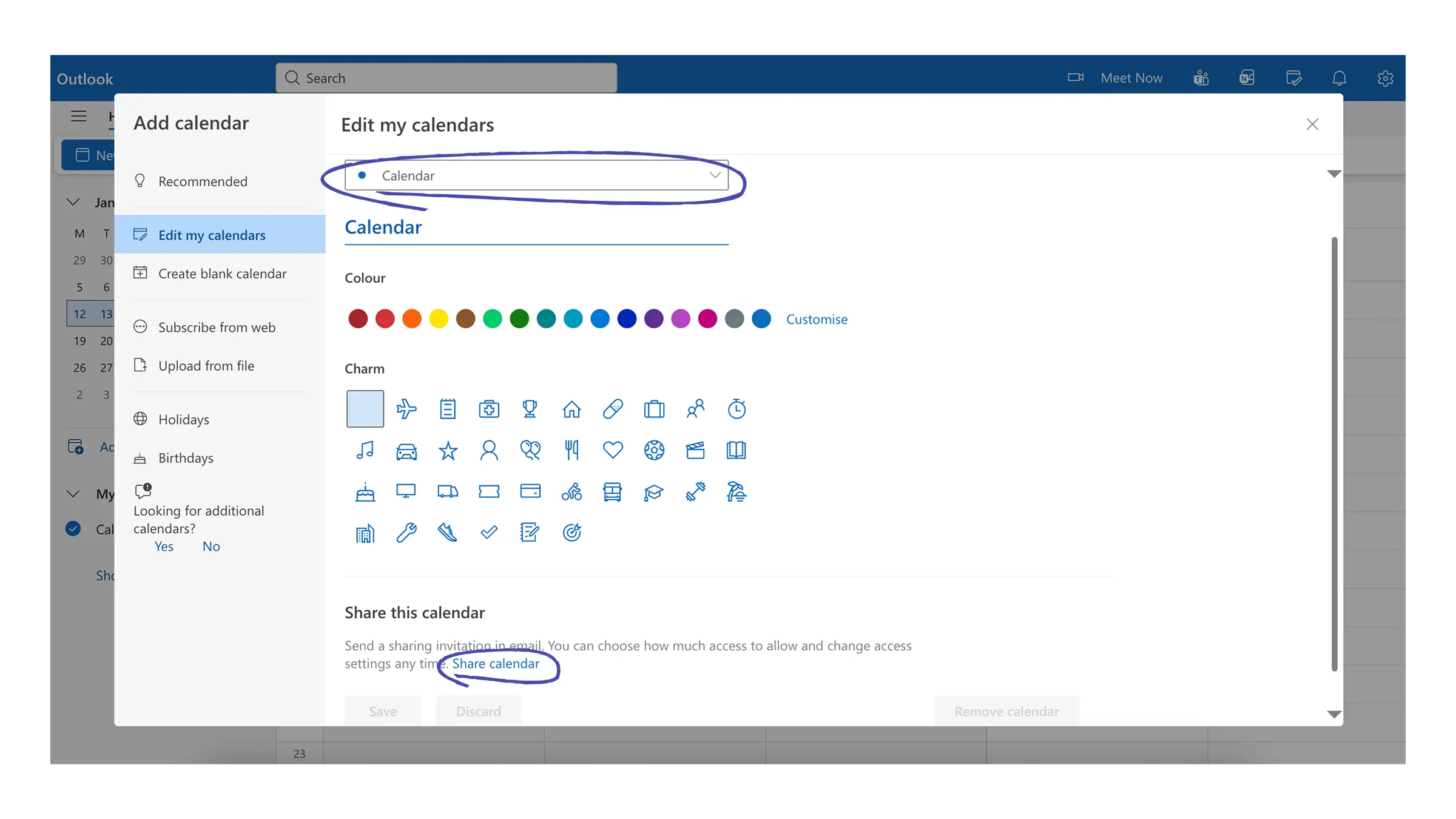
- Choose “edit my calendars” in the left panel.
- If you have multiple calendars, select which calendar you want to share.
- Click on the link for share calendar at the bottom.
- Type the email address or contact name of the person you want to share with in the box (if their name appears in a list, select it; otherwise press Enter)
- Set their permission level:
- Can view all details - see all event details
- Can edit - make changes to your calendar
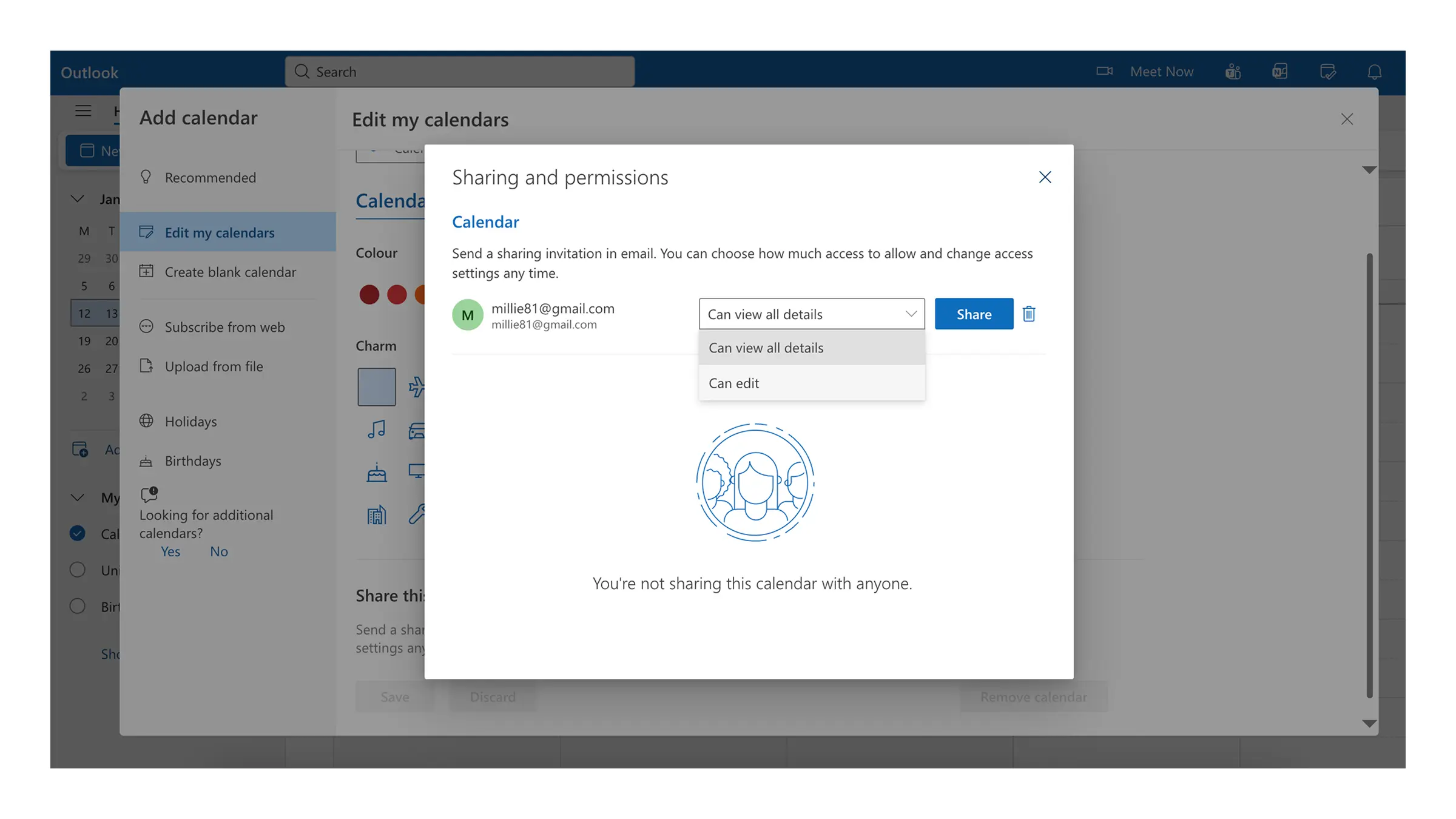
- Select Share (or select Remove if you change your mind)
- The recipient will receive an email invitation. Once they accept, your calendar appears in their calendar view
How to Share Your Outlook Calendar on Your iPhone Using Calendars by Readdle
- Open the Calendars app.
- Scroll all the way down and tap Settings.
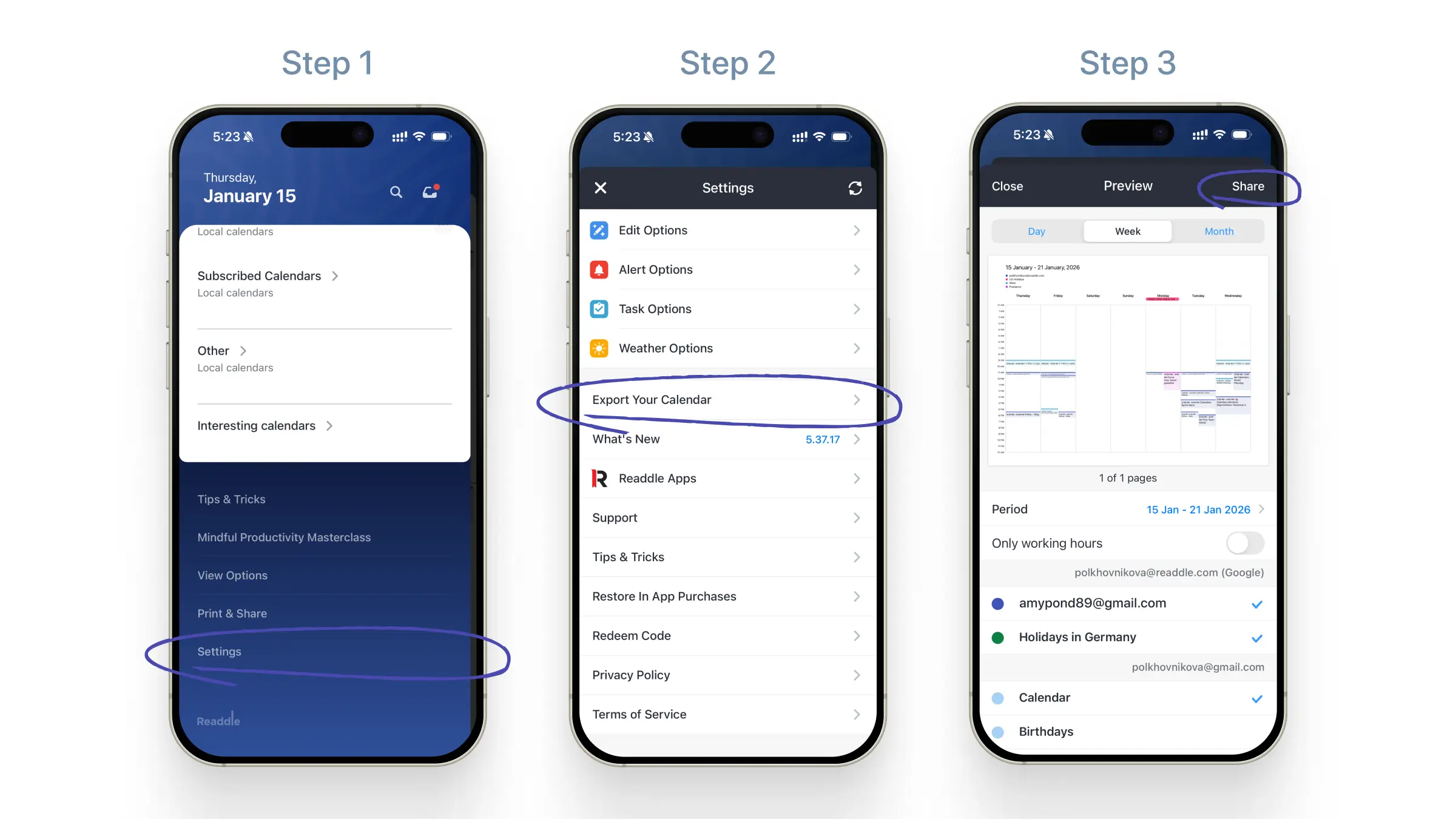
- Scroll down and select Export Your Calendar.
- Choose the time period you want to share:
- Day
- Week
- Month
- Custom dates
- If you only want to include events during your workday, enable Only working hours.
- Select the Outlook calendars you want to export.
- Tap Share and choose how you’d like to send it (Email, iMessage, Files, etc.).
Your schedule will be exported as a clean, easy-to-read PDF. This is perfect for sharing with coworkers, clients, family members, or anyone who needs a quick snapshot of your availability.
Now that you know how to share your Outlook calendar on your iPhone, you can see just how much more productive Calendars can make your day.
Calendars by Readdle brings all your calendars — Outlook, Google, and iCloud — into one convenient place, so you can view and manage your schedule without switching apps.
From quickly adding events to organizing tasks and recurring appointments, Calendars helps you stay on top of your commitments effortlessly.
Share your schedule, stay organized, and take control of your time, all from your iPhone.
Download Calendars for free and simplify your day!
