Bring All Your Documents Together in One Place
Have existing PDFs, receipts, or photos scattered across your iPhone or cloud storage? Scanner Pro makes it easy to consolidate everything into one organized scanning library. Whether you're importing tax documents from email, photos of receipts from your camera roll, or PDFs from cloud storage, you can manage all your documents alongside your scanned files.
What you can import:
- PDF files from any source
- Photos and images (JPEG, PNG, most common image formats)
- Documents from Files app, email attachments, or cloud storage
- Multiple files at once for batch organization
This feature is perfect for organizing receipts for expense reports, consolidating contracts and paperwork, creating a complete project documentation folder, or building a digital filing system for important documents.
How to Import Files into Scanner Pro
Importing documents into Scanner Pro takes just a few taps. Here's the complete process:
Step 1: Open the Import Function
- Launch the Scanner Pro app on your device
- Tap the "More" menu (three dots icon) at the top right of the My Scans screen
- Select "Import Files" from the menu
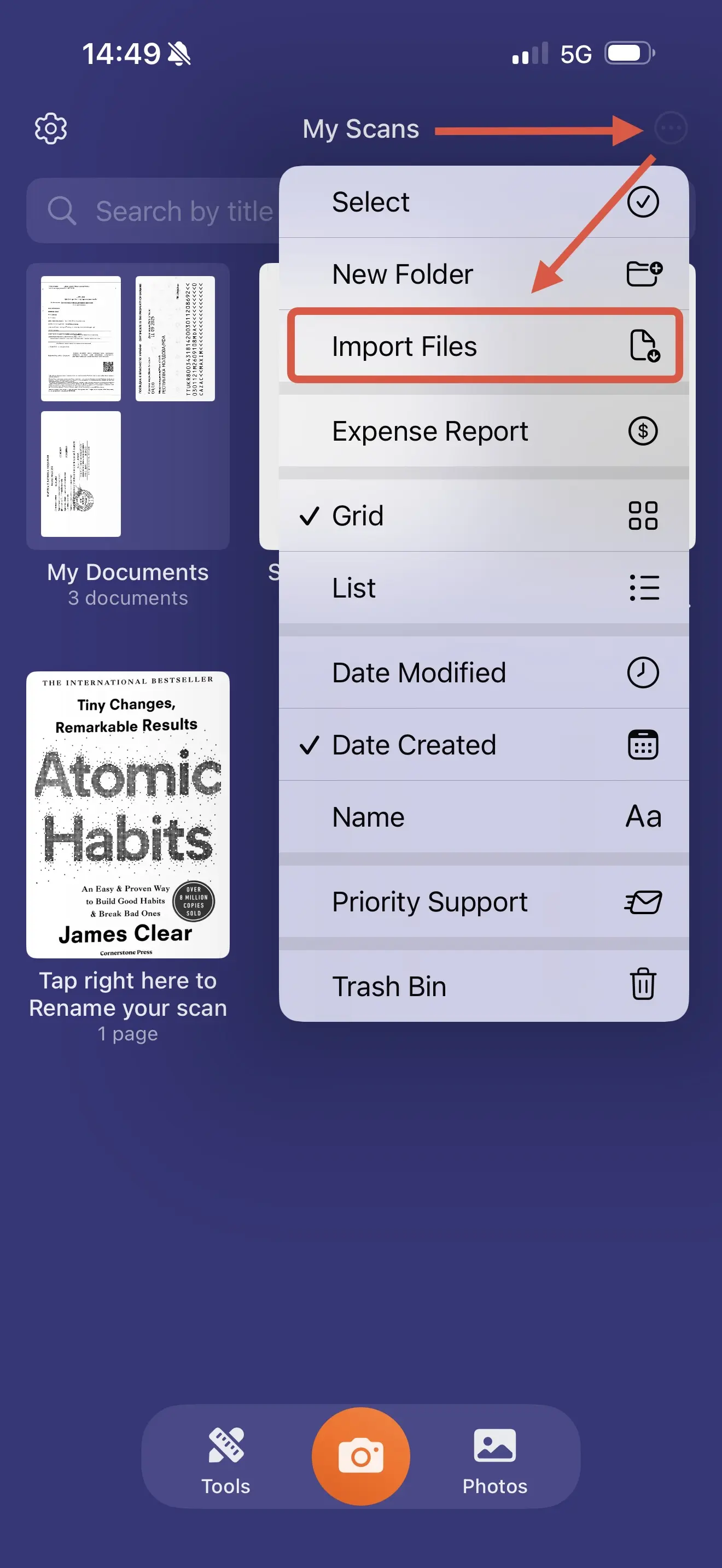
Step 2: Select Your Documents
- The Files app will open automatically
- Browse to the location of your documents (iCloud Drive, Dropbox, Downloads, etc.)
- Select one or multiple files you want to import
- Tap "Open" or "Import"
Supported formats: PDF files and most common image formats (JPEG, PNG, HEIC)
Step 3: Wait for Import to Complete
Scanner Pro will show a progress indicator while importing your files. Depending on file size and quantity, this typically takes just a few seconds.
Once imported, your documents appear in your My Scans library with their original filenames preserved.
Finding Your Imported Documents
After importing, your documents will appear in the My Scans section. To quickly locate them:
- Sort by Date Created (Settings → three dots menu → Date Created)
- Imported files appear at the top of your list, after any folders
- The original filename is preserved for easy identification
Pro Tip: Create an "Imported" Folder
To keep imported documents separate from scanned ones:
- Tap the three dots menu and select "New Folder"
- Name it "Imported Documents" (or any name you prefer)
- Open the folder
- Tap the three dots menu again and select "Import Files"
- Choose your documents
All newly imported files will now go directly into this folder, keeping your library perfectly organized.
Working with Imported Documents
Once imported, your documents work exactly like scanned files. You can:
- Rename files by tapping the document name
- Merge imported and scanned documents together
- Edit and enhance with Scanner Pro's editing tools
- Export in multiple formats (PDF, JPEG, Word, PowerPoint, Text)
- Upload to cloud storage automatically
- Add to expense reports using the Expense Report feature
- Share via email or link with password protection
How to Merge Imported and Scanned Documents
Combining imported PDFs with your scans is simple:
- Make sure all files are in the same folder (or sort by Date Created)
- Tap the three dots menu → "Select"
- Select all files you want to merge
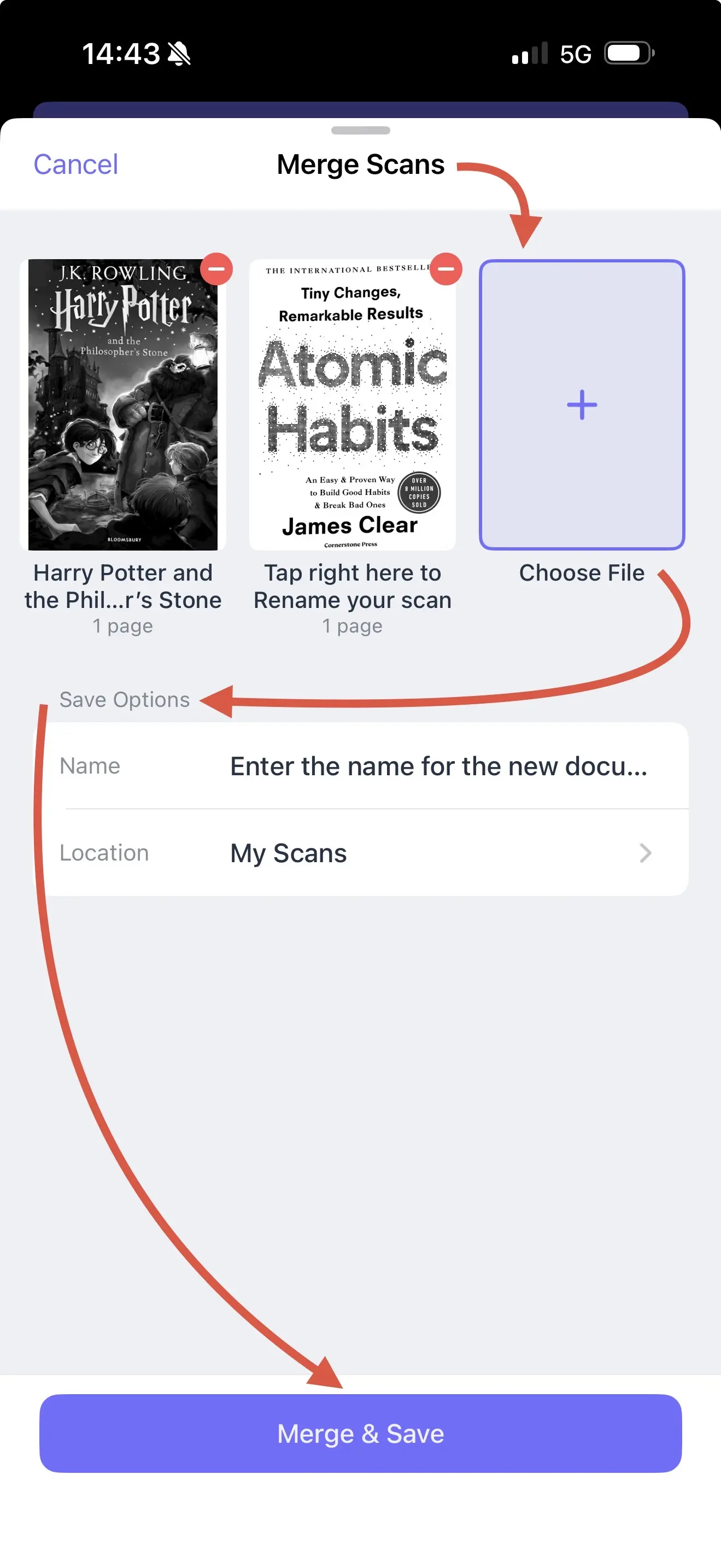
- Tap "Merge & Save" at the bottom
- Enter a name for the merged document
- Tap "Merge & Save" to complete
Why Import Documents into Scanner Pro?
Centralized Document Management
Keep everything in one secure app instead of scattered across email, Photos, Files, and various cloud services. No more searching through multiple apps to find that important receipt or contract.
Consistent Organization
Apply the same folder structure, naming conventions, and tagging system to both scanned and imported documents for seamless organization.
Enhanced Functionality
Imported PDFs and images get access to Scanner Pro's powerful features:
- OCR text recognition for searchability
- Professional editing and enhancement tools
- Automated cloud backup
- Password protection and security
- Easy sharing and collaboration options
Time Savings
Batch import multiple documents at once rather than individually photographing or processing them. Perfect for consolidating documents at the end of a trip or during tax season.
Frequently Asked Questions
What file formats can I import?
Scanner Pro supports PDF files and common image formats including JPEG, PNG, and other common file formats. Most documents and photos from your iPhone can be imported directly.
Can I import multiple files at once?
Yes! When selecting files in the Files app, simply tap multiple documents before hitting "Import." Scanner Pro will import them all as separate files in your library.
Will imported files sync to my cloud storage?
If you have Auto Upload enabled in Settings → Cloud Services, imported files will automatically sync to your connected cloud storage just like scanned documents.
Can I edit imported PDFs?
Yes, you can use Scanner Pro's editing tools on imported files, including adjusting color modes, cropping, rotating, and more.
What happens to the original filename?
The original filename is preserved automatically. You can rename any imported document by tapping its name in the Scanner Pro library.
Is there a limit to how many files I can import?
There's no limit on the number of files you can import. The only constraint is the available storage space on your device or cloud storage.
Related Features
Now that you know how to import documents, explore these related Scanner Pro features:
- Create Folders to organize imported and scanned documents
- Merge Documents to combine multiple files into one PDF
- Export Options to share files in various formats
- Cloud Storage to automatically back up imported files
- OCR Text Recognition to make imported PDFs searchable
Start Organizing Your Documents Today
Consolidating all your important documents in Scanner Pro creates a powerful, searchable digital filing system that goes wherever you go. Import your existing files now and experience the convenience of having everything in one secure location.

Take high-quality scans
Easily turn papers into PDFs with your iPhone and iPad. Scan receipts, books, IDs, invoices.