Scanner Pro uses Apple Mail to send scans via email. That means the "From" address is controlled by whichever account is set as the default in your iPhone or iPad's Mail settings, not inside Scanner Pro itself.
If your scans keep going out from the wrong address, or you want to switch from Apple Mail to Gmail or Outlook entirely, this guide covers both.
How to Email a Scan from Scanner Pro
Before changing any settings, here's the standard workflow for sending a scan by email.
Using Apple Mail
- Open Scanner Pro.
- Select the scan you'd like to email, or create a new scan.
- Tap Export at the bottom.
- Select Mail.
- Enter the recipient's email address and subject.
- Tap Send.
Using Gmail, Outlook, Spark, or another email app
If you prefer to send through a different email service:
- Open Scanner Pro.
- Select the scan you'd like to email.
- Tap Export at the bottom.
- Tap Share and choose your preferred email app from the list.
Note: If your preferred app doesn't appear in the list or shows grayed out, scroll left and tap More to find it. If it still doesn't appear, tap Edit to customize which apps show up.
How to Change the Default Email Account in Scanner Pro
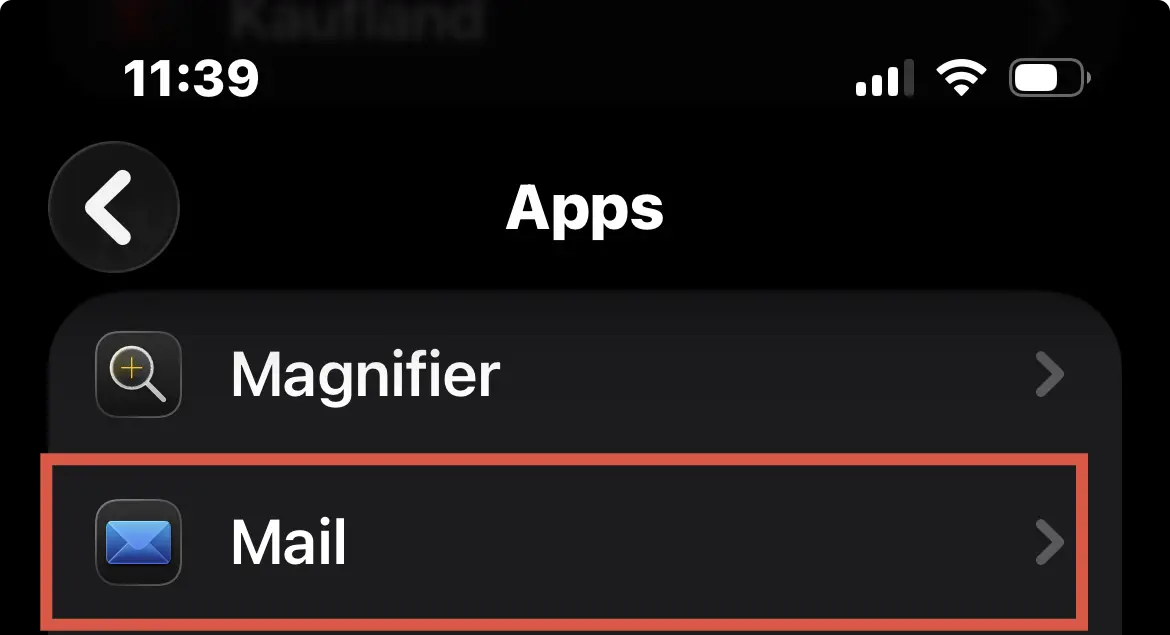
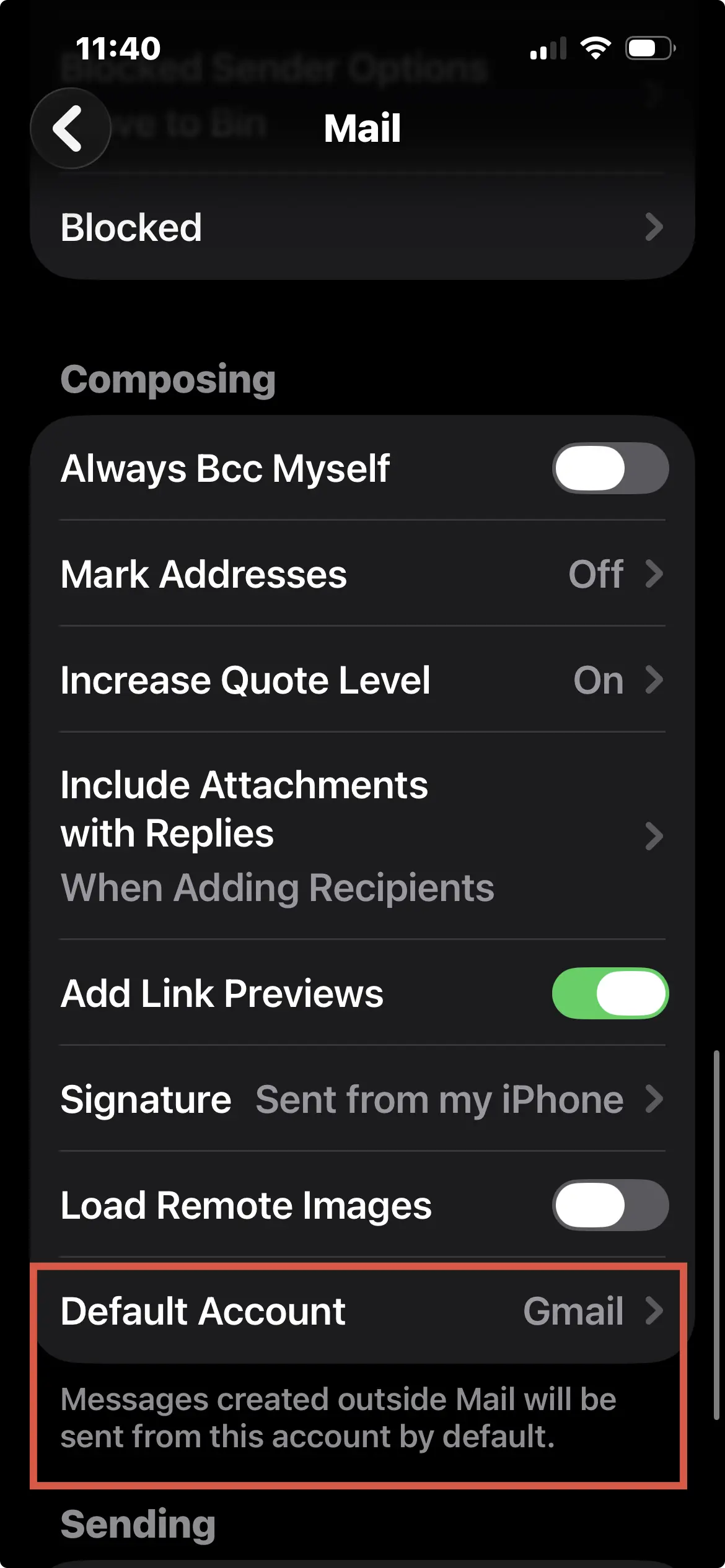
Scanner Pro sends emails through Apple Mail using your device's default Mail account. To change which email address your scans go out from, update the default account in iOS Settings.
- Tap Settings on your iPhone or iPad.
- Scroll down and tap Apps, then tap Mail.
- Tap Default Account.
- Choose the email account you want Scanner Pro to use when sending scans.
Once updated, Scanner Pro will send all emails from the newly selected account.
How to Send Scans via Gmail, Outlook, or Spark
Scanner Pro doesn't limit you to Apple Mail. Using the Share option in the Export menu, you can send scans through any email app installed on your device: Gmail, Outlook, Spark, Yahoo Mail, and others.
The difference between the two export paths is as follows:
- Mail > opens a composer window directly in Apple Mail, using your default Mail account
- Share > any email app > opens your chosen app's composer window, using whatever account is active in that app
If you send receipts to your accountant through Gmail and contracts through Outlook, the Share path gives you that flexibility every time you export.
Save Time with Workflows (Set a Default Recipient)
If you regularly email scans to the same address - an accountant, a client, a shared inbox - Scanner Pro Plus lets you automate it with Workflows.
A workflow can rename your document, set the recipient and subject line, and send the email in a single tap after scanning. No composer window, no manual addressing.
To set one up:
- Launch Scanner Pro.
- Open a scan.
- Tap Export.
- Create Workflow, and add an Email action with your preset recipient and subject.
Workflows require a Scanner Pro Plus subscription.
FAQ
How do I change my default email on iPhone?
Go to Settings > Apps > Mail > Default Account and select the account you want. This changes the "From" address for all apps that use Apple Mail, including Scanner Pro.
Does Scanner Pro work with Gmail and Outlook?
Yes. Tap Export > Share and select Gmail, Outlook, or any other installed email app. Scanner Pro works with any email app available in the iOS share sheet.
Can I set a default recipient email in Scanner Pro?
Yes, using Workflows (Scanner Pro Plus). You can create a workflow that automatically addresses and sends scans to a specific email without any manual input.
How do I reduce scan file size for email?
Scan in black-and-white, reduce PDF quality in the export settings, or split a large document into smaller parts. For very large files, use Share by Link instead of attaching directly.
Why is my scan email stuck in the Outbox?
Open Apple Mail and check for connection issues. This is a Mail app problem, not Scanner Pro. Re-adding your email account in Mail typically clears a persistent stuck message.
What is the default email app on iPhone?
Apple Mail. Scanner Pro's Email option in the Export menu always goes through Mail. To use a different email service, tap Share instead and choose your preferred app.
How do I change the default email on iPad?
These are the steps: iOS Settings > Apps > Mail > Default Account. Works on iPadOS 17.0+.

Take high-quality scans
Easily turn papers into PDFs with your iPhone and iPad. Scan receipts, books, IDs, invoices.