QR codes are basically shortcuts for your phone. You’ve probably seen them at airports, cafés, or on posters.
Scan one, and you can join Wi-Fi, open an RSVP link, view a PDF, or make a payment in seconds. No typing or searching is necessary, just point your camera and get information in seconds.
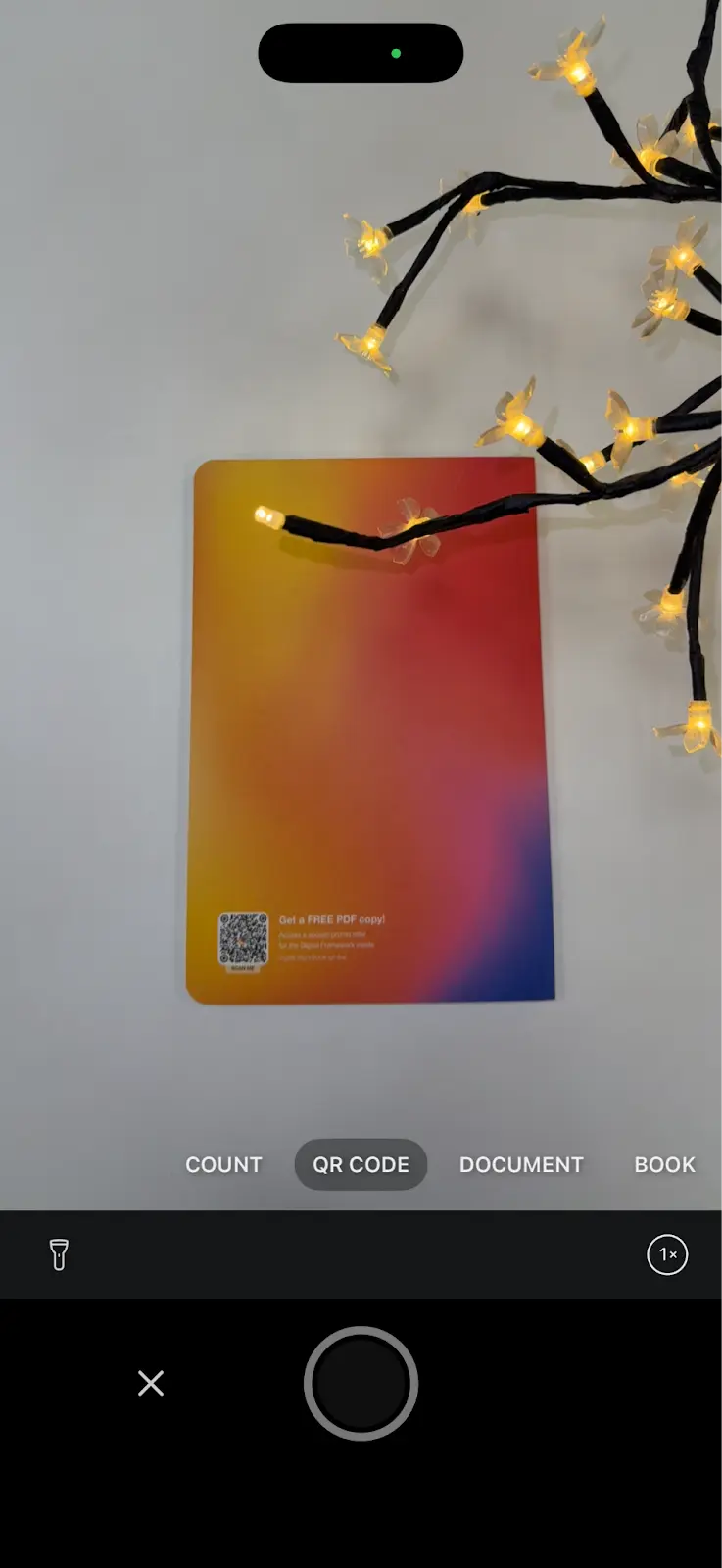
Scanner Pro allows you to scan QR codes quickly. Scanner Pro gives you more than the basic “scan and open a link” experience. It includes a dedicated QR Code Mode that lets you scan and decode QR codes directly in the app's camera view. With this feature, you can open and copy embedded text, follow links, or create a contact card directly from the scanned code.
How to scan a QR code using ScannerPro
To scan a QR code using Scanner Pro app, simply tap the orange "Camera" button on the main app screen to start the scanning process, and select the "QR Code" mode from the list of modes right above the Shutter Button.
What are the benefits of Scanner Pro for scanning QR codes?
Scanner Pro includes a dedicated QR Code Mode / “Scan Code” tool, so you can scan and decode QR codes directly inside the app, without bouncing back to the iPhone Camera each time. Once it detects a code, you can act on what’s inside, like copy the text, open the link, or save the details as a contact.
Is the Scanner Pro QR scanner useful for work or businesses?
Definitely. Scanner Pro’s QR code mode is handy for scanning QR codes on flyers, posters, product packaging, tickets, and business cards to quickly open links or pull up details, meaning it can help in your daily workflows.
Many businesses also use QR codes for things like check-ins, inventory, and promotions, and it also works great for that.
Scanner Pro also provides business value beyond “it scans the code,” Scanner Pro starts earning its keep the moment paperwork shows up.
- Smart Workflows (one-tap admin chores): You can set up automations so after you scan something, Scanner Pro can do a whole chain in one go, like rename the file, save it to a specific folder, and email it to someone. Less tapping, fewer “where did I put that?” moments.
- Auto-upload to cloud storage: Handy if you’re dealing with multiple clients or teams. Scanner Pro can automatically upload scans to services like Dropbox, Google Drive, Box, iCloud Drive, OneDrive, OneNote, and WebDAV storage.
- Searchable text with OCR: Turn scanned pages into searchable documents (and you can copy text out too). This is gold for contracts, invoices, and “I know it’s in that PDF somewhere” situations.
- Security for sensitive docs: You can protect your document library with a password, Face ID, or Touch ID, and share password-protected PDFs when you need to.
- Practical office outputs: Export/share in common formats (PDF/JPEG/TXT), plus options like printing and even faxing when you’re stuck dealing with… let’s call them “legacy business portals.”
- Receipt and document management: The App Store listing also highlights features like merging documents and tracking receipts, which fits expense and admin-heavy workflows.
Do I have to install an app to scan QR codes on iPhone?
No you don’t. Your iPhone’s Camera app can scan QR codes on its own. That said, if you want extras like scan history or more tools, then a tool like Scanner Pro could be a more appropriate option.
Which iPhone models support scanning QR codes natively?
QR scanning is built into iPhones running iOS 11 or newer. On iPhones, scanning got dramatically easier once iOS 11 arrived in 2017, building QR support right into the Camera app. If your iPhone (or iPad or iPod touch) is running iOS 11 or later, the tool is relatively basic: point, scan, tap and done.
If an iPhone is on an older iOS version, the Camera app may not recognise QR codes automatically, so you may choose to use a third-party app.
What are the downsides of scanning QR codes with the Camera app?
The Camera scanner keeps things simple, so it doesn’t include advanced features. For example, it won’t create QR codes or store a list of what you’ve scanned, and there’s no built-in scan history.
Can my iPhone scan barcodes or other codes too?
The native iPhone built-in scanner is primarily focused on QR codes. If you need barcode scanning or support for other 2D formats, a dedicated scanning app like Scanner Pro is often the better choice.
How do I scan a QR code from an image in my camera roll?
If your iPhone supports Live Text (iOS 15+ on supported models), you can scan a QR code straight from a photo:
- Open Photos.
- Tap the image that contains the QR code.
- Press and hold on the QR code (or tap the Live Text icon if it appears).
- Tap the prompt that pops up (usually a link like “Open in Safari”). 
Tip: If it doesn’t detect it, try zooming in or cropping tighter around the QR code so it’s clearer.
Can I scan QR codes without internet?
You can scan the code itself without a connection, but what happens next depends on what’s inside the QR code. If it opens a website or an online action, you’ll need internet for that part. Some apps can still read and save the content offline if it’s plain text or similar.

Take high-quality scans
Easily turn papers into PDFs with your iPhone and iPad. Scan receipts, books, IDs, invoices.