Tax documents pile up all year—receipts, W-2s, 1099s, donation letters, medical bills. Most people scramble to find them in April. The problem isn’t that the documents don’t exist; it’s that they’re scattered across a shoebox, a desk drawer, and three different email inboxes.
The IRS accepts digital copies of receipts and records, including smartphone scans, as long as they are legible and complete. That means you can scan documents as they arrive and build an organized archive throughout the year—instead of hunting for paper in March.
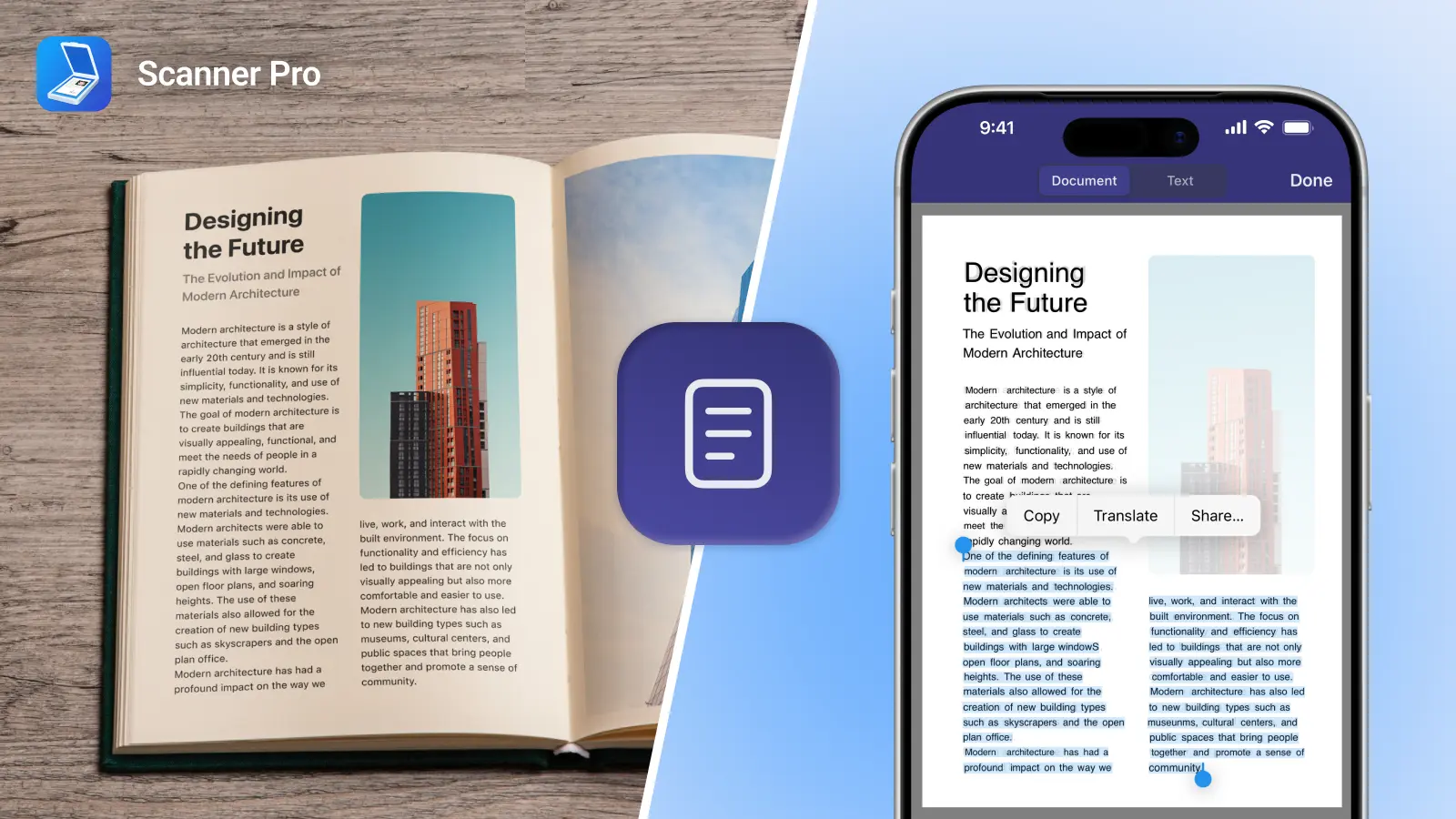
Scanner Pro handles the whole process on your iPhone: automatic capture with edge detection, on-device OCR that makes every document searchable, Smart Categories that sort documents automatically, and Smart Workflows that rename and file scans in one tap.
What Tax Documents Should You Scan?
Before setting up a scanning habit, it helps to know what actually needs to go in. The IRS recommends keeping most records for at least three years—these are the categories worth digitizing:
Income Documents
- W-2 – wages from employers
- 1099-MISC / 1099-NEC – freelance and contractor income
- 1099-K – payment platform income (PayPal, Venmo, Stripe)
- 1099-INT / 1099-DIV – interest and dividend income
- 1065 / K-1 – partnership and pass-through income
Deductible Expense Receipts
- Business expenses: meals, travel, supplies, equipment
- Medical and dental receipts
- Charitable donation acknowledgement letters
- Home office costs
- Vehicle mileage logs and fuel receipts
- Education and professional development
Tax Forms and Filings
- Form 1040 – your annual return (keep prior years)
- W-4 – withholding elections
- W-9 – contractor information
- Form 2848 – power of attorney for tax matters
- Form 8995 – qualified business income deduction
Other Records
- Bank and investment account statements
- Property purchase and sale documents
- Mortgage interest statements (Form 1098)
- Vehicle registration and insurance records
Need to fill out a W-2, 1099-MISC, 1040, or W-9? PDF Expert has step-by-step guides for every major form—see the PDF Expert Tax Forms guide for the full list.
How to Scan Tax Documents with Scanner Pro
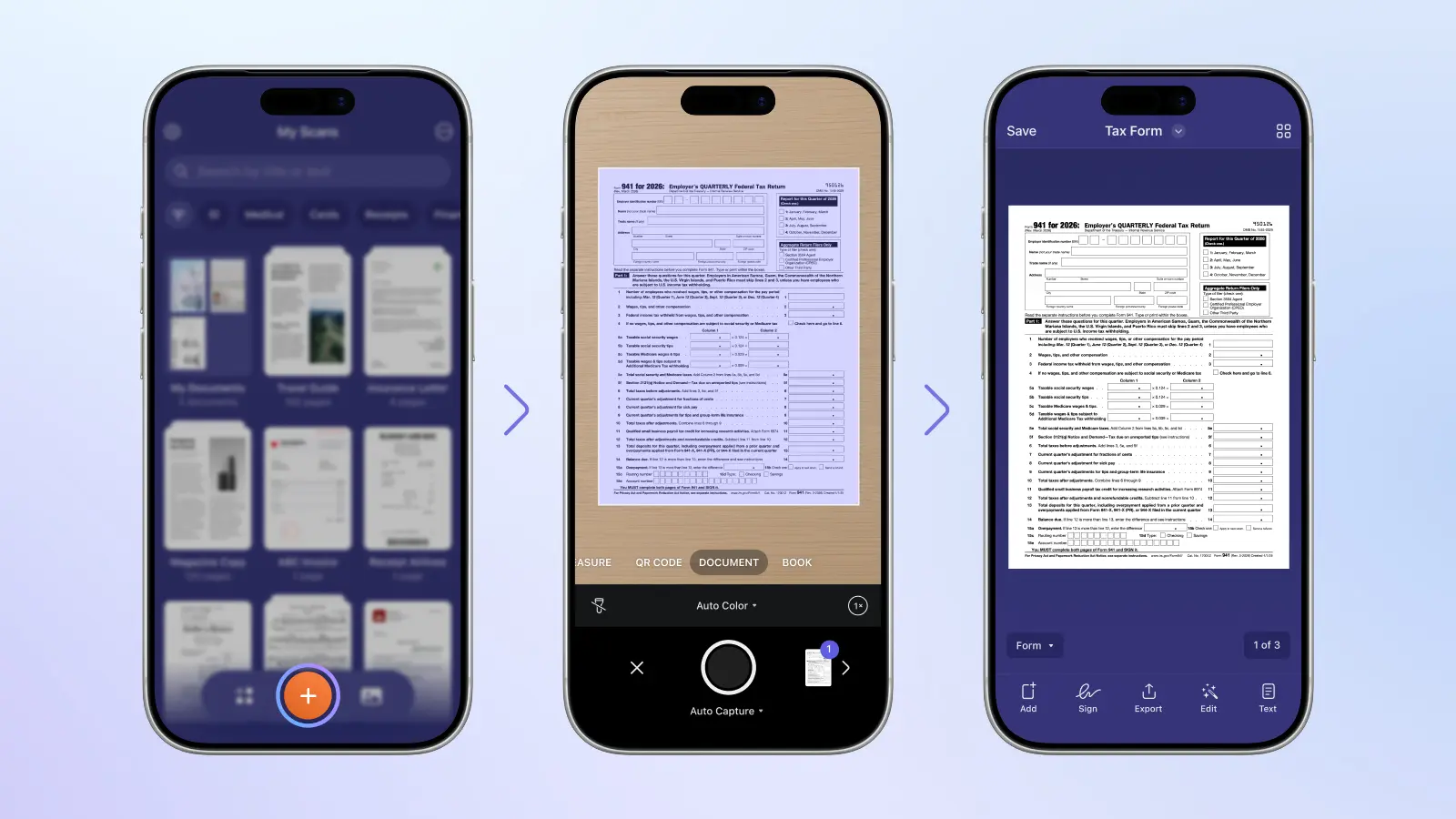
Scanner Pro’s camera detects document edges automatically and fires the shutter when the page is steady—no tapping required. For tax documents, that speed matters: you can scan a receipt in seconds and move on.
- Open Scanner Pro → tap Camera. The camera activates in scanning mode.
- Place the document flat. The blue outline appears when Scanner Pro detects the edges. Shadow Removal eliminates hand and phone shadows automatically.
- Auto-capture fires when the document is steady, or tap the shutter manually. Auto Color Detection picks color or black-and-white per page.
- Review the scan. Tap the edit icon to adjust crop, rotation, or color mode.
- Tap the text recognition icon to run OCR. Scanner Pro’s Text Vision system processes text across 26 languages entirely on-device—no data leaves your phone.
- To combine multiple files into one PDF, use Merge in the Tools tab.
Pro tip: For multi-page documents—bank statements, long contracts see how to create a multi-page scan.
Scanning Tips
- Thermal receipts: Scan on a dark surface for better contrast
- Multi-page forms: Scan all pages in sequence before tapping Save
- Faded documents: Switch to Grayscale mode to improve legibility
- Damaged documents: Use Magic Eraser to remove staple holes or punch marks before saving
How to Organize Tax Documents in Scanner Pro
Scanning without organizing just moves the chaos from paper to your phone. Scanner Pro has two features that make organization largely automatic.
Smart Categories
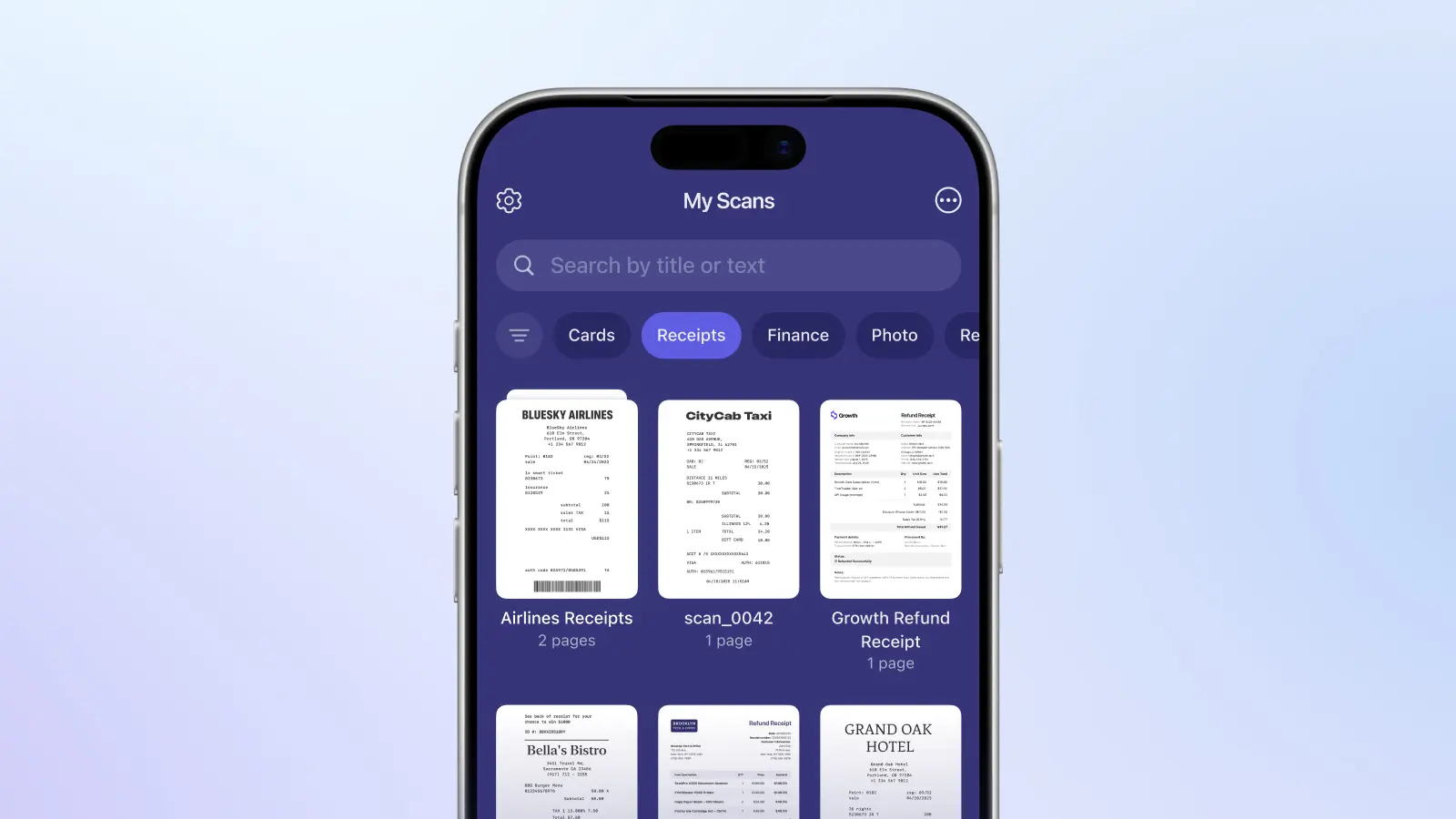
Smart Categories automatically classifies documents into categories: Invoices, Receipts, Forms, Business Cards, Bills, Letters, and more. A receipt scanned today appears in the Receipts category with no manual tagging. This means you can browse by type even when filenames are useless—like a photo titled “scan_0042.”
Full-Text Search
Once OCR runs, Scanner Pro indexes every word in every document. Search “dentist 2024” and get every medical receipt. Search “Marriott” and get every hotel invoice. Requires Scanner Pro Plus.
Folder Structure
Create a folder per tax year and put everything in it:
- Taxes 2025
- Taxes 2024
- Taxes 2023
Inside each folder, add subfolders for Receipts, Income, and Forms—or rely on Smart Categories and skip the manual sorting.
File Naming
Scanner Pro’s rename tool supports date placeholders—Year, Month, Day—so you can apply a template like Receipt-[YYYY]-[MM]-[DD] in one tap. Consistent naming makes year-end review straightforward.
How to Store and Back Up Tax Documents
Once documents are scanned and organized, you need them backed up somewhere safe. The IRS recommends keeping most records for at least three years—and up to seven in some cases—so a cloud backup you set up once and forget is the right approach.
Cloud Backup
Connect cloud storage and Scanner Pro auto-uploads every scan to iCloud Drive, Google Drive, Dropbox, Box, OneDrive, OneNote, Evernote, or any WebDAV server—no manual step required.
Password Protection
W-2s, bank statements, and any document containing Social Security numbers or account numbers can be password-protected before saving or sharing.
Automated Expense Reports
The Automated Expense Report feature reads scanned receipts and pulls out date, vendor, amount, tax, currency, and expense category—then generates a PDF or CSV. Receipts are stored in iCloud for 3–7 years for IRS audit compliance. The CSV export works with Excel, QuickBooks, and Xero.
Sharing with Your Accountant
Share by Link generates a cloud link to your document instead of attaching a large PDF to an email. Your accountant gets direct access; you can revoke it at any time.
Automate with Smart Workflows
Every section above—scanning, organizing, backing up, sharing—can be collapsed into a single tap with Smart Workflows. A workflow chains multiple actions together: rename the file, upload it to a specific folder, email it to your accountant, and delete the local copy, all triggered the moment you save a scan. No other scanning app offers anything equivalent. Here are two setups that cover most tax document needs.
Receipt Workflow
- Rename: Receipt-[Year]-[Month]-[Day]
- Upload: → Google Drive → Taxes 2025 → Receipts
- Email: → accountant’s address
- Save local copy: to My Scans
Scan the receipt. One tap. Named, filed, sent.
Sensitive Document Workflow (W-2s, Contracts)
- Rename: W2-[Year]-[Employer]
- Password protect: before uploading
- Upload: → iCloud Drive → Taxes 2025
- Delete local copy: after upload
Scanner Pro handles capture, organization, and filing. If you also need to review or annotate scanned PDFs—summarizing documents, finding specific clauses, or understanding complex tax language—PDF Expert’s guide to AI tax preparation covers that side of the workflow.
Frequently Asked Questions
Does the IRS accept scanned receipts?
Yes. According to the IRS recordkeeping guidance, all requirements that apply to paper records also apply to electronic records. Scanned receipts are acceptable as long as they are legible, complete, and reproducible. For full details, see IRS Publication 583.
How long should I keep tax documents?
Three years from your filing date covers most situations. Six years if you underreported income by more than 25%. Seven years if you claimed a loss from worthless securities. When unsure, keep for seven years. The Automated Expense Report feature backs up receipts in iCloud for 3–7 years automatically.
What file format is best for tax documents?
PDF. It preserves formatting, is universally accepted, and becomes fully searchable when OCR runs on it. Scanner Pro saves all scans as PDF by default.
Which features require Scanner Pro Plus?
OCR text recognition (26 languages), cloud auto-upload, Merge, Smart Workflows, password protection, Share by Link, Magic Eraser, and the PDF Converter all require Scanner Pro Plus. Basic scanning, organizing, and manual sharing are free. Automated Expense Report is a separate add-on.
Can I export to CSV for accounting software?
Yes. The Automated Expense Report feature exports PDF and CSV. CSV files open in Excel, QuickBooks, Xero, and most other accounting platforms. Expense Report is a separate add-on subscription.
Can receipts auto-categorize after scanning?
Yes. Smart Categories classifies documents automatically—Receipts, Invoices, Forms, Bills, and others—with no manual input. Pair it with OCR full-text search to find any receipt by vendor, date, or amount.
Does Scanner Pro work on iPad?
Yes. Scanner Pro runs on iPhone (iOS 18.0+), iPad (iPadOS 18.0+), and Apple Vision Pro (visionOS 2.0+).
How do I fill out tax forms after scanning?
Scanner Pro handles scanning and storage. For filling out Form 1040, W-4, W-9, 1099-MISC, or Form 2441, use PDF Expert—it has dedicated guides for every major tax form.
Disclaimer: This article is provided for general informational purposes only and does not constitute legal, tax, or financial advice. Tax laws are complex, vary by jurisdiction, and change frequently. What applies in one situation may not apply in another. Nothing in this article should be relied upon as a substitute for professional advice tailored to your specific circumstances. Before making any decisions related to your taxes, please consult a licensed tax attorney, certified public accountant (CPA), or other qualified tax professional. The author(s) and publisher assume no responsibility or liability for any errors or omissions in the content, or for any actions taken based on the information provided herein.