Folders in Scanner Pro keep your scans sorted so you can find what you need without scrolling through everything. Whether you're managing client contracts, tracking receipts, or storing personal documents, a few folders go a long way toward turning your document library into something actually useful.
What you can do with folders:
- Group scans by project, client, date, or document type
- Keep work and personal documents separate
- Create folders for detailed organization
- Access any document in seconds instead of hunting through one long list
How to Create a Folder in Scanner Pro
- Launch Scanner Pro.
- In the top right corner, tap the three dots icon to open the More menu.
- Select New Folder.
- Type a name for your folder and tap Done.
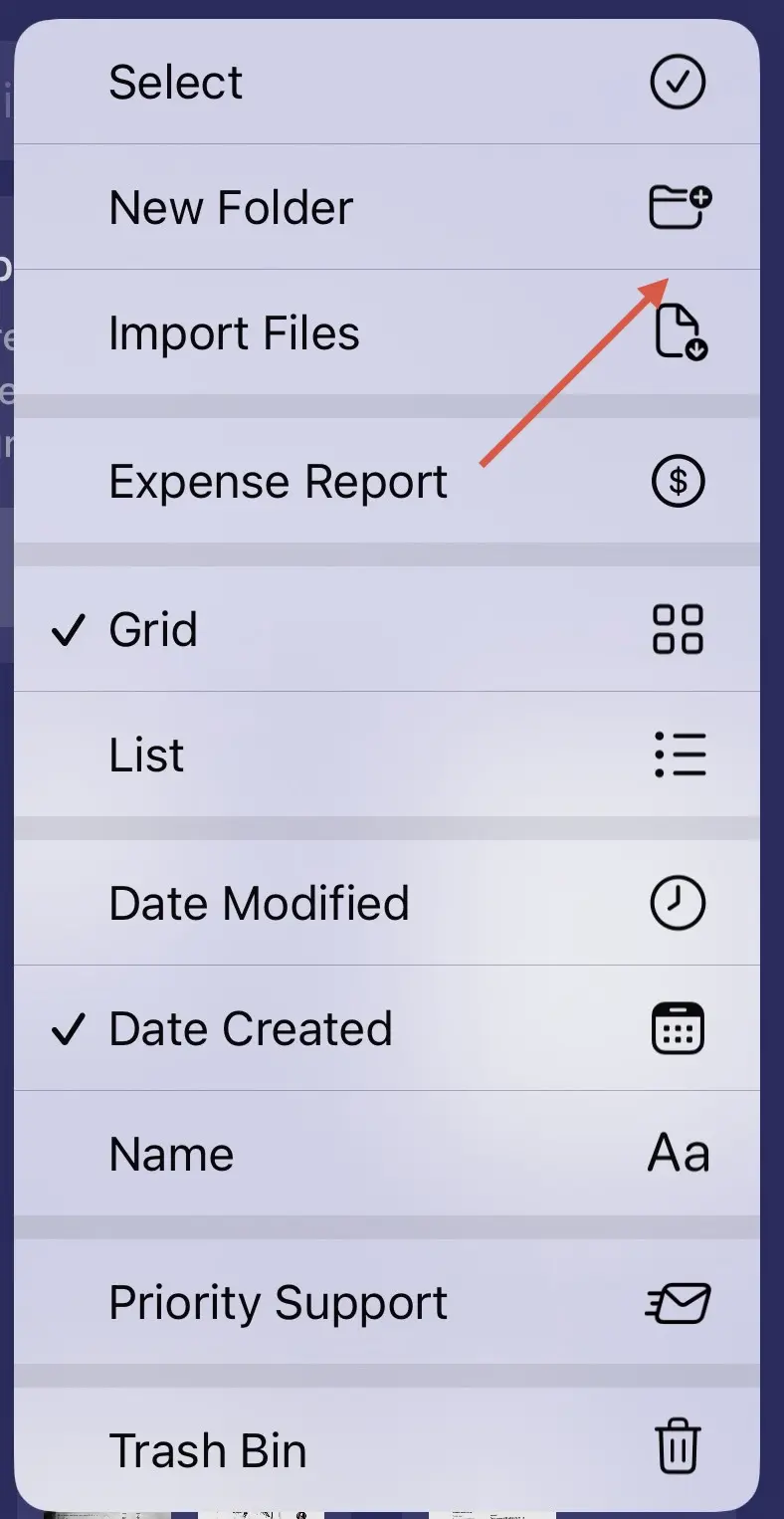
Your new folder appears in the main view (My Scans) immediately.
Alternatively, you can also drag one scan over another - a new folder with these scans inside will be created.
- Touch and hold the needed scan until it lifts up.
- Drag it over another scan to create a folder.
- Enter a name for the folder, then tap Done.

How to Move Scans into a Folder
Creating a folder is just the first step. Here's how to put documents in it:
- Launch Scanner Pro.
- Tap and hold on the scan you want to move.
- Tap Move from the menu that appears.
- Select the destination folder.
- Tap Move.
You can also move your scans in batch:
- Launch Scanner Pro.
- Tap the three dots icon at the top right to open the More menu.
- Tap Select.
- Select each scan you want to move by tapping.
- Tap Move at the bottom of the screen.

- Choose the destination folder.
This works well when you've accumulated a batch of unorganized scans and want to sort them all at once.
Folder Organization Ideas That Actually Work
By document type: Create folders named Contracts, Invoices, Receipts, and IDs. This works well if you scan documents from multiple sources and contexts.
By project or client: A freelancer or consultant might have one folder per client, with subfolders for contracts, invoices, and correspondence. Opening a client folder surfaces everything in one place.
By time period: Year-based folders (2024 Taxes, 2025 Taxes) work well for anything you need to keep for compliance or reference. Scanner Pro's full-text search works across all folders, so naming documents consistently inside those folders helps too.
By urgency: Some people keep an Action Required folder for documents they need to respond to, sign, or file. Once handled, they move them to the appropriate archive folder.
Renaming and Deleting Folders
You can also manage your folders in Scanner Pro easily, especially deleting or renaming them:
- To rename a folder: Tap and hold the folder → tap Rename → type the new name → tap Save.
- To delete a folder: Tap and hold the folder → tap Delete. You'll be asked to confirm. Note that deleting a folder deletes the scans inside it, so move anything you want to keep first.
FAQ
Does creating a folder require a subscription?
No. Folder creation and organization are available in the free version of Scanner Pro.
Can I search within a specific folder?
Scanner Pro's search covers all scans across your library. You can't currently limit search to a single folder, but using consistent document names within folders helps narrow results quickly.
Is there a limit to the number of folders I can create?
No. You can create as many folders as you need, since we do not have any specific limitations for this.

Take high-quality scans
Easily turn papers into PDFs with your iPhone and iPad. Scan receipts, books, IDs, invoices.