Whether you've just digitized an important contract, a handwritten note, or a stack of receipts, knowing how to export your scans in the right format, and get them where they need to go, is just as important as scanning them in the first place. This guide covers everything: how to save a scanned document as a PDF, how to export scans from Scanner Pro, how to share via AirDrop, email, text, and cloud services.
How to export scans with Scanner Pro
Scanner Pro by Readdle is the most powerful and flexible scanning app for iPhone and iPad. It's built to give you full control over format, destination, and how your files are organized once they leave the app. Here's everything you need to know.
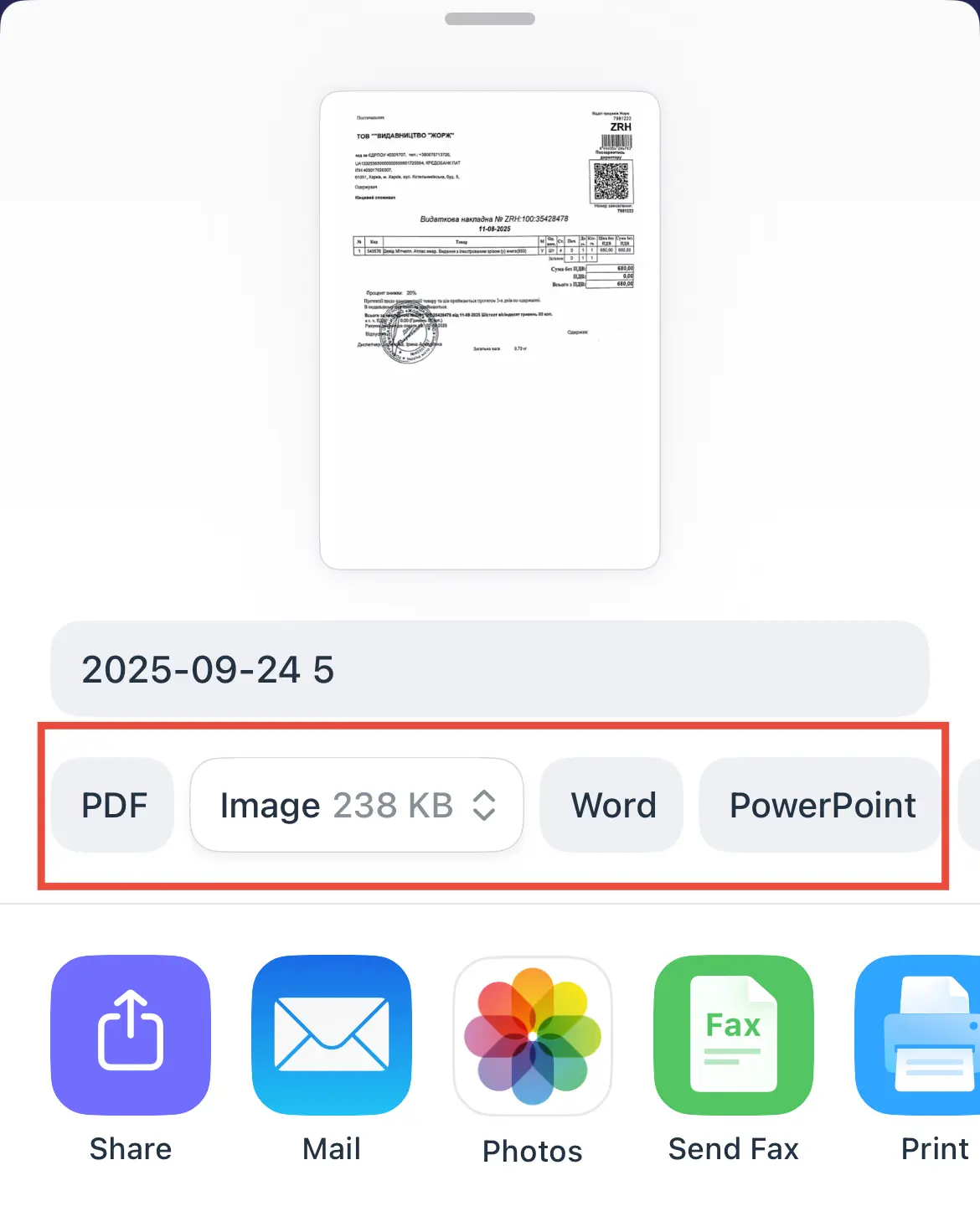
What formats can Scanner Pro export to?
Scanner Pro supports five export formats, each suited to a different use case:
- PDF is the default and most universal format. It preserves your document's layout, is accepted everywhere, and is the right choice for contracts, forms, invoices, and most professional documents
- JPEG exports each page as a separate image file. This is useful when someone needs a photo of a document rather than a file, or when you're uploading to a system that doesn't accept PDFs
- Word (.docx) uses Scanner Pro's built-in OCR (optical character recognition) to extract the text from your scan and output it as an editable Word document. This is ideal when you need to make changes to a printed document
- PowerPoint exports your scan as a presentation, and it’s especially convenient when you need to use the file for a slide
- TXT also uses OCR, but outputs plain unformatted text. It's perfect for quick copy-pasting, feeding text into another app, or any situation where formatting doesn't matter
How to export a scan from Scanner Pro as a PDF
- Open Scanner Pro and tap the document you want to export.
- Tap the Export button in the bottom toolbar.
- Make sure PDF is selected as the format.
- Choose your destination: Mail, Messages, AirDrop, iCloud Drive, Dropbox, Google Drive, OneDrive, and more are all available directly from the Share sheet.
How to export scans as JPEG instead of PDF
- Open the scan in Scanner Pro.
- Tap the Export button.
- Select JPEG from the format options before choosing your destination.
Keep in mind that JPEG exports each page as its own image file. If your document has multiple pages, you'll end up with multiple JPEGs rather than a single combined file.
How to Export to Word (.docx) from Scanner Pro
- Open the scan and tap Export.
- Select Word as the export format.
- Scanner Pro will run OCR on your document: this takes a few seconds depending on the page count and scan quality.
- Once complete, save or share the resulting .docx file to any app or cloud service.
The accuracy of the Word export depends heavily on scan quality. A well-lit, straight scan of clearly printed text will produce excellent results. Handwritten text or low-contrast documents may need manual correction after export.
How to export to TXT and PowerPoint from Scanner Pro
The process is identical to exporting to Word: simply select TXT as the format instead of Word. The resulting file contains all the text OCR could detect, without any formatting or layout.
As for PowerPoint, you also follow the same steps as for formats like JPEG or PDF.
Can I export multiple scans at once from Scanner Pro?
Yes. Scanner Pro supports batch export, which is a significant advantage over Apple Notes and many other scanner apps:
- Launch Scanner Pro and go to My Scans.
- Tap the three dots icon at the top right.
- Tap Select to enter selection mode.
- Tap each document you want to include.
- Tap Export and choose from PDF or Image.
- Сhoose your format and destination.
All selected documents will be exported together. Depending on your settings, they can be merged into a single PDF or exported as individual files.
How to share scans from Scanner Pro via link
Rather than attaching a file to an email or message, you can share a scan via a shareable link:
- Open the scan in Scanner Pro.
- Tap Export.
- Scroll the options and tap the Share Link option.
- Paste the link into any email, message, or chat.
This is especially useful for large multi-page PDFs that might hit email attachment size limits, or when you need to share with someone who doesn't have a specific app installed.
How to transfer scans from Scanner Pro to a computer
Scanner Pro gives you several routes to get your documents onto a Mac or PC:
Cloud sync is the most seamless option. Export directly to iCloud Drive, Dropbox, Google Drive, OneDrive and more services from Scanner Pro, and the file will appear automatically on any computer connected to the same account.
AirDrop (Mac only) is the fastest option for getting a scan onto your Mac without any intermediary. Export the scan from Scanner Pro, tap AirDrop, and select your Mac. The file lands in the Downloads folder in seconds.
Email to yourself is universally compatible and works on any computer. Export from Scanner Pro to Mail, address it to yourself, and open it on your computer.
How to print scanned documents from Scanner Pro
- Open the scan in Scanner Pro.
- Tap Export > Print.
- Select your printer, set your preferences, and tap Print.
If your printer isn't AirPrint compatible, export the PDF to your camera roll or Files app first, then use your printer manufacturer's app (HP Smart, Canon PRINT, Epson iPrint, etc.) to print it.
How to fax scanned documents from Scanner Pro
Scanner Pro integrates with fax services so you can send a fax without ever leaving the app:
- Open the scan in Scanner Pro.
- Tap Export.
- Select Send Fax.
- Enter the recipient's fax number and send.
FAQ
What formats can Scanner Pro export to?
PDF, JPEG (Image), Word (.docx), PowerPoint (.pptx), and plain Text. PDF and JPEG are available on the free plan (with watermark). Word, PowerPoint, and Text export require Scanner Pro Plus with OCR enabled.
How do I send a scanned document via email?
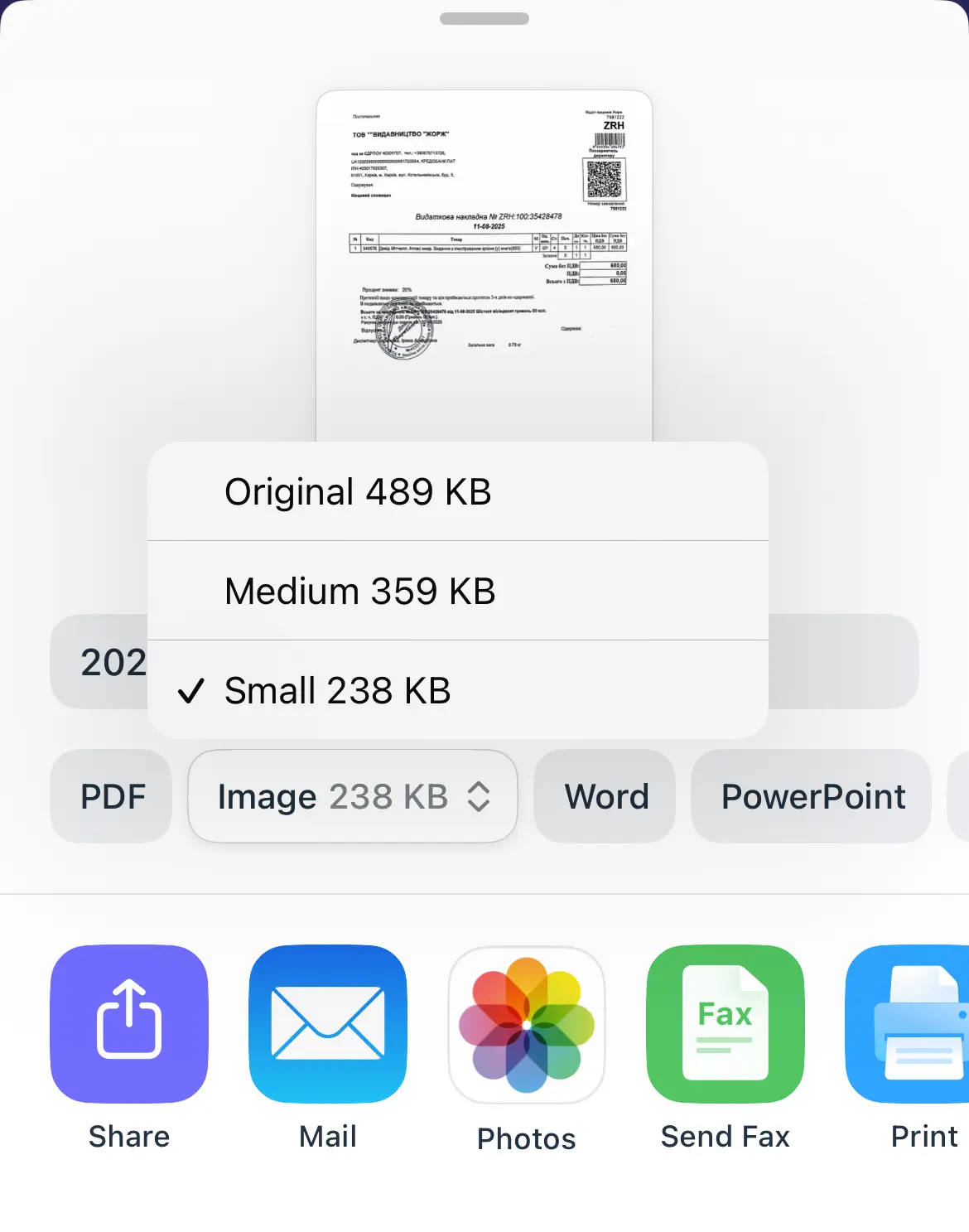
Tap Export > Mail to open Apple Mail with the scan pre-attached. If you use Gmail, Outlook, or another email app, tap Export > Share and select your app from the list. Add a recipient and subject, then send. To keep file sizes manageable for email, choose Medium or Small under the size options before sharing.
How do I send a scanned document as a PDF attachment?
Make sure PDF is selected as the format in the Export screen (it's the default), then choose your email app or messaging app from the share sheet. The scan attaches as a .pdf file automatically.
Can I send a scanned document via text message?
Yes. Tap Export and select Messages from the share sheet. Choose PDF or Image as your format. Large files may not send well over SMS: if the file is big, use the Share Link option instead and send the link via Messages. The recipient can download the file from any browser.
Why won't my scanned document save as a PDF?
A few things to check: make sure PDF is selected as the format in the Export screen (not Image or Text). If you're trying to export to a cloud service, confirm the connection is active in Scanner Pro Settings > Services. If Word or PowerPoint export isn't working, those formats require Scanner Pro Plus with an active subscription.
Where are scanned documents saved on the iPhone?
In Scanner Pro, all scans live in My Scans inside the app. They're stored locally on your device. If you connect iCloud Drive or another cloud service and enable Auto Upload, copies are also saved to that service automatically. Scanner Pro does not save scans to your Photos library or to the Files app unless you explicitly export them there.

Take high-quality scans
Easily turn papers into PDFs with your iPhone and iPad. Scan receipts, books, IDs, invoices.