Scanned contracts, tax documents, medical records, and business receipts shouldn't be readable by anyone who picks up your phone. Scanner Pro lets you add password protection at two levels: lock the entire app, or encrypt individual PDF files before sharing them. Both methods use encryption that makes exported files unreadable without the correct password.
Ways to password protect your scans
Scanner Pro gives you two distinct protection options depending on what you're trying to secure:
- App-level protection locks Scanner Pro itself. Anyone who opens the app will need to enter a password first — useful if you share your phone or want a second layer of security on top of Face ID.
- File-level protection adds encryption to specific PDF files when you export or share them. The password travels with the file, so if you email a contract to a client, they'll need the password to open it. The original scan in your Scanner Pro library stays unaffected.
How to lock the entire Scanner Pro app
Use this when you want to require a password every time Scanner Pro opens.
Open Scanner Pro and tap the Settings icon (gear icon, top-right of the main screen).

Scroll down and tap Advanced Settings.
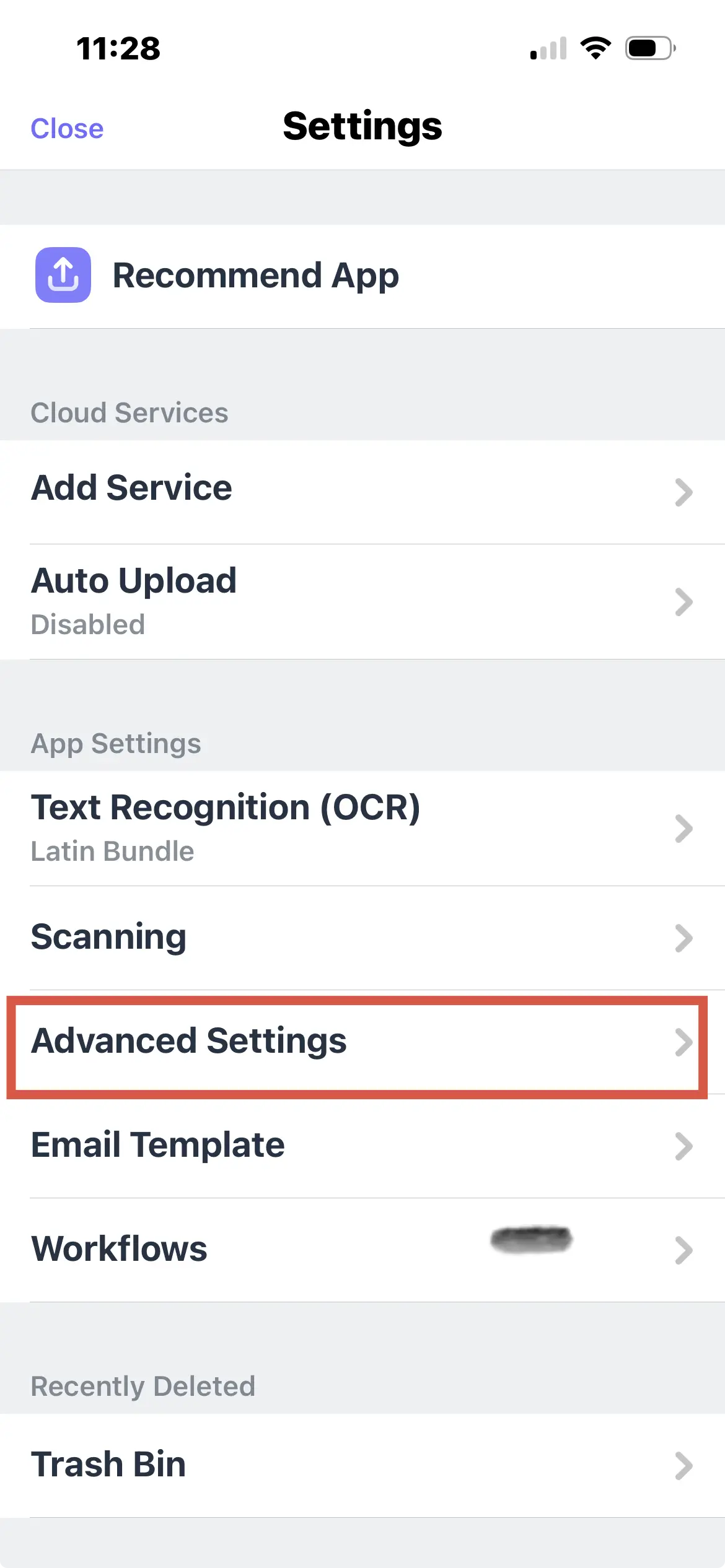
Tap Password Protection.
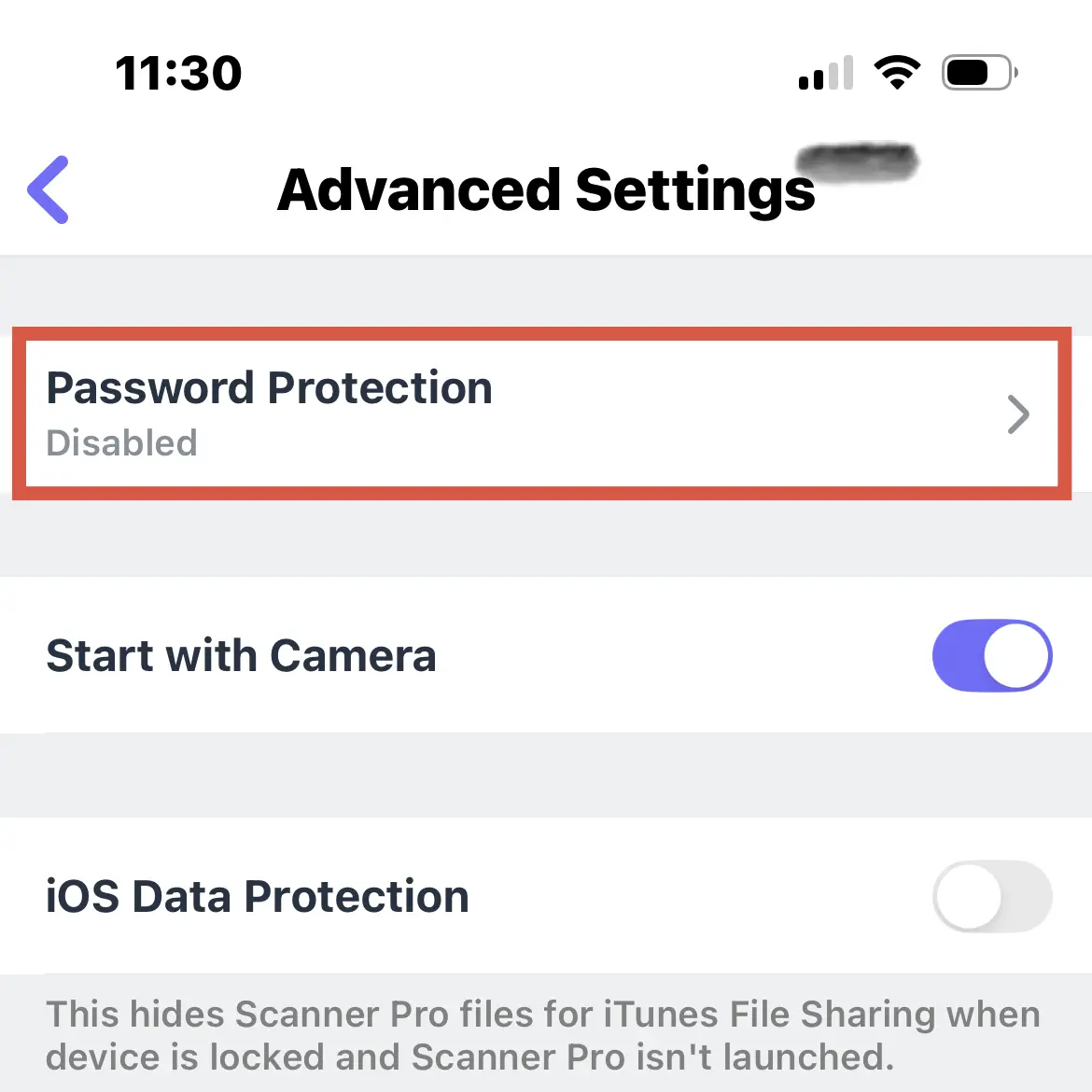
Create your password and tap Save.
Once saved, Scanner Pro will prompt for this password every time the app launches. This is separate from Face ID or Touch ID — it's a manual password entry screen that appears before the app loads.
How to password protect an individual PDF
This is the option you want when sharing a specific scan. The PDF gets encrypted before it leaves your device, and the recipient needs the password to open it.
-
Open Scanner Pro and tap the scan you want to protect.
-
Tap Export.
-
Choose PDF and tap the lock icon next to this option.
-
Enter your password and tap Done.
The password is now embedded in the PDF. When you share or export this file via email, AirDrop, iCloud, or any other method, the recipient will be prompted to enter the password before the document opens.
The password applies to the exported PDF file, not the original scan stored in your Scanner Pro library. You can still open, edit, and re-export the original scan without entering a password. Only the shared/exported copy is locked.
Why PDF encryption matters when you share documents
When you email an unprotected PDF, that file can be opened by anyone who receives or intercepts it.
This matters for:
Legal documents — contracts, NDAs, and legal agreements often contain terms neither party wants publicly accessible. Sending a password-protected PDF means only your intended recipient can read it.
Medical records — if you scan prescription documents, insurance forms, or medical reports to share with a provider, encryption keeps that data from being readable if the email is intercepted or the recipient's inbox is compromised.
Financial documents — tax returns and bank statements contain sensitive personal data.
Business receipts and expense reports — when submitting expense reports with scanned receipts, a password-protected PDF ensures your financial data stays between you and your finance team.
How strong is Scanner Pro's PDF encryption?
Scanner Pro uses AES-256 encryption for password-protected PDFs — the same standard used by banks, governments, and enterprise security software.
What makes a strong PDF password:
-
At least 12 characters
-
Mix of uppercase, lowercase, numbers, and symbols
-
Unique to this document (don't reuse passwords)
Password protection vs. encryption — what's the difference?
These terms are often used interchangeably, but they're not identical. Password protection can mean different things in different contexts: sometimes it just restricts access without encrypting the underlying data. Scanner Pro's implementation actually encrypts the PDF content, so the document data itself is scrambled — not just gated by a password check. This is the stronger of the two approaches.
Tips for managing password-protected scans
Keep a record of your passwords. Scanner Pro cannot recover a lost PDF password. If you forget the password on an exported file, the document is inaccessible. Store passwords in a password manager.
Use different passwords for different document types. Don't use the same password for all your protected PDFs. A breach of one password shouldn't unlock your entire document history.
Combine with cloud backup for best results. Scanner Pro Plus includes auto-upload to Google Drive, Dropbox, iCloud, and other services. Your original scans stay backed up and accessible in Scanner Pro, while the password-protected exports you share stay encrypted in transit.
For recurring documents, consider a Workflow. Scanner Pro's workflow automation can chain multiple actions: scan, rename, apply password, email to a specific contact into a single tap. If you regularly send password-protected invoices or reports to the same recipient, a workflow saves time on every submission.
FAQ
How do I set a password on individual scans in Scanner Pro?
Open the scan, tap the arrow next to the scan’s name, select "Set Password on PDF," enter your password, and tap Done. The password applies to the exported PDF, not the original scan in your library.
Can I set a default password for all exported scans?
No. Password protection is applied per-document rather than as a global export default. Each PDF gets its own password when you choose to protect it.
Does password protection work with Scanner Pro's free version?
No. Password protection requires a Scanner Pro Plus subscription. Free users can scan and export without watermarks on basic scans, but encryption and password features are Plus-only.
Can I restrict editing or printing of scanned PDFs?
Scanner Pro's password protection controls document access (opening the file). Permission restrictions like blocking printing or editing are not available in Scanner Pro.
How do I password protect a scanned PDF on iPhone without Adobe?
Scanner Pro handles this directly on iPhone with no Adobe account needed.
Can you remove a password from a locked PDF on an iPhone?
If you know the password, you can open the PDF in a compatible app and save an unprotected copy. Scanner Pro itself doesn't have a "remove password" function for exported files, but the original scan in your library was never locked in the first place.
How do I encrypt documents for email on iPhone?
Scan your document in Scanner Pro, apply a password via Set Password on PDF, then share via email. The encrypted file is attached. Send the password to your recipient through a separate channel (text message, phone call) rather than in the same email.

Take high-quality scans
Easily turn papers into PDFs with your iPhone and iPad. Scan receipts, books, IDs, invoices.