Ever wondered how to break down language barriers right from your smartphone? Do you have a document in a foreign language that you need to understand instantly without switching between apps or manually typing into a translator? This is where the ability to translate text on the go becomes a game-changer.
Translating your PDFs on iPhone and iPad allows you to go beyond simply digitizing paper and start interacting with global content in your own language. It’s a seamless way to make international documents clearer, more useful, and more accessible, especially when you’re dealing with text that feels out of reach. From menus and travel documents to professional contracts and study materials, instant translation helps you grasp the context and share information with a wider audience.
Whether you’re a traveler navigating a new city, a student researching international sources, or a professional working with global partners, this guide will walk you through the basics of translating your scans and PDFs.
How to Translate a PDF: A Simple Guide
Translating a PDF isn't always as simple as "copy and paste," especially when dealing with complex layouts or scanned images. However, with the right tools, you can translate your documents into Spanish, English, or any other language in just a few clicks.
Depending on whether your PDF is a regular PDF or a scanned image, here are the most effective methods to get the job done.
Translating regular PDFs (with selectable text)
If you can click and drag your cursor to highlight text in your PDF, or if you can actually select the text in the file, you have a regular PDF. These are the easiest to translate because the device already recognizes the characters. Some of the tools and solutions you could use for the translation:
- Google Translate: Most people don't realize Google Translate has a Documents tab. You can upload your PDF file, select your target language (like English to Spanish), and it will generate a translated version.
- DeepL Translator: Often considered more accurate for professional documents, DeepL allows you to drag and drop PDFs. It does an excellent job of keeping your original formatting intact.
- Microsoft Word: You can actually open a PDF in Word. It will convert the file into an editable document, and you can use the built-in "Translate" feature under the Review tab.
Translating scanned PDFs (using OCR)
If your PDF is a scan of a physical paper or an image where you can’t select the text, you need a tool with OCR (Optical Character Recognition). OCR is a technology that "reads" the images of letters and turns them into actual digital text. These are some of the apps that have OCR:
- Scanner Pro: For users on the go, Scanner Pro is a top-tier choice. You can scan a document with your camera, and the app uses OCR to recognize the text. From there, you can use the built-in Translate feature to convert the text into your desired language instantly.
- Google Drive: Upload your scanned PDF to Google Drive, right-click it, and select Open with > Google Docs. Google will run OCR on the image, and once the document opens, you can go to Tools > Translate document.
Points to Consider
While these methods are powerful, there are a few points to keep in mind:
- Formatting Issues: Large documents with many columns, images, or unique fonts often lose their "look" after translation. The text will be correct, but the boxes might shift.
- Handwriting: Most OCR tools struggle with messy handwriting. For the best results, stick to typed or printed documents.
- Privacy: Be cautious when using free online web translators for sensitive or legal documents, as these files are often processed on public servers.
How to translate a scan or a PDF in Scanner Pro
If you need a solution to do everything in one place (create a scan, translate it, send it out), Scanner Pro is the best tool for you. Starting from iOS 26, Scanner Pro allows translating scans or PDFs in the app into more than 20 languages supported by the system.
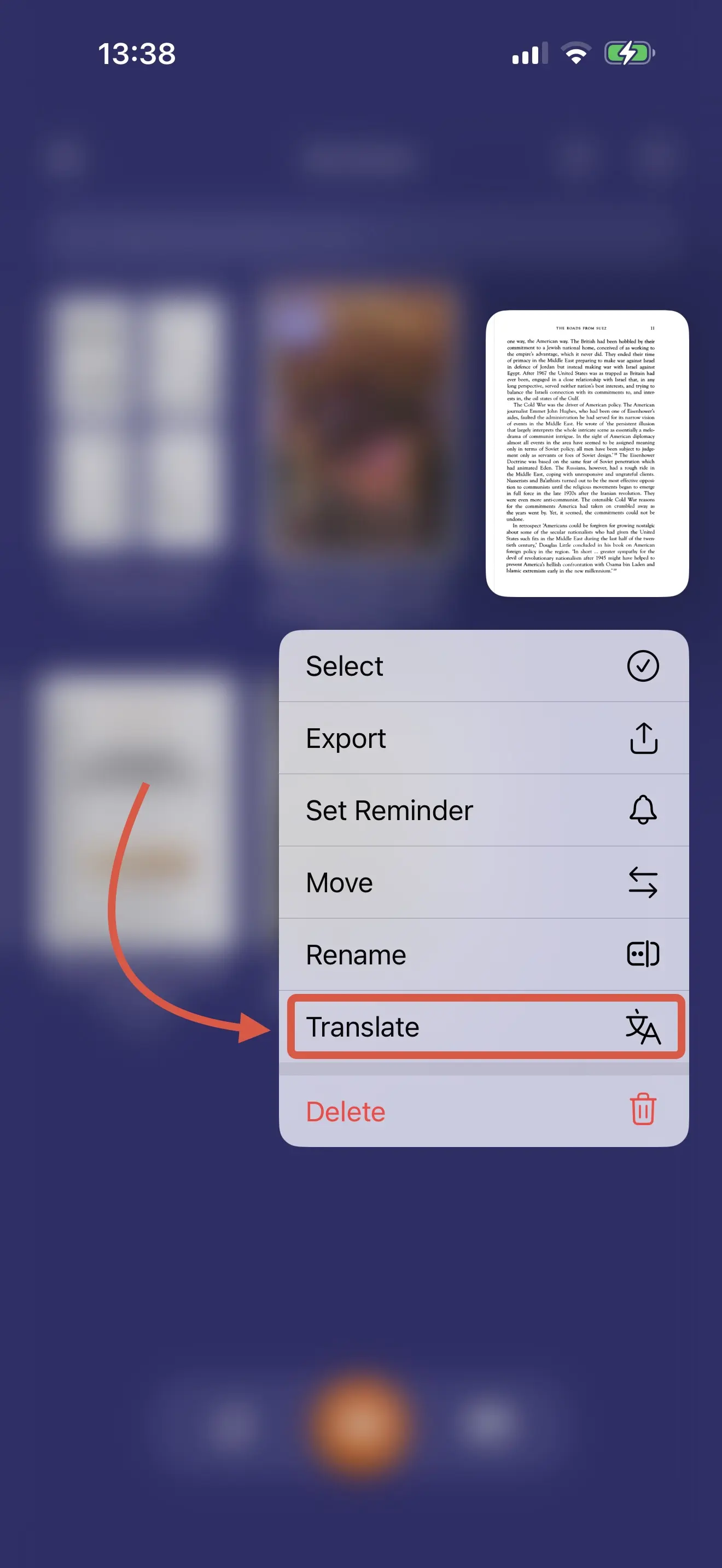
There are three entry points to this feature:
- Tools tab > Create section > Translate
- File’s open view > Translate button at the bottom of the screen
- By long-tapping on the file
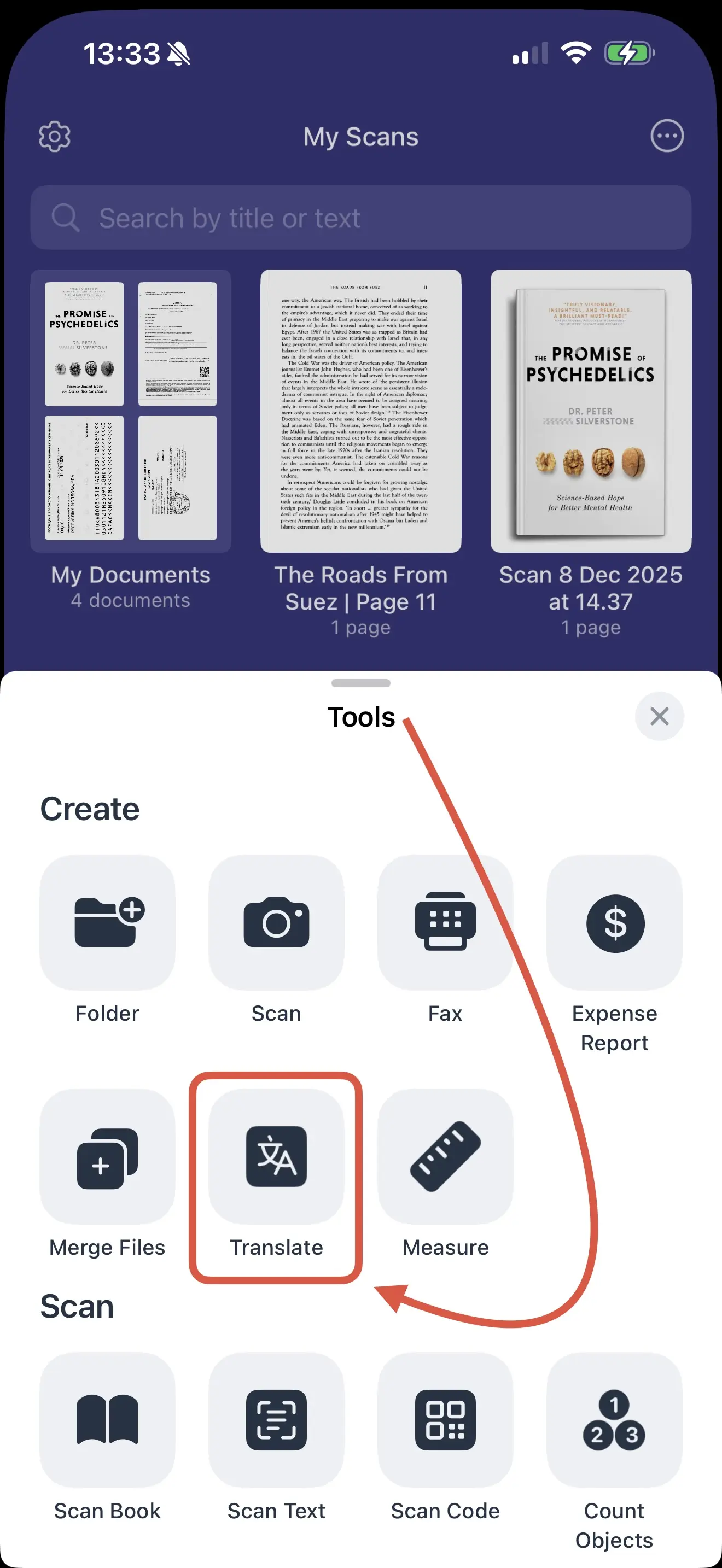
Here’s what you need to do:
- Choose the document you want to translate.
- Tap Translate and select the needed language.
- Let the languages you’re using load (it could take a couple of minutes).
- Get the end result and choose what you’d like to do with it.
Once you’re content with the result, you have a great range of what to do with your file: save it to Scanner Pro or share it to another app right away. If you save it in the app, you can later add pages to it, export the file to another format, send it as a fax, upload the file to a service or a cloud storage, edit the scan itself and more.
FAQ
Can you change the language in a PDF file?
Yes. You can actually translate the text of your PDF file if needed by using either online solutions (like Google Translate or DeepL Translator) or mobile apps (Scanner Pro).
Where to translate a PDF for free?
You can use Google Translate for a quick, free of charge translation.
How can I translate text from a PDF?
First, you determine if the text in your PDF file is selectable or not. If it is, you can simply copy/paste the text to any translator, or upload the full file to it. If the file is a scan, you will need to use an app that has OCR (text recognition) in order to be able to translate your PDF.

Take high-quality scans
Easily turn papers into PDFs with your iPhone and iPad. Scan receipts, books, IDs, invoices.