The majority of scanning apps, like Scanner Pro, store your scans on iPhone or iPad, but getting those files onto a Windows or Mac PC is straightforward once you know your options. This guide covers every method available for transferring scans to a PC, from cloud storage to email to direct links, so you can pick the one that fits how you already work.
Whether you're moving a signed contract to your desktop, sending receipts to an accountant, or archiving records, at least one of these methods will fit your workflow.
Method 1: Cloud Storage (Google Drive, Dropbox, OneDrive, Box)
The most reliable way to get files from an app like Scanner Pro to a PC is through a shared cloud folder. Currently, Scanner Pro works seamlessly with Google Drive, Dropbox, Box, OneDrive, OneNote, and Evernote. To connect one of these services to the app, please follow these steps:
- Open the Scanner Pro app.
- Go to Settings.
- Tap the Add Service button.
- Select the cloud service you’d like to connect and follow the on-screen instructions to complete the process.
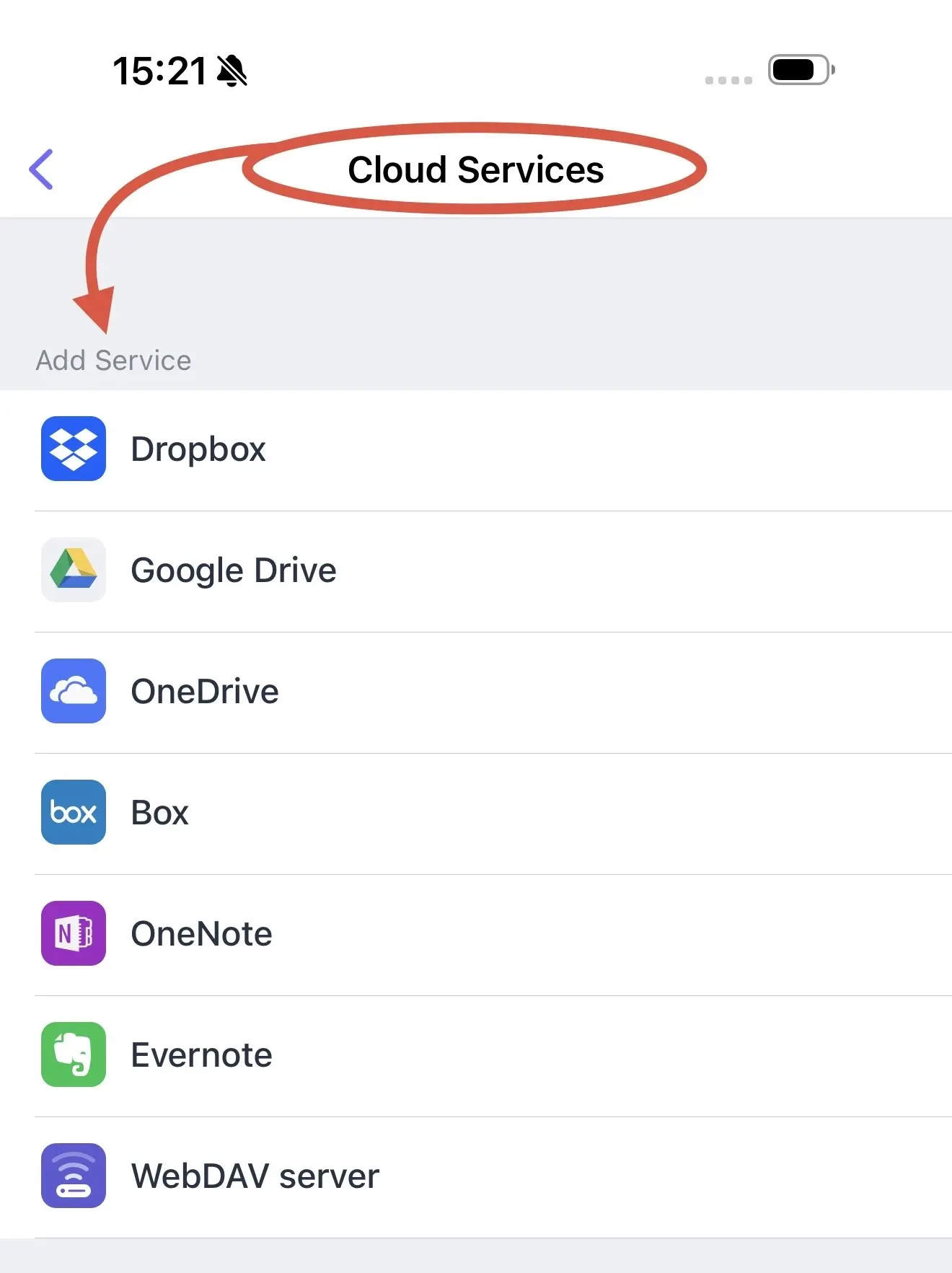
After that, you’ll be prompted to turn on Auto Upload. This feature automatically saves all your new scans to the cloud. Tap “Enable” if you’d like to use this option, or “Skip” if you prefer to upload files manually.
Scanner Pro Plus subscribers can set scans to upload automatically the moment a document is saved, with no manual steps required. To configure this:
- Open Settings in Scanner Pro.
- Go to Cloud Services > Auto Upload.
- Select your preferred service and folder.
- Toggle Auto Upload on.
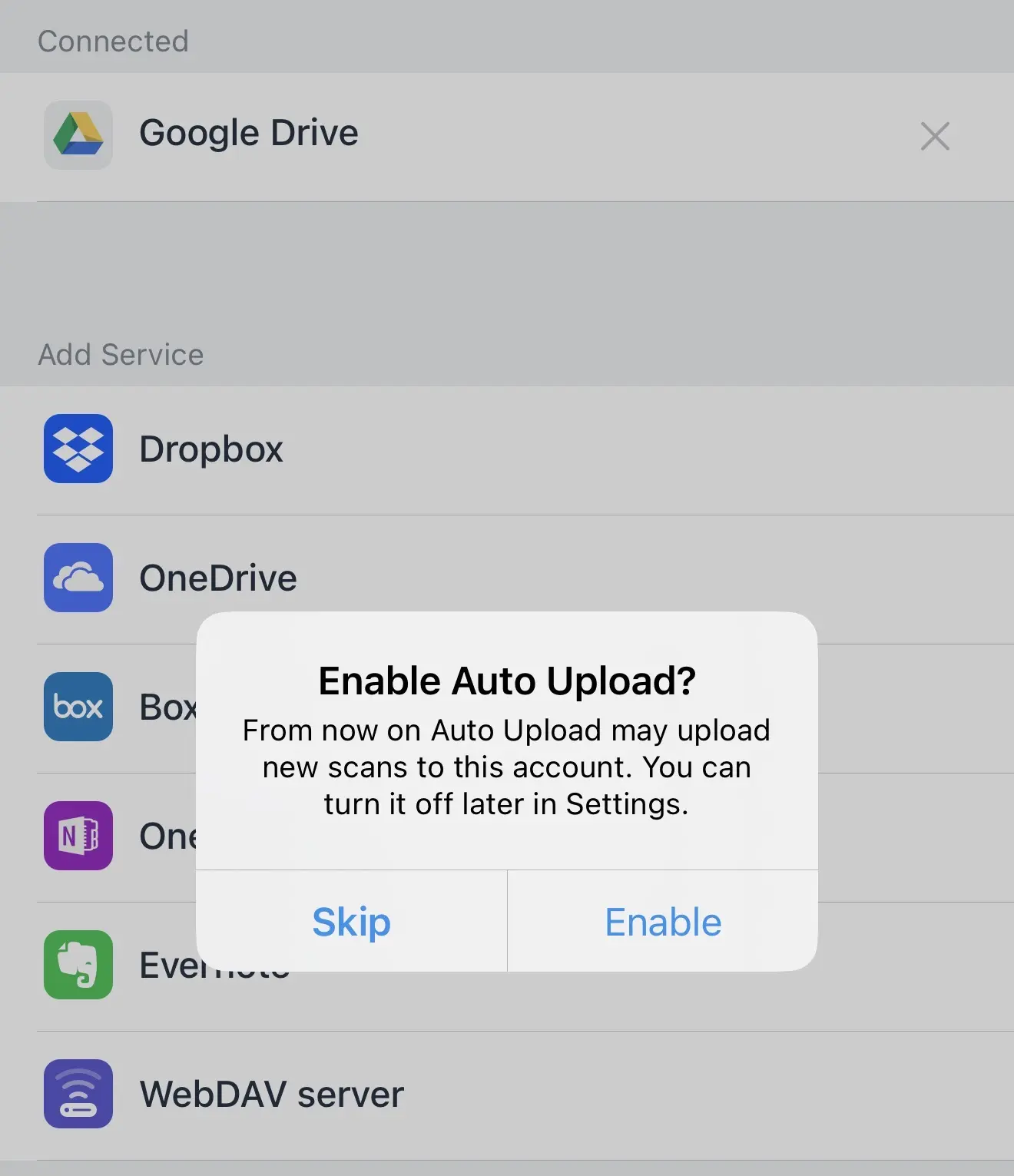
Every new scan goes straight to that folder. On your PC, the file is waiting in your Dropbox, Google Drive, or OneDrive folder as soon as the upload completes.
Once the cloud service is connected to Scanner Pro, you can easily access your files on your desktop by simply visiting the website or app of your chosen cloud storage.
Method 2: WebDAV servers
Accessing files from your Scanner Pro app via WebDAV is easy. You can connect your iOS device to a desktop wirelessly to transfer your scans:
Make sure your iPhone or iPad and your desktop are connected to the same Wi-Fi network.
- Open the Scanner Pro app and go to Settings.
- In Settings, ensure the WiFi Access toggle is enabled. Under the WiFi Access toggle, you'll see an IP address needed for the next step.
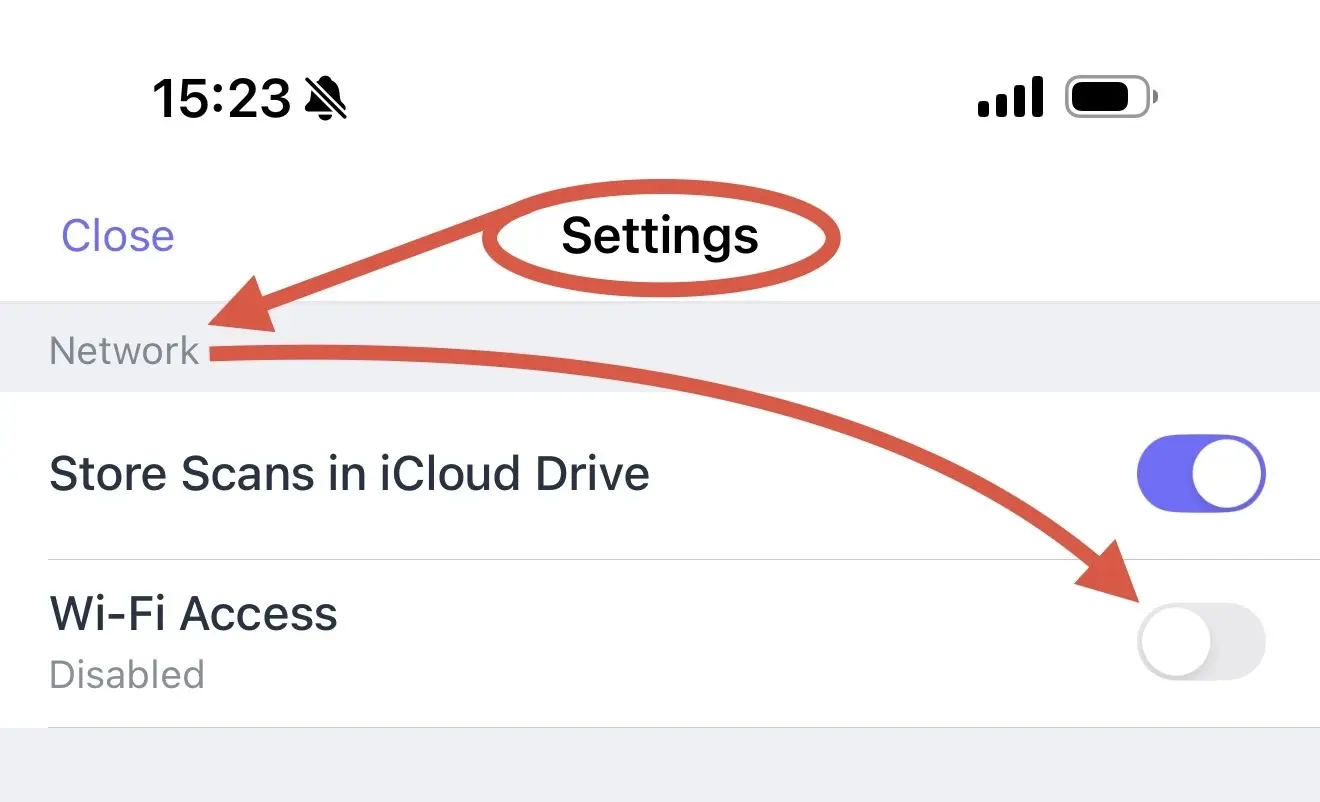
- Open a web browser on your computer. In the address bar, type the IP you see under the WiFi Access toggle as URL http://. (e.g., http://123.456.78.90)

A list with your scans names will appear on the Web page. To open a scan, just click its name. Once the scan is loaded, you can download it by clicking the “Save” button.
Method 3: Email
Email works well for one-off transfers or when you need to send a document to someone else at the same time.
- Open the scan in Scanner Pro.
- Tap the Export button.
- Select Mail.
- Address the email to yourself (or anyone else) and tap Send.
The scan is attached as a PDF. Open the email on your PC and save the attachment wherever you need it.
For sending to an accountant, client, or colleague, this doubles as your delivery method: no separate step needed.
Method 4: Share by Link
Share by Link generates a secure URL for your document that anyone with the link can open in a browser, including from a PC.
- Open the document in Scanner Pro.
- Tap the Export button.
- Select Share Link.
- Copy the link and paste it into an email, message, or note.
Open that link on your PC to view or download the file. No app installation required on the receiving end.
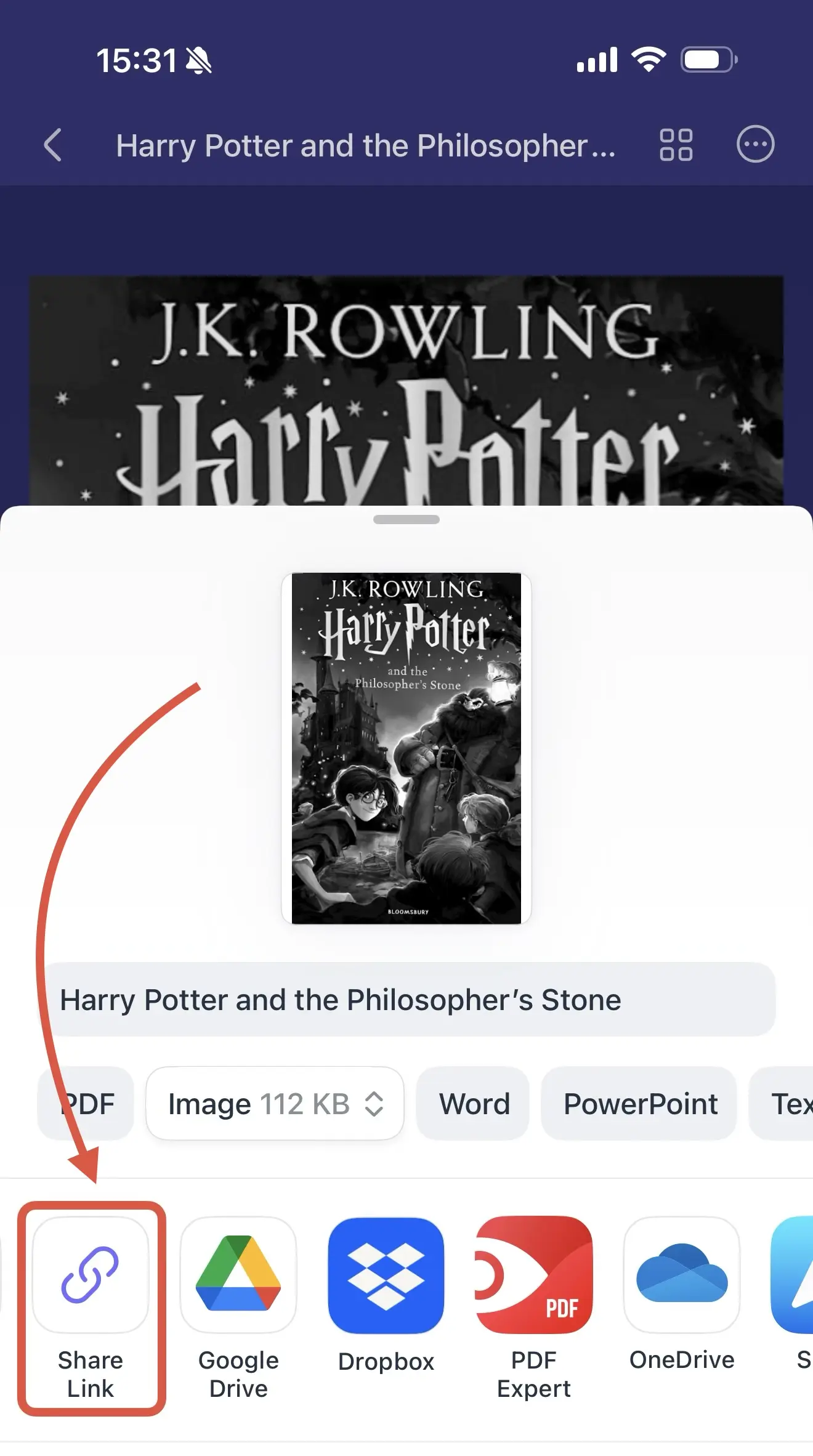
You can use the Share by Link feature to send documents in PDF, JPEG, and TXT formats. It works for single documents, batches of multiple files, or even a selection of specific pages from a document.
Method 5: AirDrop (Mac only)
If you're transferring to a Mac specifically, AirDrop is the fastest option - no accounts, no uploads, and no waiting.
- Open the scan in Scanner Pro.
- Tap the Export button.
- Choose Share.
- Select AirDrop.
- Choose your Mac from the list of nearby devices.
Both devices must be on the same Wi-Fi network and have Bluetooth enabled: in this case, the file transfers instantly and appears in your Mac's Downloads folder.
Tips for smoother transfers
- Export as PDF for compatibility. PDFs open on every PC without additional software. When sharing, Scanner Pro defaults to PDF - keep this unless you specifically need JPEG.
- Use OCR before transferring. If you need the text in your scanned document to be searchable or editable on your PC, run OCR in Scanner Pro first.
- Use the PDF Converter for Word or PowerPoint output. If your PC workflow requires an editable Word document or PowerPoint file rather than a PDF, use Scanner Pro's PDF Converter before exporting. Tap Tools > Export to Word (or PowerPoint), then share the converted file.
- Name files before sharing. Scanner Pro generates filenames automatically, but you can rename any document before exporting. Tap the document name and edit it. Descriptive filenames make files easier to find on your PC later.
FAQ
Does Scanner Pro have a Windows or PC app?
No. Scanner Pro runs on iPhone and iPad only - there is no Windows app. All PC transfers happen through cloud storage, email, AirDrop, or shared links.
Can I access my scans on a PC without cloud storage?
Yes. Use email to send files to yourself,or use Share by Link to generate a browser-accessible URL. None of these require a cloud account.
Is Auto Upload included in the free version?
No. Auto Upload to cloud storage requires Scanner Pro Plus. The free version supports manual sharing to cloud services.
Does OCR work on the file once it's on my PC?
Yes. If you run OCR in Scanner Pro before exporting, the resulting PDF contains a searchable text layer that works in standard PDF readers and Windows Search on your PC.
Can I share to multiple cloud services at once?
Not in a single tap, but you can share to multiple services manually. Scanner Pro Plus users can configure Auto Upload to one primary cloud destination automatically.
What's the best method for sending documents to a client on a PC?
Email with a PDF attachment or Share by Link both work well. Share by Link is particularly convenient: the recipient doesn't need to download anything, they open the document directly in their browser.
Does the transfer preserve document quality?
Yes. Scanner Pro exports at full resolution. The PDF or JPEG you receive on your PC is the same quality as the original scan.

Take high-quality scans
Easily turn papers into PDFs with your iPhone and iPad. Scan receipts, books, IDs, invoices.