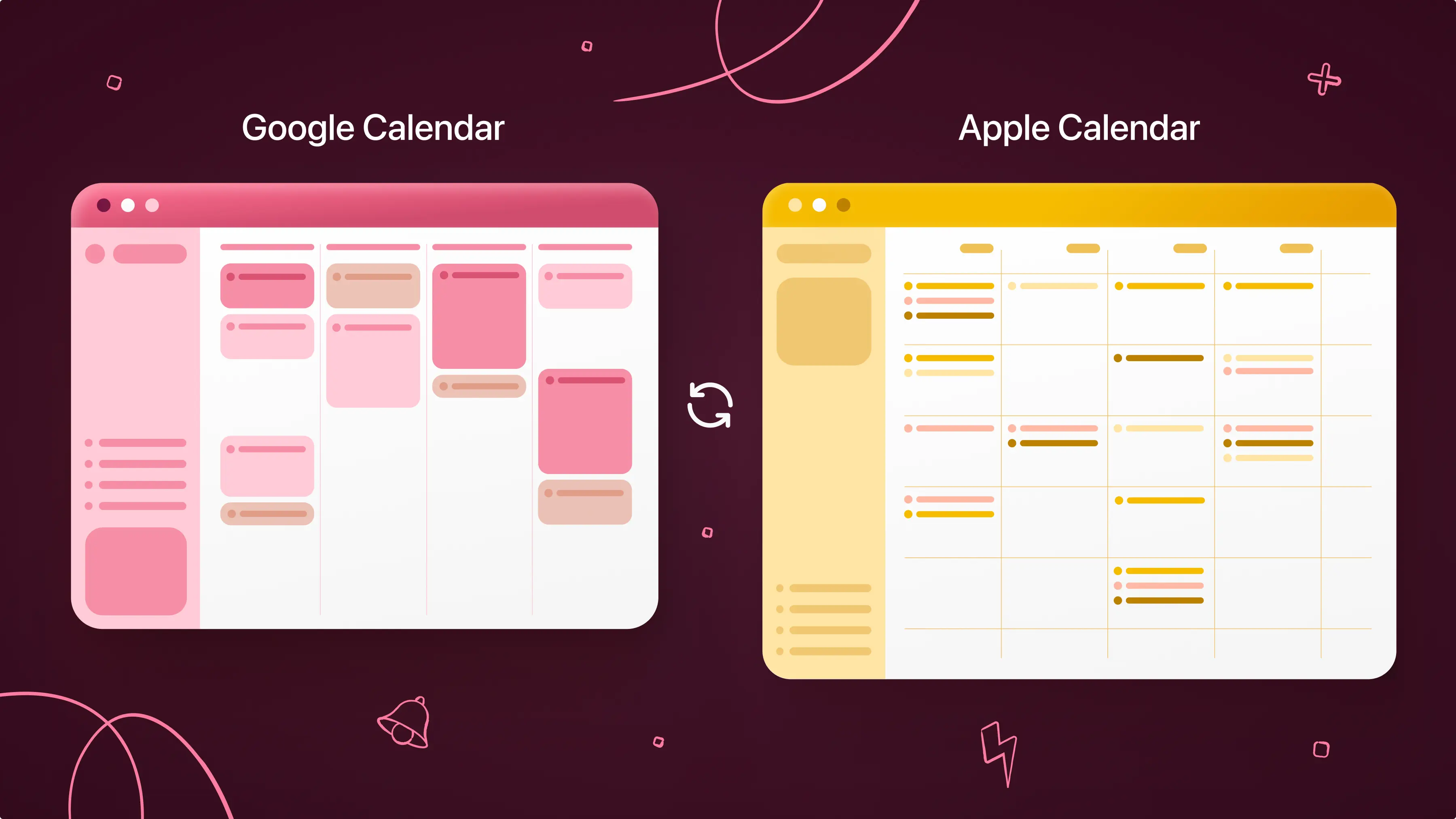
Google Calendar is one of the most popular scheduling tools in the world, but having a calendar isn't the same thing as being organized. For many people, Google Calendar isn't the only calendar they use. Work meetings might live in Outlook, family events might be shared through iCloud, and personal appointments may be spread across multiple Google accounts. What starts as a simple scheduling system can quickly become a patchwork of calendars, reminders, and notifications living in different places. Meaning keeping track of where events live can sometimes be more challenging than remembering the events themselves.
True calendar organization is about creating a calendar that gives you a clear view of your responsibilities, protects time for your priorities, and helps you manage every part of your life in one place. In this guide, you'll learn the best way to organize Google Calendar and bring together schedules for a more complete view of your day.
Why Most Google Calendars Become Cluttered
Most calendars don't become cluttered overnight. It usually happens little by little. If your calendar needs a reset, you might find yourself missing appointments or overlooking important commitments because they're buried among less urgent events. You may also notice that work and personal schedules are competing for space, requiring you to switch between multiple calendar apps throughout the day. Even with a full calendar, it can feel like you're always busy but rarely making progress on your most important priorities.
Before You Organize Google Calendar, Audit Your Calendars
Before you change anything about how your calendar looks, it helps to understand what you’re actually working with. This is why the first step in organizing Google Calendar is taking stock of what already exists. Understanding how many calendars you’re working with, where they live, and what they’re used for creates the foundation for everything that comes next.
Start by listing every calendar you currently use. This includes every Google account, Outlook calendar, iCloud calendar, shared family calendar, or any other scheduling tool connected to your work or personal life.
Next, go into each calendar and identify what it’s actually being used for. Is it for work meetings? Personal appointments? School deadlines? Family events? Many people find that calendars have slowly accumulated overlapping purposes over time, without any intentional structure.
Then, notice how often you’re switching between them. If you regularly jump between apps just to understand your schedule, that’s a sign your calendars are functioning in isolation rather than as one system.
After that’s finished, follow these seven steps to get your Google calendar organized efficiently.
Step 1: Bring Everything Into One View
Once you’ve audited your calendars, the next step is to make sure you can actually see everything in one place.
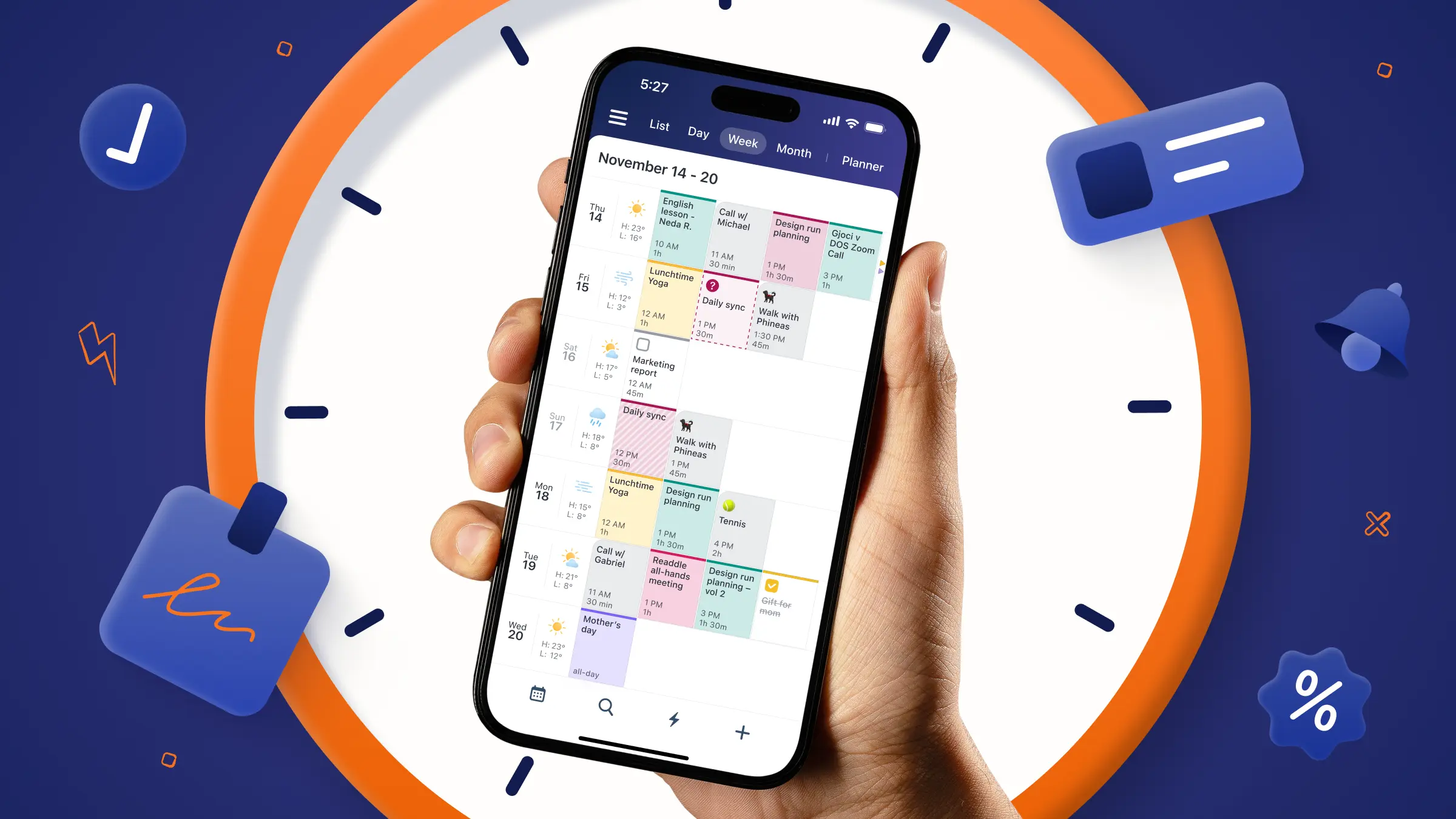
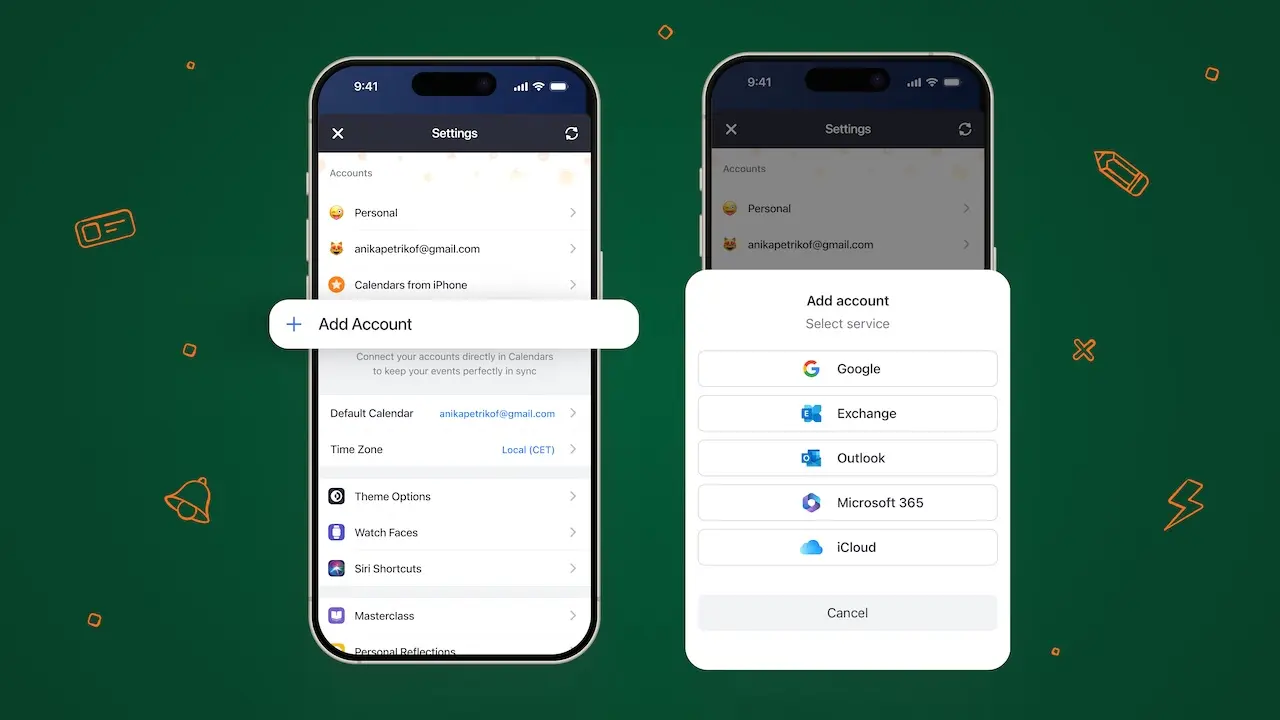
Instead of managing each calendar separately, tools like Calendars by Readdle allow you to connect Google Calendar, Outlook, and iCloud calendars into one unified view. This doesn’t replace your existing calendars or change how they’re set up, it simply brings them together so you can see your full schedule at once.
That shift matters. Because once everything is visible in one place, you’re no longer guessing what your day looks like or switching between apps to piece it together. You can actually see overlaps, gaps, and patterns in your time.
Expert tip: If you want step-by-step instructions on how to connect your Google calendar and more, you can read our guide, How to Sync Google Calendar with your iPhone or Mac.
Step 2: Create Separate Calendars for Different Areas of Life
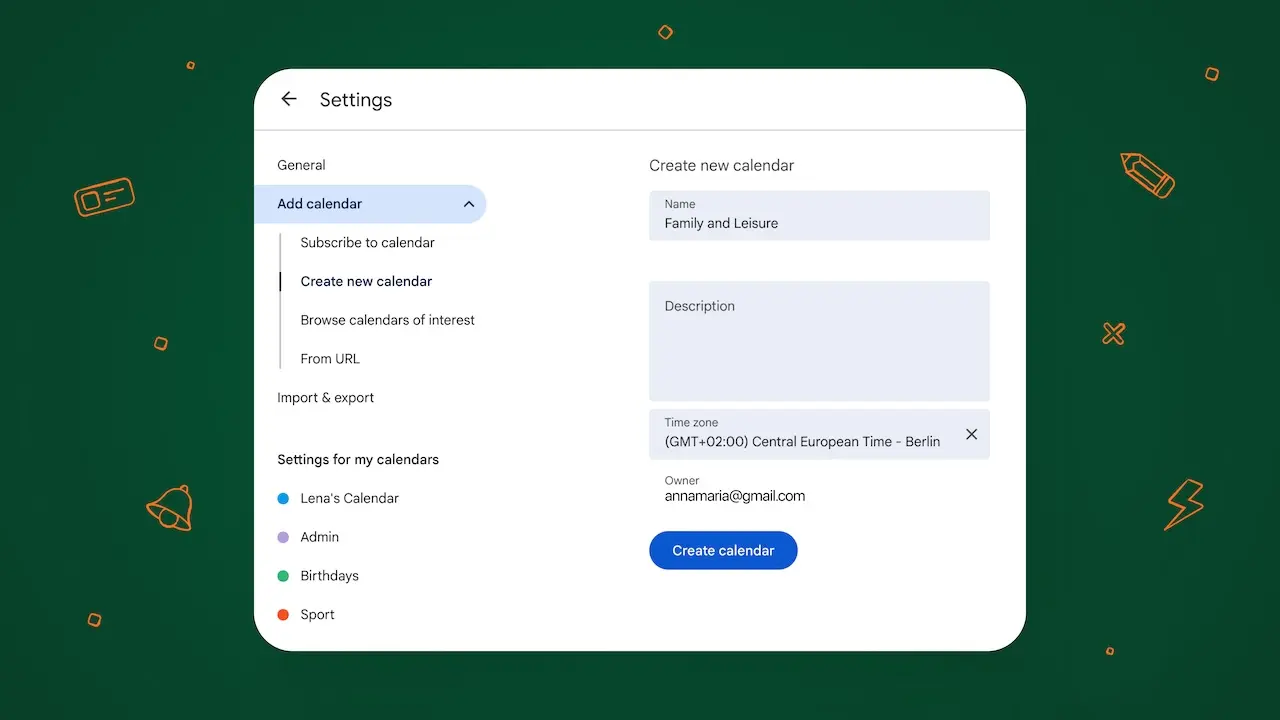
From here, the next step is to bring structure into Google Calendar itself by creating separate calendars for different areas of your life. The key is not to duplicate what already exists in other apps. For example, if your work calendar already lives in Outlook, you don’t need to recreate it in Google Calendar. Instead, focus on building structure for the parts of your life that don’t already have a clear system.
You can create different calendars for:
- Personal
- Family
- Health and fitness
- School
This structure makes it easier to understand what kind of time you’re actually spending each week. Work meetings don’t get visually mixed with personal appointments, and family commitments don’t disappear under deadlines or recurring reminders. It also adds flexibility. You can toggle entire calendars on or off depending on what you need to focus on, without losing anything in the process.
Step 3: Create a Color-Coding System
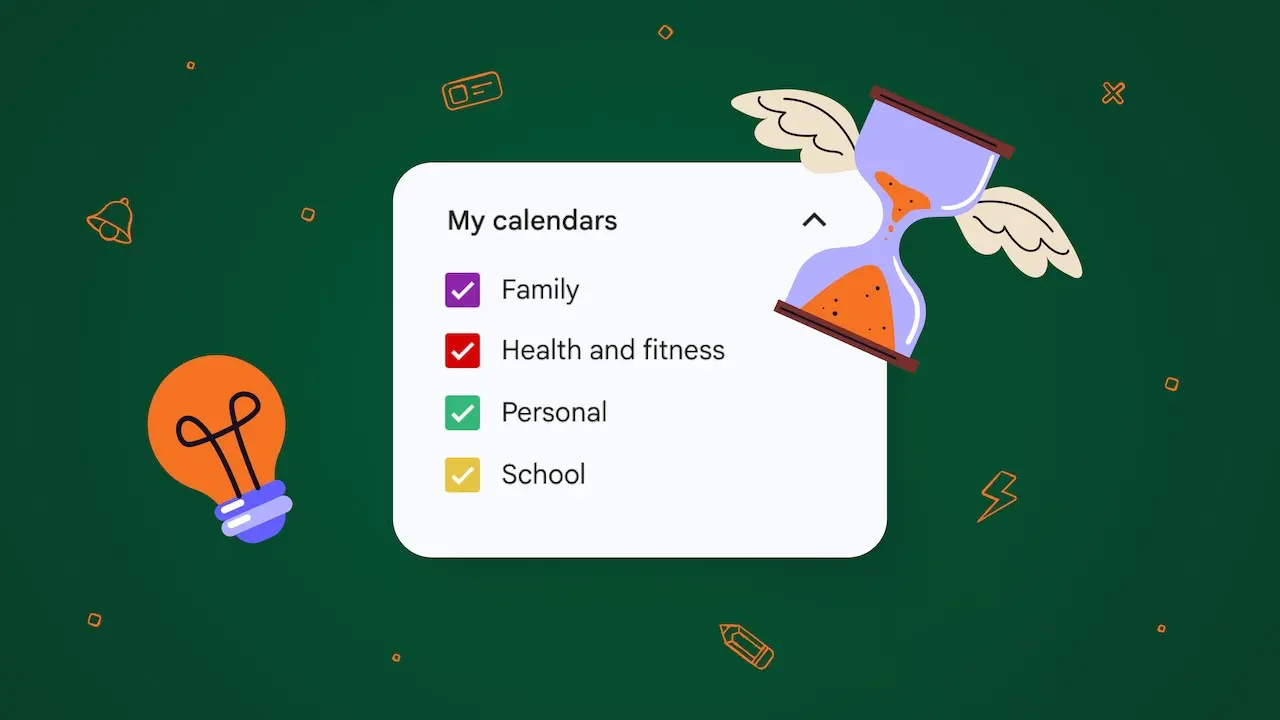
Many people assign colors randomly, which defeats the purpose of visual organization. A consistent color-coding system makes your calendar easier to scan at a glance. Over time, color coding also helps you spot imbalance. If your calendar is overwhelmingly one color, it’s a signal that one area of life may be taking up more space than you intended.
Here’s one simple example you can implement.
|
Calendar Type |
Suggested Color |
|
Personal |
Green |
|
Family |
Purple |
|
Health and fitness |
Red |
|
School |
Yellow |
Step 4: Organize Tasks Alongside Events
Google Calendar becomes significantly more powerful when tasks and events live in the same ecosystem. Instead of keeping your to-do list in a separate app, bring key tasks into your calendar so they reflect your actual time constraints.
Google Tasks allows you to connect tasks directly to your calendar. This helps you see not just where you need to be, but what you actually need to do in the time around it. This is also where Calendars by Readdle adds an extra layer of clarity. You can sync Google Tasks within the app and view them alongside all your connected calendars in one place, creating a single view of both your schedule and your to-dos.
Step 5: Use Time Blocking to Protect Important Work
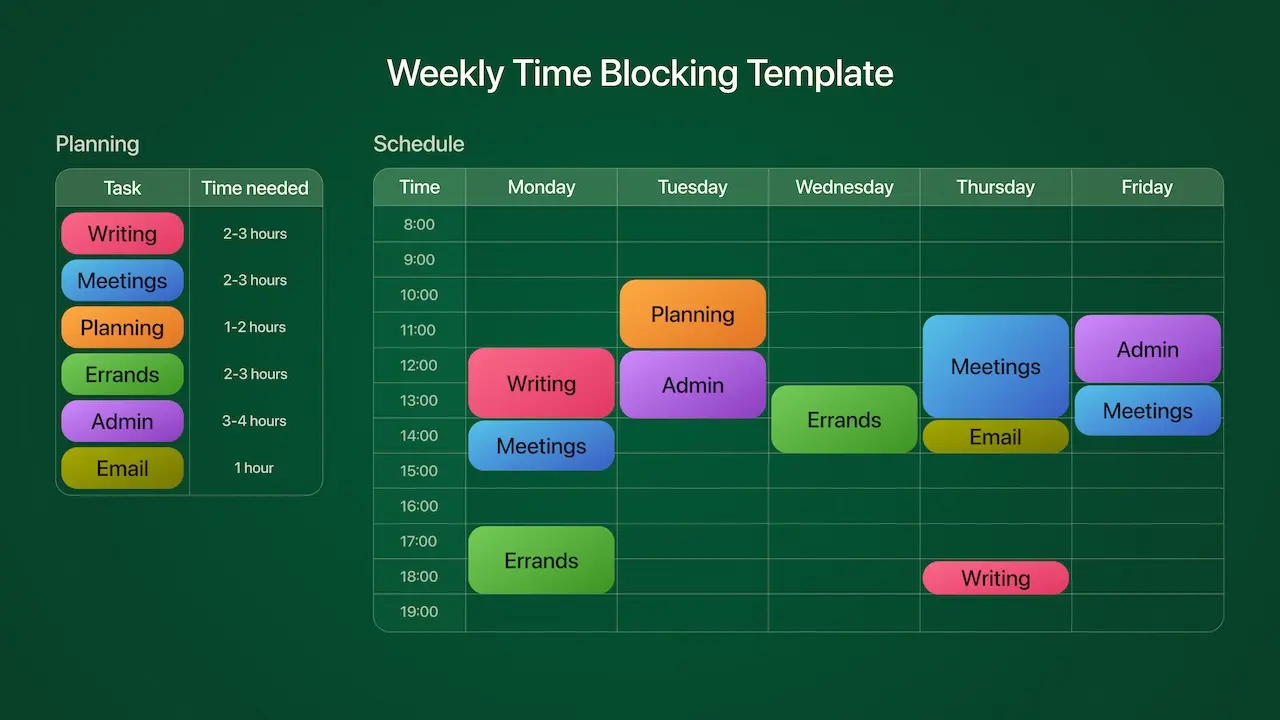
Instead of letting your day get filled with scattered meetings, reminders, and last-minute tasks, time blocking allows you to proactively assign time to what actually matters. In other words, you’re not just recording your schedule, you’re designing it.
This approach becomes especially powerful when combined with how you manage tasks and habits. Rather than constantly switching between priorities, time blocking encourages single-tasking, where each block of time is dedicated to one focused activity. This reduces context switching and helps you make real progress instead of fragmented progress across multiple things at once.
It also naturally supports task batching. Instead of handling small tasks throughout the day as they come up, you group similar tasks into a dedicated block of time. For example, you might batch all administrative work, emails, or follow-ups into one focused session instead of scattering them across your week. This keeps your calendar cleaner and your attention more stable.
Step 6: Share Calendars Strategically
Sharing calendars can significantly improve organization, but only when it’s done intentionally. When used well, shared calendars reduce the need for back-and-forth messages, prevent scheduling conflicts, and create clarity around who is doing what and when.
However, sharing everything with everyone can quickly have the opposite effect. Too many shared calendars or too many notifications can create noise. A better approach is to be selective about what you share and who you share it with.
Common situations where shared calendars are most useful include:
- Family calendars for coordinating appointments, activities, and household schedules.
- Team calendars for improving visibility around meetings and availability.
- Project calendars for tracking shared deadlines and milestones.
- School calendars for students, parents, or group academic planning.
Step 7: Declutter Your Calendar Regularly
Even the most well-organized calendar can slowly become cluttered over time. New commitments get added, old routines fall away, and recurring events continue long after they’re useful. Without regular maintenance, your system starts to lose clarity.
That’s why it helps to treat your calendar like something that needs occasional upkeep and not a one-time setup .Every so often, take a few minutes to reset and review what’s still relevant. This can include:
- Removing calendars you no longer use.
- Archiving outdated or completed calendars.
- Reviewing recurring events that no longer reflect your current routine.
- Reducing unnecessary notifications.
- Deleting duplicate or outdated events.
These small adjustments help prevent your calendar from becoming overloaded with information that no longer serves you. And remember, if you want an easier way to bring all your calendars together, manage them in one place, and keep your schedule consistently organized, you can download Calendars by Readdle.