We’re making Documents simpler and more focused on what matters most: giving you the fastest and easiest ways to manage and share your files.
As part of this, the Nearby Sharing feature will be removed from the app soon. While it has helped people share files locally in the past, there are now faster, more secure, and more reliable ways to do the same thing.
Here’s what is changing and how you can continue sharing your files in just a few taps
Why we’re removing Nearby Sharing
Technology evolves, and so do the ways we share information. Nearby Sharing was built for a time when local transfers were the only quick option. But now, modern sharing tools are built directly into your devices, making it easier than ever to move files without relying on a specific app feature.
By focusing on these built-in tools, we can keep Documents lighter, faster, and more secure while improving the experiences that people use every day.
The best ways to share files in Documents
If you want to move files between your devices or send something to a friend, there are several great alternatives to Nearby Sharing already available in Documents.
1. AirDrop
If you’re in the Apple ecosystem, AirDrop is your best friend for quick transfers. It’s fast, wireless, and completely secure.
To share:
- Select your file in Documents
- Tap Share → AirDrop (click on More if you don’t see the option)
- Choose a nearby device
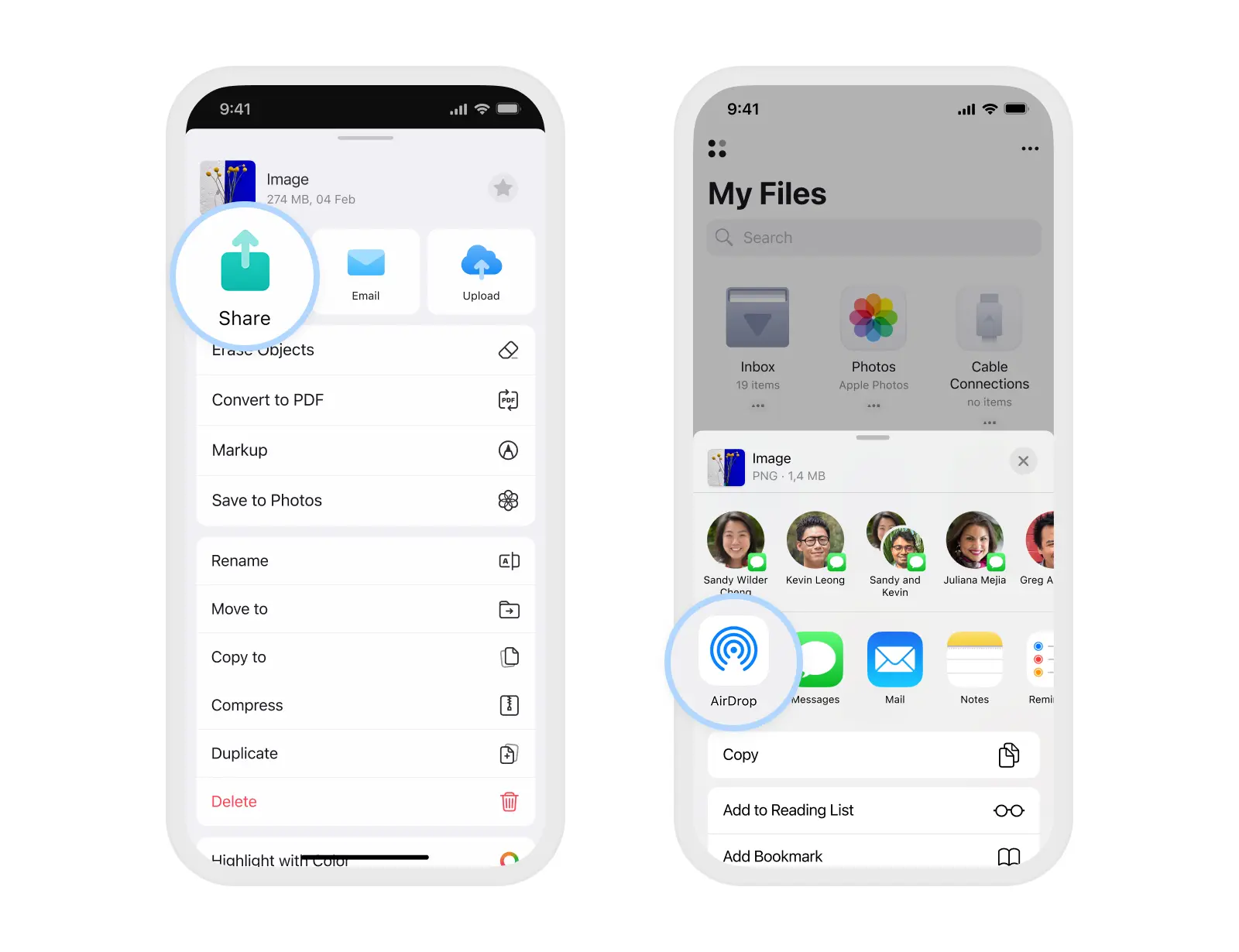 Your file appears instantly on the other device with no setup, no cables, and no waiting.
2. File Transfer (formerly Connect to Computer)
Need to send something from your iPhone or iPad to your computer? The File Transfer tool makes it seamless over Wi-Fi.
You can open docstransfer.com in any browser. It works on Mac, Windows, or even Android. All you need is your iPhone or iPad with the Documents app installed.
Make sure both your iPhone and computer are connected to the same Wi-Fi network.
- Open Documents on your iPhone.
- Tap the + button and select Connect to Computer.
- On your PC, open the web browser and go to https://docstransfer.com.
Enter the code displayed on your iPhone. - Your iPhone and PC/computer are now connected!
- Drag and drop files between your devices
It’s a simple, private way to move files without needing cables or extra apps.
.webp)
3. Cloud Storage
Documents works beautifully with all major cloud services, including iCloud, Google Drive, Dropbox, and OneDrive.
Connecting your cloud accounts lets you sync and access files across all your devices.
To connect to iCloud:
- Open the System Settings on your device.
- Tap your name and select iCloud.
- Tap Saved to iCloud > See All.
- Enable the Documents toggle.
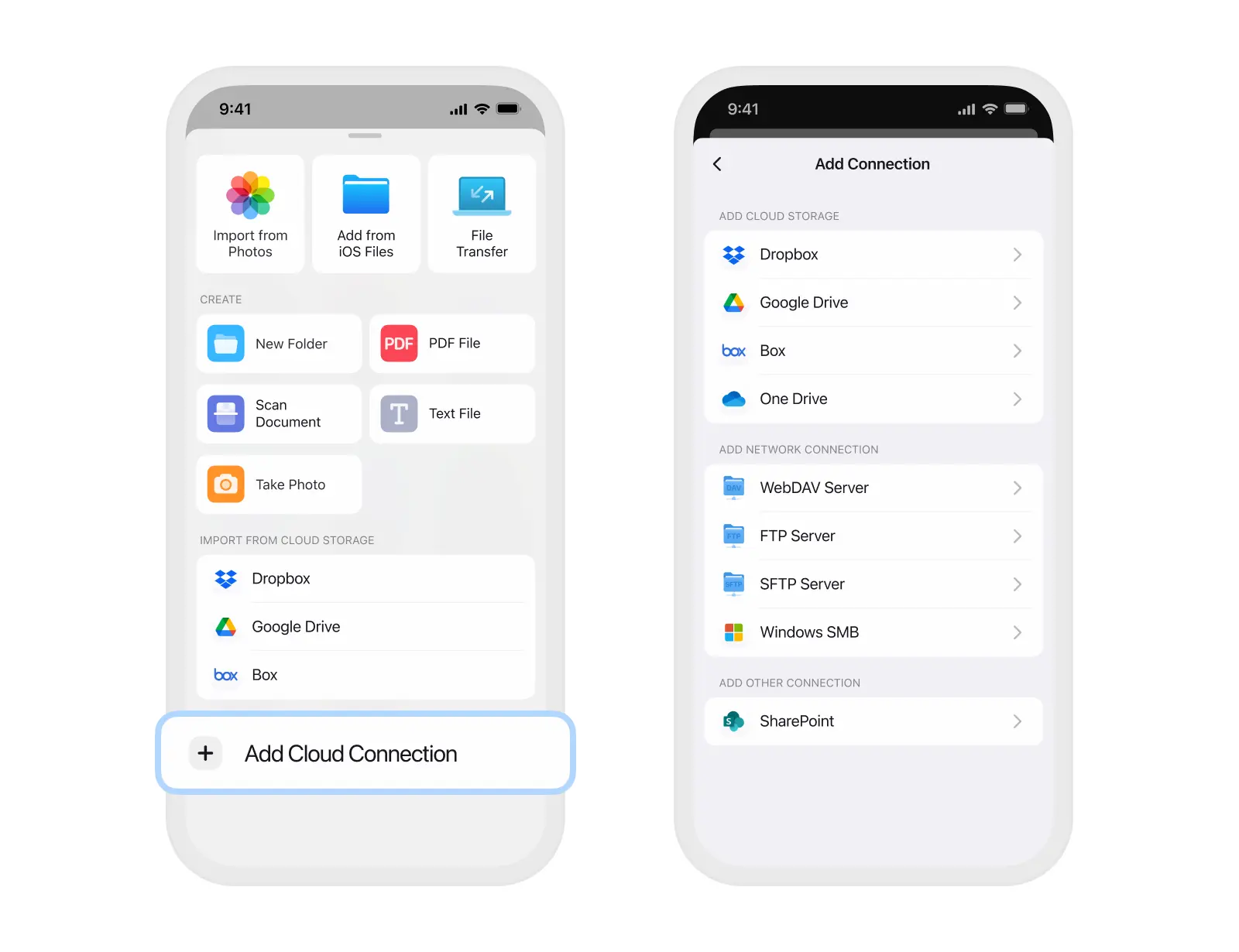
To connect to another cloud storage:
- Launch Documents and tap the Plus button.
- Tap Add Cloud Connection and select a service from the list.
- Follow the on-screen instructions to log in.
Note: Make sure to connect to the same cloud storage on each of your devices.
Sync files through your cloud storage
To sync files between devices, upload them to your cloud storage first.
To upload files from your iPhone or iPad using iCloud:
- Open Documents, tap … at the top right, then select Select.
- Choose the files you want to sync.
- On the toolbar at the bottom, tap Copy to keep the local file and also edit its copy in the cloud. Tap Move if you want the file stored and edited only in the cloud.
- Select the folder in your cloud storage and tap the button at the top right.
- You can also drag and drop the desired files into your cloud folder.
To upload files from your iPhone or iPad using another cloud:
- Open Documents, tap … at the top right, then select Select.
- Choose the files you want to sync.
- Tap More on the bottom toolbar.
- Select Upload → choose your cloud storage for sync.
- Tap Upload at the top right.
Once connected, your Documents app becomes your personal file hub that keeps everything in sync across all your devices.
4. Share via messengers or email
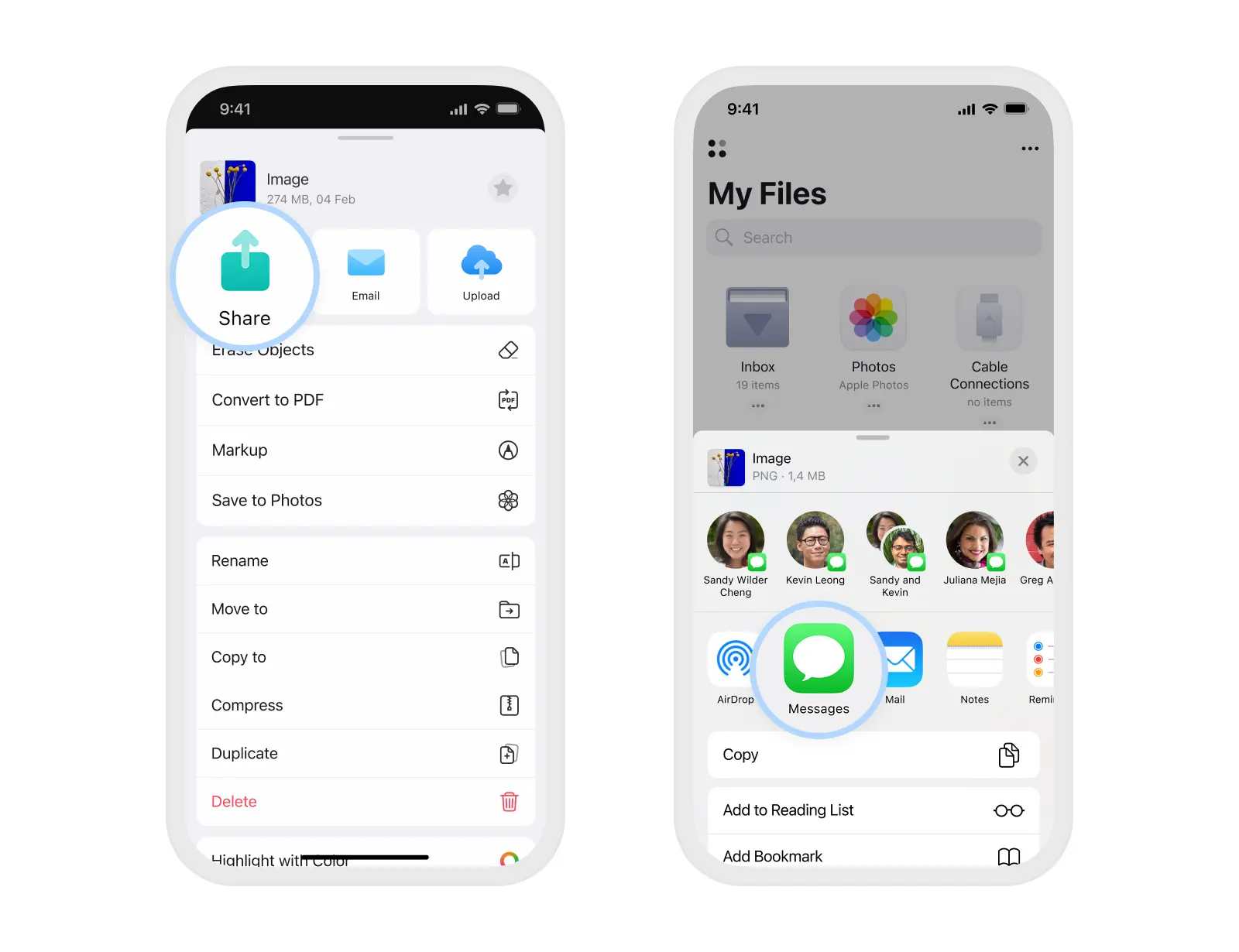
Sometimes, the easiest option is just to send a file through the apps you already use. Documents supports sharing through Messages, Mail, WhatsApp, Telegram, and more.
To share a single file or folder:
- Open the Documents app.
- Tap More (⋯) on the file or folder you want to share.
- Select Share.
- Choose the app to share your file with or pick an option from the list. If you don’t see the desired option, scroll to the right and tap More.
To share a flattened PDF or annotated pages only:
- Open the desired PDF file.
- Tap More (⋯) at the top right.
- Select Share.
- Choose the document format and tap Share.
- Select the app you want to share your file with.
To share multiple files at once:
- Launch the Documents app.
- In My Files or the desired folder, tap … at the top right and select Select.
- Choose the files you want to share.
- Tap More at the bottom and select Share.
- Choose the app to share the files with or select the needed option from the list. If you don’t see the desired option, scroll to the right and tap More.
Bonus: Share files from cloud via a link
Once you connect your cloud storage to Documents, you can easily share a link to uploaded files or folders with other people. This is perfect when you need to quickly share documents for others to view, download, or collaborate on.
Depending on the cloud service you use, there are two ways to create a shareable link.
Share a link from Google Drive, Dropbox, or Box
These clouds let you generate a link directly inside the Documents app.
To share a link:
- Open your cloud folder in Documents.
- Find the file or folder you’d like to share.
- Tap … on it and choose Share link.
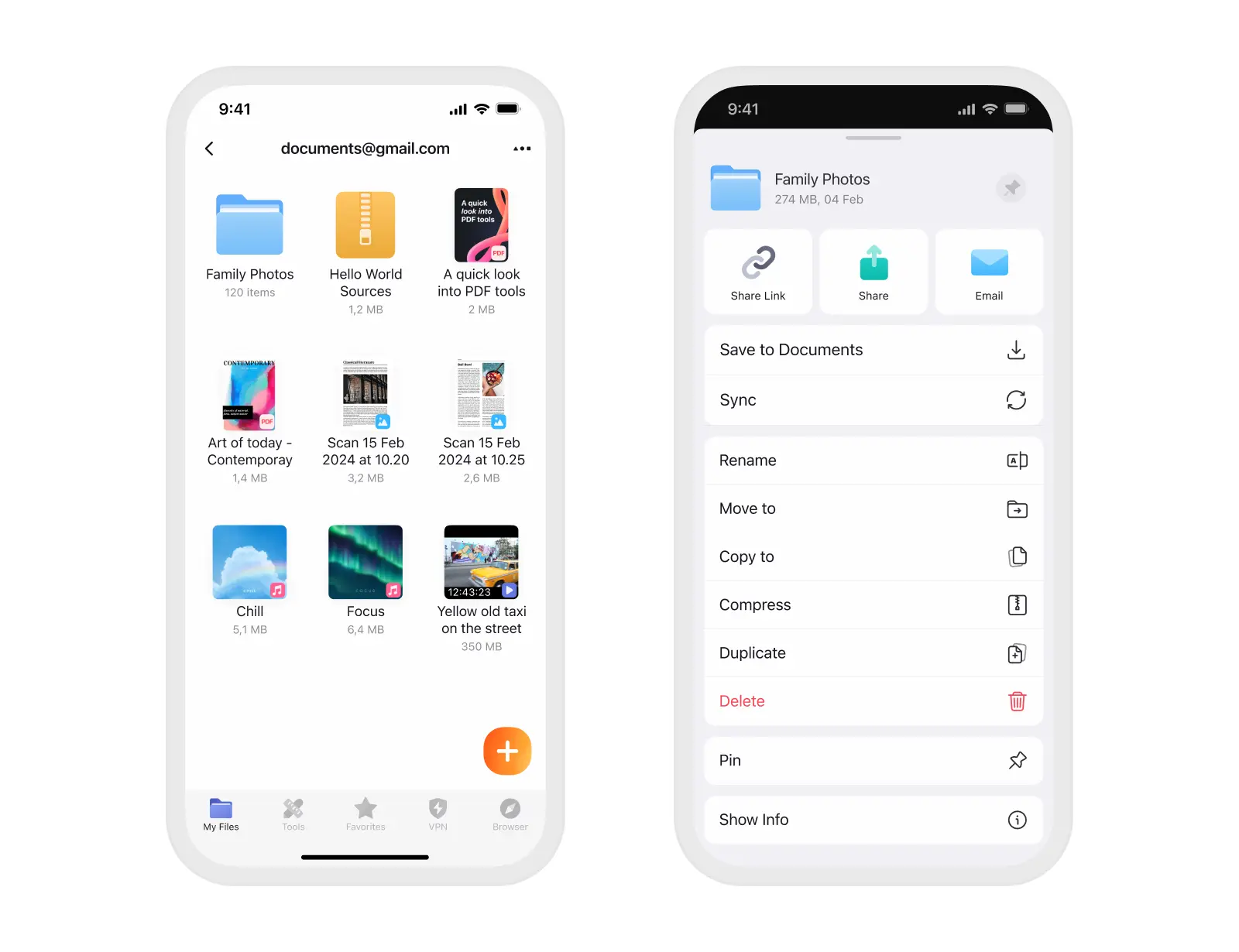
Once the link is opened by the recipient, they can view and download the shared file or folder.
To change permissions so people can edit or comment, open your file in a browser or the dedicated cloud app.
Moving forward
Nearby Sharing served its purpose for a while, but it’s time to focus on faster and more flexible ways to share. AirDrop, File Transfer, cloud storage, and sharing through messengers or links give you all the options you need while staying reliable and future-ready.
Documents will continue to evolve to make your workflow smoother, faster, and easier. This change helps us take another step in that direction.
